I was trying to manage my hard drive partitions and accidentally deleted one that had important files on it. Now the space shows as unallocated, and I can’t access my data. I need help figuring out if the partition can be recovered and what steps to take next to avoid making it worse.
I did the same dumb thing once in Disk Management and wiped the wrong partition. It looked bad for a minute, but the data was still there. When a partition gets deleted, Windows often removes the partition table entry and leaves the files sitting on the drive until new data lands on top of them. So if this happened to you, stop touching the drive first.
Big one, leave the disk alone. Don't make a new partition. Don't format the empty space. Don't copy anything onto it. Those three mistakes wreck recoveries fast.
Before you do anything else, open Disk Management and look at the drive status.
If the partition still exists and only lost its drive letter, adding the letter back might make it show up again.
If the area shows as Unallocated, the partition entry was likely removed.
The order I followed was this:
- Stop using the drive.
- Pull off the important files first.
- Open a sample of the recovered files and make sure they aren't broken.
- Then either rebuild the old partition with TestDisk or make a fresh one in Disk Management.
- Copy your recovered stuff back if you went with a new partition.
For file recovery, I had decent luck with Disk Drill. What stood out for me was how it found deleted partitions and loose files in the same pass, and it kept folder names and filenames more often than I expected.
I did this on Windows 11. The menu names are close enough on older Windows versions.
Getting the files off with Disk Drill
- Install Disk Drill onto a different drive. Not the damaged one. I know this sounds obvious, but people still do it.
- Open it and pick the physical disk where the deleted partition used to live.
- Hit Search for Lost Data. On an external drive, it might ask for a scan type. I picked Universal Scan for normal cases. If you're trying to recover footage from a camera or drone card, use Advanced Camera Recovery instead.
- Let the scan finish. If it finds the deleted partition, open it and browse through the folders.
- Preview a few files. I checked PDFs, photos, and a video clip before trusting anything.
- Select what you need, then click Recover.
- Save the recovered files somewhere else, always a different drive.
After your important files are safe and open normally, you've got two paths.
Put the old partition back with TestDisk
If you want the original partition layout restored, TestDisk is the free route I would try.
- Download TestDisk, extract it, and run testdisk_win.
- Pick Create for the log.
- Select the physical disk where the missing partition was.
- Use the partition table type TestDisk detects.
- Go into Analyse and run Quick Search.
- If it comes up empty, run Deeper Search.
- When the missing partition shows up, highlight it and choose Write.
- Confirm, then restart the PC.
If nothing wrote over the partition table entry, this step often brings it back in one piece. For me, it felt weirdly anticlimactic. Reboot, done.
Make a new partition instead
If you only care about using the drive again and your files are already recovered, this route is easier.
- Open Disk Management.
- Right-click the Unallocated space and choose New Simple Volume.
- Go through the wizard, assign a drive letter, and choose a file system. Most people pick NTFS.
- Keep Quick Format checked and finish.
Then copy your recovered files back onto the new partition.
One more thing, SSDs are less forgiving. TRIM can wipe deleted blocks in the background, which makes recovery worse as time passes. Regular hard drives tend to give you a better shot, as long as you don't write new data to them. So yeah, move fast. I waited a bit on one old SSD once and the results were... not greta.
12 Likes
If the space shows as Unallocated, your files are often still on disk. The partition map got removed first. The file data stays until something overwrites it. So no, this does not always mean total loss.
I agree with @mikeappsreviewer on one key point, stop all writes. I disagree a bit on doing repair early. I would not try to rebuild the partition first if the files matter a lot. Pull data off first. Repair comes after. One bad write and the easy path is gone.
My order would be:
- Check if this is an HDD or SSD.
- If SSD, power it down and work from another machine if possible. TRIM hurts recovery fast.
- Make a sector-by-sector image of the whole disk before testing tools. Use something like HDD Raw Copy Tool or ddrescue. Work on the image, not the original. This step saves people from making the same mistake twice.
- Scan the image with Disk Drill. It does a good job with deleted partitions and raw file carving. If the folder tree shows up, your odds are better.
- Recover the most important files first. Docs, photos, project files, stuff you cannot replace.
- Open the recovered files and check them. A file list means nothing if half the files are corupt.
If the partition was NTFS and deletion was recent, recovery rates are often high on HDDs. On SSDs, results drop fast. I have seen near 90 percent recovery from an HDD after a deleted partition, and near zero from an SSD left powered on overnight. Brutal, but true.
After recovery, then test partition restore tools if you want the old layout back.
Also, if you want a decent roundup for top data recovery software for 2026, this video is useful:
best data recovery software picks for 2026
Do not create a new volume yet. Don’t format it. Don’t run chkdsk either. Chkdsk on a missing partition is a great way to make a bad day worse.
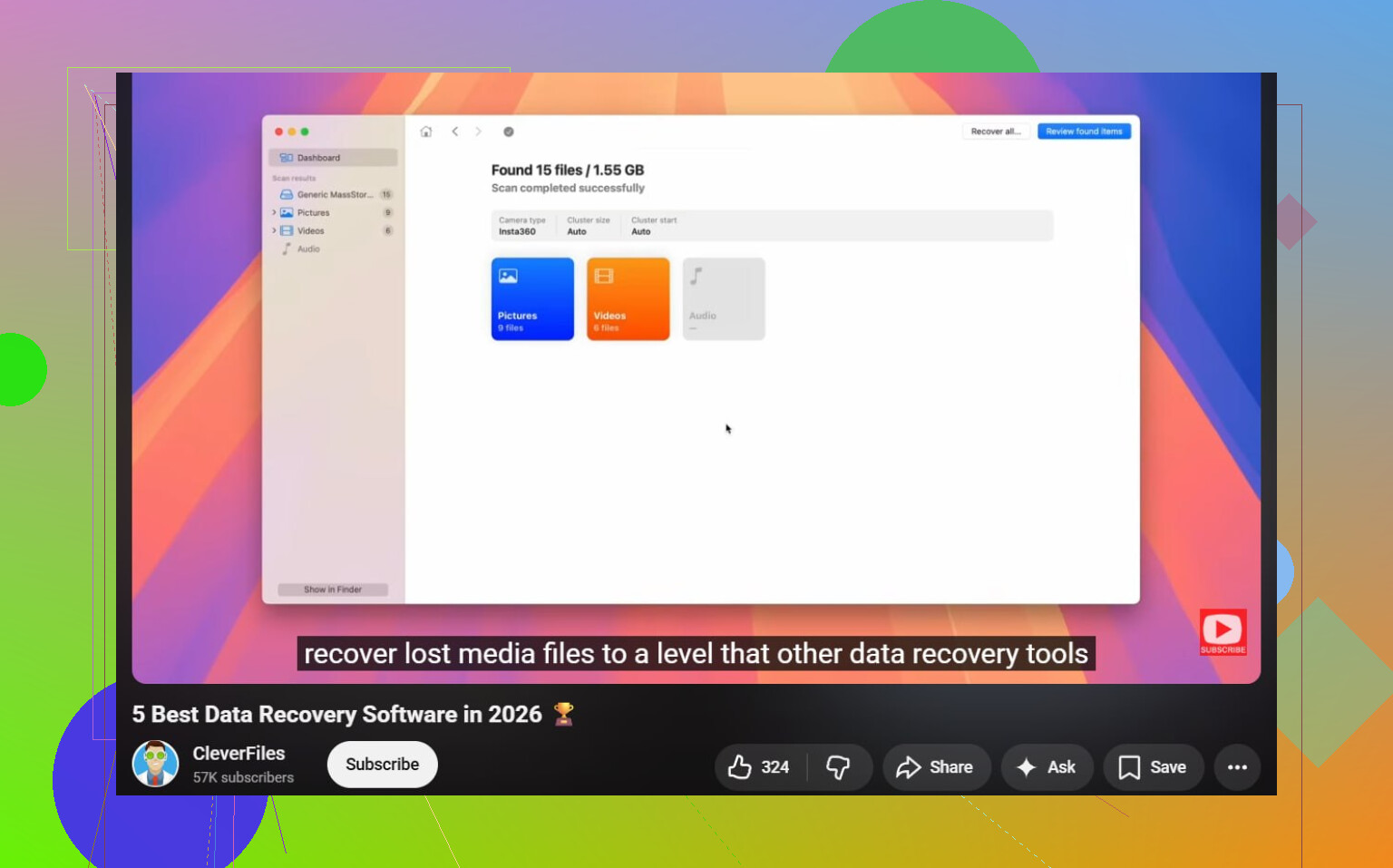
If it shows as Unallocated, that usually means the partition entry is gone, not instantly all the file data. So no, you probably did not lose everything yet.
I mostly agree with @mikeappsreviewer and @cazadordeestrellas, but I’m a little less excited about jumping straight into partition repair. If the files matter, I’d verify whether the data is still readable first, because restoring the partition structure is not always the safest first move.
A few things people forget:
- Check SMART health on the drive before doing anything fancy. If the disk is physically failing, recovery gets way riskier.
- If this is an external USB drive, try connecting it to another PC or enclosure first. Sometimes Windows reports weird partition states because of adapter issues.
- In DiskPart, use
list diskandlist volumejust to confirm you did not delete the wrong thing or hit a hidden/recovery volume by mistake. - If BitLocker or another encryption tool was involved, the recovery plan changes a lot.
For actual recovery, Disk Drill is a solid pick because it can detect lost partitions and also recover files directly when the partition table is toast. I’d use it to scan the physical disk, preview files, and recover only to a different drive. That gives you a reality check fast.
Also worth reading if you want a cleaner walkthrough on deleted partition recovery: step-by-step deleted partition recovery guide
One thing I would absolutely skip for now: don’t assign, format, initialize, or “test stuff” on that unallocated space. That’s how recoverable turns into rip. Two clicks and boom, worse.
If the scan finds your original folder structure, your odds are decent. If it only finds raw file fragments, recovery is still possible, just messier and more annoying. SSD though? Yeah… that can go bad real fast.
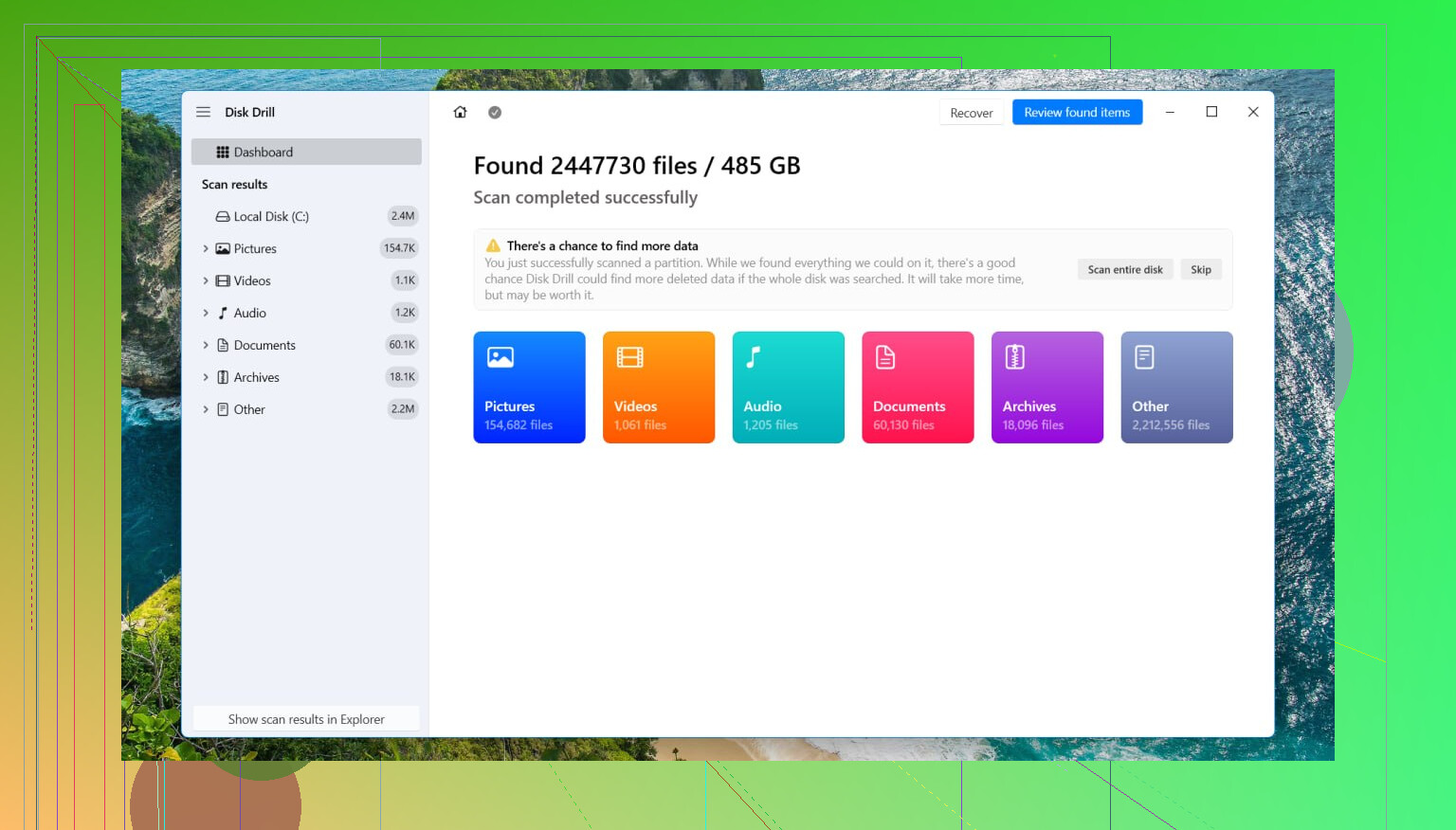
Unallocated after a delete usually means the map is gone, not the payload. So I’m with @cazadordeestrellas, @suenodelbosque, and @mikeappsreviewer on the big rule: stop writing to that disk.
Where I slightly disagree is the “always image first” advice. It is ideal, yes, but not always realistic for home users without a spare drive of equal size. If the drive is healthy and this is just a simple partition deletion on an HDD, a read-only scan can be a practical first check.
A few things nobody should skip:
- Check whether the missing partition was on a dynamic disk, Storage Spaces, or RAID. Recovery is different there.
- If the drive is clicking, disappearing, or painfully slow, stop DIY and go pro.
- If it was encrypted, do not expect normal file carving to help much without the key.
My preference is to confirm recoverability before attempting to rewrite partition structures. Disk Drill is useful here because it can show whether your original folders still exist before you commit to anything.
Disk Drill pros:
- Easy preview of recoverable files
- Often finds deleted partitions plus individual files
- Better for non-experts than command-line tools
Disk Drill cons:
- Free recovery limits apply on some versions
- Deep scans can take ages
- Raw recovery may lose filenames and folder structure
If Disk Drill shows intact folders, recover the critical stuff to another drive first. Only after that would I consider partition repair. If the scan finds almost nothing on an SSD, that is often TRIM, not user error. In that case, don’t keep experimenting on the original disk.