I accidentally deleted photos from my Nikon camera’s memory card before backing them up, and some of them are really important. I’m looking for the best free Nikon deleted photo recovery method or software that actually works and won’t damage the card further.
Yes, with limits.
The first thing I learned the hard way, stop using the SD card right now. If deleted photos got overwritten, free apps will not bring them back. So do not shoot more photos. Do not move files onto the card. Do not format it again. Every extra write hurts your odds.
If you want the easiest path, I’d try Disk Drill first. It is not fully free, but on Windows you get up to 100 MB of recovery at no cost. For testing, that helps. Sometimes it is enough for a few JPEGs. Sometimes a couple RAW files too, if they are not huge.
What I’d do:
- Pull the SD card out of the Nikon and plug it into your computer with a card reader.
- Install Disk Drill on your computer. Do not install anything onto the SD card.
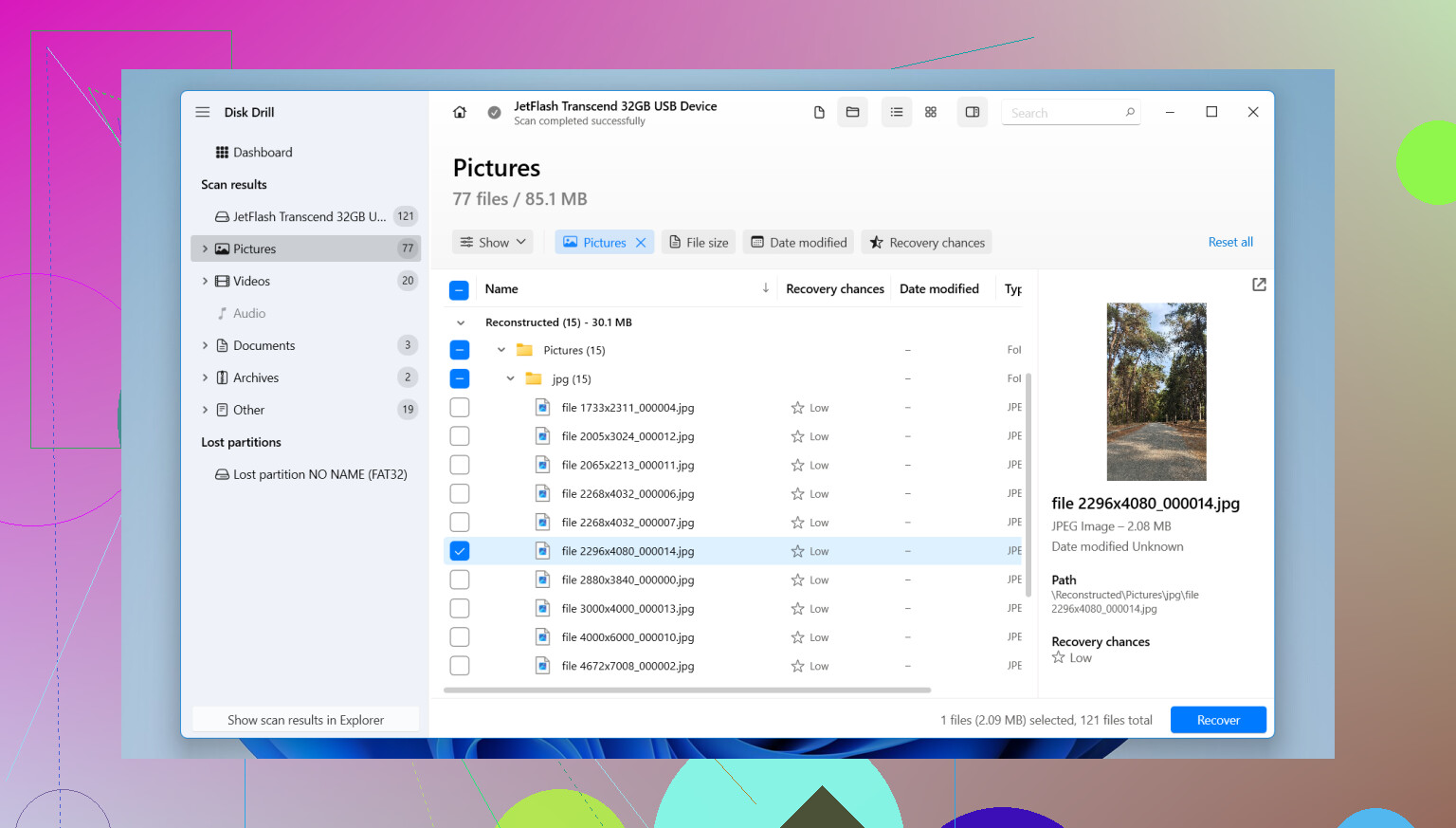
- Open it, pick the SD card, then hit Search for lost data.
- Run Universal Scan. In most cases, deleted files and quick-formatted cards both do best with this.
- After the scan, open Review found items and check Pictures. If you need Nikon RAW files, search for .NEF.
- Preview files before recovery. If the preview opens fine, I’d take that as a good sign.
- Recover the files to your PC or another drive. Not back to the SD card.
If you need more than 100 MB and do not want to pay, PhotoRec is the usual free pick. I’ve used it. It works, though it feels old and a bit rough. No previews. File names often come back scrambled into generic junk. Still, the recovery itself is solid in a lot of cases.
A few things worth checking before you waste an hour:
- If you shoot NEF, make sure the app supports NEF well. Some free tools do okay with JPEG and fall apart on RAW.
- If recovered NEF files refuse to open in the Windows Photos app, do not assume they are dead. Try software with Nikon RAW support first.
- If you lost videos too, run Advanced Camera Recovery in Disk Drill after the normal scan. I’ve seen standard scans miss camera video files.
Also, look for copies before doing recovery. I’ve seen people forget they already imported everything. Check your computer, SnapBridge, Nikon Image Space, Google Photos, Dropbox, whatever you use.
One more thing. If the SD card is physically damaged, not detected, or keeps dropping connection during the scan, I’d stop there. DIY recovery on a bad card gets ugly fast. At that point, a recovery shop is the safer move.
So yes, free recovery is possible in some cases. I’d start with Disk Drill because it is easy and gives you a quick answer on whether the Nikon photos are still there. If you need a no-cost route with no limit, PhotoRec is worth a shot, even if the interface feels like 2009.

12 Likes
Stop using the Nikon SD card first. That part from @mikeappsreviewer is dead on. If you kept shooting, recovery rates drop fast.
My free-first take is a bit different. I would start with Windows File Recovery only if the card shows up cleanly in Windows and you want a zero-cost test. It is ugly, command-line only, and not fun, but for simple deleted JPEGs it sometimes pulls files back. For Nikon RAW, results are less consistant.
If you want higher odds with less hassle, Disk Drill is still the easier route for Nikon photo recovery from an SD card. I don’t love the free cap, so I disagree with calling it the best free option. Best easy option, yes. Best fully free option, no.
What I’d check before scanning:
- Look in DCIM on the card from your computer. Sometimes files are hidden, not gone.
- Check Nikon SnapBridge imports, cloud sync folders, old Lightroom catalogs.
- If you used a Mac, look in Photos import history too.
Best way to recover deleted photos from a Nikon SD card:
see a quick Nikon SD card photo recovery walkthrough
If the card asks to format, don’t do it. If it disconnects, stop. At that point, DIY gets risky fast. PhotoRec is strong, Disk Drill is easier, Windows File Recovery is free but kinda a pain tbh.

I’d add one thing neither @mikeappsreviewer nor @codecrafter really leaned on enough: make an image of the SD card first if the photos matter a lot. Not a copy-paste of files, an actual sector-by-sector image. That way if you mess up a scan or the card starts acting weird, you still have a frozen snapshot to work from. On Linux or Mac, dd/ddrescue works. On Windows, USB Image Tool is free and simple enough.
For fully free Nikon deleted photo recovery, I’d probly rank it like this:
- PhotoRec for deepest free recovery
- Recuva if it was a simple delete and the card is healthy
- Disk Drill if you want the easiest interface and previewing, even with the free limit
Tiny disagreement with the “start with command-line tools” idea. I would not send most people to Windows File Recovery first unless they already like terminal stuff. It’s free, sure, but kinda miserable for camera cards and not my first pick for NEF files.
Also, if the card was used in-camera after deletion, try sorting recovered files by size. Nikon NEF files that come back super tiny are often toast. JPEGs can survive more often.
One more overlooked thing: some Nikon bodies write sidecar or database files that confuse people into thinking pics are still there. If you only see folders but no actual images, that usually means deletion really happened.
If you want extra reading beyond the posts from real users, this thread has practical Nikon photo recovery tips from photographers.
Short version: stop using the card, image it first, then scan the image with PhotoRec or Disk Drill. Recover to your computer, not back to the SD card.
One angle missing from @codecrafter, @stellacadente, and @mikeappsreviewer: check the Nikon itself before recovery. Some bodies can still display images in playback even when the card looks empty on a computer. If the camera sees them, try USB import with Nikon software or a direct copy before doing any carving.
If the card was not reformatted and you only deleted files, I would try this order:
- Test the card in the camera and on another reader.
- If files are invisible but space is still used, copy the whole card structure to your PC if possible.
- If not, run a recovery scan.
My take on Disk Drill:
Pros
- Very easy previewing
- Good at finding JPEG and often NEF
- Cleaner than most recovery tools
Cons
- Free recovery limit is small
- Deep scans can return messy filenames
- Not my first pick if the card is failing physically
Small disagreement with the usual “best free” label: Disk Drill is a great first scan tool, not the best truly unlimited free option. For important Nikon shots, the preview is valuable though, because it tells you fast whether the files are actually recoverable. If previews fail across the board, stop wasting time and consider a lab.