My iPhone storage is almost full, and my phone has been running slower after a recent iOS update. I do not have access to a computer right now, so I need the best way to clear temporary files, cache, and junk data directly on my iPhone without deleting important apps, photos, or messages. What should I try?
I kept staring at the Storage screen because the 'System Data' chunk looked fake. Bigger than all my apps put together. No clear reason. Apple shows it, then kind of leaves you there.
Why tiny apps end up eating gigabytes
Here’s what I saw on my phone. Instagram, TikTok, Spotify, Safari, all of them keep pieces of stuff on the device. Video chunks, thumbnails, audio scraps, site assets. They do it so the app opens faster and old content loads without pulling everything again. Fine. The catch is iOS does not clean this stuff on a steady schedule. It waits until storage is close to full.
So you get weird numbers. An app installed at 60MB sits there looking harmless, while its extra stored junk creeps past 1GB, 2GB, sometimes more. If you use the app every day, it adds up slow enough you miss it.
Why a cleanup sometimes barely changes anything
I ran into this too. Cleared browser data, removed some temp files, checked storage again, and the difference was small. Two reasons stood out.
First, caches grow back fast. Open the apps again, scroll for ten minutes, stream a few songs, and the rebuild starts right away.
Second, app cache often is not the main problem. Photos usually are. Repeated shots. Old screen recordings. Random screenshots from stuff you meant to save for five minutes. 4K video is the worst one. You wipe Safari and free 300MB, then your Photos library is still sitting on 40GB of stuff you forgot existed.
Safe ways to clear temporary files
I’d start with the low-risk stuff.
Restart the iPhone. I know, boring advice. Still works. A reboot clears small system logs and leftover temp data without touching your accounts or settings. I do it about once a week.
Clear Safari’s cache. Go to Settings > Apps > Safari > Clear History and Website Data. This removes saved site junk like images and scripts. You’ll get signed out of a lot of websites, so be ready for that.
If you use Chrome, do it inside Chrome. Open the app, then Settings > Privacy and Security. Apple doesn’t manage Chrome’s cache from the main iPhone settings page the same way.
For apps like Instagram, Facebook, and TikTok, there often isn’t a real clear-cache button on iPhone. What worked for me was deleting the app and installing it again. Annoying, yes. Reliable, also yes. Your account stays fine if your login is tied properly, but local cache gets wiped.
Why the junk comes back
This part is normal. It does not mean your phone is broken.
Apps are built to keep temporary data. Every session adds more. Clear it today, use the app tonight, and it starts filling again. So the goal is not some permanent clean state. I stopped thinking about it like that. It’s maintenance. You knock it down once in a while before it turns into a problem.
From what I noticed, things get ugly when free storage drops into the last 10 to 15 percent. Around there, iOS starts feeling cramped. The phone hesitates. Apps close out more often. The camera takes longer to respond. Stuff feels off in a way that’s hard to pin on one app.
What helped most without using a computer
Manual cleanup is fine for browser junk and app cache, but it does almost nothing for the Photos library, and on my phone that was the main mess.
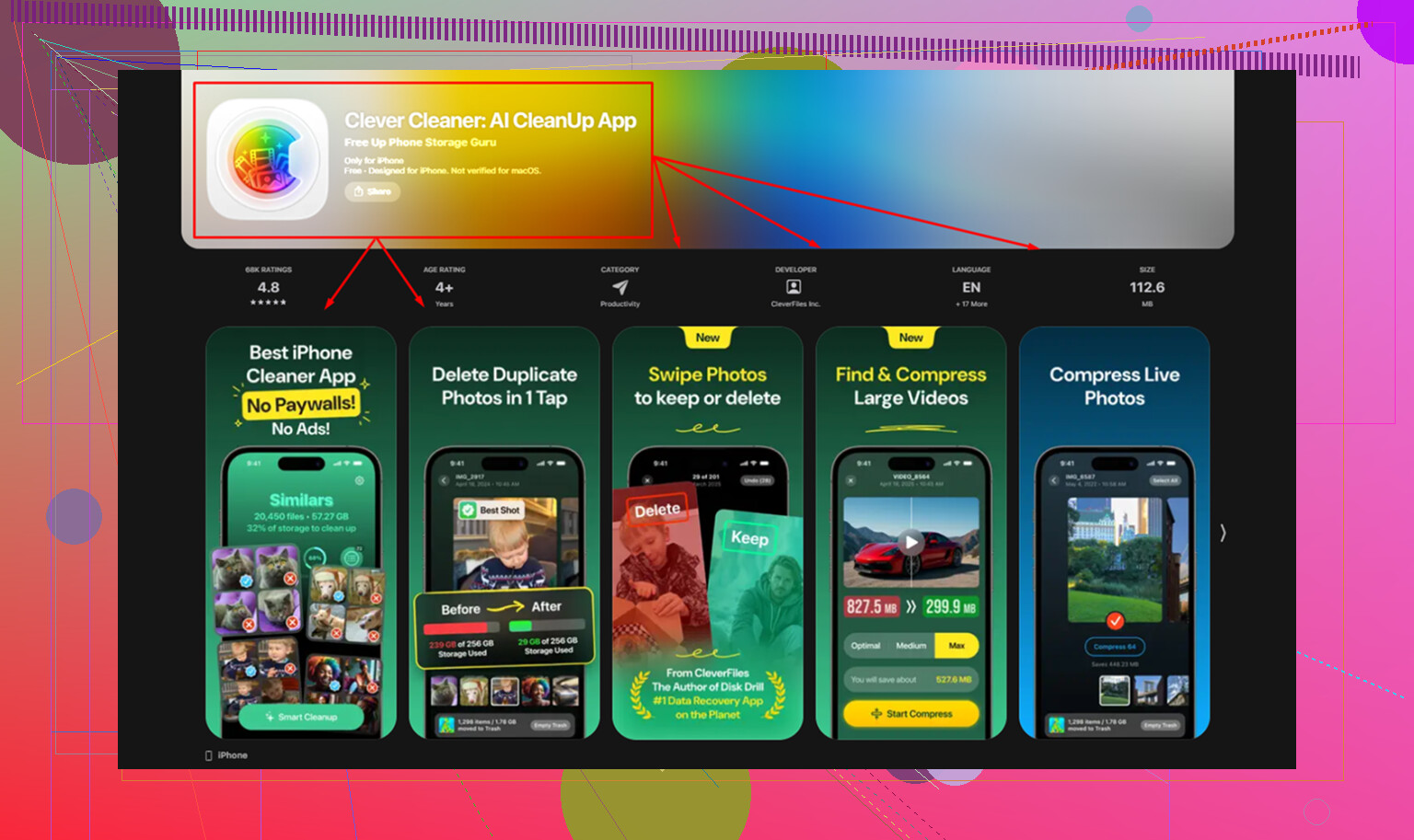
I ended up using Clever Cleaner because I wanted something simple on-device. No desktop step, no ad spam every two taps.
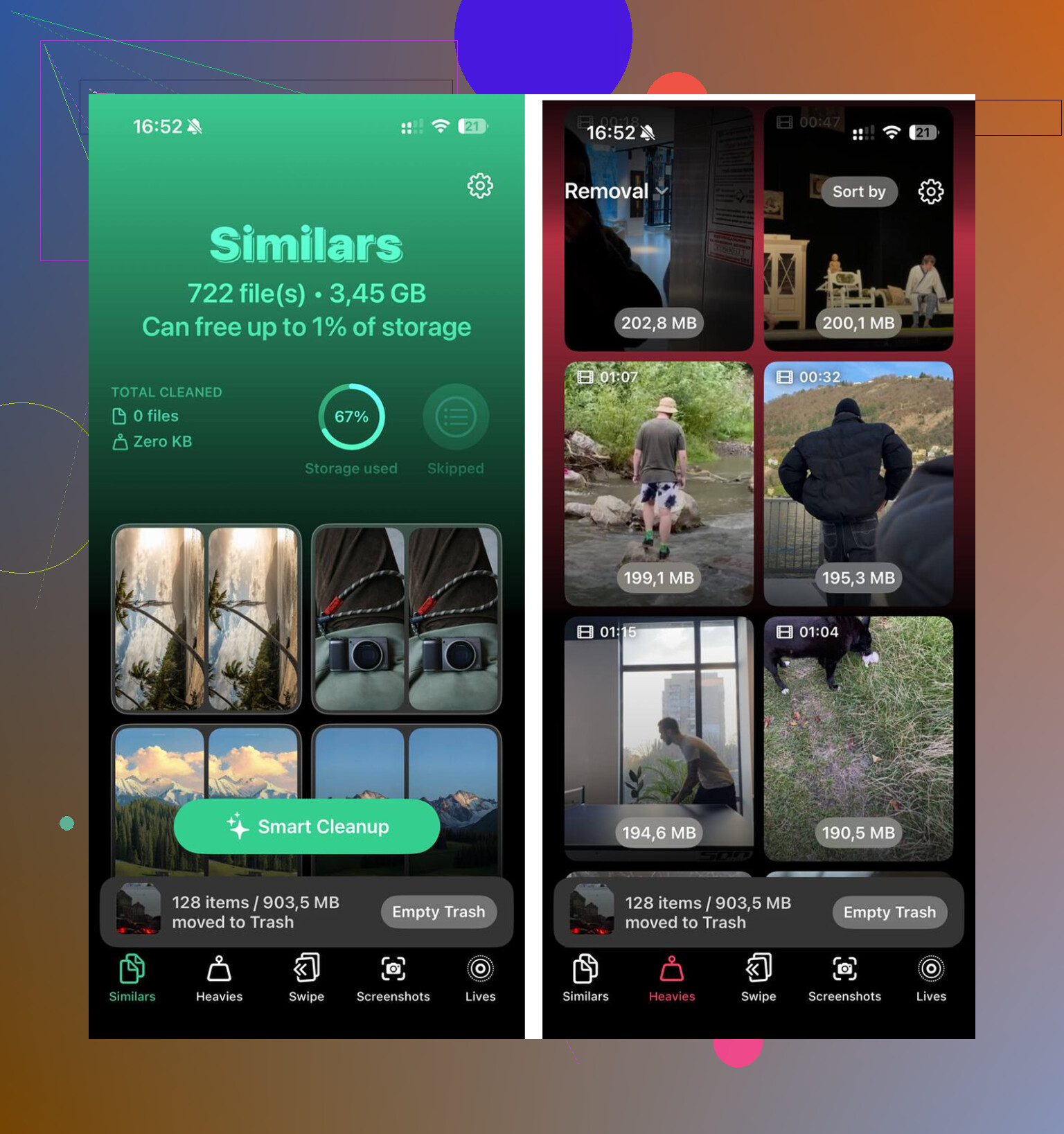
The part I liked most was the Heavies section. It puts the biggest files first and shows the exact size, so the worst offenders pop up immediately. Old screen recordings, giant clips, forgotten videos, all right there. No digging through years of camera roll.
The Similars section was more useful than I expected. It grouped near-matching photos, not only exact duplicates. Burst shots, three tries at the same sunset, five blurry cat pics with one decent one. That made cleanup faster because I wasn’t hunting file by file. Processing stayed on the phone too, which mattered to me.
Once I cleared about 20GB between duplicate-ish photos, oversized videos, and the usual app cache cleanup, the phone stopped dragging. System Data still existed, sure, but it stopped being the thing wrecking daily use. The bigger fix was giving iOS breathing room again.
5 Likes
I’d skip chasing “System Data” first. I disagree a bit with @mikeappsreviewer there. On iPhone, the fastest wins usually come from offloading bloated apps, cleaning Messages, and trimming Downloads. Temp files matter, but hidden media piles hurt more.
Try this order.
-
Settings > General > iPhone Storage.
Wait for the color bar to load.
Tap any app over 1 GB.
Use Offload App first.
This removes the app, keeps docs and settings.
Reinstall later.
It often clears old app cruft without a full reset. -
Check Messages.
Settings > General > iPhone Storage > Messages.
Review Photos, Videos, GIFs, Stickers.
People miss this part. I found 6 GB there on my phone. Dumb memes everywhere lol. -
Clear downloaded media.
Spotify, Netflix, YouTube, Podcasts.
Delete offline stuff you already watched or heard.
Those files sit quietly and eat space fast. -
Mail cache.
If Apple Mail is huge, remove the mail account and add it back.
Mail attachments stack up over time. Kinda annoying, but it works. -
Files app.
Open Files > On My iPhone > Downloads.
Delete old PDFs, ZIPs, videos.
Then empty Recently Deleted. -
Photos.
Review screen recordings first.
They are often the biggest files per minute.
If you want an on-device cleanup app, Clever Cleaner is worth a look for duplicate photos and large videos. Also, this short guide on clearing iPhone storage is easier to follow than digging through menus,
watch this quick iPhone storage cleanup video
Aim to free at least 10 percent of total storage. 15 percent feels better on older iPhones. That’s when lag usualy drops.
I’d actually push back a little on @mikeappsreviewer and @cazadordeestrellas on one point: not everything that looks like “temp files” is worth chasing manually. On iPhone, the fastest no-computer fix after an iOS update is often forcing iOS to recalculate storage and purge stale update leftovers.
Try this first:
- Make sure iPhone is updated fully, then restart it.
- Turn Low Power Mode on for a few minutes, then off.
- Check Settings > General > iPhone Storage and let it sit there 2 to 3 mins. Seriously. iOS sometimes reindexes storage after updates.
- Delete the actual iOS update file if it’s still sitting there under iPhone Storage.
- Open App Store and update all apps. Old app builds after a major iOS update can get weird and bloated.
Another underrated one: clear Safari Reading List offline cache.
Settings > Apps > Safari > Reading List > turn off automatic saving if you use it.
That stuff can quietly pile up.
Also check voice data:
- Settings > Accessibility > Live Speech / Personal Voice if enabled
- Settings > Siri
- downloaded voices, dictionaries, language data
Those are sneaky space hogs.
For media cleanup on-device, Clever Cleaner is probly the easiest option if you want to quickly remove duplicate photos and heavy files without doing it all by hand. This Clever Cleaner iPhone storage cleanup review gives a decent breakdown.
One more thing people forget: close out unfinished podcast/video downloads. Half-downloaded files can just sit there being useless lol.
I’d do one thing none of the others really stressed enough: clear app documents from inside the apps themselves before deleting anything. @cazadordeestrellas, @nachtdromer, and @mikeappsreviewer covered storage hotspots well, but full delete-reinstall is sometimes overkill if the app has its own cleanup options.
Check these first:
- Telegram or WhatsApp: Storage/Manage Storage
- Spotify: clear cache in app
- Podcasts: remove finished downloads and saved episodes
- Maps apps: delete offline maps
- Browser apps other than Safari: clear site data in-app
- Notes/voice recorder apps: look for recently deleted folders
Also, empty hidden trash bins:
- Photos > Recently Deleted
- Files > Recently Deleted
- Notes > Recently Deleted
- Voice Memos if you use it heavily
One small trick that helps after an iOS update: make 3 to 5 GB free, plug into power, connect to Wi-Fi, and leave the phone locked for an hour or two. iOS often does delayed cleanup and indexing when idle.
If photo clutter is the main issue, Clever Cleaner is useful. Pros: fast duplicate detection, large file spotting, easy on-device cleanup. Cons: mostly focused on media, not magical for true System Data, and you still need to review deletions carefully.
So my order would be: in-app cleanup, empty hidden trash, leave phone charging/locked, then use Clever Cleaner if Photos is the real storage hog.