My iPhone storage is almost full, and I just realized Live Photos are taking up more space than I expected. I’ve taken a lot over time and need help figuring out the fastest way to find, delete, or turn off Live Photos without losing the pictures I want to keep. What’s the best way to free up storage on an iPhone?
I hit the same mess a while back. I did not want to trash my photos. I only wanted the tiny motion clips gone. I assumed iPhone Photos had some obvious batch switch for Live Photos. It does not, or I never found one.
Figure out your end goal first
People usually mean one of two things when they say they want to remove Live Photos.
Option 1: delete the Live Photos completely.
Option 2: keep the image, dump the motion part.
Those are different jobs, so the steps change.
If you want them gone for good, the fast route is simple. Open your Live Photos album, select what you do not need, delete it, then empty Recently Deleted. If you skip the second part, your storage number won’t drop right away. I missed this the first time and thought my phone was bugging out.
What I was trying to do
I wanted to keep every picture and strip out the Live part.
You can do it by hand. I tried. It works. It also gets old fast. For a handful of shots, fine. For a few hundred, no thanks. You end up making still copies one by one, then going back and cleaning out the originals. It feels dumb after photo number 40.
What worked for me
I ended up using Clever Cleaner because my library was packed with Live Photos and I did not want to babysit the process all night.
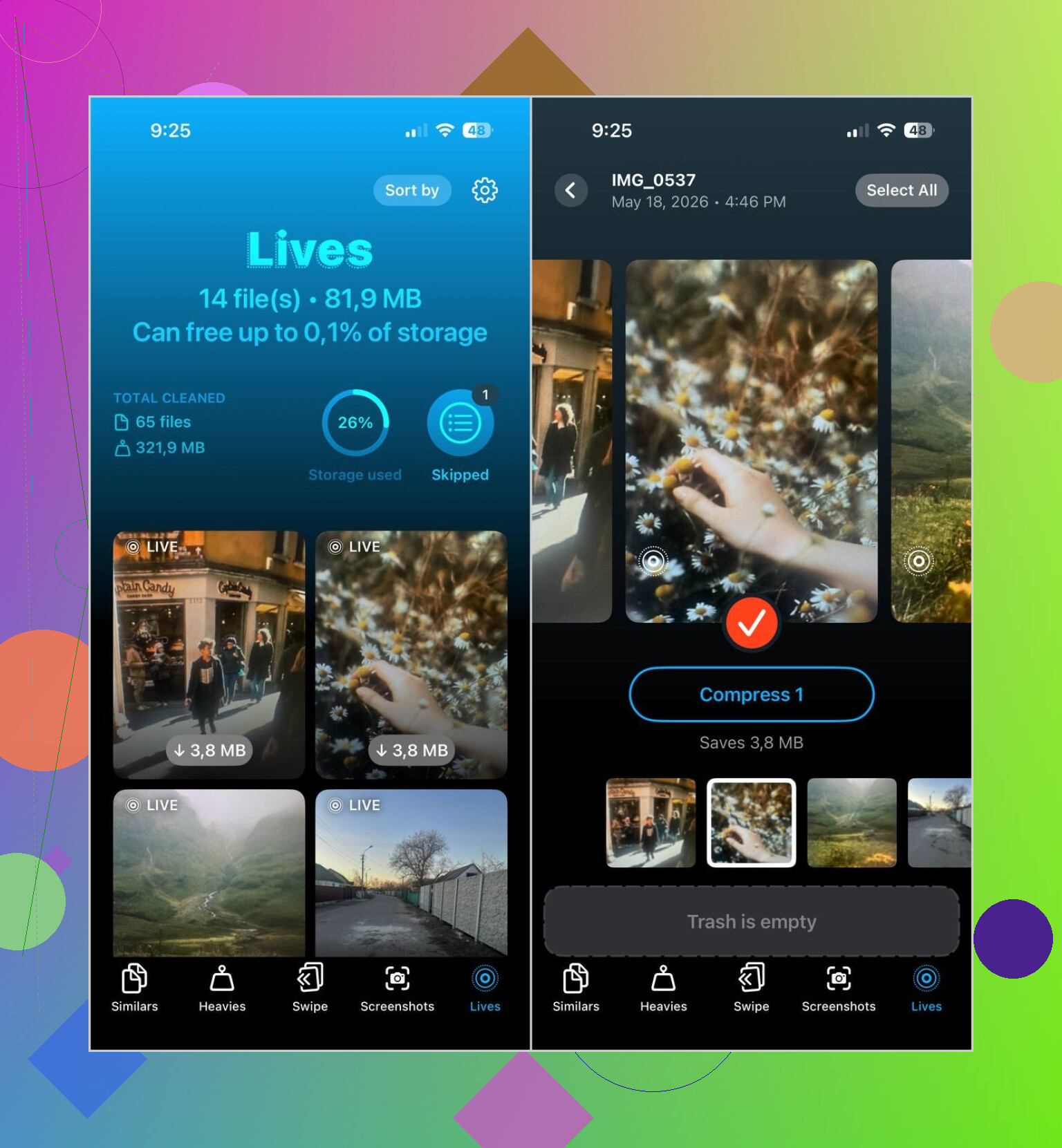
The useful part was simple. It splits Live Photos into their own section. You open the app, hit Lives, and there they all are. No scrolling through years of random pictures trying to spot which ones have motion attached.
This is the flow I used:
- Open the Lives section
- Sort by date or file size
- Pick the photos
- Tap Compress
- Check the output
- Delete the original Live Photos if the still versions look right
The label says ‘Compress,’ which threw me off at first. In practice, it turned those Live Photos into regular still images, then let me choose what to do with the originals.
Stuff I ended up cleaning too
I grabbed it for one job and wound up using the other tabs more than I expected.
Similars helped me clear out duplicate vacation shots and those annoying almost-identical family pics where somebody blinked in one and looked weird in the next.
Heavies was useful fast. It surfaced my biggest videos first, and a couple old recordings were eating multiple gigabytes on their own. I had no idea.
Screenshots was the easy win. I wiped years of junk in a few minutes. Old boarding passes, app receipts, random settings pages, all the usual phone clutter.
My take
If you only have a small batch of Live Photos, stick with the built-in iPhone tools. Less hassle.
If your photo library is stuffed with them and your goal is freeing up storage while keeping the pictures, I would skip the manual route. Clever Cleaner made it quicker for me, mostly because the Lives section saves you from hunting.
8 Likes
Fastest fix, delete the Live part at the source so you stop making more of them. Open Camera, tap the Live Photos icon at the top, turn it off. Then go to Settings, Camera, Preserve Settings, turn on Live Photo so it stays off. A lot of people miss this and keep filling storage again.
For cleanup, I partly disagree with @mikeappsreviewer on one point. I would check your storage breakdown first before spending time on Lives only. On many phones, videos and bursts eat more space than Live Photos. Go to Settings, General, iPhone Storage, then Photos. If Photos is huge, your next step is worth it. If not, focus on videos first.
Best built-in trick if you want to keep pics but lose motion on a few favorites, open a Live Photo, tap Edit, tap the Live icon, turn Live off, save. Slow, yep. Fine for 10, not 500.
If you have a big library, Clever Cleaner is the faster route. It groups Live Photos, which saves time, and you sort through them without digging around your whole camera roll. Then clean other junk too. Similar shots, screenshots, large files. Thats where people often free up more GB than expected.
Also, after deleting anything, sync with iCloud Photos in mind. If Optimize iPhone Storage is on, local space numbers sometmes lag for a bit.
For a quick visual on clearing iPhone storage and cleaning photo clutter, this is useful:
best ways to free up iPhone storage fast
Honestly, I’d do one thing before the stuff @mikeappsreviewer and @ombrasilente suggested: check whether Live Photos are actually the main problem or just the most visible one. A lot of people go after Lives, then find out 4K videos are the real storage hogs.
For finding them fast, the Photos app already helps more than people think. In Photos, search for “Live Photos” or go to Albums > Media Types > Live Photos. That at least corrals them into one place. If you want total deletion, delete from there, then clear Recently Deleted or your storage won’t move much. Apple loves that little gotcha.
Where I kinda disagree with the “just edit them one by one” route is that it’s fine only if you enjoy pointless repetition. For a big library, nope. If your goal is to keep the picture but remove the motion and trim storage, using an iPhone cleaner for Live Photos is way faster. see how Clever Cleaner helps remove Live Photos and free up iPhone storage.
Also, if you use iCloud Photos, storage changes can lag a bit. So don’t panic if the number looks wierd for a while. And turn Live Photos off in Camera going foward, or you’ll be back in the same mess next week.