My hard drive partition suddenly changed to RAW after a restart, and now Windows says I need to format it before I can use it. It has important personal files on it, and I’m trying to recover data from the RAW partition without making things worse. Has anyone fixed this or found a safe RAW partition data recovery method that actually works?
I’ve been through this more than once, and yes, you can pull files off a RAW partition without formatting it first. I didn’t format either time. I wouldn’t start there, tbh. Formatting belongs near the end, after your files are out and checked.
What RAW usually means is simple. The partition is still there, the data is often still there too, but Windows no longer reads the file system well enough to mount it normally. So it throws the usual “format this drive” prompt. I’ve seen people click that in panic and make the job harder for themselves.
If the RAW state came from file system damage, I’d handle it like this.
- Do nothing to the RAW partition at first.
- Copy out anything you care about.
- See if the partition is fixable after recovery.
- Format only when the important stuff is already safe somewhere else.
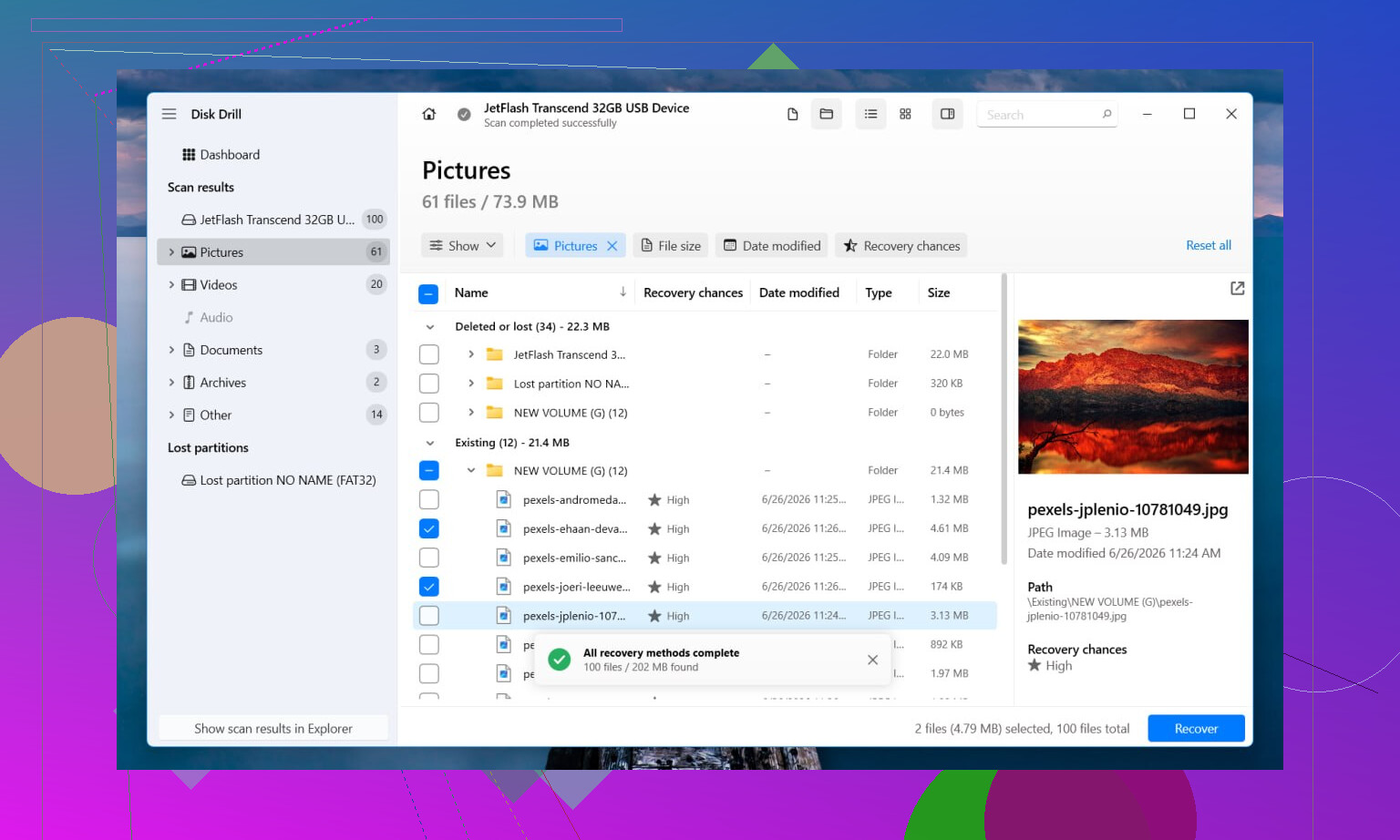
For recovery, I’d start with Disk Drill. I used it because it doesn’t rely on one method only. When some file system metadata survives, it tends to recover files with names and folders intact. When the structure is too far gone, it switches to file signature scanning and looks for known file types directly on the disk. That part matters, because a RAW partition in Windows doesn’t always mean empty. It often means unreadable.
The steps are short.
- Install Disk Drill on a different drive, not the damaged one.
- Pick the RAW disk or RAW partition from the device list.
- Press Search for Lost Data. If it’s an external drive and you get asked which mode to use, choose Universal Scan. I’d only use Advanced Camera Recovery for SD cards or storage from cameras and drones.
- Let the scan run to the end. Stopping early cost me results once, so I stopped doing that.
- Preview files before recovery. If photos open, docs render, videos scrub a bit, you’re in better shape.
- Recover everything to another disk. Not the same one. Never the same one.
If you want a free route, there’s still a path, it’s jsut less friendly. TestDisk sometimes repairs partition or file system info well enough to bring the volume back. PhotoRec goes after the files directly and ignores the broken file system. Both are free. Both feel rough if you haven’t used them before. PhotoRec also tends to dump recovered files with generic names, no original folder tree, so cleanup after recovery gets annoying fast if you had thousands of files.
After the files are safe, then I’d look at repair. If TestDisk rebuilds the partition cleanly, nice, you might avoid formatting. If not, I’d wipe the problem partition, create a new one in Disk Management, do a quick format, then copy the recovered data back.
One part people skip and shouldn’t. Watch the drive’s behavior during all this. If it starts clicking, drops offline, disconnects mid-scan, or disappears and reappears, I’d stop messing with software tools. At that point it feels less like file system corruption and more like failing hardware. More retries can grind the drive down further. If the data matters, I’d hand it off to a recovery shop before doing more damage.
Short version, don’t format first. Recover first. Repair later if it still makes sense.
8 Likes
Yes. Recover first, format later.
I agree with @mikeappsreviewer on one big point, do not accept the Windows format prompt. Where I differ a bit is repair timing. I would not try file system repair early if the files matter. Repair writes to the disk. Recovery should stay read-only for as long as possible.
A few practical checks before you scan:
-
Look in Disk Management.
If the partition size still looks correct, your odds are better. RAW often means damaged NTFS boot sector, MFT, or partition metadata, not missing files. -
Check SMART health.
Use CrystalDiskInfo or smartctl. If you see reallocated sectors, pending sectors, or read errors climbing, stop doing repeated scans. Clone the drive first with ddrescue or HDDSuperClone if you know how. If not, get help. A sick disk gets worse fast. -
If this happened after a restart, think about cause.
Power loss, unsafe removal, bad USB cable, failing enclosure, and Windows updates all show up in these cases. External drives do this more than poeple think.
For software, Disk Drill is a solid pick for RAW partition data recovery because it handles both file system based scanning and deep signature scans in one workflow. If you want an easy tool for recovering files from a RAW drive without formatting, it fits.
If the drive is stable, scan the RAW partition, preview files, and recover to a different disk. If previews fail on many files, try a full device scan instead of only the partition. I’ve seen partition-only scans miss data when the table was messed up.
After recovery, then test repair or reformat. If TestDisk fixes it, nice. If not, wipe and rebuild. Also, this is a decent read on top software for RAW drive and partition recovery.
Short version, yes, you can recover data from a RAW partition without formatting. Don’t write to it first. Recover off it. Then fix it.
Yes, you can usually recover data from a RAW partition without formatting it first.
I mostly agree with @mikeappsreviewer and @shizuka, but I’m a little less enthusiastic about jumping straight into multiple scans on the original drive if the disk is old or acting weird. If this happened right after a restart, there’s a decent chance it’s just file system corruption. If the drive is making noises, freezing Explorer, or disconnecting, that changes the game fast.
What I’d do differently:
- First, check whether the partition shows the correct size in Disk Management
- Then run a quick SMART check
- If the drive health looks sketchy, make a sector-by-sector clone/image first
- Recover from the clone, not the original if possible
That part gets overlooked a lot. People treat “RAW” like a formatting problem, but sometimes it’s really a dying drive wearing a file system mask.
If the hardware seems stable, Disk Drill is a pretty sensible option for RAW partition recovery because it can pull files from damaged file systems and also fall back to deeper file carving. That matters when Windows sees RAW but the underlying data is still there. I’d still save recovered files to another disk only. Not the same partition. Not even temp files there if you can help it.
One thing I would not do yet is CHKDSK. On a RAW volume, it often won’t run anyway, and when it does on damaged metadata, it can make a mess. People love suggesting it because it sounds official, but it’s not some magic heal button.
Also, if you want another angle on how to recover data from a RAW drive without formatting, that thread has some decent real-world takes.
So yeah, short answer: recover first, format later if needed. Ignore Windows nagging you to format. It’s being very Windows about it, lol.
Yes, usually. I mostly agree with @shizuka, @sterrenkijker, and @mikeappsreviewer on one thing: do not format first. Where I slightly differ is this: if the partition is on an SSD, don’t spend forever poking at it. SSDs can get uglier after controller or translation-layer issues, and “just one more scan” is not always harmless.
My take:
- RAW does not automatically mean your files are gone
- It often means Windows cannot parse the file system
- Best case is metadata damage
- Worst case is hardware trouble pretending to be file system trouble
One extra check nobody should skip: open Event Viewer and look for disk, ntfs, or storahci errors around the restart. That can hint whether this was corruption, cable trouble, or the drive going flaky.
About Disk Drill:
- Pros: simple UI, good preview support, scans RAW partitions well, combines metadata recovery with signature-based recovery
- Cons: deep scans can take ages, file carving can lose original names/folders, and the free version is limited depending on platform
I’d use Disk Drill if you want the least annoying workflow, especially if the disk still identifies correctly. If you’re more technical, imaging first and testing recovery against the image is safer than learning on the original disk.
One thing I would avoid unless the data is already safe: trying random “partition repair” tools because some of them write changes immediately and you don’t always get an undo button.
So yes, recovery without formatting is possible. Just treat the drive like evidence, not a scratchpad.