Files disappeared from my external hard drive, but the used space is still showing as full. I didn’t intentionally delete anything, and now I’m trying to figure out if the data is hidden, corrupted, or still recoverable. I need help with safe ways to recover missing files from an external hard drive without making things worse.
If Windows still sees the drive and shows it with a normal letter, I took that as a good sign the last time this happened to me. In my case, the drive itself was not dead. The mess was in the file system, folder records, or something close to it. Annoying, yes. Total loss, no.
What I would not do first is try to repair it.
Recover your files first. Deal with fixing the drive after.
What I would avoid right away:
- Do not format the drive, even if Windows nags you for it.
- Do not write new files to it.
- I would skip CHKDSK at this stage. It fixes some errors, sure, but it also rewrites parts of the file system. I saw it make recovery harder once, and I quit trusting it for missing-file cases.
A few quick checks before you run recovery tools:
- Turn on Hidden items in File Explorer.
- Look at used space on the drive. If the numbers still look close to what you expect, your files are often still sitting there.
- Swap the USB cable or move the drive to another port. I had one bad cable waste half a day. dumb stuff happens.
If the files still do not show up, and you do not have a backup, I would move to recovery software.
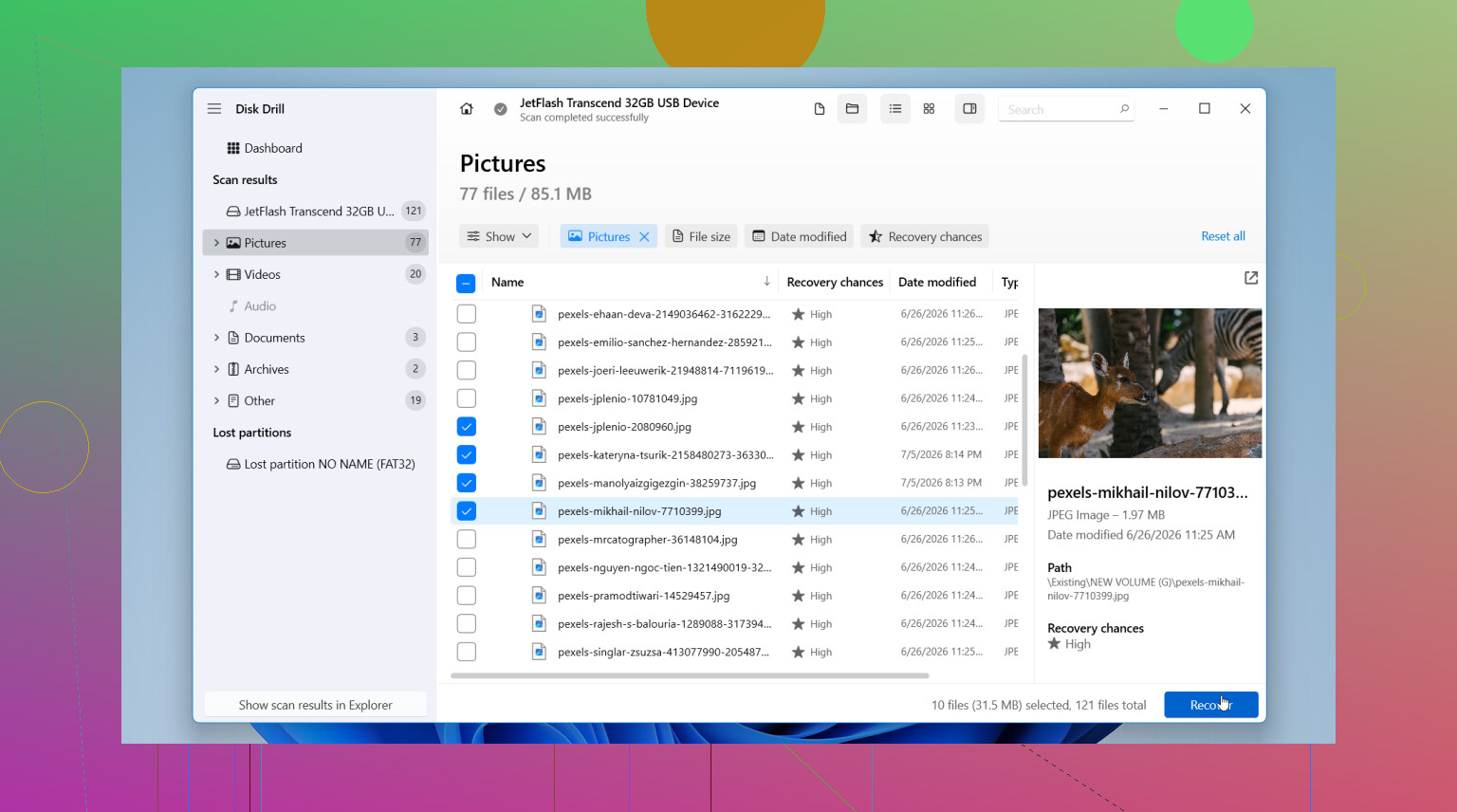
I would start with Disk Drill. I used it because the layout made sense without a bunch of guessing, and one part matters more than people think, it lets you make a disk image. That image is a full copy of the drive. If your external drive starts dropping offline, slows to a crawl, or feels unstable, make the image first if you can. Then scan the image, not the original disk. Less stress on a drive that might already be heading south.
This is the order I would use:
- Install Disk Drill on your PC’s internal drive, or on a different healthy drive. Do not install it onto the problem external drive.
- Open it and pick the external drive with the missing files.
- If the drive seems flaky, create a disk image with the built-in option first. Then scan the image.
- If the drive seems stable enough, hit Search for lost data.
- When it asks for a recovery mode, pick Universal Scan. I would use this almost every time. It rolls multiple methods into one pass, deleted files, damaged file system records, missing partitions, and file signatures. You do not need to guess which path fits your case.
- Let the scan finish. Big drives take a while. I know the wait sucks.
- Check the results. Preview a few important files and see if they open.
- Recover what you need to another drive. Never put recovered files back onto the same external disk.
On Windows, Disk Drill lets you recover up to 100 MB free, so you can test whether it finds your stuff before spending money.
After your important files are safe, then deal with the original drive. Repair it if you want. Reformat it if needed. If it keeps acting weird after that, I would replace it. I would not trust it again with anything I care about.
One big exception. If the drive is making clicking sounds, grinding, dropping connection every few minutes, taking ages to respond, or vanishing from Windows, stop. Unplug it. Software will not fix failing hardware. Repeated scans sometimes push a bad drive further downhill.
If the data matters a lot, family photos, work archives, old projects, anything you cannot replace, I would skip the home-recovery route and go to a professional recovery lab. They have tools regular software does not. It costs a lot, yeah, but for irreplaceable data, I think it is the safer move.
11 Likes
Yes, if the space is still used, your files often still exist in some form. The issue is usually one of these: hidden files, damaged directory entries, bad partition info, or file system corruption.
I agree with @mikeappsreviewer on one main point. Don’t start by writing anything to the drive. I also think people skip one useful check too often. Open Properties on the root folders and compare file counts from another PC, if you have one. If one system shows folders and the other does not, the issue leans toward OS or permission weirdness, not pure data loss.
A few checks I’d do:
- Show hidden files and protected OS files.
- Run dir /a in Command Prompt on the drive letter. Explorer misses stuff sometimes.
- Check Disk Management. If the partition shows RAW, unallocated, or wrong size, the file system is damaged.
- Look at SMART health with CrystalDiskInfo. If health is bad or caution, stop messing with it.
I disagree a little on avoiding all repair tools forever. Avoid them first, yes. Recover data first. After that, test repairs on the clone or image, not the original. Big diffrence.
If you need data recovery software, Disk Drill is a solid pick for missing files on an external hard drive because it handles deleted entries, lost partitions, and damaged file systems in one scan. Recover to another drive only.
If the goal is to recover files from a corrupted external hard drive, this guide on recovering files from a corrupted external hard drive might help too.
If the drive clicks, disconnects, or freezes your PC, stop. That’s where DIY recovery gets risky fast.
Yep, usually you can. If the external hard drive still shows most of the same used space, that often means the files are still physically there, but the file table, folder structure, or attributes got messed up.
I agree with @mikeappsreviewer and @sterrenkijker on not writing anything new to the drive first. Where I slightly disagree is this: I would also check for a simple mount/permission issue before going deep into recovery mode. Sometimes the data is fine and Windows is just being Windows.
A couple things I’d check that they didn’t really lean on:
- Plug the drive into another computer, preferably with a different OS if possible
- Check Security tab on the top-level folders to see if ownership/permissions got weird
- Use a file manager other than Explorer, since Explorer lies sometimes
- On Windows, try
attrib -h -s /s /d X:\*.*carefully only if you strongly suspect hidden/system attributes caused it
If the folders are gone but space is still used, that points to:
- hidden files
- corrupted directory records
- bad USB bridge/enclosure behavior
- partial file system corruption
One thing people overlook: the enclosure can be the problem, not the disk. I had an external drive act “empty” because the USB controller was flaky. Put the actual drive in another enclosure, files came right back. Annoying as hell.
If basic checks fail, then yes, a scan tool makes sense. Disk Drill is a solid option for external hard drive data recovery because it can find files from damaged file systems, missing partitions, and lost folder entries without you needing to guess the exact failure. If the drive is unstable, image it first, then scan the image. That part matters more than people think.
Also, if you want another example of how this usually plays out, here’s a real external hard drive data recovery success story.
One warning though: if SMART looks bad, the drive disconnects, or it starts clicking, stop DIY stuff. At that point you can turn “missing files” into “fully dead drive” prety fast.