My iPhone storage is almost full, and I noticed the offload apps option in settings. I’m trying to figure out if offloading apps will actually free up space without deleting my photos, messages, or app data. I need help understanding how iPhone app offloading works and whether it’s a safe way to get more storage quickly.
Your iPhone saying storage is full when you already cleaned out the obvious stuff is a rotten little problem. I ran into it after trimming photos, removing old apps, even deleting downloads I forgot existed. The number barely changed. What helped was checking the right places first instead of poking around blind.
First thing, check the real storage breakdown
Open Settings, then General, then iPhone Storage. Wait a bit. The colored bar needs time to finish loading or you get a half-baked picture. This screen is the one I trust. It shows whether your space is being eaten by photos, apps, system data, messages, or something else. If you skip this step, you end up deleting random junk and wondering why you only got back 300 MB.
If you do not use iCloud, or you do not want another monthly bill
Change the camera format now. Go to Settings, Camera, Formats, then pick High Efficiency. New shots will save as HEIC instead of JPEG. File sizes drop a lot, and in day to day use I did not notice a quality hit. This will not shrink old photos, but it slows down the next storage pileup.
Another sneaky one is Live Photos. People forget what they are. Each shot includes a small video clip, so one photo is not one photo. I went through mine and turned a bunch into still images. Kept the picture, lost the extra motion bit, got space back without feeling like I threw memories away.
Offloading apps is the built-in fix people ignore
Head back to Settings, General, iPhone Storage. Tap an app you rarely open and hit Offload App. This removes the app itself but leaves your documents, saved data, and sign-in info in place. The icon stays there. Tap it later and it pulls the app back down. I had old airline apps and a couple games sitting there doing nothing except hogging multiple gigabytes.
If you deleted stuff and nothing changed, this is usually why
Check the Recently Deleted album in Photos. iOS does not erase those files right away. It parks them there for 30 days, still taking up storage the whole time. So if you spent ten minutes deleting videos and your phone still acts stuffed, go to Photos, Albums, Recently Deleted, then remove them for good. On my phone, this was the part where the number finally moved.
When the phone is so full it starts choking
Restart it. Simple, yeah, but I saw it clear out temp cache files after a reboot when the device was acting slow and weird. Do not expect some giant recovery. You are not getting 20 GB from this. Still, if the phone is borderline unusable, a restart sometimes frees enough space to make it functional agian.
When manual cleanup turns into a chore
The built-in tools miss the messy stuff. Near-duplicate burst photos. Huge videos buried in the library. Live Photos spread all over the place. Once your photo library gets into the thousands, sorting it by hand is a time sink.
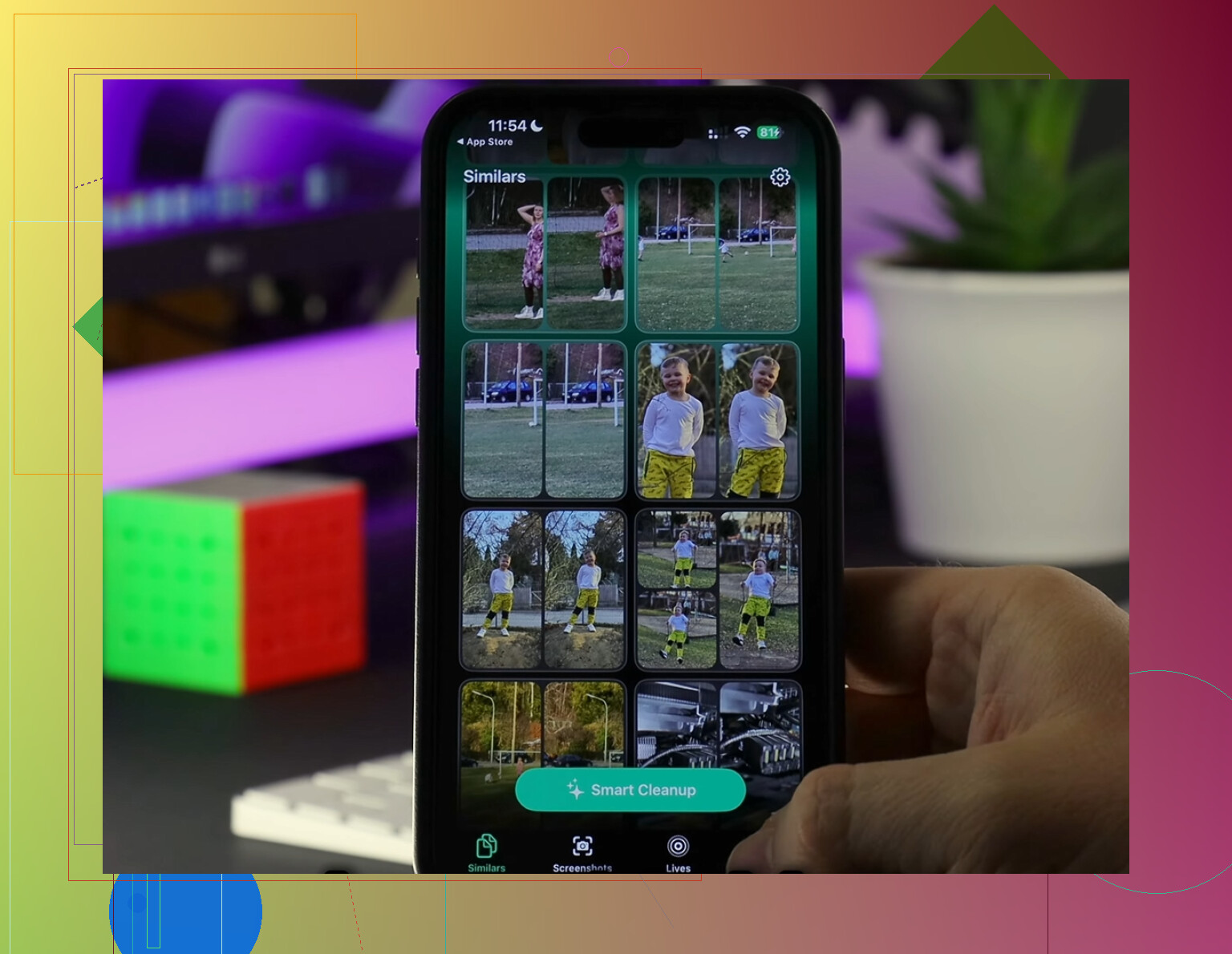
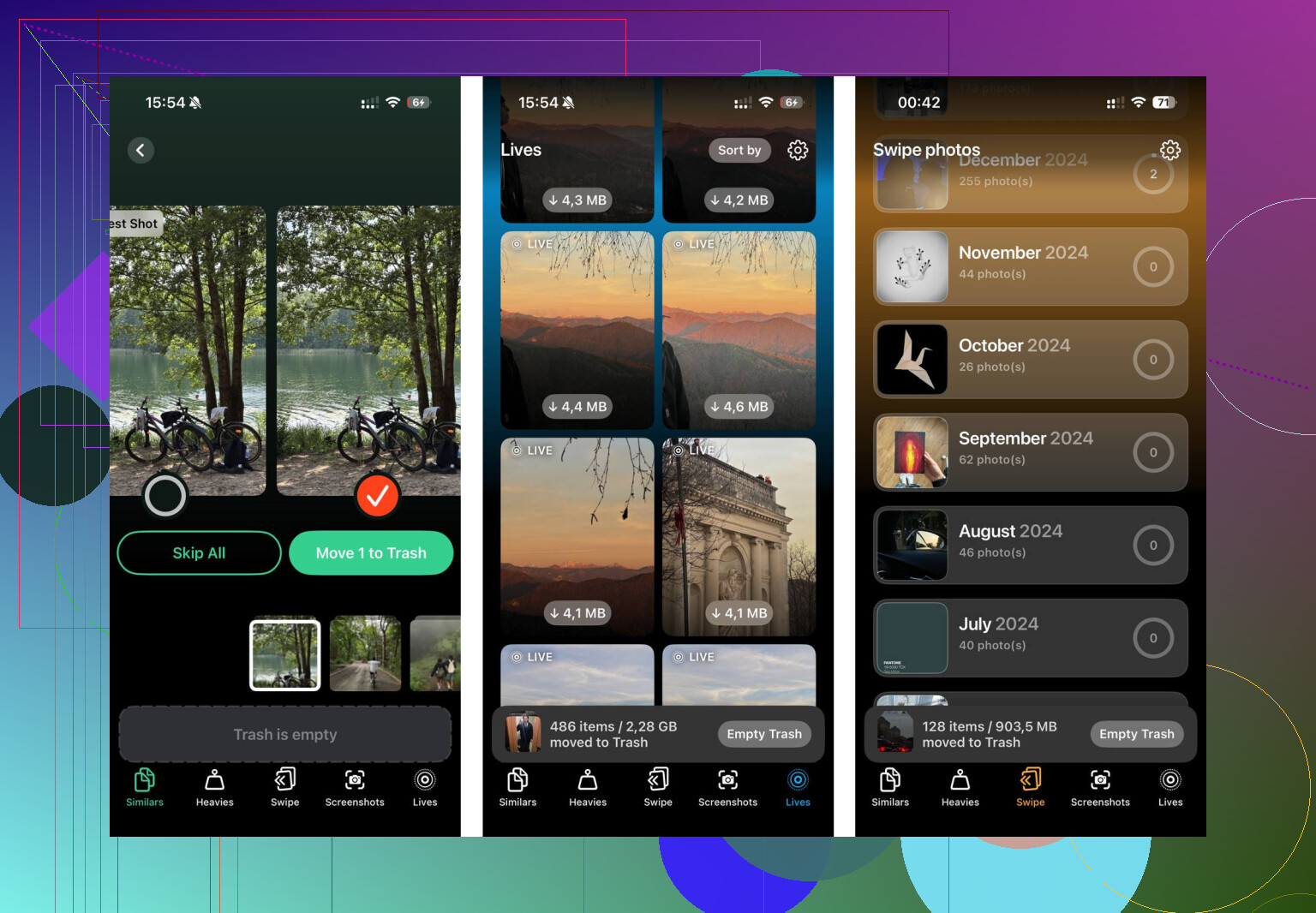
I used Clever Cleaner after hitting that wall. It groups similar photos, flags the biggest files first, and converts Live Photos into stills without wrecking the image itself. The large file view was the most useful part for me because it exposed old screen recordings and random videos I had forgotten about. The similar-photo grouping also helped with those accidental burst runs where you keep 19 copies of the same face. It runs on-device, which mattered to me because I did not want my library pushed somewhere else.
Last thing I would check
If System Data still looks bloated after all this, open Settings, then Apps, and look at social apps first. Instagram, TikTok, and similar apps pile up cache fast. In some cases, the only clean fix is deleting the app and installing it again. Your account stays fine. What gets wiped is the local junk those apps kept hoarding.
10 Likes
Yes, offloading apps frees space without removing your photos, messages, or the app’s documents and settings. It deletes the app binary, keeps your data, and leaves the icon on your Home Screen. When you reinstall it, your saved stuff usually comes right back.
The catch is size. Offloading a 300 MB app gets you 300 MB. Offloading a 6 GB game gets you 6 GB. If your storage issue comes from Photos or Messages attachments, offloading won’t fix much. That’s the part I’d add to what @mikeappsreviewer said. Offload is safe, but it’s not magic.
A few things people miss:
- Offload first, delete later. Safer move.
- Do not offload apps you need with no internet access, like maps or airline boarding pass apps before a trip.
- Some apps keep huge data folders. Offloading won’t remove those. In those cases, deleting and reinstalling frees more space.
- “Offload Unused Apps” works fine, but I don’t love leaving it on if you use niche apps once every few months.
If your biggest problem is photo clutter, Clever Cleaner helps more than offloading. It sorts duplicates, similar shots, and big videos fast. Here’s the App Store page for cleaning up iPhone photos and freeing storage.
Short version, yes, offloading helps. It saves app data. It does not touch your personal files. It frees as much space as the app itself takes up, no more, no less. That’s the key peice.
Yep, offloading apps does free up storage without touching your photos, messages, or the app’s saved documents/settings. That part is real.
Where I slightly disagree with @mikeappsreviewer and @vrijheidsvogel is this: people sometimes talk about offloading like it’s a big rescue button. It’s only great if the actual app file is large. For a bunch of small apps, the payoff is kinda meh. You might offload 10 little apps and barely notice.
What it won’t do:
- delete your camera roll
- erase iMessage threads
- remove app data you want to keep
- fix huge “System Data” by itself
What it can do:
- remove the installed app package
- keep the app icon visible
- let you reinstall later and usually pick up where you left off
One thing not mentioned enough: some apps are bad candidates for offloading. Banking apps, authenticator apps, old games with shaky cloud sync, or apps tied to downloads/licenses can be annoying to restore. So I’d test with low-risk stuff first.
Also check Downloads inside streaming apps like Spotify, Netflix, YouTube, or podcast apps. Offloading may leave related data behind depending on the app, so deleting in-app downloads manually can free more space than offloading. That catches ppl all the time.
If your storage pain is mostly photo clutter, Clever Cleaner is honestly more useful than mass-offloading. It’s better for duplicate pics, similar shots, and oversized videos. If you want a decent read on it, this is useful: see how Clever Cleaner helps free up iPhone storage.
So, short answer: yes, offloading helps, but only for the size of the app itself. Nice tool, not magic.
Yes, but I’d put a ceiling on the hype. @vrijheidsvogel, @shizuka, and @mikeappsreviewer are right that offloading removes the app itself while keeping its documents/settings, so your photos, texts, and personal files stay put. What people gloss over is that offloading is often a temporary spacing trick, not a real cleanup.
A few extra points:
- Offloaded apps can come back automatically if you tap them, and then the space is gone again.
- If an app stores lots of junk in its own data container, offload may free less than you expect. Full deletion sometimes works better.
- Some apps re-download assets after reinstall, so the storage win can shrink fast.
- If your phone is critically full, offloading a few apps can help iOS breathe enough to finish backups or updates.
I slightly disagree with the “without deleting anything” phrasing, though. You are deleting something: the app binary. You’re just not deleting your personal content.
If the real hog is your photo library, use something built for that. Clever Cleaner is decent for finding duplicate photos, similar shots, and big videos.
Pros: quick scan, easy photo cleanup, useful for large files.
Cons: less helpful if apps or system data are the main problem, and you still need to review results so you don’t remove stuff you wanted.
So: offloading helps, but only for app-sized storage problems. If storage usage is mostly media, offloading won’t move the needle much.