I cleared the Facebook cache on my iPhone because my storage was almost full, but the available space barely changed. Facebook still seems to be taking up a lot of storage, and I’m not sure if I missed a step or if iOS is holding onto app data somewhere else. What else can I do to free up iPhone storage after clearing FB cache?
Deleting Facebook’s local data on an iPhone will not wipe your Facebook account. Your posts, friends, uploaded photos, videos, messages, and profile stuff are stored on Facebook’s servers. What builds up on the phone is mostly cache: thumbnails, bits of video, website data, and other temporary files the app keeps around so the feed loads faster.
If Facebook is taking up a ridiculous amount of space, the cleanest fix is still the annoying one: delete the app and reinstall it.
Go to Settings > General > iPhone Storage > Facebook, then choose Delete App. That removes the app itself plus its Documents and Data, which is where the big local cache usually lives. After reinstalling Facebook, you’ll need to log in again, but your account content comes back from Facebook like normal.
Offload App is different. It removes the app code but keeps Documents and Data, so it may save a little space, and you might stay logged in when you reinstall. But if the problem is Facebook’s cache getting huge, offloading usually does not do much.
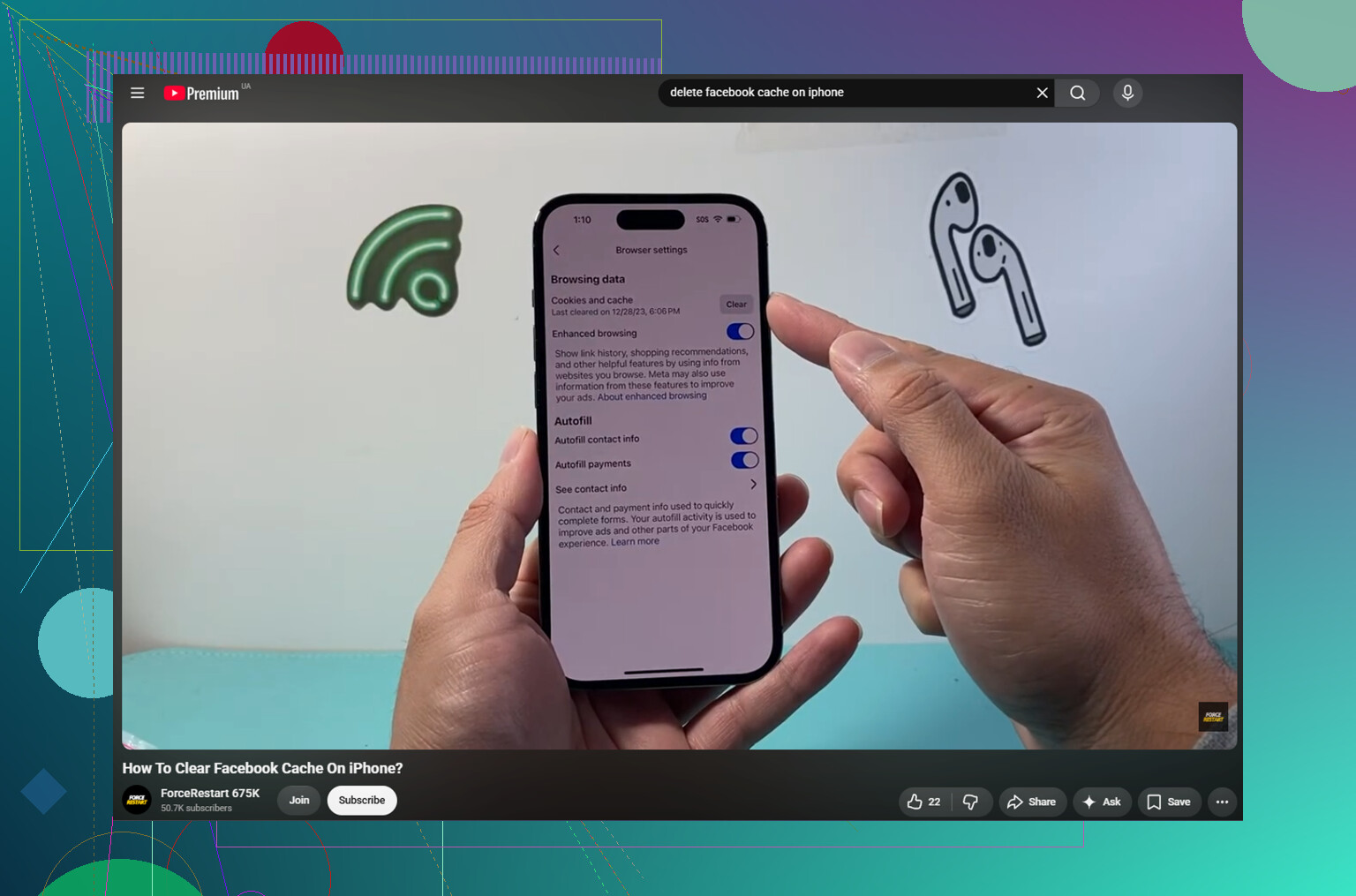
There’s also a smaller cleanup inside Facebook itself. Open the Facebook app and go to Menu > Settings and Privacy > Settings > Browser, then clear Cookies and Cache. That mainly clears data from websites you opened inside Facebook. It can help if links are acting weird or the in-app browser feels slow, but it usually will not make a big dent in iPhone storage.
To keep Facebook from filling space again as quickly, turn off video Autoplay or set it to Wi-Fi only in the Facebook app settings. Videos and Reels are a big reason the cache grows so fast. Even after a full reinstall, Facebook can build cache again within a day or two if you use it normally.
The part people miss is that Facebook often is not the real storage hog. It just looks obvious because iOS shows the app size clearly. A lot of the time, the bigger problem is the Photos library: old screen recordings, 4K videos, burst shots, duplicate attempts at the same picture, and screenshots that were useful once and then forgotten.
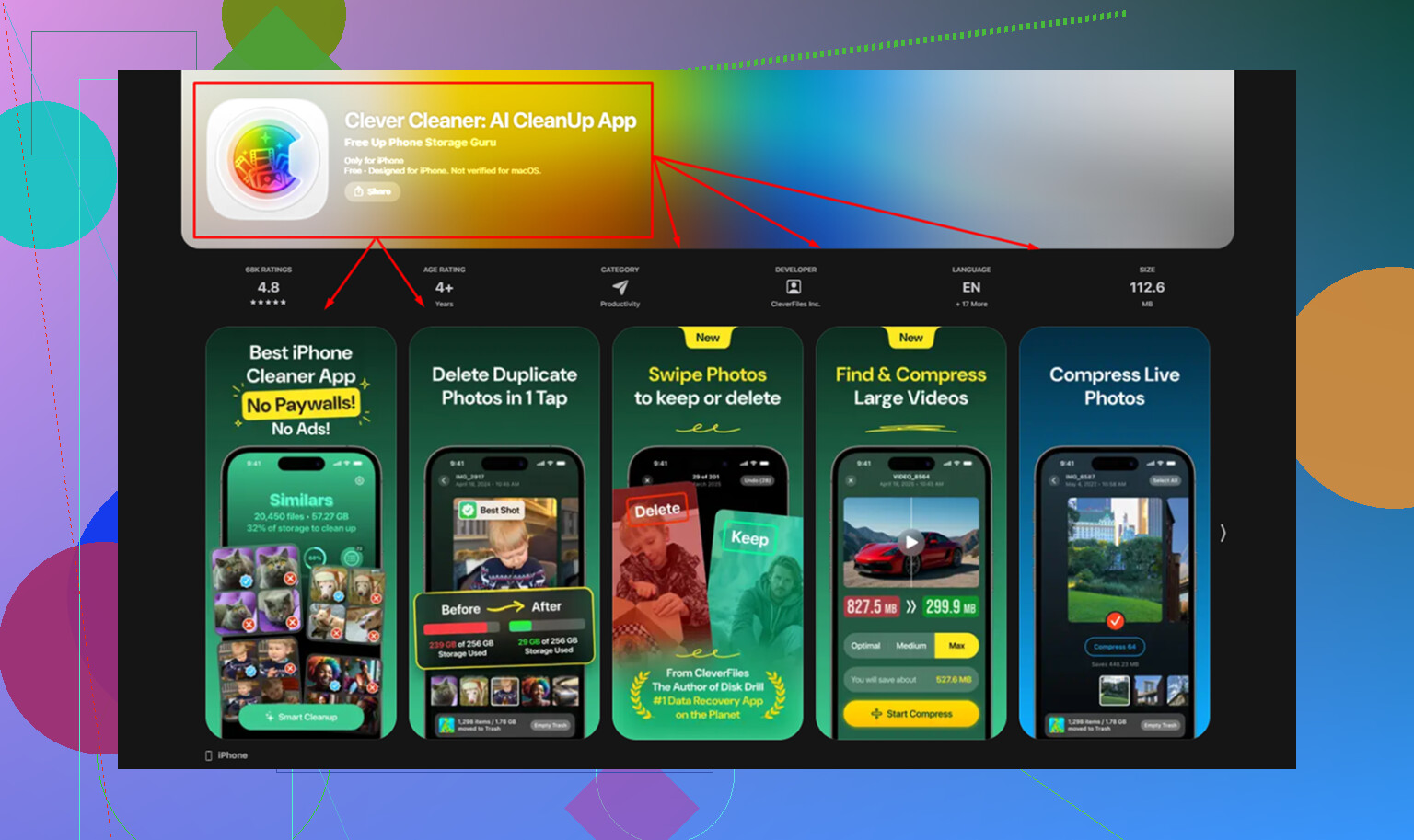
Clever Cleaner is aimed at that side of the problem. It does not clear Facebook cache, so you still need the manual steps above for Facebook. But it can help find the photo and video files that are actually eating the most space. It is free, with no ads or subscription.
The Heavies tab sorts your files from largest to smallest and shows the exact size, which makes it pretty obvious when one old 4K video is using more space than the whole Facebook app. The Similars tab groups near-duplicate photos and picks a Best Shot, so you can clean up repeated shots without checking every single one manually. Screenshots also show file sizes before you delete anything.
Everything is processed on the iPhone, with nothing uploaded somewhere else.
After clearing about 10GB of duplicate photos and old videos, the storage warning stopped coming back, even though Facebook still rebuilt some cache like it always does.
11 Likes
The number to check is “Documents & Data,” not just the Facebook app size. If you cleared the browser cache inside Facebook, you probably only removed a small slice, so the storage screen may barely move. I agree with @mikeappsreviewer that deleting and reinstalling is the real reset, but don’t panic if iPhone Storage still looks wrong right away. iOS can take a while to recalculate, and space may still be tied up in Recently Deleted photos/videos, Messages attachments, downloaded podcasts, or System Data. After reinstalling Facebook, restart the phone and check again after a bit. If the “available” number still barely changes, Facebook was probably visible, but not the main thing filling the phone.
Don’t keep clearing the Facebook browser cache over and over expecting gigabytes to appear. That button is tiny cleanup, not a full app reset. A quick way to tell what’s really happening is to delete Facebook, restart the iPhone, reinstall it, then check iPhone Storage before you spend time scrolling the feed again. If Facebook is small at that point, it was cache and it will just rebuild as you use videos, Reels, Marketplace, etc. If your available storage still barely moved before reopening it, then Facebook was mostly a distraction and the space is tied up somewhere else. I’d check large videos, Messages attachments, downloaded media, and Recently Deleted before chasing Facebook any further.
The storage number lies a little. If your phone is critically full, iOS may count some “purgeable” space weirdly or refill temporary space right after you clear something, so Facebook can shrink without Available jumping much. I’d check the actual Facebook “Documents & Data” number before and after, not just the big free-space number at the top.
Don’t sit there hammering that in-app browser cache button, it barely touches the Documents and Data number @sternenwanderer flagged. Delete and reinstall once, then check System Data too, because that hidden bucket eats space and no cleaner app touches it.