I’m trying to delete every photo on my iPhone except the ones marked as Favorites, but nothing I’ve tried is working. I’ve checked the Photos app, albums, and selection options, but I can’t find a reliable way to keep only favorited photos without manually sorting through everything. Is there a safe method or workaround for this?
I get why this is so annoying. Apple really should have a simple “delete everything except favorites” option, but it doesn’t, so you have to work around it.
The important iCloud part first: favorites should stay in iCloud as long as you don’t delete those actual items. iCloud Photos syncs changes, though. It is not a separate backup folder. So if you accidentally delete your favorites from the phone, that deletion can sync to iCloud too. Before doing anything big, make sure the heart icons are actually selected on the photos you want to keep.
The safest no-extra-app workaround I know is using the Hidden album to temporarily move your favorites out of the way:
- Open the Favorites album, tap Select, then choose Select All.
- Use the three-dot menu or share menu, depending on your iOS version, and tap Hide. That puts your favorites in the Hidden album and removes them from the normal Recents view.
- Go back to Library or Recents. Your favorites should no longer be visible there.
- Tap Select, start from the last photo, and drag upward. You can tap near the top of the screen while holding to speed through the selection.
- Delete the selected photos.
- Then go to Albums → Utilities → Hidden, select everything there, and tap Unhide. Your favorites will show back up in the main library.
There’s also a more awkward method where you select all your favorites and tap Duplicate. The duplicates usually land at the end of the camera roll, so you can delete everything before them. It works, but I’d be more careful with that one because it’s easier to confuse the originals and copies.
The bigger issue is that once your iPhone storage is almost completely full, Photos can get pretty useless. If you’re sitting at something like 127.9GB used out of 128GB, even deleting stuff can freeze or crash because iOS needs free space to process the deletion. That’s when the app starts hanging, batch deletes fail, and Settings may not update the storage graph right away.
At that point, manually selecting thousands of photos is a bad time. The Photos app also doesn’t show file sizes, so you might spend forever deleting small images while a few huge videos are the real problem.
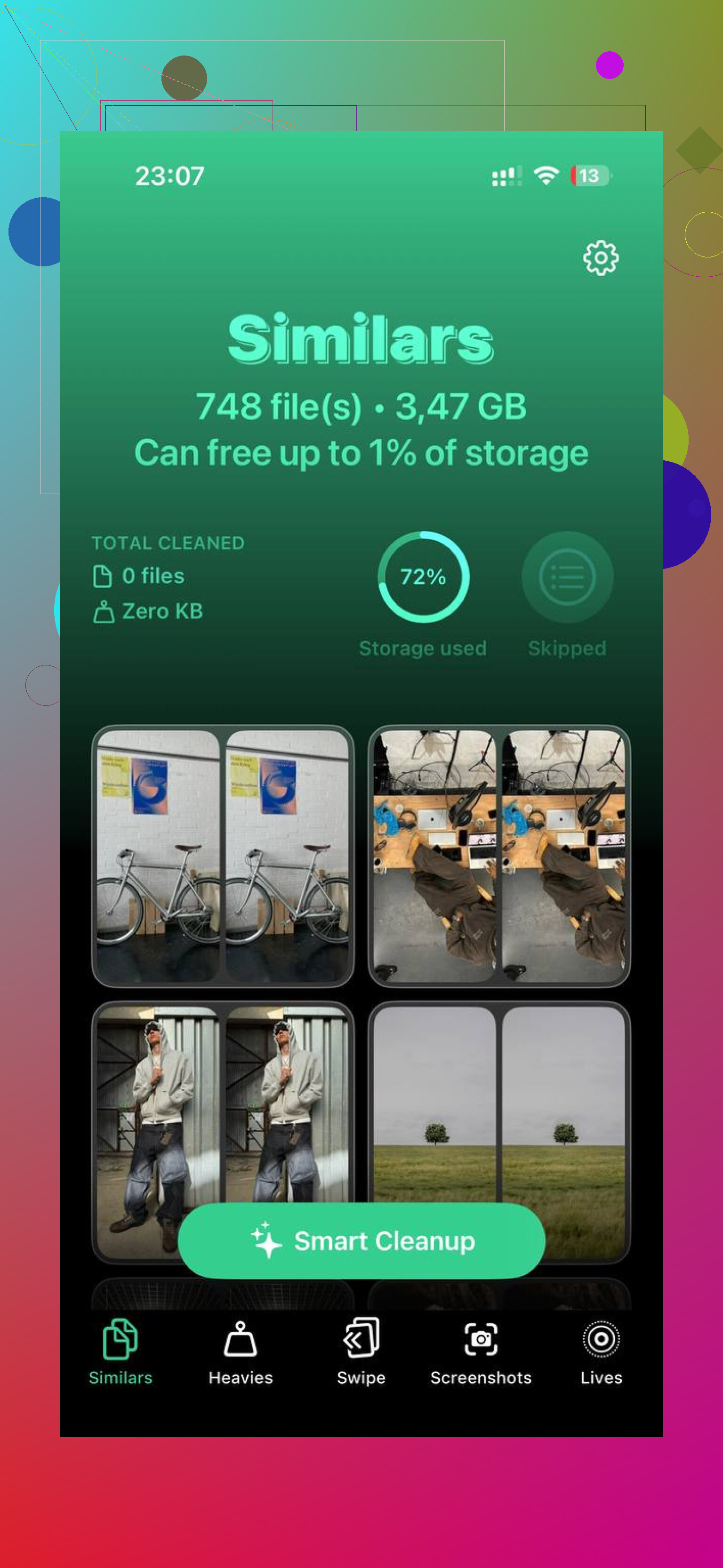
I ended up using Clever Cleaner, mostly because it made it easier to attack the biggest files first. I’m usually suspicious of cleaner apps since a lot of them are just ads and subscriptions, but this one is free, with no paywall or annoying ads.
The useful part was the Heavies tab. It sorts your library by file size, so old screen recordings, 4K videos, exports, and other huge files jump out immediately. The Similars tab is also handy if you have a bunch of almost-identical shots from taking the same photo several times. You can keep the best one and remove the extras. The Screenshots section shows file sizes right on the thumbnails too, which is better than guessing. It also processes on the device, so your photos are not being uploaded somewhere else.
That kind of cleanup helped more than trying to select 10,000 random photos at once. Once you delete a few large files and get some space back, the phone usually stops choking so badly.
One thing people forget: deleting photos does not immediately free the space. Go to Albums, scroll to Recently Deleted, and choose Delete All. Otherwise they can sit there for 30 days. If the storage number still looks wrong after that, restart the phone. iOS sometimes needs a reboot before it updates and behaves normally again.
17 Likes
Do not start mass deleting until Photos says iCloud sync is finished, or you can end up chasing weird missing/returning items. If you have a Mac, this is much easier there: in Photos create a Smart Album for items where “Photo is not Favorite,” select everything in that smart album, delete it, then clear Recently Deleted.
The missing detail is whether your “keepers” exist anywhere outside the Favorites album, because iPhone albums are not real folders. They’re just labels on the same library items. So don’t assume moving favorites into another album protects them from a mass delete. I’d do a boring safety step first: select Favorites and export/copy them somewhere outside Photos, like Files, a computer, or an external drive, then do the cleanup. @boswandelaar’s Mac Smart Album method is the cleanest if you have one. On the phone only, the Hidden workaround can work, but I would not use the duplicate method unless you’re desperate, since it’s too easy to delete the wrong version once the library re-sorts.
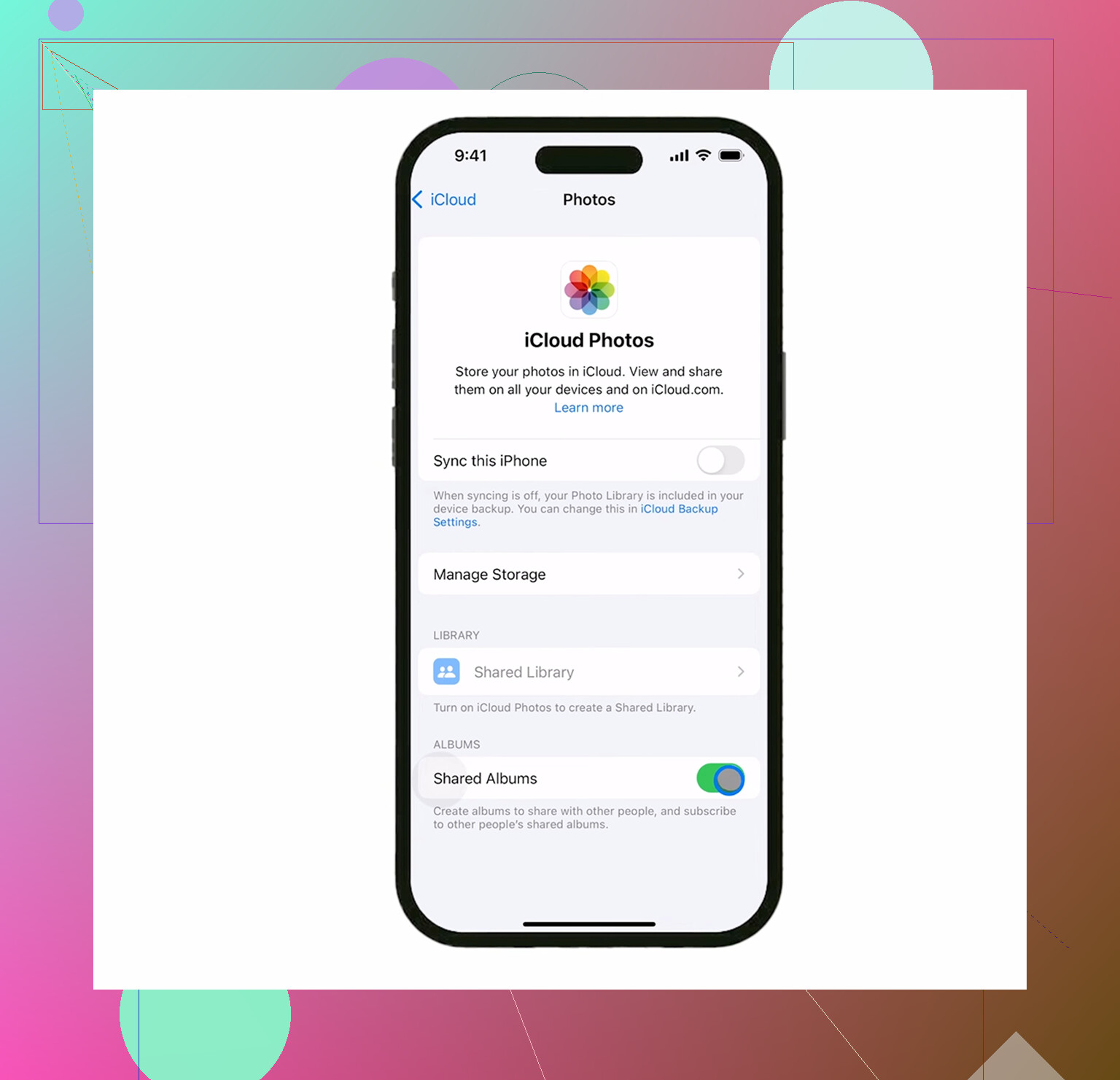
Do not turn off iCloud Photos or sign out of iCloud thinking that makes the delete “local only.” That is where people get burned. If iCloud Photos is enabled, deleting from the phone is a library delete, not a device cleanup. It can remove the same items from iCloud and your other Apple devices too.
If your real goal is “free space on this iPhone but keep the photos in iCloud,” then mass deleting is the wrong tool. Turn on Optimize iPhone Storage and let iOS replace full-size originals with smaller local versions. It is slower and less satisfying than a giant delete button, but it is the intended way to reduce local photo storage without deleting the cloud library.
If your goal is truly “I only want Favorites to exist anywhere,” then the Hidden-album workaround or the Mac Smart Album method makes sense. I’d still make a real copy of the Favorites first, outside Photos. Not another album. Not a shared album either, since those can behave differently and are not a clean archive of your originals. Export them to a computer, external drive, or Files, then delete. The annoying answer is that Photos on iPhone just does not have a proper “select all non-favorites” command, so you either need a workaround or another device.