I deleted downloaded files, videos, and offline content from my iPhone, but my storage is still almost full. I already checked the Files app and removed what I could, so I need help figuring out what is still taking up space and how to actually free up iPhone storage.
I keep running into this on iPhone, and yeah, Apple made storage cleanup way more scattered than it needs to be. Stuff lives in different corners, so when you delete one pile, another pile is still sitting there. If your phone says Storage Almost Full, or typing feels slow and apps hang for a second, low storage is often part of it.
Streaming app downloads are one of the first gotchas. Netflix, Spotify, YouTube, Disney+, all of those keep offline files inside their own app storage. I never had luck clearing those from the main iPhone settings menu. You need to open each app, find its Downloads or Offline area, and remove the files there.
For Apple Music, there is one faster path if you want to wipe downloaded songs in one pass. Go to Settings > Music > Downloaded Music. Tap Edit, then remove All Songs. If you only want to trim a few albums, open Music, then Library > Downloaded.
The bigger mess is Recently Deleted. A lot of people clean up a ton of stuff, check storage again, and see almost no change. Been there. On iPhone, delete often means hidden for 30 days.
If you remove a PDF or document in the Files app, it usually goes into Recently Deleted. To clear it for real, open Files, hit Browse, then Recently Deleted, then remove it from there too. Photos works the same way. Deleted pictures and videos sit in the Recently Deleted album under Utilities for about a month. If you need space now, open Photos and empty that album yourself.
There’s one option in Files I use all the time when I want space back without losing the file. If something is stored in iCloud Drive, don’t tap Delete. Press and hold the file, then choose Remove Download. This takes the local copy off your iPhone but leaves the file in iCloud. You’ll still see it, usually with a cloud icon, and you can pull it down again later when you need it.
Browser downloads hide too. Chrome, Firefox, and similar apps often stash files inside their own folders under Files. Open Files, then On My iPhone, and look for folders with the browser’s name. I found old ZIP files, PDFs, and random junk sitting there for months. A couple gigs gone in one sweep. Kinda dumb, but there it is.
If storage still looks wrong after you clear things out, I’d check two things. First, empty every Recently Deleted area. Second, restart the phone. iOS does not always refresh the storage numbers right away, and I’ve seen the bar stay bloated until after a reboot.
What happened on mine was ugly. The phone was lagging so hard I mistyped every other word. I dug around and found a pile of duplicate photos, plus old 4K videos I had downloaded through Safari and forgot about. Manual cleanup worked, but it ate time fast.
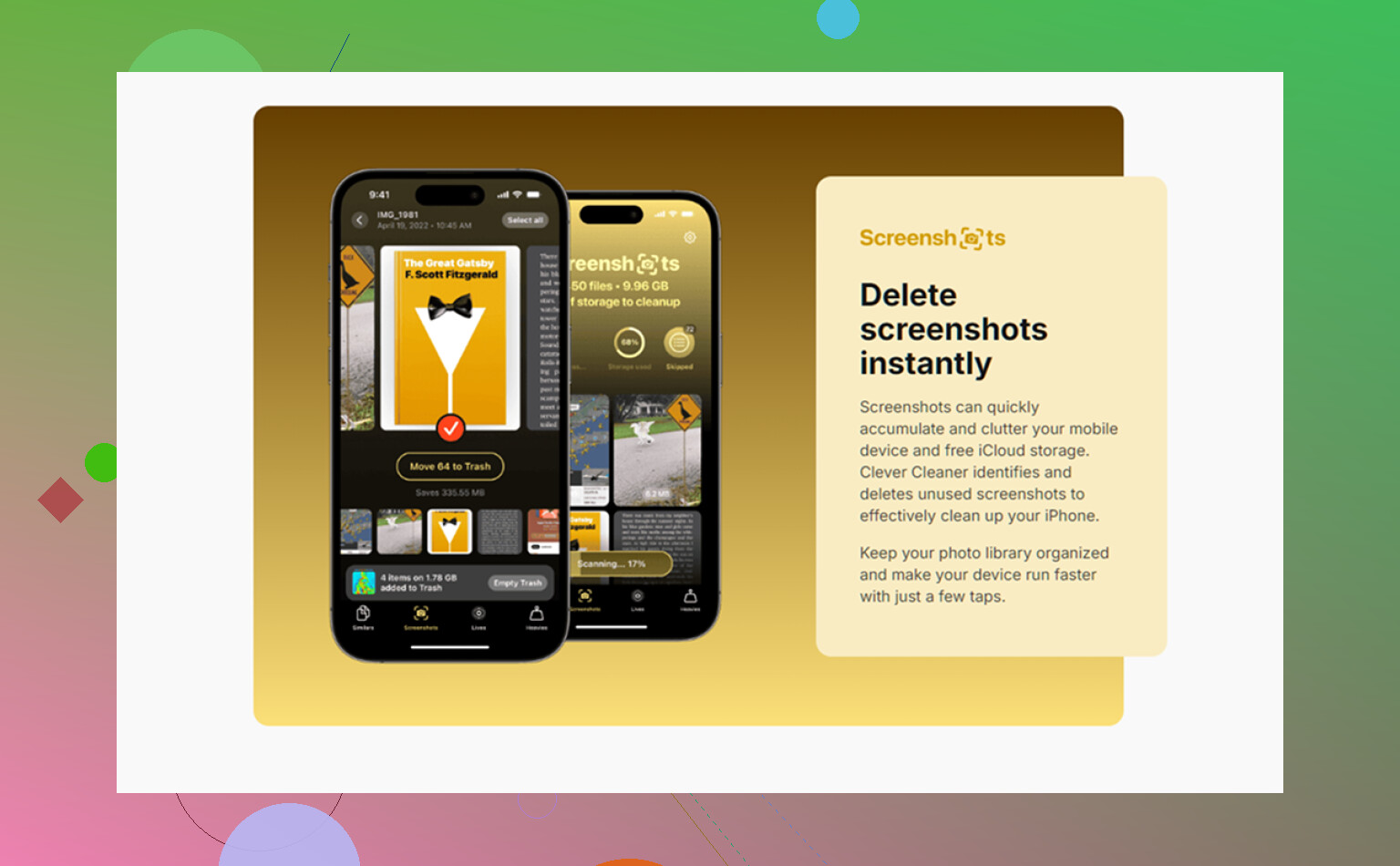
I ended up using Clever Cleaner because I was tired of sorting huge files by hand. Most cleanup apps I tried felt shady or pushed a subscription five taps in. This one didn’t do that on my run.
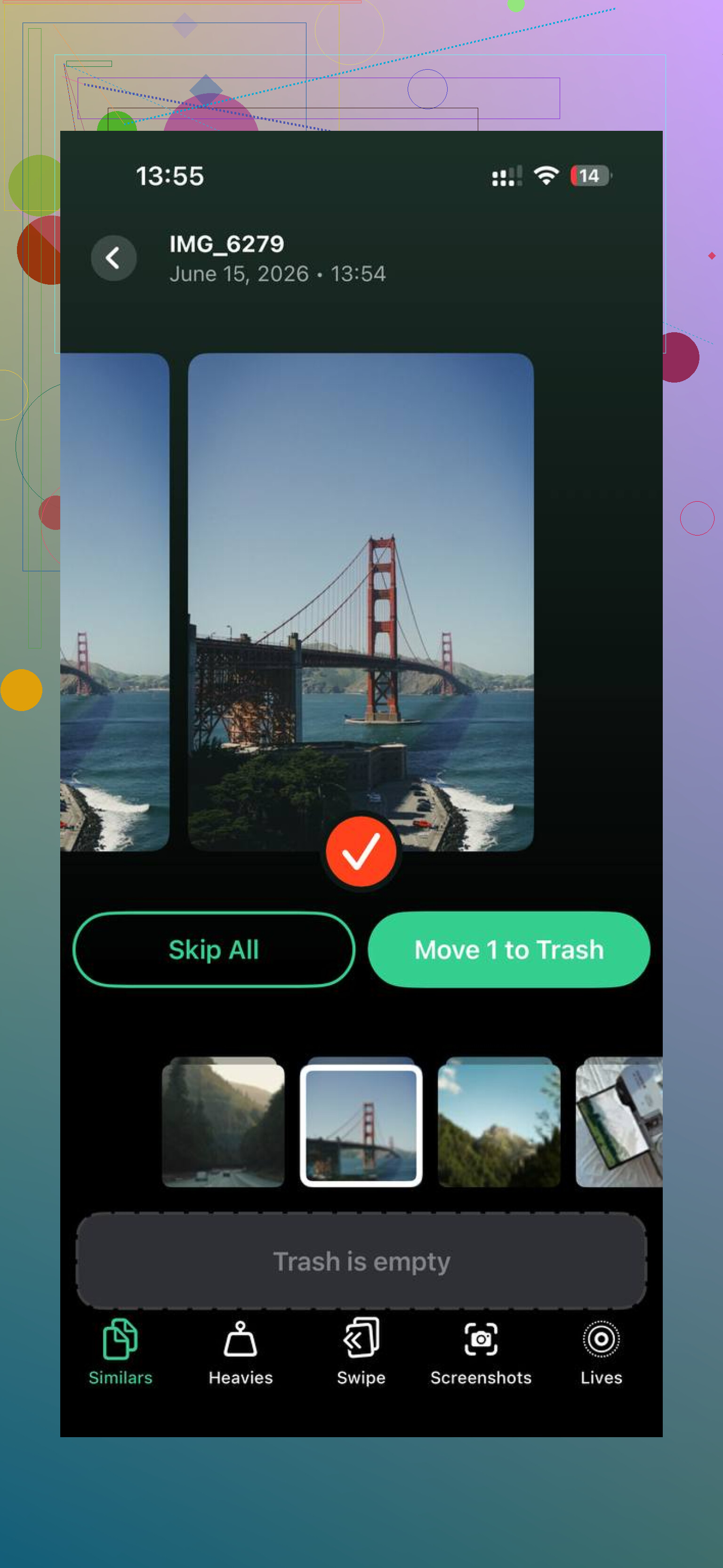
The part I used most was the Heavies section. It lays out videos and photos by file size, so the worst offenders float right to the top. If one video is eating 2GB, you see it fast. There’s also a Similars section for near-duplicate shots. Good for those bursts where you took 12 photos of the same thing and only one is worth keeping.
What made me less twitchy about using it was local processing. My photos stayed on the phone. After I cleared roughly 30GB between duplicates and giant videos, the lag stopped. Typing felt normal again. Apps opened without the weird pause. So, for me, that was the shortcut when I didn’t want to spend half a Saturday crawling through folders.
Main thing, don’t stop after the first delete. Go empty the trash areas too, or the phone is still hauling the same junk around.
10 Likes
Check iPhone Storage, not Files. That screen tells you which bucket is still huge.
Go to Settings, General, iPhone Storage. Wait 30 to 60 seconds. Look for these:
-
Photos
If Photos is still big, iCloud Photos might be keeping full-res copies on your phone. Turn on Optimize iPhone Storage in Settings, Photos. Also look for large video files you imported from Messages or AirDrop. Those get missed a lot. -
Messages
This one catches people off gaurd. Open Settings, General, iPhone Storage, Messages. Review Photos, Videos, GIFs, Stickers, Top Conversations. I’ve seen Messages hold 10GB to 25GB by itself. -
App bloat
Some apps hoard cache. TikTok, Instagram, Reddit, Safari, Podcasts. iOS often labels this as Documents & Data. Deleting downloads inside the app does not always shrink it. Best fix is delete the app, restart iPhone, reinstall. I disagree a bit with @mikeappsreviewer here, because a reboot alone often does nothing if the app cache is the real pig. -
Mail
The Mail app stores attachments and old synced mail locally. Remove and re-add the account if Mail storage looks dumbly high. -
System Data
If System Data is massive, 15GB to 50GB, it’s often logs, caches, update leftovers. Sync a backup, then restart. If it stays huge, update iOS. Worst case, backup and do a restore. Annoying, but it works more often than people want to admit. -
Safari
Settings, Safari, Clear History and Website Data. Downloads from Safari also leave junk behind.
If you want a faster way to spot the largest photos and videos, Clever Cleaner helps. This page with real Clever Cleaner app reviews from iPhone users gives a decent idea of what people cleaned up with it.
Main point, your missing storage is usuallly in Messages, app cache, Photos, or System Data. Files is only one slice.
Files is only the obvious layer. What still fills iPhone storage a lot of the time is stuff iOS does not remove instantly, or stuff it keeps because it thinks you might need it again. I mostly agree with @mikeappsreviewer and @ombrasilente, but I think people jump to “delete app and reinstall everything” a little too fast. Sometimes the real fix is just waiting for iOS to recalculate, then forcing it to.
A few places they didn’t really hit:
- Voice Memos. Big one if you record meetings, classes, random ideas at 2am, whatever.
- Podcasts app. Not just downloaded episodes, but “saved” episodes and auto-downloaded backlog.
- Books app. PDFs and audiobooks can sit there quietly forever.
- GarageBand, iMovie, CapCut, Canva, Lightroom. Editing apps keep exported projects, temp renders, and media caches.
- WhatsApp / Telegram. These can be absolute storage goblins.
Also check if you have enough free space for iOS to do housekeeping. Weirdly, when storage gets super low, cleanup can get worse, not better. Catch-22 nonsense.
What I’d do:
- Settings > General > iPhone Storage and wait.
- Tap the biggest 3 categories only. Don’t hunt blindly.
- Open the app itself and look for local media, caches, drafts, or projects.
- Restart, then re-check after 10 minutes on Wi-Fi and charging.
If photos/videos are the mystery chunk, Clever Cleaner is actually useful for spotting giant files and dupes fast without digging forever. If you want a better look at how it works, this Clever Cleaner iPhone storage cleanup video review is easier to follow than most text guides.
And yeah, sometimes iPhone storage reporting is just… kinda busted for a bit. Apple never really fixed that cleanly tbh.