I imported photos from my iPhone to my computer, but the option to delete them from the iPhone after import is grayed out. I’m trying to free up storage and thought they would be removed once the transfer finished. I need help figuring out why this setting is disabled and how to turn it back on safely.
Pulling photos off an iPhone and then removing them from the phone sounds easy. I found out fast it depends on where you do it, Windows, Mac, or on the iPhone itself. The steps shift, and some options disappear for dumb reasons.
When the delete button is grayed out
This is usually iCloud Photos getting in the way. If iCloud Photos is syncing, the iPhone treats the library like it belongs to iCloud first, not your computer. So your PC or Mac sees the files, imports them, then refuses deletion.
What fixed it for me was turning off iCloud Photos for a bit before plugging the phone in.
Path: Settings > Photos > iCloud Photos off.
Then reconnect the phone and try again.
Deleting imported photos on Windows
The Windows Photos app sometimes shows a checkbox for deleting items after import. If the checkbox is grayed out, I’d look at iCloud Photos first. That was the blocker on my side.
If Photos starts acting flaky, skip it.
- Connect the iPhone with USB.
- Open File Explorer.
- Find the iPhone under Devices.
- Open Internal Storage, then DCIM.
- Select the photos you already copied over.
- Right-click and delete them.
This route is less polished, but it tends to work better. No app layer. Fewer sync issues. Less guessing.
Deleting photos after import on a Mac
Mac Photos has a similar delete-after-import option in the top-right area. Mine vanished once iCloud Photos was on. So if you do not see it, it is not you.
The workaround I trust more is Image Capture.
- Plug in the iPhone with USB.
- Open Image Capture from Applications.
- Pick the iPhone in the sidebar.
- Press Command + A.
- Click the delete icon.
Image Capture feels old-school, though it gets the job done. It talks to the phone more directly, and I saw fewer weird sync restrictions there than in Photos.
Removing already imported photos on the iPhone
If you want to clean up from the phone itself, the Imports album is the easiest place I found.
- Open Photos.
- Tap Albums.
- Scroll down to Utilities.
- Open Imports.
- Tap Select.
- Choose the stuff you already backed up.
- Delete it.
One part trips people up. Those deleted files are not gone yet. They move to Recently Deleted and sit there for 30 days, still taking up space.
So do this right after:
Albums > Recently Deleted > Delete All.
Until you empty that folder, your storage number often stays put. I thought the cleanup failed the first time. It hadnt. iOS was still holding the files.
How to confirm the space was freed
After clearing Recently Deleted, check:
Settings > General > iPhone Storage
Look at the Photos section. If the number dropped, the deletion went through. I’d also restart the phone once. Storage totals on iOS lag behind sometimes, and a reboot helped mine recalculate.
Why deleting imports does not always fix storage or lag
This is the part I missed at first. Removing imported photos helps, but it does not clean the other junk sitting in the library. Near-duplicates, burst shots, giant videos, old screen recordings, all of it still piles up.
When storage gets too tight, the phone starts feeling off. Apps hang. Camera stutters. Random crashes show up. You free one batch of photos and think the job is done, then the phone still feels cramped.
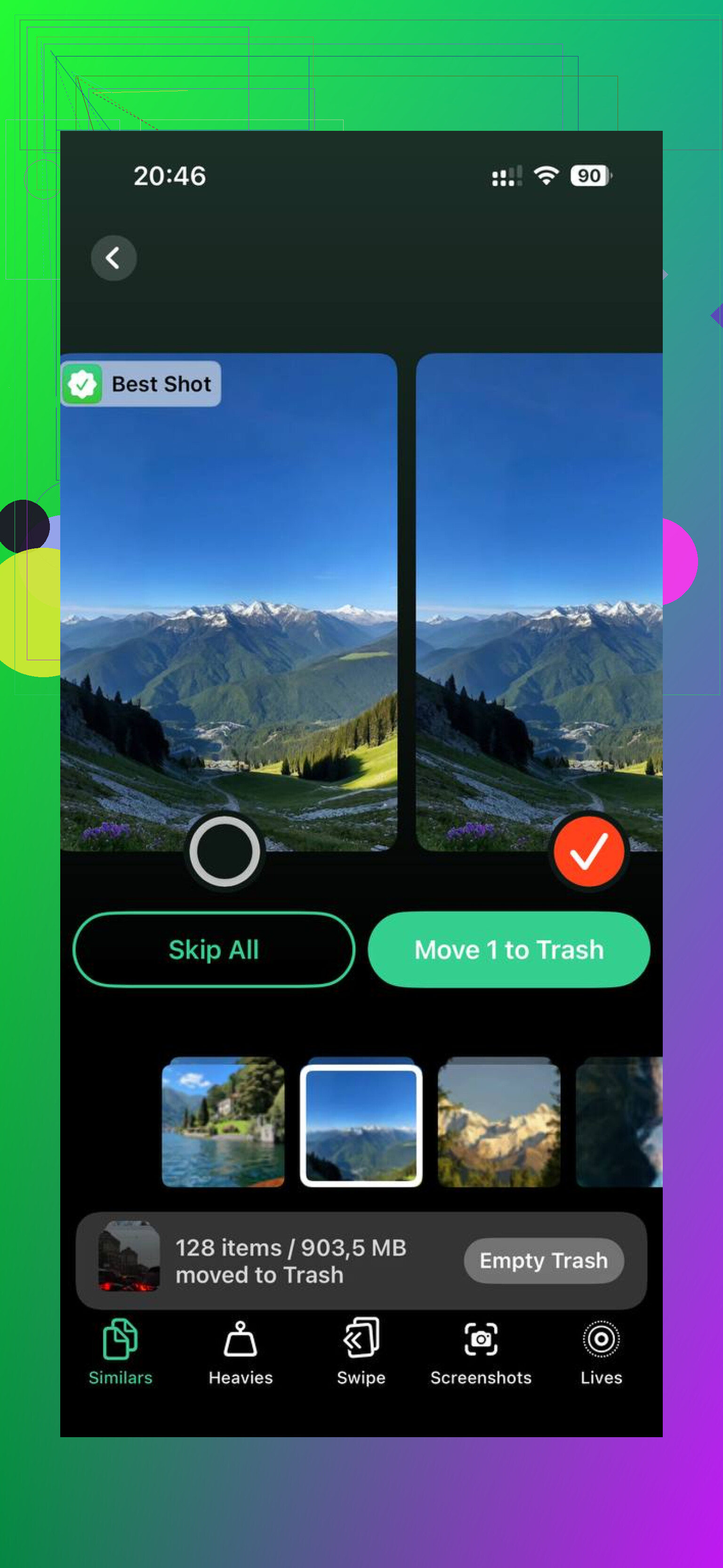
I used Clever Cleaner after the manual cleanup because the leftover mess was harder to sort by hand. The Heavies section puts the biggest files first, with sizes shown, so large videos stick out fast. The Similars section groups nearly identical photos and picks a Best Shot, which helped with burst sets I forgot existed. It shows file sizes before deletion, and the processing stays on the device.
After I ran it, I got back more storage than I expected, and the lag I still had mostly went away.
19 Likes
If the delete-after-import option is greyed out, the import app usually does not have permission to remove files from the iPhone. Importing and deleting are two separate actions. A copy to your computer does not tell iOS to erase the originals.
A few things cause this:
- The photos are synced through iCloud Photos.
- The app you used only imports, it does not support deletion.
- The phone is in a restricted USB mode, or you did not fully trust the computer.
- You imported to a folder the app treats as read-only.
I slightly disagree with @mikeappsreviewer on one point. Turning off iCloud Photos is not my first move. It works for some people, but it adds sync risk if your library is mid-sync. I would first check the source of the photos.
On your iPhone, go to Settings, Photos.
If iCloud Photos is on and Optimize iPhone Storage is enabled, your full library lives in iCloud first. Your computer import tool often refuses deletion in this setup. Apple does this on purpose. Annoying, yep.
Try this instead:
Use the Photos app on the iPhone and delete in batches after you confirm the import.
Then empty Recently Deleted.
Then restart the phone.
Storage numbers lag a bit sometiems.
If your goal is iPhone storage cleanup after photo import, this is the safest path:
Import photos to computer.
Verify files open on the computer.
Delete from iPhone.
Clear Recently Deleted.
Check Settings, General, iPhone Storage.
If your storage is still full after removing imported photos, the problem is often duplicate shots, large videos, screenshots, and bursts. Clever Cleaner helps with that cleanup. This thread is worth a look if you want a free option for iPhone photo cleanup and storage recovery:
free iPhone cleaner for clearing duplicate photos and large videos
Short version for your case:
Greyed out does not mean the import failed.
It means the app is blocked from deleting.
Delete on the phone itself if you want the least hassle.
What usually gets missed is that the greyed-out delete option can also happen because the import app only has read/import access over MTP/PTP, not full file management access. So the photos are copyable, but not removable through that app. That’s why people assume the import failed when it actualy didn’t.
I’d partly disagree with @mikeappsreviewer on disabling iCloud right away. That can create more confusion than it solves if your library is still syncing. And @yozora is right that deleting on the phone is often the least messy route, but I’d add one more thing: check Screen Time restrictions too. If Content & Privacy restrictions are on, deletion can be blocked in weird ways.
A couple things to check that havent been mentioned much:
- Try a different USB cable or USB port
- Unlock the iPhone before connecting and keep it awake
- On Windows, make sure Apple Devices/iTunes drivers are installed properly
- On Mac, Finder may see the phone fine while the import app still lacks delete rights
- If the photos came from another source and were synced back at some point, they may not behave like normal camera-roll items
Also, if storage still looks full after cleanup, the bottleneck is often duplicates, large videos, screenshots, and bursts, not just imported pics. That’s where Clever Cleaner makes more sense than manually poking around forever. It’s basically a free iPhone storage cleaner for duplicate photos, similar shots, screenshots, and heavy video files, so you can recover space faster after import. This quick clip explains it better: see how to free up iPhone storage fast
So yeah, greyed out usually means permission/sync limitation, not that your transfer is broken.

Greyed out can also mean the photos are not in a state the computer is allowed to delete, even if they were imported fine. One thing I’d check that @yozora, @byteguru, and @mikeappsreviewer only touched on indirectly is whether the files are still being indexed by Photos on the phone. If the iPhone is doing background analysis, cleanup options can stay unavailable until it finishes and is on power.
Another angle: if these are Live Photos, edited photos, or HDR versions, some import tools copy the rendered image but will not remove the original asset bundle. That makes the delete checkbox look broken when it is really being cautious.
I would not rush to disable iCloud Photos unless you have a full backup and sync is complete. That fix works sometimes, but it is a bit blunt.
Best check:
- Leave iPhone unlocked
- Plug directly into the computer, no hub
- Wait a minute after trust prompt
- See if deletion works from Image Capture on Mac or File Explorer on Windows
- If not, delete on device and clear Recently Deleted
If storage still does not improve much, the real space hogs are often duplicates and videos. Clever Cleaner is decent for that.
Pros:
- free
- easy duplicate and large file cleanup
- good for post-import cleanup
Cons:
- not needed if you only have a few photos
- still requires you to review before deleting
- won’t fix USB/import permission issues