I turned on Optimize iPhone Storage to save space, and now some photos look blurry at first when I open them. I’m trying to figure out whether this setting actually reduces photo quality while viewing or if the full-resolution version loads later from iCloud. I need help understanding what’s normal and whether my original iPhone photos are still being kept in full quality.
Apple’s Optimize Storage setting looks straightforward, but when I used it, the behavior felt slower and less obvious than the label suggests. Here’s the plain version of what it does.
Why your photo library does not shrink right away
Turning it on does not trigger a fast cleanup. iPhone keeps full quality originals on the device while storage still looks fine to iOS. The system waits until space gets tight, usually when you try something heavier like installing a big app or shooting a long video. Until then, it often leaves your local photo library mostly untouched. So if you enabled it and the storage graph barely changed, nothing is broken. The phone simply has not hit its own limit yet.
Sending photos still works the normal way
Yep. I tested this with Messages and Mail. If the original file is not sitting on the phone, iOS grabs it from iCloud in the background before sending. The person on the other end still gets the full quality version, not the smaller local preview.
What changes when you browse photos
You still see your library, but a lot of what loads first is the lighter version. While scrolling, thumbnails appear as usual. When you open one image, the phone fetches the full file if needed. That little loading spinner in the corner is the clue. On decent Wi Fi, I barely noticed it. On weak signal, or with airplane mode on, some photos stayed soft or showed up blank for a bit. That’s the tradeoff you feel day to day.
How I checked whether it was doing anything
Open Settings, then General, then iPhone Storage, and look at Photos. If optimization is active, the storage used on the phone should be a lot lower than the full size of your iCloud Photos library. One easy test: switch to airplane mode and try editing an older photo. If iPhone tells you it needs to download the item first, the setting is doing its job.
What changes if you turn it off
Once you switch back to Download and Keep Originals, the phone starts trying to bring every full resolution file back onto local storage. I would not do this casually. If your library is big and your phone is already close to full, the process tends to choke fast. You need enough free space for the entire library first, or it stalls.
Where Optimize Storage falls short
This part matters more than I expected. Optimize Storage shifts originals into iCloud when needed, but it does not clean your library. Duplicate shots stay. Burst junk stays. Big 4K clips you forgot about stay. So your iCloud space keeps getting eaten, and your library stays messy. On top of that, iPhones tend to run worse when storage is tight because iOS wants breathing room for temp files and system tasks.
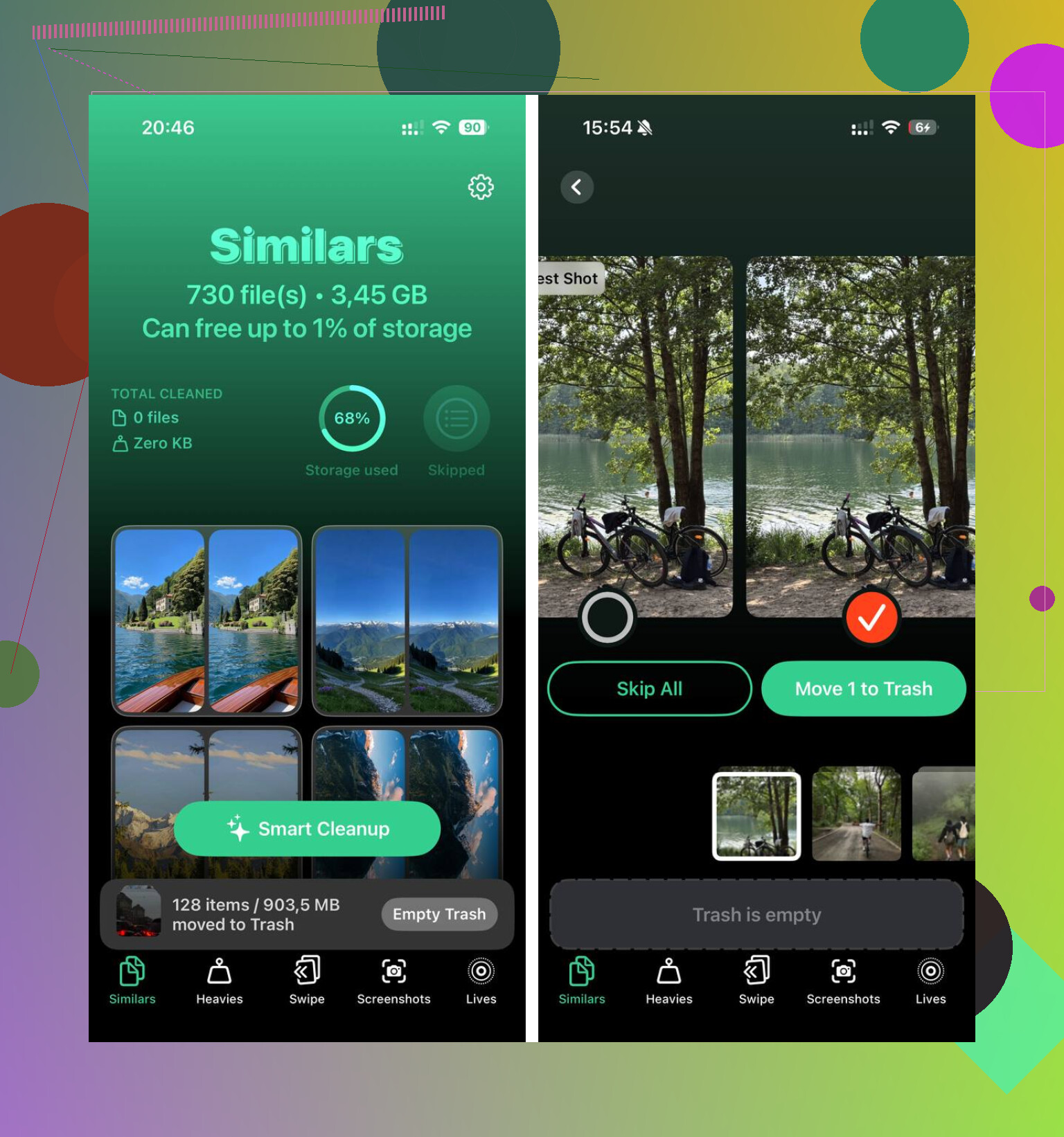
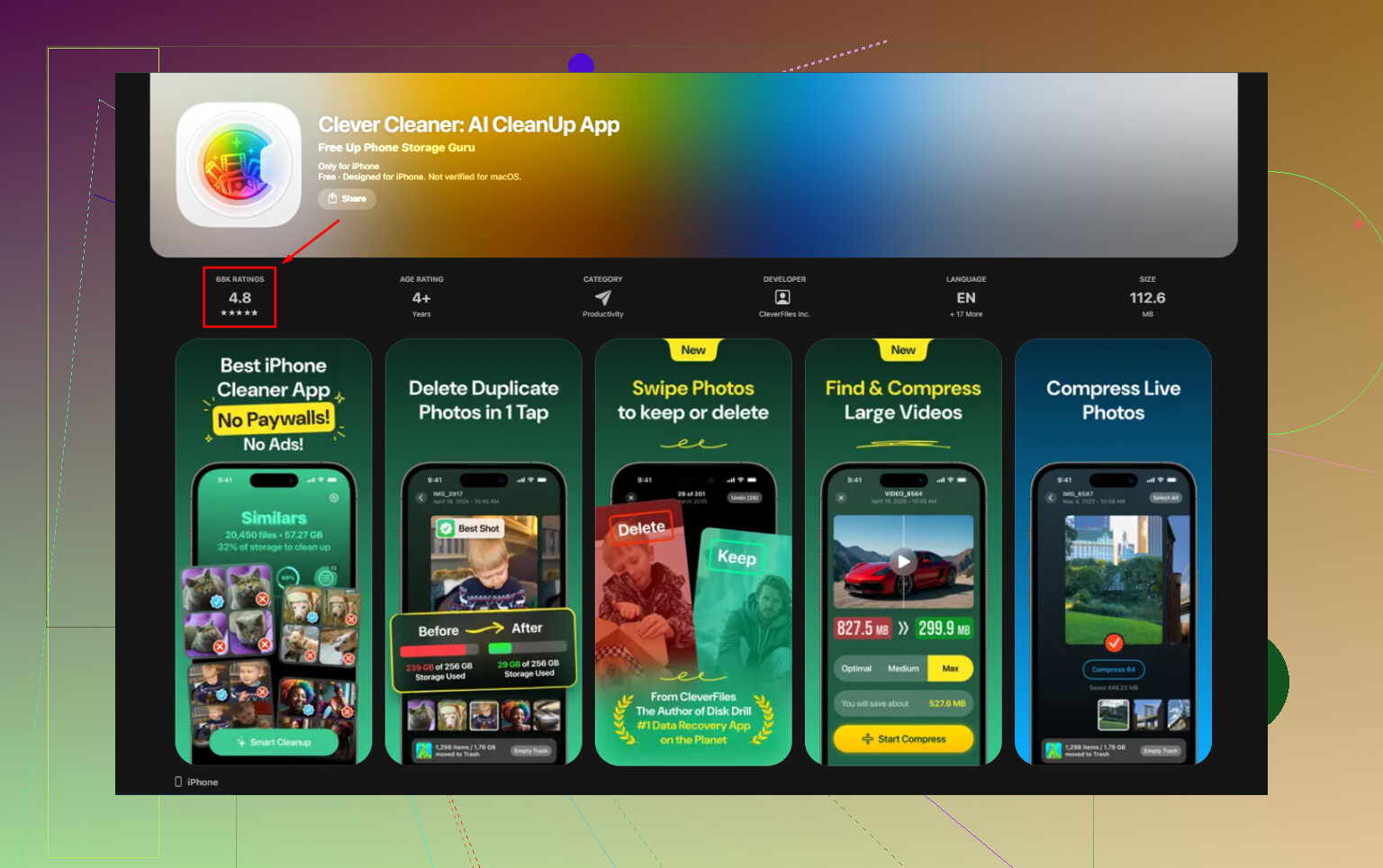
I ended up cleaning out duplicates and oversized videos first, and that helped more than waiting for Optimize Storage alone. For that, I used Clever Cleaner. What stood out to me was the simple file size view for videos and screenshots, which the Photos app still hides too well. It also grouped similar photos and flagged a best shot, so I could wipe out repeated takes without sorting them one by one. From what I saw, it runs locally on the phone.
After clearing the junk, the phone had enough free space to stop dragging, and Optimize Storage started making more sense. Before that, I kept waiting for it to fix a storage problem it was never built to solve on its own.
8 Likes
Optimize iPhone Storage does not permanently lower your photo quality. It swaps the full file off your phone and keeps a smaller device version. When you open the photo, your iPhone loads the full-res copy from iCloud if needed.
So yes, blurry at first is normal. It means the original is still downloading. Once it finishes, you should see the full image. If your Wi-Fi is slow, or you have weak cell service, the soft preview hangs around longer. Offline, some shots stay low-res untill you reconnect.
I slightly disagree with @mikeappsreviewer on one part. For viewing, the setting is usually fine. The bigger annoyance shows up when you zoom in fast, edit, or open older videos. That is where the delay gets obvious.
Easy rule:
If the photo sharpens after a second or two, quality is intact.
If it never sharpens, check iCloud sync, network, and storage.
If your phone is cramped, clean local junk first. Clever Cleaner is useful for duplicate pics and fat videos. This review ranks it as a top iPhone cleaner app: best iPhone cleaner app for freeing up storage.
No, Optimize iPhone Storage does not permanently lower the quality of your photos when you view them. What you’re seeing is basically a placeholder version first, then the full original loads from iCloud if it is not already on the phone.
So the short version is:
- blurry at first = normal
- stays blurry forever = something’s off
- once downloaded = full quality again
I mostly agree with @mikeappsreviewer and @chasseurdetoiles, but I’d push back a little on the idea that this is mainly a viewing problem. For most people, casual viewing is fine. The real annoyance is when you tap an older pic, zoom in right away, or try editing before the original finishes downloading. That’s when it feels kinda broken.
A couple things people miss:
- Low Power Mode or weak data can make downloads slower
- if your phone storage is extremely full, Photos can behave weird
- screenshots and recent shots usually stay local longer than old originals
If you want to test it, open an old photo and pinch to zoom. If detail snaps in after a sec, quality is intact. If not, check iCloud Photos sync status.
Also, Optimize Storage saves device space, not iCloud space. Big difference. If your library is bloated with duplicates and giant videos, clearing junk still matters. That’s where something like Clever Cleaner can help. I found this Clever Cleaner review for freeing up iPhone storage fast pretty useful if you want to clean dupes and heavy files first.
So yeah, your photos are not ruined. They’re just being lazy untill the original loads.
Blurry first, sharp a moment later usually means Optimize iPhone Storage is working exactly as intended. I agree with @chasseurdetoiles and mostly with @stellacadente and @mikeappsreviewer, but I think one nuance gets missed: sometimes Photos is not downloading the true full original immediately for every tap. iOS can prioritize a good-enough version first, especially when bandwidth or battery conditions are poor, then refine it.
So no, the setting does not “damage” your photos. It changes availability, not ownership of quality.
What matters is this:
- Thumbnail quality is not final quality
- Viewed offline, some items may stay soft
- Zooming and editing expose the delay more than casual browsing
- Exporting or sharing may also pause briefly while the original is fetched
One practical downside people do not mention enough is travel. If you rely on old photos in bad reception areas, Optimize can be annoying even though quality is preserved in iCloud.
As for storage, I would not rely on Optimize alone. It is storage management, not library cleanup. If your phone is packed with duplicates, screen recordings, and giant videos, a cleaner can help before iOS starts juggling files. Clever Cleaner is decent for that.
Pros of Clever Cleaner:
- easy duplicate and similar photo cleanup
- helps spot large files fast
- useful if Photos app feels too manual
Cons:
- another app to sort through before deleting anything
- “similar” detection is not always perfect
- cleanup apps in general do not replace proper backups
So the blur is usually temporary, not quality loss. If a photo never sharpens, then I’d suspect sync or network before the setting itself.