I’m trying to free up iPhone storage, but my Photos app has thousands of pictures and manually scrolling to select them is taking forever. Is there a faster way to bulk delete multiple photos on iPhone without losing the ones I want to keep?
I ended up dealing with this after my iPhone kept yelling about storage. I thought I had already deleted the obvious junk, then I checked Photos and saw more than 18,000 pictures sitting there. No chance I was going through that one tap at a time.
The best method depends on what you’re trying to get rid of. If it’s a small batch, the Photos app is fine. If it’s thousands of similar shots, screenshots, Live Photos, or giant videos, there are faster ways.
Manual selection in the Photos app
For a few hundred photos, or photos from one trip/event, I’d just use Apple’s built-in selection tools.
- Open Photos.
- Tap Select in the top-right.
- Drag across photos instead of tapping them one by one.
- If there are a lot, pinch out to the Months view first so you can grab bigger chunks faster.
- Tap the trash icon once you’ve selected everything you want gone.
This gives you the most control, which is nice, but it gets old fast when your library is huge.
Use Apple’s built-in media type albums
If you mostly want to clear out stuff like screenshots or screen recordings, Apple already sorts those into separate albums.
- Open Photos.
- Go to the Collections tab.
- Scroll down to Media Types.
- Open Screenshots, Bursts, Screen Recordings, or whatever category you want.
- Tap Select, then Select All.
- Delete them.
This is way faster than hunting through your full camera roll, mostly because these albums actually have a Select All option.
Use Clever Cleaner for the big cleanup
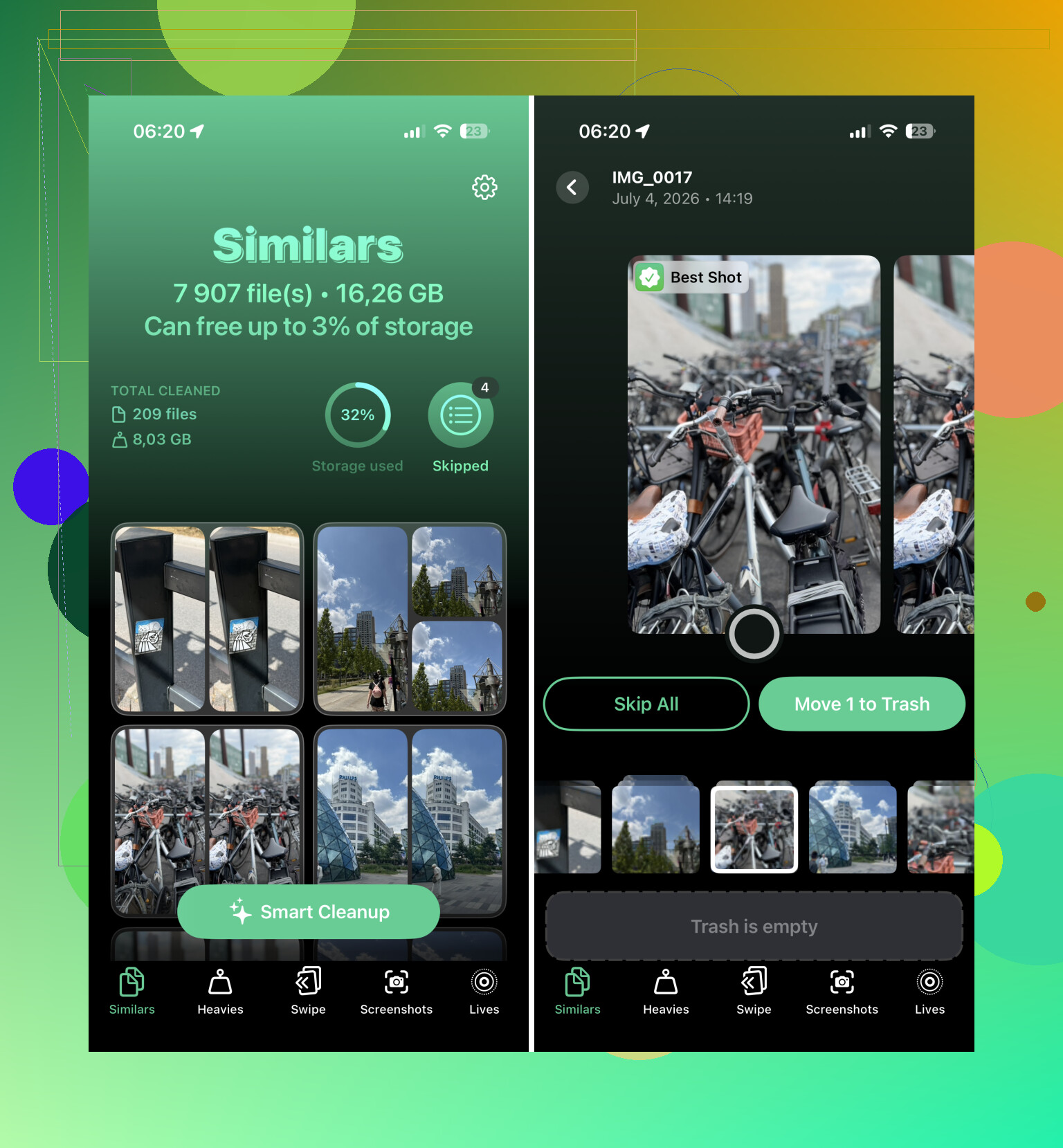
For a large photo library, Clever Cleaner saved me the most time. It breaks your library into cleanup-friendly groups instead of making you manually sort through everything.
- Install Clever Cleaner and open it.
- Check Similars to review groups of nearly identical photos. It suggests a Best Shot to keep.
- Swipe through and remove the duplicates or near-duplicates you don’t want.
- Use the Screenshots section if you want to bulk-delete screenshots.
- Look at Live Photos if you want to convert some into regular still photos and save space.
- Check Heavies for large videos, since deleting one big video can free up more space than deleting tons of normal photos.
I’m usually pretty skeptical of cleaner apps because a lot of them are ad-heavy or subscription traps, but this one is free and handled a big library better than I expected.
Do it from a computer
If you’re deleting thousands of photos, using a computer is less painful than dragging around on the iPhone screen.
- Open iCloud.com on your computer if you use iCloud Photos.
- Sign in.
- Use Shift-click to select large ranges of photos.
- Delete the ones you don’t want anymore.
- Wait for the changes to sync back to your iPhone.
A keyboard and mouse make this kind of cleanup much easier, especially if you already know there are whole stretches of photos you want gone.
Factory reset if you want everything gone
If you truly don’t need anything on the phone anymore, a reset is the fastest route. Just don’t do this unless you’ve backed up anything you might want later.
- Open Settings > General > Transfer or Reset iPhone.
- Choose Erase All Content and Settings.
- Follow the steps on screen.
This makes the most sense if you’re selling the phone, giving it away, or starting over completely. For normal photo cleanup, it’s overkill.
21 Likes
Don’t start mass-deleting until you check whether iCloud Photos is on, because deleting from the iPhone can delete the same photos from iCloud and your other Apple devices too. If your goal is only to free phone storage, try Settings > Photos > Optimize iPhone Storage first, then delete the obvious junk and empty Recently Deleted afterward.

Deleting a whole month is a very different problem from deleting “all the junk” scattered through five years of photos. For the first case, the fastest way is still Apple’s Photos app. For the second, endless scrolling is usually the wrong approach.
If you already know the rough time period, go to Photos, switch to the broader view, and select by groups instead of individual thumbnails. The little trick many people miss is that after tapping Select, you can drag across a row and then keep holding near the edge of the screen so Photos keeps scrolling while selecting. It is still a bit clumsy, but it is much faster than tap, tap, tap for hundreds of photos.
For scattered cleanup, use Search before selecting. Search for things like:
- screenshots
- receipts
- whiteboard
- memes
- documents
- blurry
- videos
- a city name
- a month or year
Then delete from that filtered set. It is not perfect, but it cuts the pile down before you start selecting. Searching “July 2022” or “Las Vegas” is a lot less painful than dragging through the entire library.
The part I would be careful with is deleting from “Recents” when you are tired and impatient. That album makes it too easy to delete good photos mixed in with junk. If you are doing a big purge, I would work in smaller passes: screenshots first, big videos second, duplicates/similar shots third. You will free storage faster by removing a few long videos than by deleting 900 normal photos.
I agree with @andarilhonoturno on the iCloud warning. If iCloud Photos is enabled, delete means delete from the synced library, not just “remove from this phone.” If your real goal is to make the phone stop complaining about storage, turn on Optimize iPhone Storage first and give it some time. Mass deletion is not always the best fix.
And don’t forget the annoying final step: empty Recently Deleted. Photos you delete usually sit there for about 30 days, so the space may not come back right away unless you go into Recently Deleted and permanently remove them. That catches a lot of people because they think the cleanup failed.
For similar photos, I would use an app only as a sorting helper, not as a blind delete button. Clever Cleaner or any similar tool can be useful if it groups near-duplicates for review, but I would still look at the suggested keepers before approving a large batch. The “best” photo is not always the one you personally want to keep, especially with screenshots, pets, kids, documents, or pictures where one tiny detail matters.
If you want the least fiddly free method, my order would be:
- Check iCloud Photos and decide whether you are deleting everywhere or only trying to save device storage.
- Turn on Optimize iPhone Storage if you use iCloud.
- Delete large videos first.
- Use Media Types and Search to narrow the view.
- Use drag-select with auto-scroll for date ranges.
- Empty Recently Deleted when you are sure.
That avoids the worst version of the job, which is sitting in Recents for an hour trying to manually pick through thousands of tiny thumbnails.
Use a computer if the phone screen is the problem. On a Mac, Image Capture can show the iPhone’s local photos in a plain list so you can sort, shift-select, and delete big batches without the Photos app dance.
Small catch: if iCloud Photos with Optimize Storage is on, some items may not be stored fully on the phone, so iCloud.com may be the cleaner place to bulk delete.