My iPhone says storage is almost full, and now I can’t update apps or take many new photos. I checked my settings, but I’m not sure what is safe to remove first or what is taking up the most space. I need help figuring out how to check iPhone storage and decide what to delete without losing anything important.
I kept running into the ‘Storage Almost Full’ alert, and after a while it got old fast. I had stretches where I barely installed anything, yet my iPhone felt clogged and slow.
If you want the full storage breakdown, go here:
Settings > General > iPhone Storage
This screen gives you the main view. At the top, I saw the colored bar splitting storage into apps, photos, media, system data, and other chunks. Under it, Apple usually drops a few suggestions, like offloading apps you never open or checking big message attachments.
If you only want the simple numbers, use:
Settings > General > About
Then look for Capacity and Available. One thing tripped me up the first time, the Capacity number on the phone looked smaller than the number on the box. iOS takes a chunk for itself, often around 8GB to 10GB, so the mismatch is normal.
I also checked from a computer when the phone view looked off. On a Mac, use Finder. On Windows, use the Apple Devices app or iTunes. For me, this view felt more stable. The phone sometimes hangs onto temp caches and the numbers look weird for a bit. A sync check from the computer sometimes clears some of that junk before showing the storage graph.
There’s also the local storage versus iCloud mess, and yeah, people mix those up all the time. Your iPhone storage and your iCloud storage are separate.
To check iCloud space:
Settings > your name > iCloud
I had iCloud room left and still got the low storage warning on the phone, so having cloud space means nothing if the device itself is packed. If photos are eating most of your storage, look at your Photos settings and turn on Optimize iPhone Storage. Full resolution files stay in iCloud, smaller versions stay on the phone.
System Data is another pain point. Apple used to label some of this stuff as Other. It includes caches, voices, fonts, and leftover app junk. Sometimes it grows way past what you’d expect. What helped me was going back into iPhone Storage, opening apps one by one, and checking the split between App Size and Documents & Data.
Some apps are repeat offenders. Telegram was one for me. Netflix too, after a few downloads I forgot about. A lot of apps let you clear downloads from inside their own settings, so it’s worth checking there before deleting the whole app.
My phone got slow enough a few months back where scrolling felt off and apps started closing for no reason. I found out low free space was a big part of it. iPhones need spare room for temp files. Once storage gets squeezed, the whole thing starts dragging.
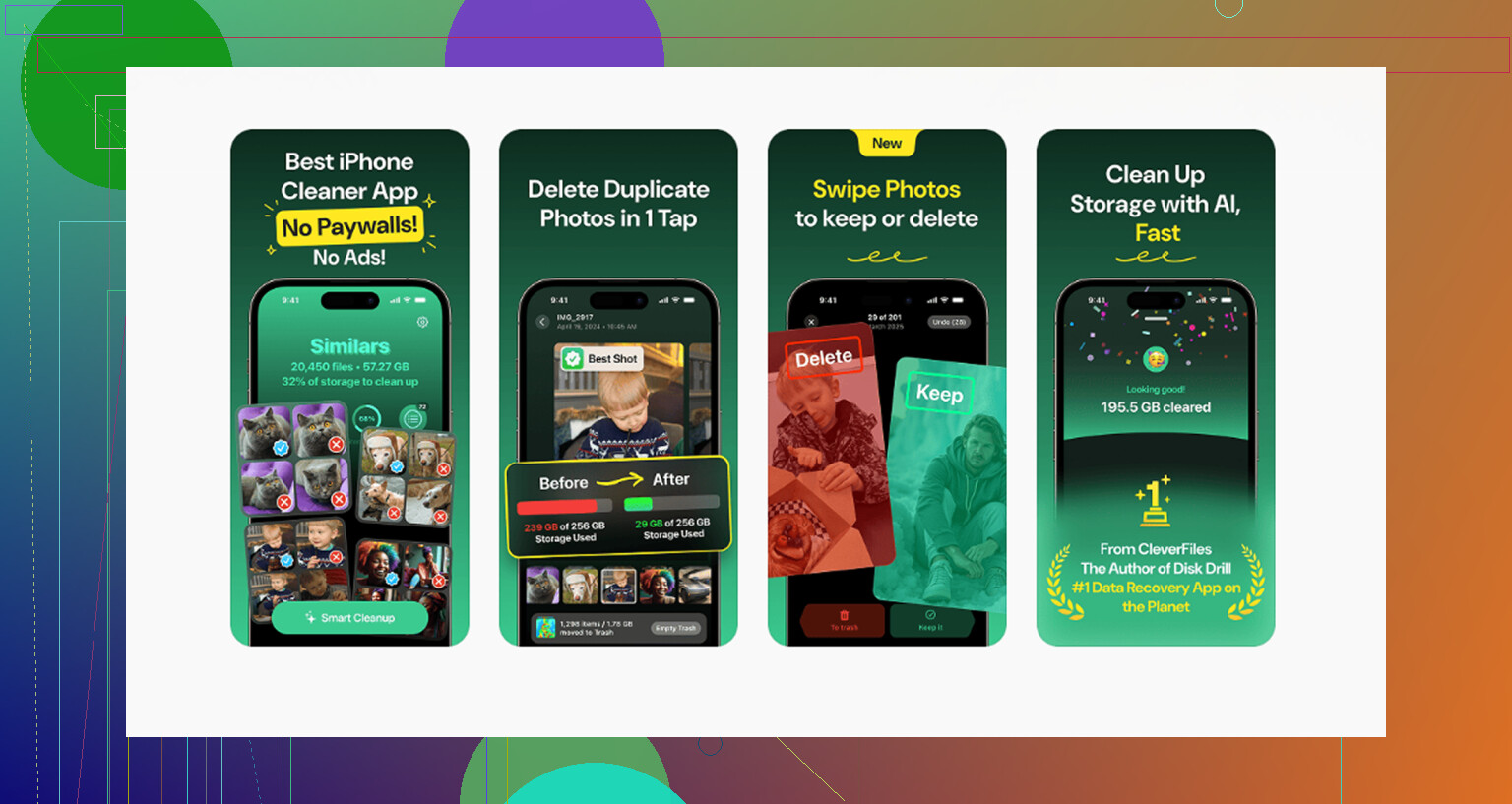
I tried the manual route first. Delete photos. Empty screenshots. Remove old videos. It worked, but it was slow and kind of miserable. I ended up using Clever Cleaner, mostly because I wanted something faster and I didn’t want to deal with ads or fake free trials.
What stood out to me:
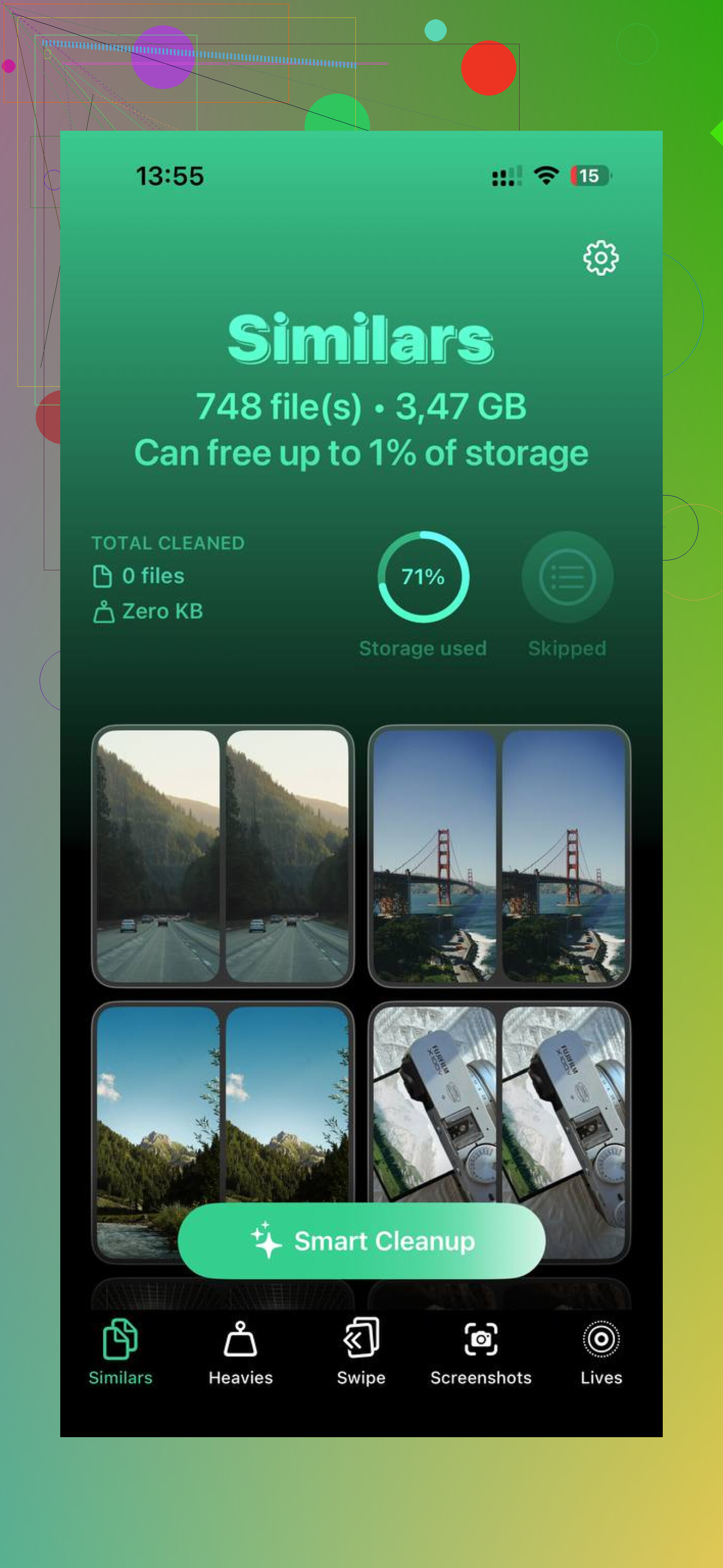
- Similars finds near-duplicate photos. Mine were full of five copies of the same dog pic and random blurry shots.
- Heavies sorts media by file size, which made old 4K clips easy to spot.
- Screenshots show file sizes clearly, so cleanup goes quicker.
- It runs on-device, so your photos stay on the phone instead of getting pushed to some server.
After I cleared space, the lag mostly disappeared. If your iPhone feels slow and the storage warning keeps showing up, start with the built-in storage screen. It tells you where the problem is. If the usual cleanup takes too long, checking app caches, downloads, and duplicate media made the biggest dent for me.
7 Likes
Start with the biggest files first. Small stuff wastes your time.
Open Settings > General > iPhone Storage. Wait a minute. iOS sorts apps by size after it finishes scanning. Ignore tiny apps. Go after these first:
-
Photos and Videos
Videos eat space fast. A 1 minute 4K clip is often 300MB to 400MB. Delete old clips, screen recordings, and burst photos first. Then empty Recently Deleted in Photos, or the space wont come back. -
Messages
Texts look harmless. Attachments are not. In Messages, delete old videos, memes, and voice notes. Search big convos with lots of media. -
Offline downloads
Spotify, Netflix, YouTube, Podcasts, Maps. These pile up quietly. Check inside each app. Removing downloads is safer than deleting the whole app. -
Safari
Settings > Safari > Clear History and Website Data. Not a giant win for most people, but if your storage is redlined, every GB matters. -
Apps with huge “Documents and Data”
This is where @mikeappsreviewer was on the right track. I disagree a bit on computer checks first, though. For most people, the fastest win is deleting bloated app data on the phone itself. Social apps are common offenders.
If you want a fast photo cleanup, Clever Cleaner is worth a look. It helps find duplicate photos, large videos, and screenshot clutter. This review sums it up well: best free iPhone cleaner app for clearing duplicate photos and storage fast.
One more thing. “Offload App” keeps your documents. “Delete App” removes all app data. If storage is critically low, delete is better. Offload helps less than people think tbh.
Start with the stuff that gives you the biggest win fast, not random tiny apps. @mikeappsreviewer and @codecrafter already covered where to see storage, so I’d focus more on what’s actually safe to remove first.
My order would be:
-
Recently deleted photos/videos
People forget this part all the time. Deleting media but not emptying Recently Deleted = not much space back yet. -
Downloaded media inside apps
Spotify, Netflix, Disney+, YouTube, Podcasts. Super safe to remove because you can re-download later. -
Message attachments
Not the texts themselves if you care about them. The giant videos, pics, and voice notes are usualy the real hogs. -
Browser/app cache junk
Safari data, social app caches, Reddit, Instagram, TikTok, etc. Sometimes deleting and reinstalling a bloated app frees way more than “offload” does. I actually disagree a bit with keeping every app via Offload. If storage is BAD bad, delete the worst offenders. -
Screen recordings
These are sneaky huge.
One thing I’d add that they didn’t really stress: if your free space is under like 5GB, iPhone starts acting dumb. Updates fail, camera acts weird, apps crash. You need breathing room, not just 500MB.
If photos are the main issue, Clever Cleaner is actually useful for finding duplicate pics, big videos, and screenshot clutter without digging forever. Also worth reading this Clever Cleaner iPhone storage cleanup review if you want a clearer idea of what it does.
Short version: delete large media first, not apps first. Apps are often smaller than the junk inside them.