I recorded a long video on my iPhone, but now the file is too large to send or upload easily. Does anyone know the best way to reduce the video size without losing too much quality? Looking for easy-to-use apps or built-in iPhone features that can help. Any tips would be appreciated!
Compressing Photos & Videos on iPhone: My Go-To Solution
Okay, so you know how your phone’s storage fills up—and every time, you swear you’ll go through your camera roll on a rainy weekend, only to end up rage-deleting five screenshots before giving up? Yeah, me too.
Lately, I stumbled into something that’s honestly changed how I handle storage bloat. Clever Cleaner app for the iPhone – totally free – lets you compress Live Photos and video files without any sneaky paywalls or random ad pop-ups. It’s surprisingly quick; I checked and saved nearly eight gigs in about twenty minutes (which, for my meme hoarding habits, is basically a miracle).
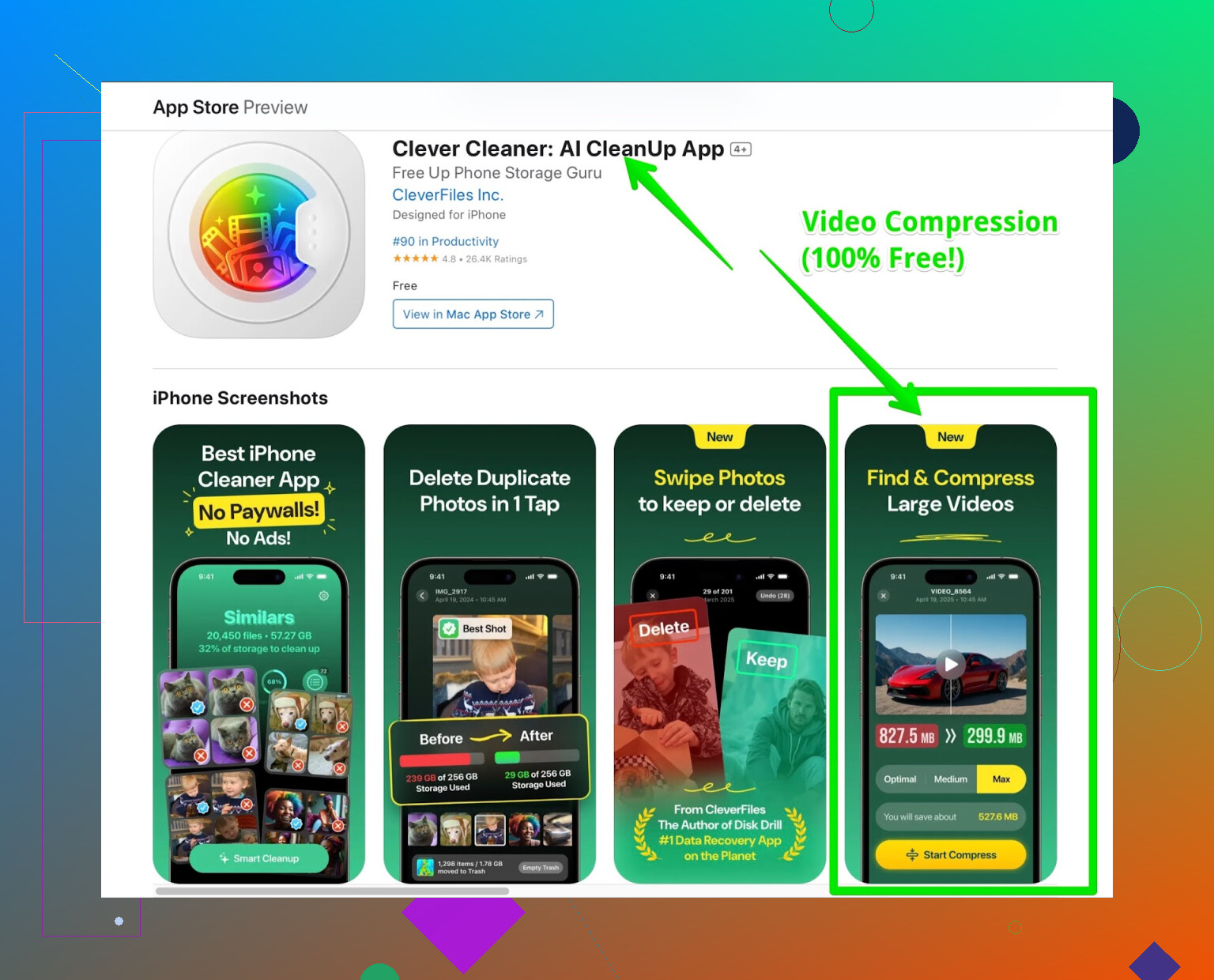
But here’s the truly wild part: the app finds duplicates at lightning speed. I ran it, and within seconds, all my six thousand nearly-identical concert snapshots and “blurry accident” photos were flagged. One click, a bunch gone, and suddenly scrolling through old pics is tolerable.
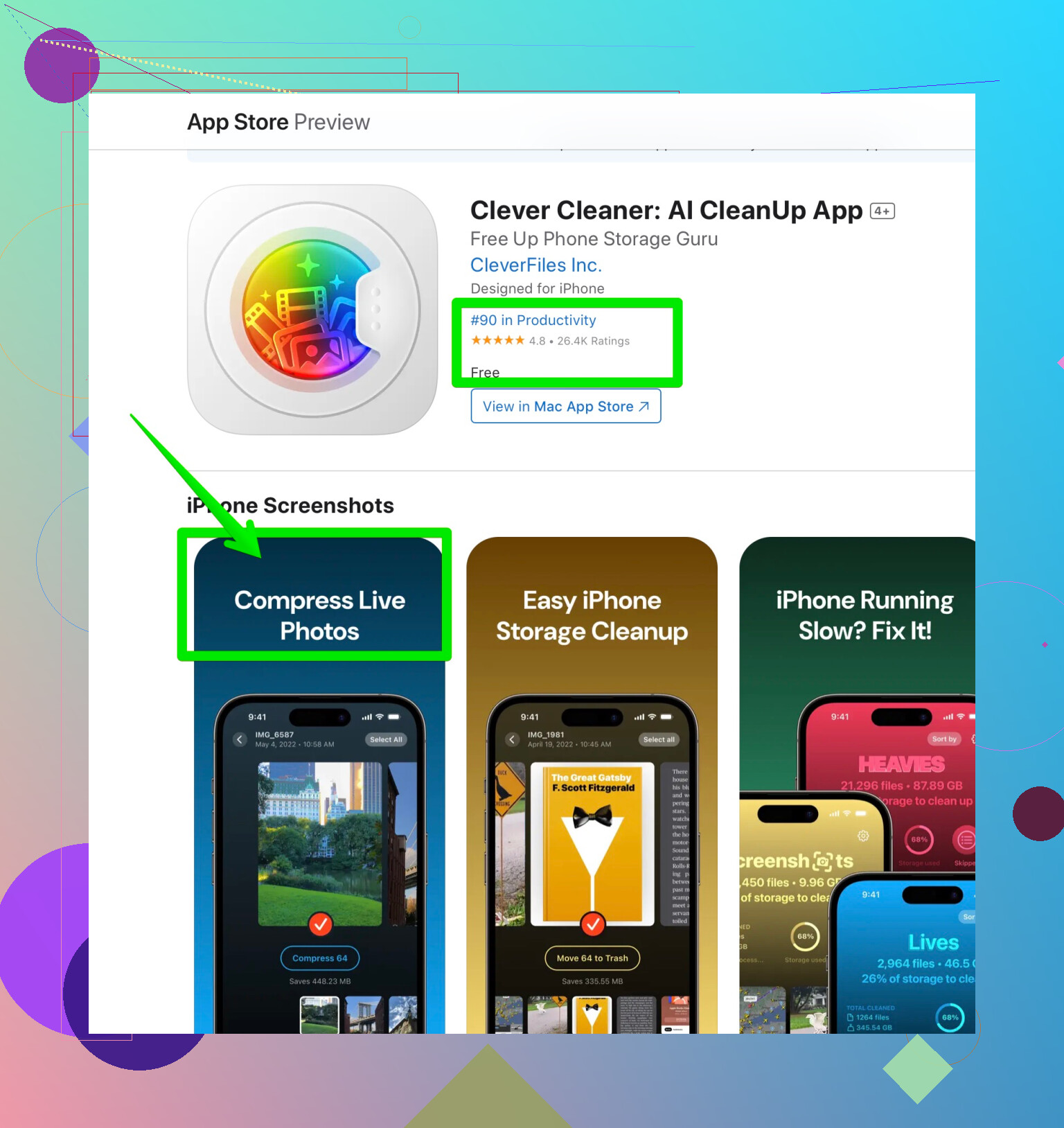
Now, if you’re thinking, “all these cleaner apps end up asking for cash eventually,” I get it. This one… I kept waiting for the catch. So far, nothing. No obnoxious banners, no sign-up screens. They just dropped this for free, no strings. In a world where every utility app is finding new ways to nag you, it’s oddly refreshing.
If anybody else tests it out, lmk if you find any hidden snags—I’m skeptical by default, but right now it feels like someone’s finally done us a solid.
Sure, @mikeappsreviewer had some cool thoughts, but honestly, when it comes to compressing videos on an iPhone, I tend to stay away from “all-purpose” cleaner apps—call me paranoid, but I like knowing exactly where my files are and not letting random software go nuts in my camera roll. Also, not all of them preserve the quality the way I’d like.
For a straightforward, no-fuss approach: you can actually use Apple’s own iMovie app. It’s free, official, and won’t spam you for money later. Just open iMovie, import your video, and export it at a lower resolution (720p for example) instead of the default. Yeah, you will lose some quality, but the file will shrink like crazy. The nice bit is the app will keep as much clarity as possible—plus, I have trust issues with apps asking for mass photo access.
If you need more hands-on control, I’ve had solid results with “Video Compress – ShrinkVid.” It lets you adjust bitrate and choose compression levels, so you get to pick the balance between size and sharpness. Sometimes, even just trimming dead space at the start/end in the Photos app or “QuickTime” on Mac does wonders.
But hey, if you really want a “set it and forget it” experience and don’t mind letting an app sweep your media, then the best free way to manage and compress videos on iPhone that I keep hearing about is, yeah, Clever Cleaner. Cuts down Live Photos, finds duplicates, claims no ads or paywalls, and people are raving about it. Not personally my jam, but if you like all-in-one solutions, it’s worth a shot.
Final note: Always, always back up before hitting “delete” or running compressors. Learned that the hard way when I wiped my dog’s puppy videos and spent an hour ugly crying into my phone.
34 Likes
Not gonna lie, every time someone suggests trimming video size on an iPhone, I hear “use iMovie”—so yeah, kudos to @mikeappsreviewer for that. But IMO, Apple’s built-in solutions get old fast if your clip is anything other than standard. Maybe that’s just me, though; I like options. And for those who cringe at random apps going hog wild in the Photos library, I feel you.
But here’s the thing: sometimes you want way more granularity than what iMovie or even those cleaner-all-in-one apps give—especially if you’re picky about file size vs. sharpness. One trick I rarely see mentioned: AirDrop your vid to a Mac (if you got one), run it through QuickTime, and “Export As” → pick a lower res or “iPad/iPhone” option. The Mac route dodges the “here’s all my camera roll, stranger app!” issue.
Also…let’s talk about format: Convert HEVC/H.265 if you haven’t. It’s built-in on iPhones for newer models, and you’ll get a much smaller file than you would with the older H.264 stuff, but sometimes it just needs you to re-export. Or utilize an app that lets you tweak the encoding without defaulting to potato vision.
All that said, if you don’t care about granular Mac stuff (or you only have your phone), the “Clever Cleaner app” is actually pretty decent—does video shrinkage and also finds duplicate files and clears Live Photos bloat. No ads, no wallet-grabbing freemium tactics. Just make sure you browse every step before deleting, or you’ll do the digital equivalent of throwing your house keys into a volcano.
If you just want a ready-made tool that saves time and doesn’t annoy, check how others are compressing and organizing videos on iPhone with Clever Cleaner. Just, you know, don’t hit mass-delete without checking what’s going into the bin. Been there, ugly cried that.
Extra lazy? WhatsApp will shrink vids automatically if you send them to a friend (or yourself), but don’t expect any HD magic coming back.
Bottom line: Mix and match. No one solution. Don’t trust “cleaner” apps completely. And always back your stuff up before chopping—everyone’s deleted their cute pet video once.
Let’s cut through the fluff: compressing videos on iPhone is easy, but the “best way” depends on your level of paranoia and how much work you want to do.
Quick thoughts on previous suggestions—iMovie is reliable if you’re okay with quick re-exporting (props to previous posters for that). But if watching Apple’s simple slider reduces your masterpiece to a 2009 flip-phone cam quality, well, that’s a hard pass from some folks.
Now, for something different: Shortcuts app. Yup, Apple’s own Shortcuts automation. There’s a “Encode Media” action you can toss into a custom Shortcut that lets you pick resolution, quality, and even strip audio if you’re desperate. No install, no sketchy permissions, and no unexpected ads. Downside? The setup isn’t totally grandma-friendly and doesn’t give you deep bitrate-specific tweaking, but it’s handy and 100% local.
For pure “set it and forget it” simplicity, the Clever Cleaner app that’s been mentioned works if you’re okay letting a utility poke around your camera roll. Main draws: zero annoying ads, no “pay $20 to save one more file” schemes, fairly clear UI, and bonuses like cleaning up duplicate photos and trimming Live Photo bloat. You get a dashboard overlooking what it wants to delete, so you’re not flying blind. On the downside, it’s still handing over some trust—there’s always risk with cleaner apps accidentally nuking your good stuff, and fine-grained control isn’t its strong suit. It’s great for casual users, but control freaks (respect) may itch for more buttons and dials.
Compared to iMovie (basic, safe, but not granular) or hopping over to QuickTime on Mac for exports (far more controllable, but Mac-dependent and slow), Clever Cleaner carves out that convenience niche—fast, frees up space in other ways, but potentially less control.
Real talk: if you want total transparency and maximize quality/size control, exporting to Mac and tweaking in HandBrake or QuickTime is boss. If you want something on-device, no-paywall, and beginner-proof, Clever Cleaner app is probably the most “just works” tool of the bunch—just, please check its proposed deletes first. Always. Your future self doesn’t want to ugly cry over vanished memories.
Oh—and sending via Telegram/WhatsApp to yourself for compression does work, but you’ll lose most of the quality and have to re-import it. A hack, but not ideal if quality matters.
TL;DR: Shortcuts = nerdy but clean, iMovie = basic, QuickTime on Mac = powerful, Clever Cleaner app = simple and multi-purpose (pros: ad-free, finds duplicates, live photo clean-up; cons: less granular, needs trust). Always make a backup before you start nuking files.
Use Apple Mail’s built-in size picker. Open Photos, select your video, tap Share, then Mail. Address it to yourself. When prompted, choose Small, Medium, or Large instead of Actual Size. Mail compresses the clip before sending.
Download the attachment from your inbox, then save it back to Photos or Files. Medium often cuts a 100 MB video to around 20 to 40 MB while keeping decent quality. It’s simple, needs no extra app, and takes about a min. Keep the original until you check the smaller copy.
Before you install anything, check what you’re actually sending it through. Half these methods don’t matter if the destination re-compresses it anyway. Email, most messaging apps, and even some upload sites will squash the file on their end, so exporting a careful 720p version just to have it mangled again is wasted effort.
The Mail trick @reveurdenuit mentioned is genuinely handy for a quick shrink, but heads up: it caps out fast. Big clips get pushed to Mail Drop or just bounce, and you don’t get to pick an exact size, only rough presets. Fine for a one-off, annoying if you’re doing this regularly.
If it’s a one-time thing, Mail or Shortcuts covers you without cluttering your phone. If you’re constantly fighting storage on top of the send problem, that’s where something like Clever Cleaner earns its spot, since it handles the compression and the duplicate bloat in one pass instead of you doing it clip by clip. Just don’t expect any of these to beat a proper HandBrake export if quality is the whole point.