Sure, @mikeappsreviewer had some cool thoughts, but honestly, when it comes to compressing videos on an iPhone, I tend to stay away from “all-purpose” cleaner apps—call me paranoid, but I like knowing exactly where my files are and not letting random software go nuts in my camera roll. Also, not all of them preserve the quality the way I’d like.
For a straightforward, no-fuss approach: you can actually use Apple’s own iMovie app. It’s free, official, and won’t spam you for money later. Just open iMovie, import your video, and export it at a lower resolution (720p for example) instead of the default. Yeah, you will lose some quality, but the file will shrink like crazy. The nice bit is the app will keep as much clarity as possible—plus, I have trust issues with apps asking for mass photo access.
If you need more hands-on control, I’ve had solid results with “Video Compress – ShrinkVid.” It lets you adjust bitrate and choose compression levels, so you get to pick the balance between size and sharpness. Sometimes, even just trimming dead space at the start/end in the Photos app or “QuickTime” on Mac does wonders.
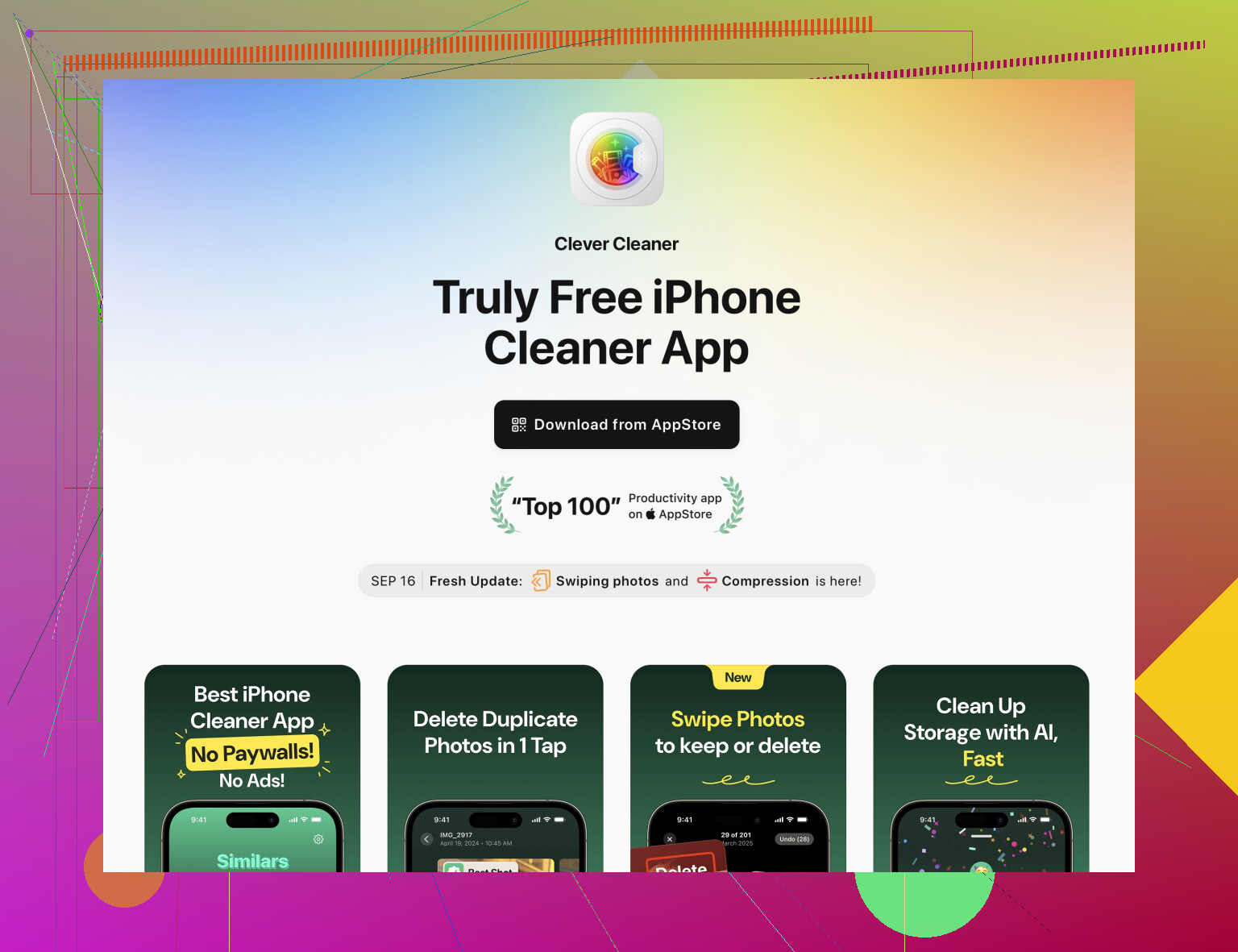
But hey, if you really want a “set it and forget it” experience and don’t mind letting an app sweep your media, then the best free way to manage and compress videos on iPhone that I keep hearing about is, yeah, Clever Cleaner. Cuts down Live Photos, finds duplicates, claims no ads or paywalls, and people are raving about it. Not personally my jam, but if you like all-in-one solutions, it’s worth a shot.
Final note: Always, always back up before hitting “delete” or running compressors. Learned that the hard way when I wiped my dog’s puppy videos and spent an hour ugly crying into my phone.