My iPhone storage is filling up because streaming apps left behind a lot of documents and data, even after I deleted downloads and cleared what I could in the apps. I need help figuring out the best way to remove this app data safely without losing anything important or messing up my phone storage.
I hit this on my iPhone too, and yeah, it gets ugly fast. “Documents and Data” feels less like one category and more like a junk drawer. Old cache files, saved sessions, downloaded media, app leftovers, random bits iOS keeps hanging onto. You delete stuff, storage still looks packed. Maddening.
Once free space drops too low, the phone starts misbehaving. I saw apps hang on launch, the camera pause before taking a shot, keyboard delays, and one time the phone kept restarting at the Apple logo. So if your device feels slow, storage is often the first thing I’d check.
For messaging apps, WhatsApp is usually one of the worst offenders. The fix is inside the app, not in iPhone settings. Open WhatsApp, go to Settings, then Storage and Data, then Manage Storage. It lists big chats and large attachments so you can cut out the worst stuff first. Messenger and Facebook are more annoying. iOS does not give you a proper cache clear button for them. Offload App won’t help much, since it removes the app binary and leaves the bloated data behind. What worked for me was deleting the app fully, then installing it again. Crude, yep. Effective too. I watched a few GB drop to a much smaller number right after reinstall.
Photos is its own mess. I’ve had the app report huge storage use after I already wiped my library and cleared Recently Deleted. If that happens, look at Shared Albums and My Photo Stream first. Those sit outside your main camera roll, but they still count. I missed this the first time and kept wondering where the missing gigabytes were going. Also, iOS sometimes fails to refresh the storage count right away. A restart helped me once. Another time I had to switch iCloud Photos off, wait a bit, then turn it back on so the local cache would rebuild.
Streaming apps are another easy one to miss. YouTube, Netflix, Apple TV, all of them stash downloads inside the app. Some even save content in the background if you turned on smart downloads and forgot about it. So don’t trust the home screen icon count. Open each app and check its downloads section directly. I found old videos sitting in YouTube long after I thought I’d cleared everything.
If you want the quickest manual audit, go to Settings, then General, then iPhone Storage. Sort of the only useful bird’s-eye view Apple gives you. It ranks apps by size, and sometimes the answer jumps out immediately. Safari is worth checking there too. Tap it and clear Website Data. I’ve freed a few hundred MB doing only that.
I used to do this cleanup by hand every few weeks. Tedious, easy to miss stuff, and I’d still end up with the same lag. After a while I tried Clever Cleaner. What stood out for me was how direct it was. No ads in my face, no paywall for deleting files, no weird traps.
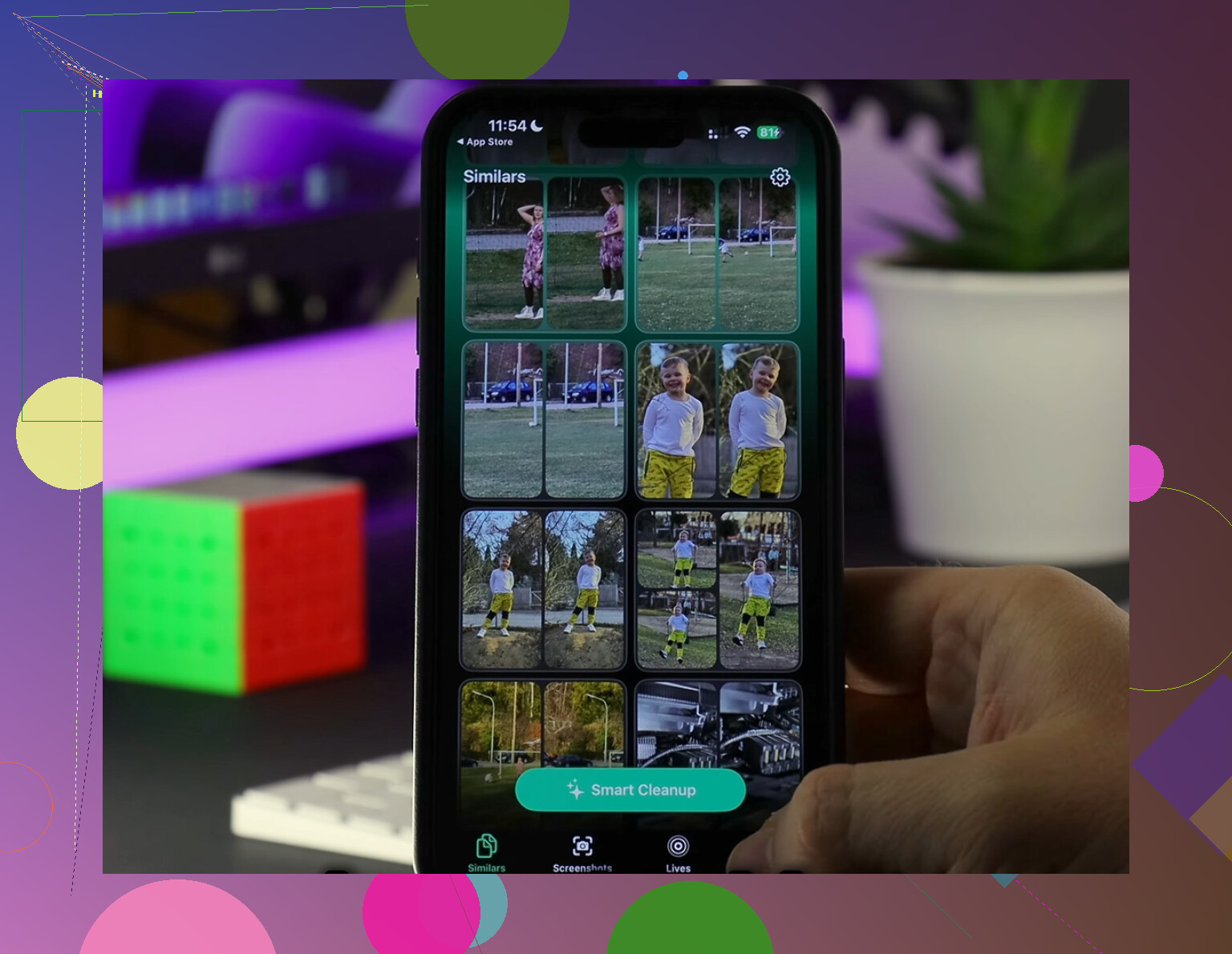
The parts I kept using were the media sorting tools. The Heavies section made it easy to spot giant videos fast, which mattered more than staring at hundreds of small files. The Similars section was useful too. I had bursts of near-duplicate photos from concerts, receipts, random test shots, all the usual junk. It grouped them well enough for me to clean without babysitting every single image.
I also liked how it handled privacy. From what I saw, the scanning stayed on-device, which mattered to me because I wasn’t interested in pushing my photo library to some unknown server. It also showed file sizes clearly before deletion. Apple’s Photos app still makes this harder than it should be.
After I cleared things out, the change was obvious. Less lag, fewer storage warnings, video recording stopped failing on me. If your phone feels bogged down and you’ve already deleted the obvious stuff, I’d start with big chat attachments, hidden photo sources, streaming downloads, then the iPhone Storage list. And yeah, one last step people miss, empty Recently Deleted again when you’re done. iOS loves keeping one foot in the trash.
14 Likes
If the app already removed its downloads and the size still stays huge, you’re usually looking at cached media, offline indexes, login blobs, and temp files iOS keeps tied to the app container. @mikeappsreviewer is right about full delete helping, but I’d skip Offload completely. It keeps the junk you want gone.
Best path for streaming apps:
- Go to Settings > General > iPhone Storage.
- Tap the streaming app.
- If “Documents & Data” is still large, delete the app, do not offload it.
- Restart the iPhone.
- Reinstall the app from the App Store.
That restart step matters more than people think. I’ve seen storage numbers stay wrong until after reboot.
Also check for this stuff before reinstalling:
- Apple TV app, remove downloaded episodes from each library/profile
- Spotify or podcast apps, turn off offline cache or smart/offline downloads
- YouTube Music, Netflix, Hulu, Prime Video, Disney+, each app keeps its own hidden cache
- Files app, On My iPhone, some apps dump video files there
One thing I disagree with a bit, Safari usually isn’t the main culprit if your issue is streaming app residue. It helps, but if one video app shows 8 GB app size with 6 GB in Documents & Data, the app itself is the problem.
If you want a faster cleanup pass for media clutter outside the apps, Clever Cleaner is worth a look. It’s useful for finding giant videos and duplicate photos after you clear app junk. If you care about safety, this writeup says it was reviewed as safe by security researchers: see the safety review for Clever Cleaner.
If the app is deleted, reinstalled, and storage still looks wrong after a reboot, wait 10 to 30 mins while plugged in. iOS storage reporting is glitchy sometiems.
I’d do one thing neither @mikeappsreviewer nor @suenodelbosque really leaned on enough: check whether the app is storing junk in Files, not just inside its own container. A lot of video and audio apps quietly dump stuff into Files > On My iPhone or iCloud Drive. If you only look at the app’s download tab, you can miss the leftovers.
What I’d try:
- Files app
- Browse
- On My iPhone
- look for folders from Netflix, VLC, Prime Video, podcast apps, etc
- Settings > [your name] > iCloud > Manage Account Storage
- sometimes app data is hanging around in iCloud, not just local storage
- Settings > App Store
- turn off Offload Unused Apps if it’s on, because it can make storage feel weirdly inconsistent over time
- Check Screen Time > Content & Privacy only if some app won’t let you delete data properly
I’ll mildly disagree with the “delete and reinstall every time” approach. It works, yeah, but it’s kind of the nuclear option. If the app lets you sign out, force close it, then sign back in, I’ve seen some caches shrink after a day or so when iOS does housekeeping while charging. Not always, but sometiems.
If you also want to clean up the non-app clutter after the streaming stuff is gone, Clever Cleaner is actually useful for finding huge videos, duplicate photos, and other storage hogs fast. Also worth skimming this page for real-world cleanup experiences: see what people say about Clever Cleaner for iPhone storage cleanup.
Short version: app cache, Files app leftovers, and iCloud-stored remnants are the 3 places people miss most.
One angle missing from @suenodelbosque, @nachtdromer, and @mikeappsreviewer: look at the app’s storage behavior over 24 hours, not just right after cleanup. Some streaming apps rehydrate cache the moment you open them, especially if autoplay previews, smart downloads, background refresh, or high-quality streaming are still enabled.
What I’d do differently:
- After reinstalling, do not open the app on Wi-Fi immediately
- First go to Settings > [app] and disable:
- Background App Refresh
- Cellular data, temporarily
- Notifications with media previews if applicable
- Then open the app and check whether the storage stays small for a while
That helps you catch whether the bloat is from old leftovers or the app instantly rebuilding cache.
Also, check this Apple-ish blind spot:
- Settings > Accessibility > Per-App Settings won’t clear storage, but buggy per-app configs can survive normal use and make some apps behave strangely after reinstall
- Low Power Mode off, charging overnight sometimes triggers iOS cleanup better than people expect
I slightly disagree with the “wait for iOS to sort itself out” advice if the app is still showing huge Documents & Data after a clean reinstall. At that point, it is often the app design, not just delayed storage math.
If you want to clean the rest of the phone after you deal with the streaming apps, Clever Cleaner is decent for spotting giant local videos and duplicate photos.
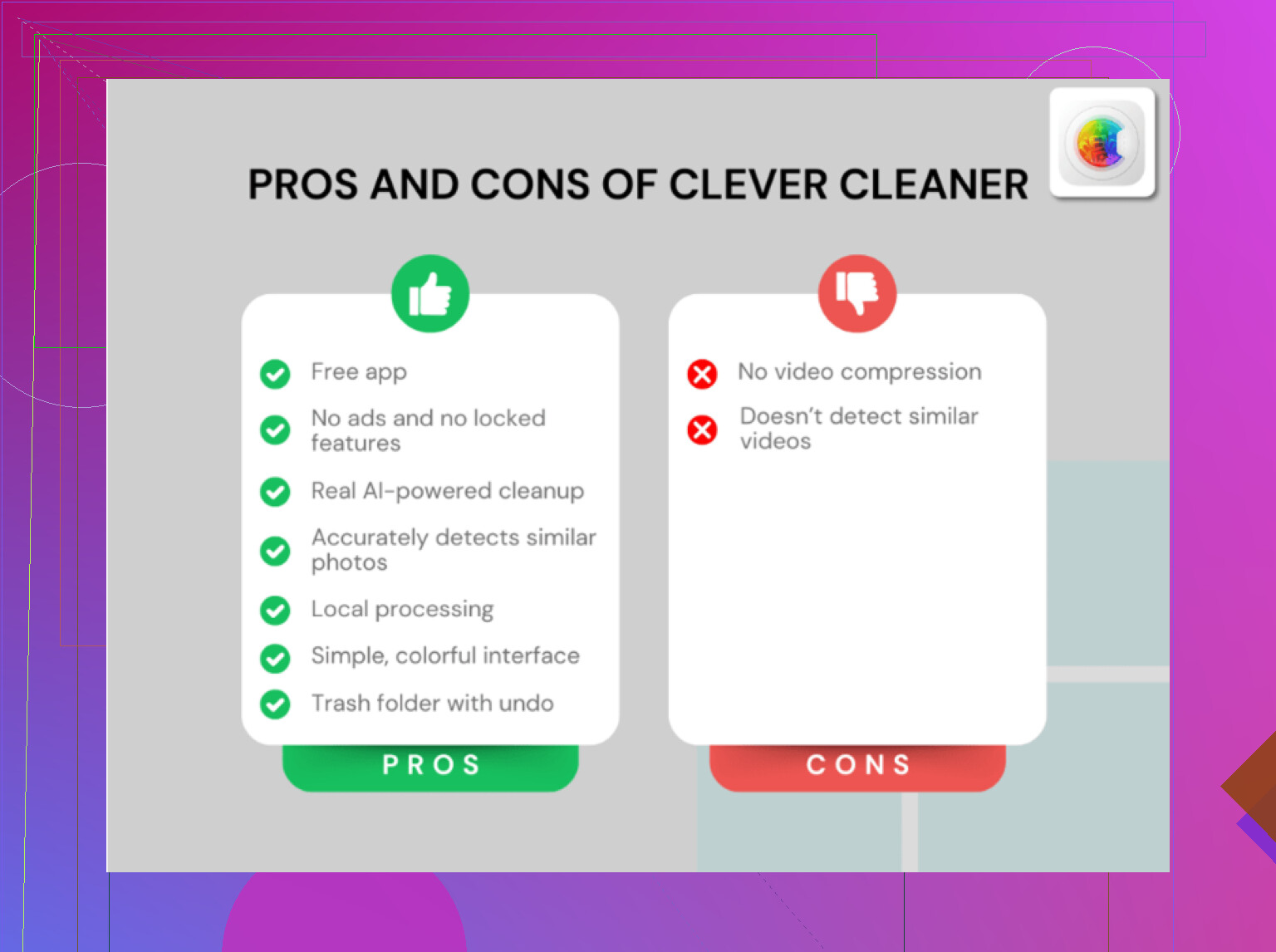
Pros: fast scan, easy to find big files, simple UI.
Cons: won’t truly clear protected in-app caches from every streaming service, and cleanup apps in general can only work within iOS limits.
So my order would be:
- Delete app fully
- Reboot
- Reinstall
- Disable cache-happy features before normal use
- Monitor storage after a day
- Use Clever Cleaner only for leftover media clutter outside the app containers
That last monitoring step is the part most people skip.