I’m trying to delete photos from the Hidden album on my iPhone, but Face ID won’t unlock it. I can unlock my phone with my passcode, but Photos keeps blocking access to the Hidden album. Is there a way to delete hidden photos or reset access without Face ID?
The Hidden album on iPhone is a little weirder than it looks. If Face ID is acting up, the album vanished, or deleted photos keep showing up somewhere else, it usually comes down to a few specific Photos settings.
Check the Hidden album settings first
Go to Settings > Photos. There are two separate controls that matter:
Show Hidden Album decides whether the Hidden folder shows up in Photos at all. If you turn this off, the folder disappears from the Utilities section, but the photos inside are still there.
Use Face ID controls whether the Hidden album requires biometric unlock. If this is off, the folder opens without scanning your face.
If you tap Hidden and Face ID does nothing, iPhone should eventually offer the passcode instead. If it never gets to that point, restart the phone. That fixes the stuck prompt in most cases.
Deleting everything from Hidden
Open Photos > Albums, scroll down to Utilities, then tap Hidden.
Once you are inside:
- Tap Select in the upper-right corner
- Drag across rows to select a bunch of photos quickly
- Tap the trash icon
That only moves them to Recently Deleted. They are still taking up storage there for 30 days.
To actually free the space, go back to Utilities > Recently Deleted and use Delete All. If you deleted something by mistake, this is also where you recover it before the 30 days are up.
If iCloud Photos is on, deletion syncs everywhere
The Hidden album is not a separate private storage area. It is just a filtered part of your regular photo library.
So if iCloud Photos is enabled, deleting something from Hidden on your iPhone also deletes it from iCloud, iPad, Mac, and any other synced device. This method does not let you remove the local copy while keeping the cloud copy.
Hidden is usually only part of the storage problem
Clearing Hidden can help, but it is rarely where most of the wasted space is. The bigger mess is usually in the main library: repeated burst shots, old screenshots, huge videos, and near-duplicates that were never cleaned up.
When the phone gets close to full, iOS can start feeling rough. The camera may open slower, apps can stutter when switching, and background tasks drag. Emptying Hidden helps, but if the rest of the library is bloated, you probably will not recover enough space from that folder alone.
Cleaning the rest of the photo library
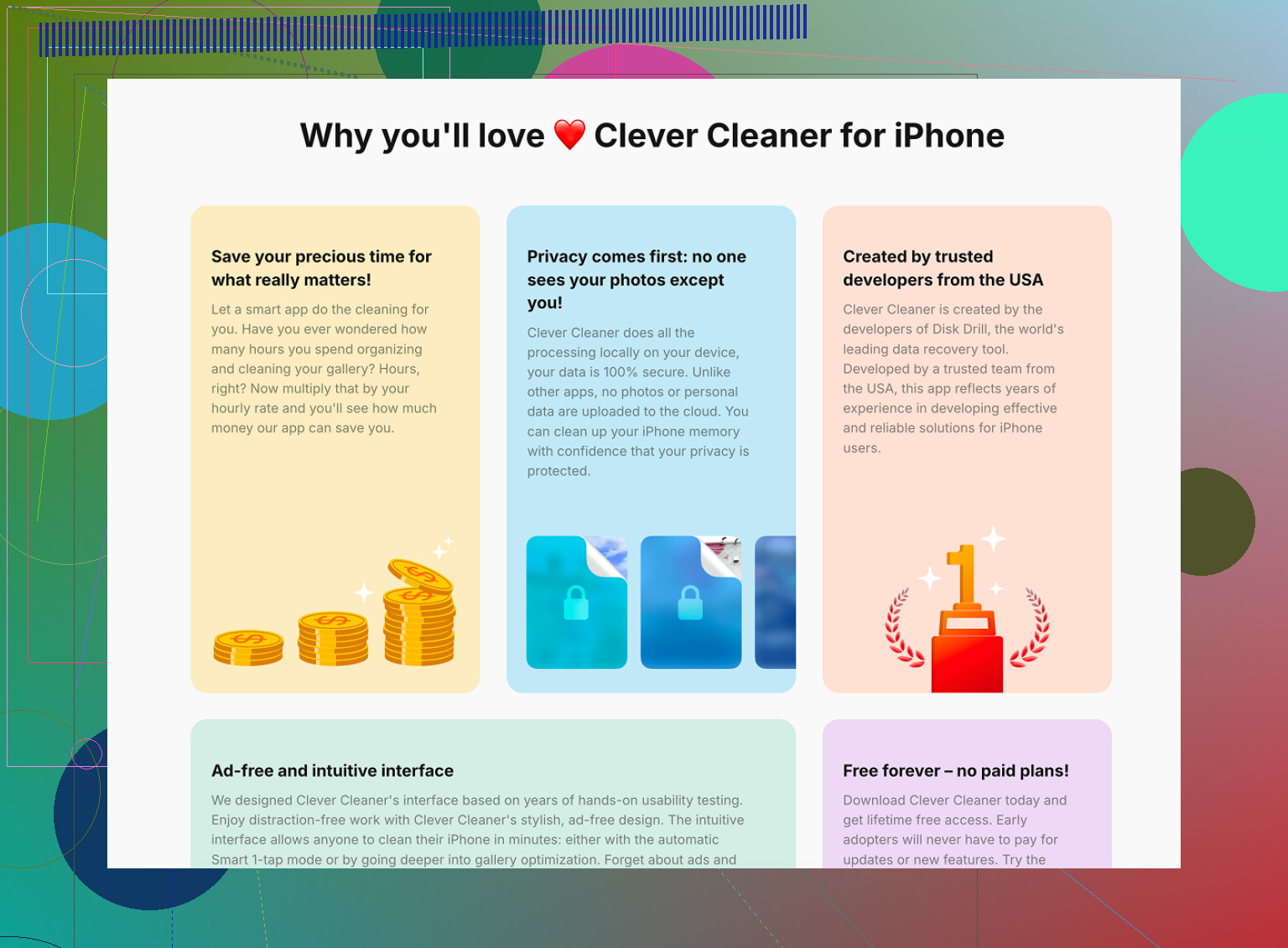
Clever Cleaner cannot read the Hidden album. Apple blocks third-party apps from accessing that folder, so the manual cleanup above is the only way to deal with Hidden.
For the regular photo library, though, it is free, with no ads and no subscription.
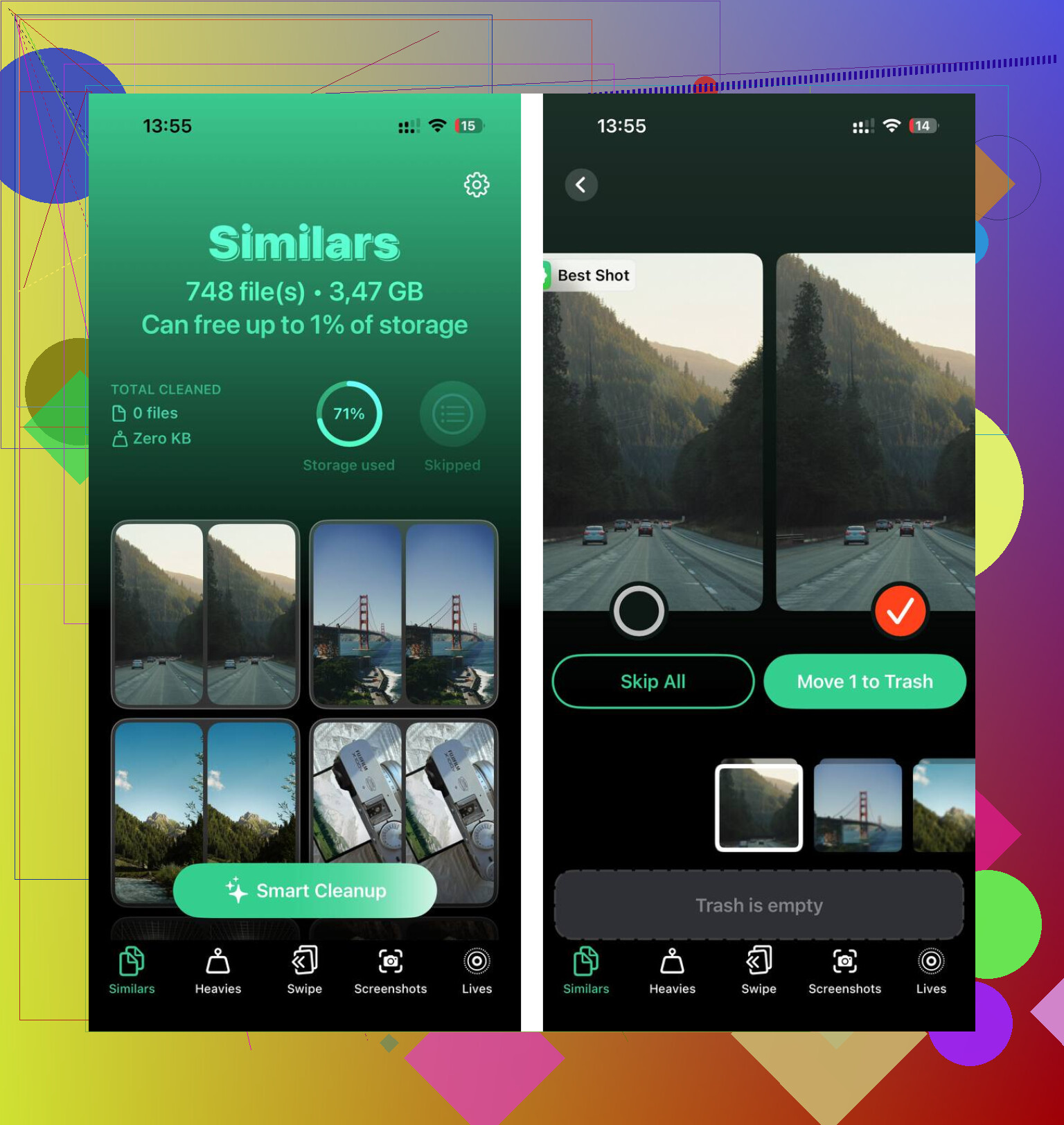
The Similars tab scans your library and groups near-identical photos. It suggests a Best Shot, usually the sharpest one, so you can clear the rest of the group without tapping through every single image.
The Heavies tab sorts files from largest to smallest. A few big videos near the top can take up more room than thousands of normal photos.
It also shows file sizes before you delete anything, including screenshots, which makes it easier to see what is actually worth removing.
Everything is processed on the device. The scan and cleanup do not upload your photos anywhere.
2 Likes
Don’t sign out of iCloud or turn off iCloud Photos just to get around this, because that can leave you guessing what is local, what is synced, and what is still waiting to upload. The clean workaround is to use another trusted device on the same Apple ID if you have one, like an iPad or Mac, open the Hidden album there, authenticate with that device’s passcode/Touch ID/Face ID, delete the items, then empty Recently Deleted. If you only have the iPhone, try failing Face ID a couple times and look for the passcode option, or go to Settings > Photos and turn off the Face ID requirement for Photos if it lets you authenticate with the phone passcode. If none of that works, you are probably dealing with a stuck authentication prompt rather than a Photos problem, so a restart and then a Face ID reset is a better next move than messing with the photo library.
You probably won’t be able to delete those photos directly from the iPhone until Photos gets a successful authentication of some kind. The phone passcode unlocking the home screen is separate from the extra lock Apple puts on Hidden and Recently Deleted, so being “in the phone” does not automatically mean Photos will open that album.
A shortcut people forget is iCloud Photos in a browser. If iCloud Photos is enabled, try going to iCloud Photos from a computer browser, sign in with the same Apple ID, and check whether the Hidden album is available there. If it is, delete the photos there and then clear Recently Deleted from there too. That avoids messing with iCloud settings on the phone, which I agree with @caminantenocturno is a bad way to solve this.
If you do not use iCloud Photos, then the boring fix is likely the real one: get Face ID working again or disable the Photos Face ID lock from Settings if iOS lets you do it with passcode. Cleaners and third-party photo apps are not going to reach that Hidden album, because Apple walls it off. They can help with normal library junk, but they are not a back door into Hidden.
Whether Face ID fails everywhere or only inside Photos matters here. If it fails everywhere, you’re not deleting Hidden items until you fix Face ID or get the passcode fallback; if it only hangs in Photos, force-close Photos, reboot, then try opening Recently Deleted first since that uses the same locked-album authentication path and can sometimes trigger the passcode prompt.
Skip the endless Face ID retries, that gets you nowhere and just locks you out longer. The bit @nachtdromer said about testing whether Face ID fails everywhere or only in Photos is the actual first thing to check, and most people skip it. Open something else that needs Face ID, like the App Store or a password autofill, and see if that works. If Face ID is fine everywhere except Photos, it’s the album lock being stubborn, and a reboot plus opening Recently Deleted first usually shakes the passcode prompt loose. If Face ID fails across the whole phone, none of the Photos tricks matter until you re-enroll it. One thing nobody flagged: the passcode fallback for Hidden can be blocked if you’ve got Screen Time content restrictions on Photos, so peek in Settings > Screen Time before assuming it’s a Face ID fault.