My iPhone photo library has turned into one big dump of screenshots, family pictures, downloads, and random images, and now I can’t find anything when I need it. I’m looking for help with the best way to sort, tag, or move photos into albums without making an even bigger mess.
Apple’s photo setup tripped me up too. It looks like folders, but it does not behave like folders.
If you add a picture to an album, the photo does not leave your main library. It stays in Recents or All Photos, and the album only points to it. More like a label than a moved file. So when people spend an hour “organizing” stuff, then open Recents and still see the same mess, yeah, that’s why. If you delete the original from the library, it disappears from the album too. I learned this the annoying way.
Albums still help a bit. I use them for trips, family events, random project refs, stuff like “Fall Cabin” or “Kitchen ideas.” But if your issue is the endless camera-roll wall, albums won’t fix it on their own.
What helped me inside the Photos app was search. I typed things like “dog,” “beach,” “receipt,” “pizza,” and it found more than I expected. Not perfect, but good enough when I needed one old pic fast. I also got into the habit of hitting the heart on the one photo I’d keep. If I took 12 shots of the same moment, I marked the best one right away. Later, when someone wanted to see pics, I opened Favorites instead of scrolling past a graveyard of blur and bad framing.
The bigger issue for me was volume. My phone got slow. Apps dragged. The camera hesitated at the worst time. Storage was packed, and photos and videos were doing most of the damage. Once the phone gets close to full, performance starts feeling off. I noticed it before I checked the numbers.
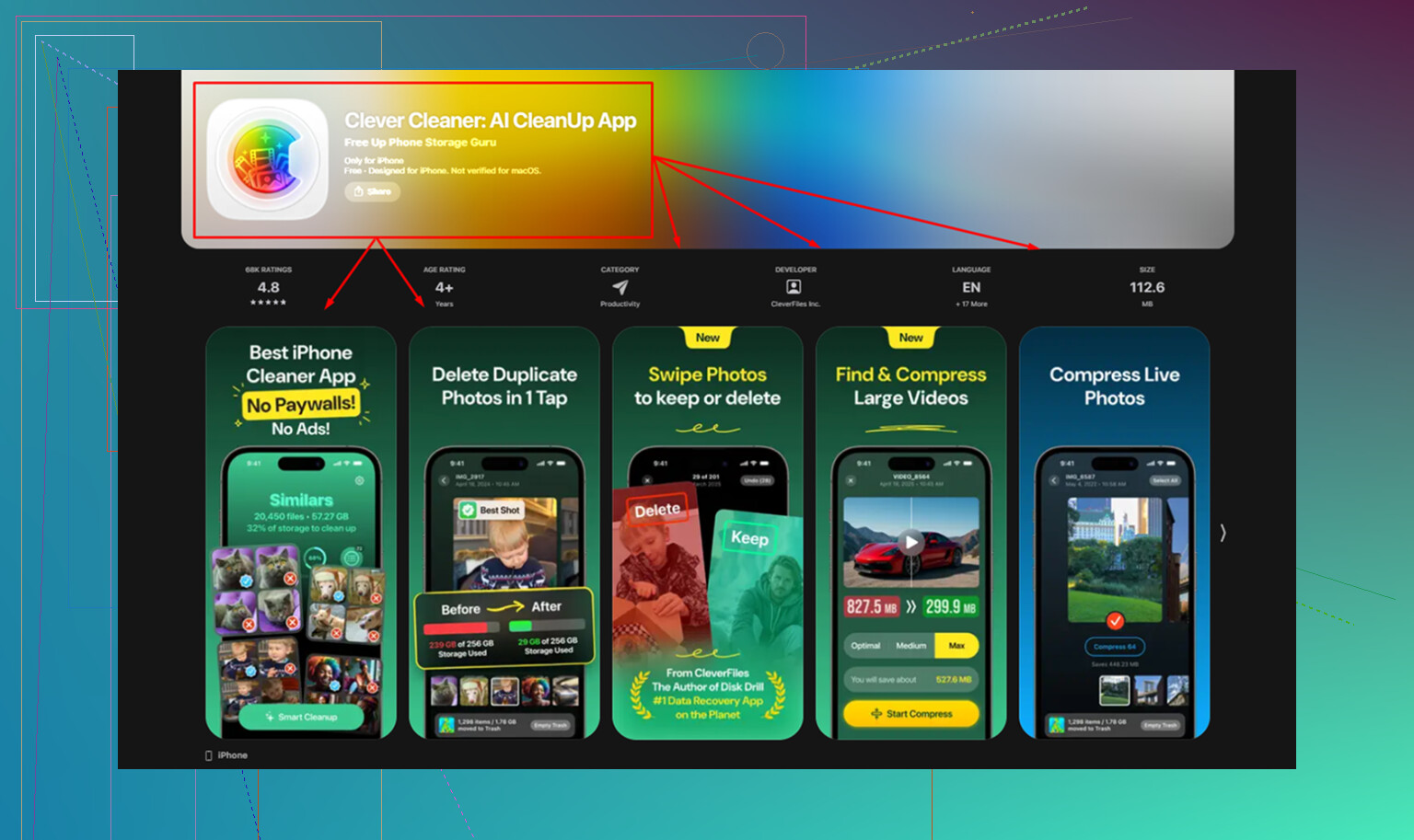
I tried cleaning manually. Bad idea. Going through 20,000 photos by hand is miserable. I ended up trying a cleaner app and kept the one at Clever Cleaner. I expected the usual nonsense, ads everywhere, paywall after two taps, fake “scan complete” drama. Didn’t get hit with any of tha,t so I stuck with it.
The parts I used most were simple.
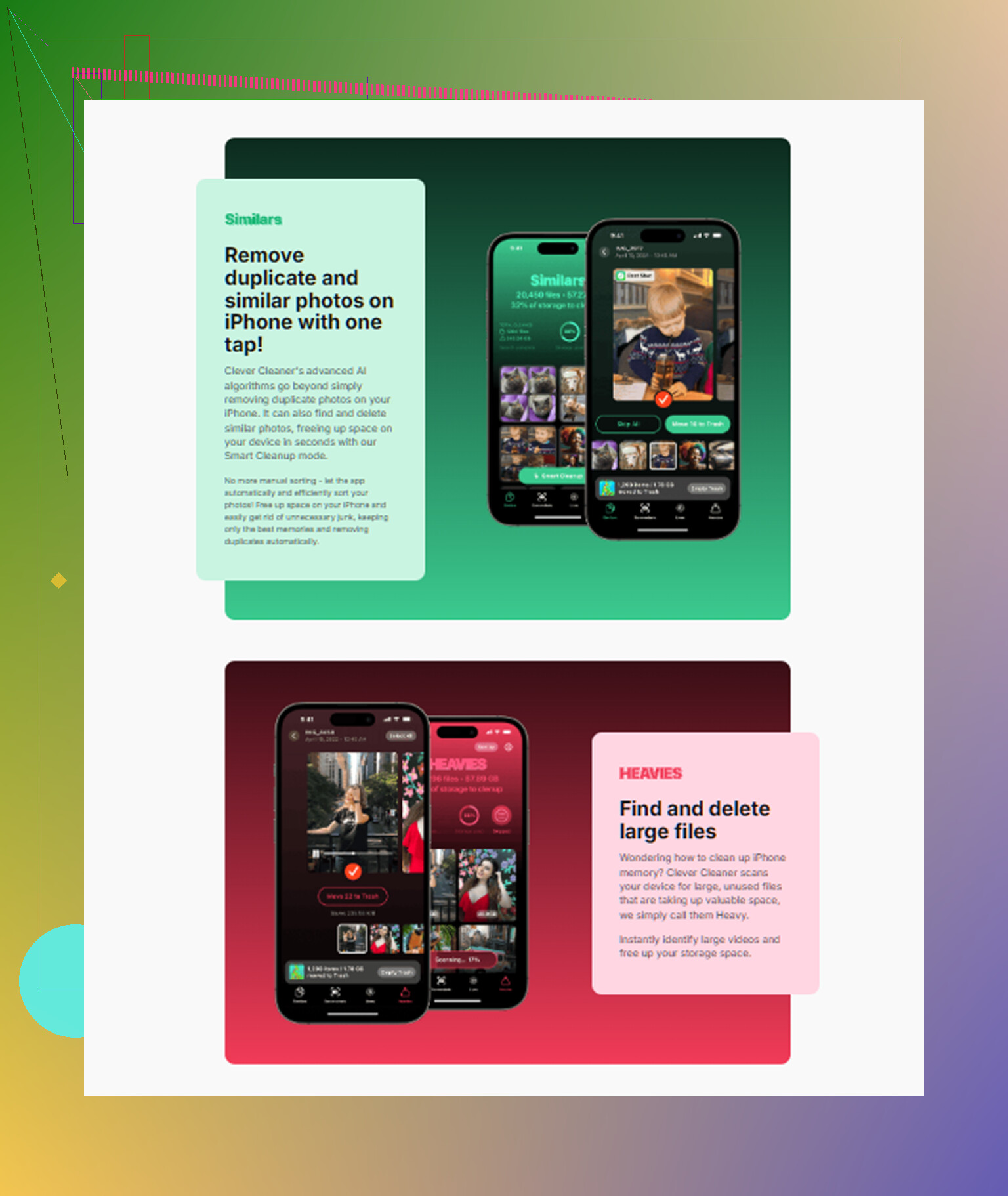
“Heavies” showed the biggest files first, which made it obvious where my storage went. A few giant 4K videos were eating space like crazy.
“Similars” grouped near-duplicate shots. Good for the classic problem where you take 15 versions of the same kid photo, sunset, menu, whiteboard, whatever. It picked a best shot, then I deleted the extras fast.
Screenshots were easier too because file sizes were visible. Weirdly helpful. When you see a pile of stale screenshots adding up, deleting them feels less random.
One thing I cared about was privacy. It does the processing on-device, so my library wasn’t getting shipped off somewhere. That mattered to me more than any fancy feature list.
After I cleared around 15 GB, the phone felt normal again. Not magic. It was jsut no longer choking on a stuffed storage bar.
What worked better long term was changing how I shoot and sort. I started treating the camera roll less like a warehouse and more like something I’d maintain. Old film-camera rules helped me, weirdly enough. Fewer shots. Keep the best one or two. Dump the rest. You do not need 37 angles of the same birthday cake.
My rough routine now looks like this:
- Take photos like usual.
- Favorite the keeper right away.
- Toss obvious junk when I have a minute.
- Drop good shots into albums for events or topics.
- Once a week, clean duplicates, similars, and dead screenshots.
If you think of Recents like an inbox, it starts making more sense. Stuff comes in, you sort it, you keep what matters, and you clear the garbage before it piles into a wall you never want to touch.
Apple doesn’t make this intuitive. I wish it worked more like normal folders. But once you know albums are pointers, not containers, the whole thing gets less confusing. And if your phone has been acting slow, check storage first. Mine was telling me the problem before I was willing to admit it.
14 Likes
Start with the stuff Apple already gives you, but use the right parts.
@mikeappsreviewer is right about albums. They are pointers, not folders. I disagree on one part though. Albums are still worth more than “a bit” if you build a small system and stick to it.
My setup is simple:
-
Create 5 to 7 albums only.
Family.
Trips.
Work.
Receipts.
Screenshots.
Downloads.
Ideas. -
Use media types and utilities first.
Photos already splits out Screenshots, Videos, Selfies, Portrait, Screen Recordings, Receipts in search, and Imports. That cuts the mess fast. Go there before you touch All Photos. -
Fix dates and locations.
A lot of “lost” photos are hard to find because the date is wrong. Open a photo, tap info, correct date or location. This helps search way more than people think. -
Add captions to important photos.
This is the closest thing to tagging on iPhone. I do stuff like “Mom passport 2024” or “paint color kitchen.” Later, search finds it fast. This is huge for docs, pets, school stuff, and random saved images. -
Hide what you do not need in daily view.
Memes, old downloads, ref pics, shopping screenshots. Put them in Hidden if you do not need them in your face. It is not perfect, but it cleans up your scroll. -
Sort out non-camera junk first.
Saved images from Safari, Messages, WhatsApp, and AirDrop usually create the worst clutter. If a photo is not a memory, delete it harder and faster. Brutal rule, but it works.
If your library is huge, use a cleaner tool for the first pass. Clever Cleaner is solid for duplicates and big files. If you want a readable review, this one is decent, see this Clever Cleaner for iPhone review and storage cleanup test.
Best habit long term, spend 5 minutes every Sunday. Screenshots out. Downloads out. Add captions to keepers. Done. If you try to “organize everything” in one sitting, you’ll hate it by minute 20, ask me how i know.
I’d actually push back a little on @mikeappsreviewer and @codecrafter here. The problem usually is not “how do I organize every photo,” it’s “how do I stop using All Photos like it’s my filing cabinet.” If you keep opening the giant stream, it will always feel broken.
What helped me was making entry points, not trying to clean the entire backlog perfectly.
- Pin a few albums as your home base
- Use People & Pets way more than albums for family pics
- Put important stuff in a shared album if other family members always ask for it
- For docs, use Notes or Files, not Photos. Photos is terrible for things like warranties, forms, serial numbers, etc.
- For screenshots you actually need, save them out of Photos and into a folder system in Files
That last one was big for me. Screenshots are usually not “memories,” they’re temporary reference junk. Different category entirely.
Also, don’t sleep on custom Memories/featured content settings. If the app keeps surfacing garbage, turn off what you don’t want highlighted. Makes the library feel less chaotic even if you haven’t fully cleaned it.
One more mildly controversial take: captions are useful, but if you try to caption thousands of old photos you will absolutley quit by day two. Caption only the important recurring stuff going forward.
For cleanup, yeah, a duplicate cleaner helps when your library is already cooked. Clever Cleaner is solid for that first pass, especially for similar shots and big videos. If you want real-world discussion, this thread on Clever Cleaner reviews from Reddit users cleaning up iPhone storage is worth a look.
My honest system now:
- Memories stay in Photos
- Documents go to Files/Notes
- Temporary screenshots get deleted fast
- Family gets tagged by face recognition
- Favorites is for actual best shots only
That split works way better than pretending the iPhone Photos app is a normal folder system. It isnt.
I’d split the problem into two different jobs, because people mix them up.
Job 1: finding photos
Job 2: reducing clutter
That’s where I slightly disagree with @codecrafter and @mikeappsreviewer. A tidy album system helps, but if your real pain is “I need that one pic right now,” the fastest win is metadata discipline, not album discipline.
What I’d do:
-
Use keywords in captions only for repeat categories, not everything.
Examples:receipt,passport,school,vet,paint,gift idea.
This creates your own mini tag system without trying to caption your whole life. -
Build a date-based habit for backlog cleanup.
Don’t open the whole library. Pick one month at a time. “January 2024 cleanup” is doable. “20,000 photos” is how you quit. -
Create one album called Action Needed.
This is for screenshots to reply to, forms to file, products to buy, reference images, etc. Once handled, delete or move them out. Way more useful than making ten tiny admin albums. -
Use Hidden less than people suggest.
I know @sternenwanderer likes separating non-memory junk out of view, but Hidden can become a second junk drawer. If something is useless, delete it. If it matters, move it to Files, Notes, or an album with purpose. -
Turn on face naming and actually finish it.
Apple’s People & Pets gets much better after you confirm matches a few times. That’s better than manually albuming every family photo.
If storage is also a mess, then sure, do a first-pass cleanup tool run. Clever Cleaner is decent for duplicates and similar shots.
Pros: simple, good for duplicate/similar cleanup, helpful for large files.
Cons: it won’t magically “organize” your life, and you still need to review before deleting because similar does not always mean disposable.
My actual rule: Photos for memories, Files for reference, delete ruthlessly. That’s the part most people skip.