My iPhone is still running slow even after I cleared storage, deleted unused apps, and removed old photos. I expected better performance, but apps still lag and the phone feels sluggish. What else can I try to speed up my iPhone?
A lot of people jump straight to restarting the phone or wiping it completely when an older iPhone starts feeling slow. That can help in a few cases, but it usually misses the stuff that actually makes the phone lag.
The first thing to check is the battery.
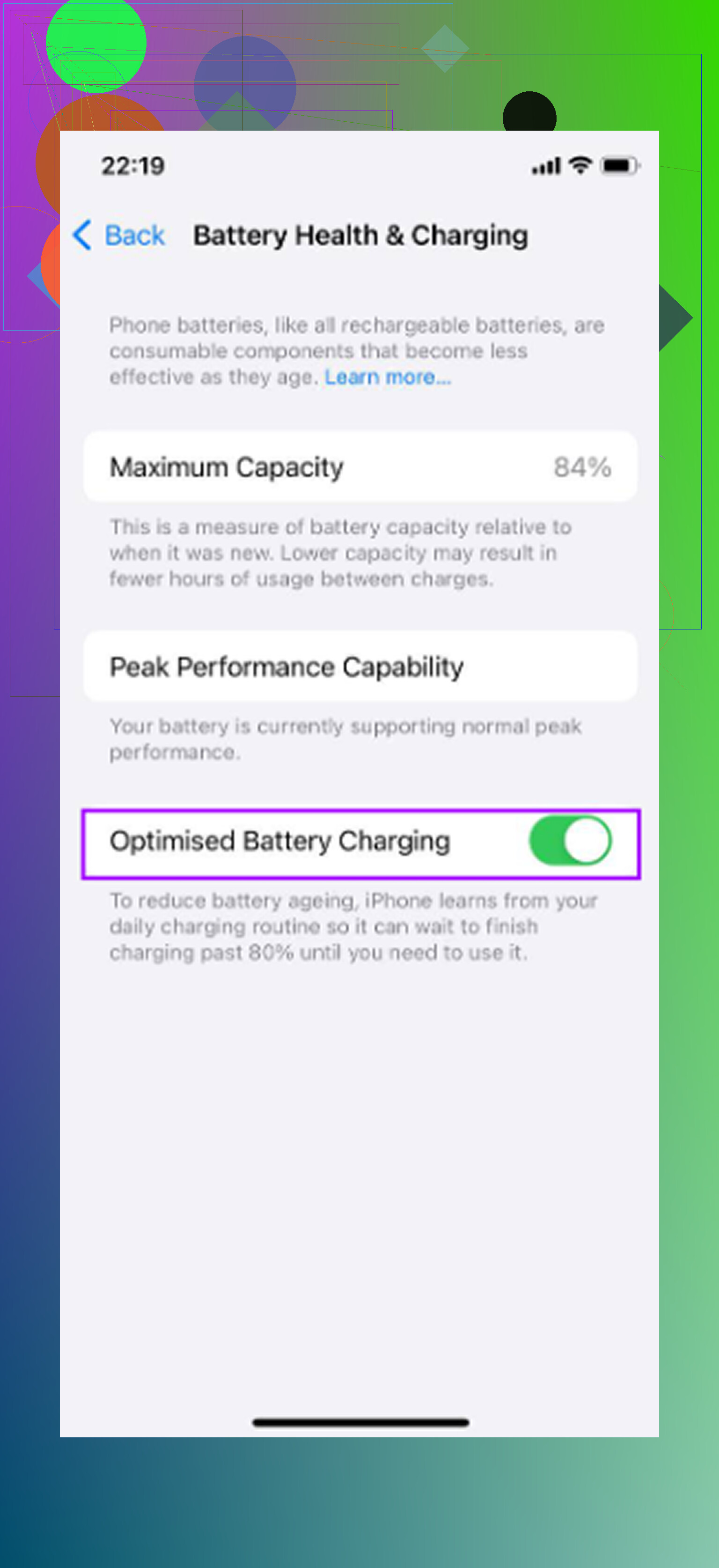
Go to Settings - Battery - Battery Health and Charging. If the maximum capacity is under 80 percent, iOS may be limiting performance to avoid random shutdowns. At that point, messing with animations or clearing a few apps is not going to matter much. A battery replacement is usually way cheaper than buying a new phone, and it can make a bigger difference than any settings tweak.
If the battery is still above 80 percent, then start looking at the other causes.
Turn on Reduce Motion
Go to Settings - Accessibility - Motion, then enable Reduce Motion. This cuts down the zooming animations when apps open and close and swaps them for simpler fades. On older iPhones, those little animations add up because the graphics chip has to keep drawing them constantly. The phone can feel quicker right away because there is less visual work happening every time you tap around.
Disable Background App Refresh
Go to Settings - General - Background App Refresh and turn it off. Apps with this enabled can keep checking for updates, refreshing content, and using processor time even when you are not actively using them. Newer phones handle that without much trouble, but older models have fewer resources to spare. Turning it off leaves more available for whatever you are actually doing.
Reduce Transparency, and do not leave Low Power Mode on all the time
In Settings - Accessibility - Display and Text Size, turn on Reduce Transparency. The blurred glass look in iOS takes GPU work, and older hardware does not handle those effects as smoothly as newer phones.
Also, if you keep Low Power Mode on permanently, turn it off when speed matters. It saves battery by limiting performance, so leaving it on all day can make the phone feel slower by design.
Storage is a bigger deal than people think
Free space is not just empty space. iOS uses it for temporary files, caching, indexing, and other system work. Once storage gets close to full, especially past roughly 85 percent on older devices, the phone has less room to operate. That is when you start seeing slow app launches, camera delay, laggy typing, and random sluggishness across the system.
This is also why the slowdown feels gradual. Nothing “breaks” all at once. The phone just keeps getting more cramped until normal tasks start dragging.
So yes, the settings above help. But if the storage is nearly maxed out, the lag will probably come back.
The cleanup part that actually saved space
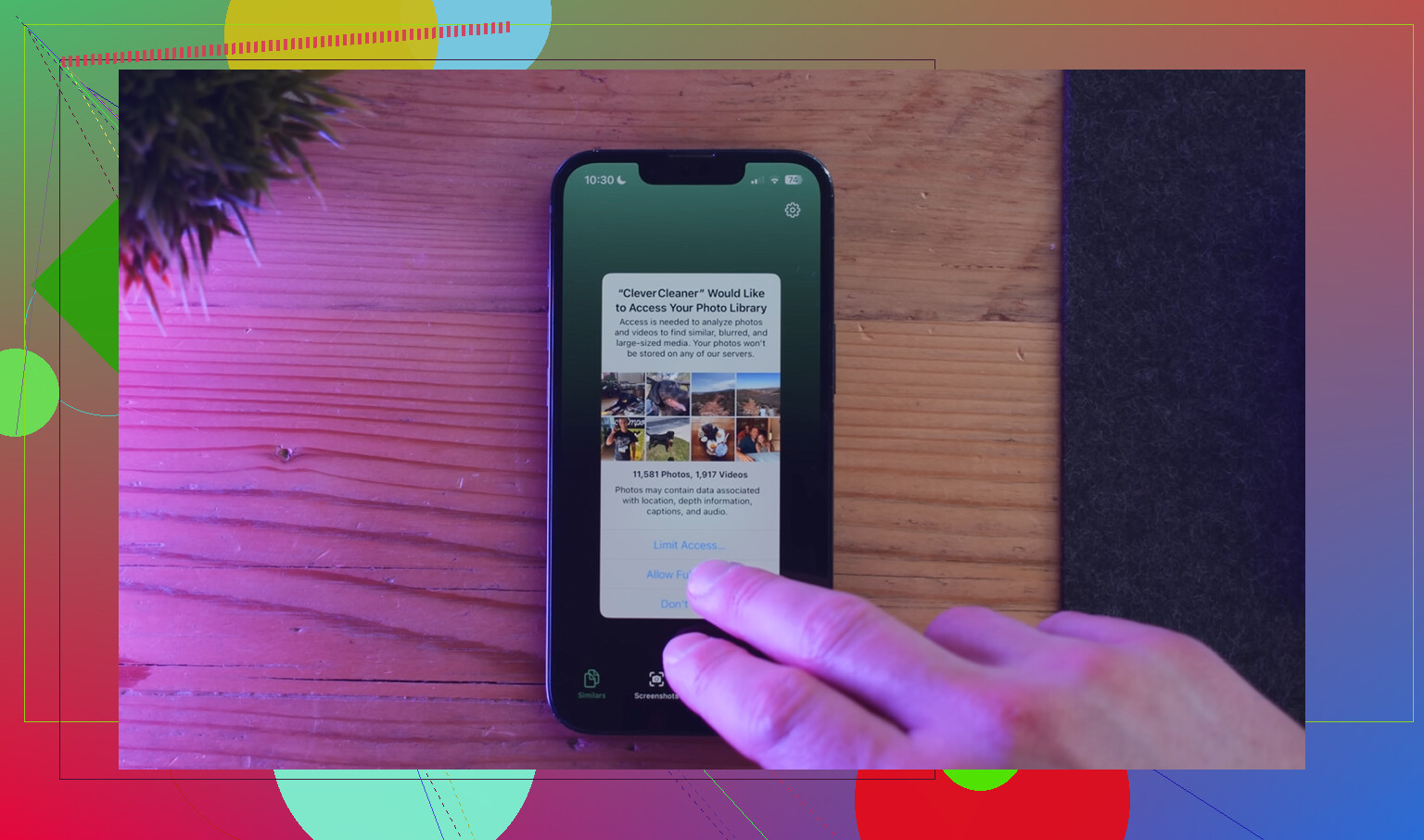
Manually sorting through thousands of photos is miserable and usually not worth the time. Clever Cleaner made that part much easier. It is free, with no ads and no subscription.
The most useful order was:
- Start with the Heavies tab. It sorts files from largest to smallest and shows the exact file size. Old screen recordings and 4K videos usually show up at the top, and deleting just a few of those can clear more space than deleting hundreds of normal photos.
- Then use the Similars tab. It finds near-duplicate photos and picks the sharpest one in each set. This is useful for burst shots, repeated photos of the same thing, and slightly different angles taken seconds apart.
- Check Screenshots after that. Since each screenshot shows its size, it is easier to decide what is worth deleting.
- Everything runs locally on the phone, so the files are not uploaded somewhere else.
The order matters: battery first, settings second, storage cleanup third. After deleting photos or videos, empty Recently Deleted in Photos too, or the freed-up storage will not show correctly yet.
Each step fixes a different bottleneck. A weak battery can cause throttling. Motion and transparency effects add extra work. Background refresh wastes resources. Full storage leaves iOS with no room to breathe. Handle all of those before doing anything drastic like a factory reset.
20 Likes
Do not wipe the phone just because it still feels slow right after cleanup. If you deleted a lot of photos/videos, the phone may still be re-indexing Photos, rebuilding thumbnails, syncing iCloud, and sorting Spotlight search in the background. That can make it feel like nothing improved yet. Plug it in, leave it on Wi-Fi for a while, restart once, and give it a day before judging.
I agree with checking the battery, but I’d separate “old phone is slow” from “phone is temporarily busy.” Look in Settings > General > iPhone Storage and see if iOS is still showing system data jumping around. Also check whether the lag is everywhere or mostly in a few apps. If it’s mainly Instagram, Facebook, TikTok, Safari, or Messages, clearing storage won’t always touch the app cache. Offloading and reinstalling that specific app can do more than deleting random files.
Another overlooked thing is heat. If the phone is warm from charging, restoring iCloud stuff, sitting in the sun, or being in a thick case, iOS will slow it down until it cools off. So test it when it’s cool, unplugged, and not downloading a bunch of updates. If it’s still laggy after that, then battery health, iOS version, and the age of the model matter more than storage cleanup.
If the slowdown is mostly when switching apps or coming back to the home screen, clearing storage may not change much because that is often memory pressure, not disk space.
People mix those up all the time. Freeing 30 GB of photos gives iOS more room to work, but it does not give an older iPhone more RAM. If the phone is an older model and you are jumping between Safari, Maps, Messages, camera, social apps, and a keyboard app, iOS may keep dumping apps from memory and reloading them. That feels like “lag,” but it is really the phone constantly starting things over.
A small thing I would stop doing, if you are doing it, is swiping every app closed all day. It feels like cleaning, but it can make normal use worse because apps have to launch fresh every time. Close a stuck app, sure. But treating the app switcher like a trash can is usually wasted effort.
I agree with the battery point from earlier, but I would check for these before wiping the phone:
Open Safari and close a ridiculous number of old tabs if you have them. Same for Chrome if that is your browser. Hundreds of tabs can make an older phone feel cursed.
Remove widgets you do not care about, especially weather, calendar, delivery, news, screen time, and lock screen widgets that refresh in the background. They are convenient, but on older hardware every little live panel adds more work.
Check VPNs, ad blockers, custom DNS apps, security apps, and configuration profiles. If web pages, App Store, email, or social feeds are the slow part, that may be network filtering or a bad VPN setup rather than the iPhone itself being slow.
Try Apple’s keyboard for a while if you use a third-party keyboard. Laggy typing is sometimes the keyboard app, not the whole phone.
Turn off automatic downloads temporarily in Settings > App Store. If the phone is trying to update a pile of apps right after you freed storage, it can feel slow again for a while.
The “Reset All Settings” option is another middle step people forget about. It is not the same as erasing the phone. It resets things like Wi-Fi networks, privacy prompts, keyboard settings, home screen layout, notification preferences, and system settings, but it should not delete your photos or apps. It is annoying because you have to reconfigure stuff, but it is a lot less extreme than a full factory reset.
I would only bother with a full erase and restore if the lag is system-wide, happens when the phone is cool, battery health is decent, storage is not close to full, and it still acts bad after a few normal restarts and updates. A factory reset is not magic if the real issue is old hardware, a weak battery, or one badly behaved app.
Clever Cleaner and similar cleanup tools are useful for finding huge videos and duplicate photos, but I would not expect any cleaner app to fix typing delay, app reloads, or stuttering animations by itself. That is more about battery, RAM, background activity, heat, and whatever iOS version the phone is trying to run.
There is a decent plain-English rundown here if you want a broader checklist without going straight to erasing the phone: ways to speed up an older iPhone.
The realistic answer is that storage cleanup is only one bottleneck. If you already cleared space and it still feels slow, start looking for background junk, browser bloat, battery throttling, VPN/filtering weirdness, and whether the phone is simply being asked to run newer apps on older hardware.
Half the time the real slowdown started the day you tapped ‘install’ on a major iOS update. That gets left out of these threads a lot. An older phone running the newest iOS is being asked to do more than it shipped with, and you can’t roll it back once it’s done. So if the lag lines up with a recent big update rather than with full storage, no amount of photo deleting is going to undo that. Worth checking the timing before you blame anything else.
@viaggiatoresolare nailed the memory pressure thing. That app-switcher reloading is exactly what most people misread as ‘my phone is slow,’ and it has nothing to do with free space. The bit I’d push back on slightly is treating Reset All Settings as a gentle middle step. It’s less destructive than a wipe, sure, but it nukes your saved Wi-Fi passwords and a pile of preferences you forgot you set, and it rarely fixes actual performance. I’d keep that one near the bottom of the list, not the middle.
Clever Cleaner is fine for the one job it does, clearing out big videos and near-duplicate shots without you sorting by hand. Just don’t expect it to touch any of the stuff that actually causes lag. It frees disk, that’s it. If your phone is stuttering because the battery is throttled or because it’s grinding on an OS version it can barely run, a cleaner app is the wrong tool. Sort out battery health and figure out the iOS situation first, then use the cleanup to keep storage from becoming a second problem later.