My 64GB iPhone is almost out of storage, even after deleting unused apps, photos, and videos. I need help finding and safely removing junk files, cache, and other unnecessary data without losing anything important.
The first place to check is Settings > General > iPhone Storage. Give it a moment to calculate everything. That breakdown is much more useful than assuming iOS has filled the phone with system junk.
I had this happen on an older 64 GB iPhone after an iOS update. Storage warnings appeared, and apps kept reloading whenever I switched between them. The update did need some temporary room, but it wasn't the main issue. Most of the storage had slowly been eaten up by years of photos, videos, screenshots, downloads, and app data.
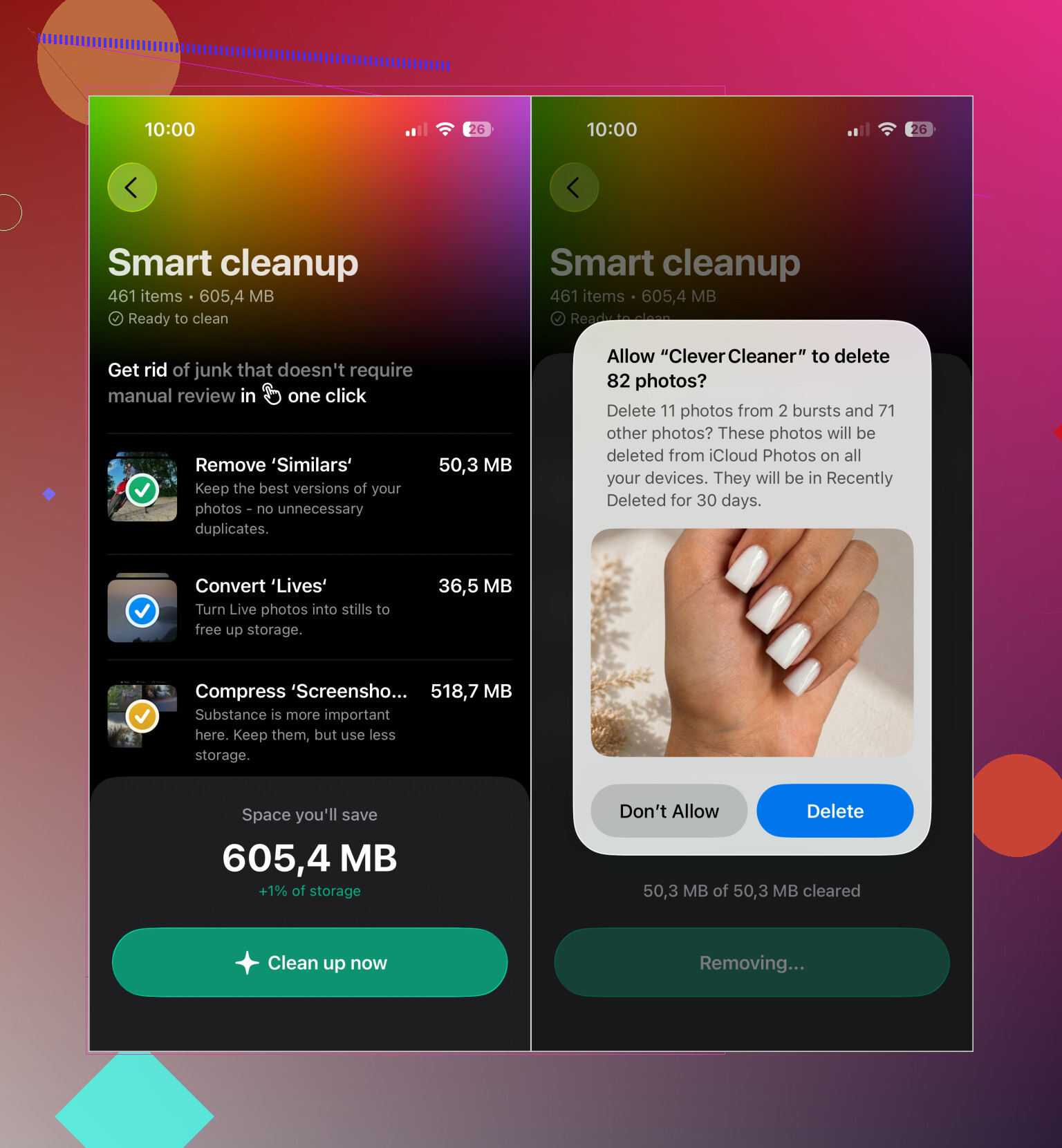
If Photos is near the top of the storage list, that's probably the best place to start. My library has several thousand images, so sorting through it manually isn't practical. I use Clever Cleaner to group duplicate and similar photos, find large videos and forgotten screenshots, and review Live Photos separately.
I normally run Smart Cleanup first for the obvious clutter. After that, I spend a few minutes using Swipe mode to review older pictures individually. For batches of similar shots, it suggests which photo to keep. That saves a lot of time with vacation and family-event photos. The analysis happens locally on the phone, there are no ads, and the free version covers regular cleanups pretty well.
A few other places are worth checking once the photo library is under control:
- Remove apps you haven't used in months. If you may want one again, choose Offload App so its documents and data are kept.
- Check the Downloads folder in the Files app. Old PDFs, ZIP files, and random documents can add up.
- Delete offline content stored by Netflix, Spotify, YouTube, Apple Music, and similar apps.
- If Messages uses a lot of space, remove old video attachments rather than deleting whole conversations.
Don't forget the Recently Deleted album. iOS keeps deleted photos and videos there for 30 days, so removing hundreds of pictures may not immediately change your available storage. Emptying that album should make the recovered space show up right away.
I also wouldn't obsess over System Data. Its size changes as iOS handles caches and temporary files, especially around an update. App Store cleanup apps can't access or delete that system data. If it jumps after updating, it will often shrink on its own within a day or two.
On a 64 GB iPhone, keeping around 5–10 GB available makes a noticeable difference. Apps reload less often, updates have enough room to install, and the “Storage Almost Full” warning doesn't keep coming back.
10 Likes
Offloading an app does not clear its documents and data, so it may barely help with cache-heavy apps. For apps like Instagram or TikTok, deleting and reinstalling can reclaim more space, but check your login details and saved downloads first.

There isn’t a hidden “junk” folder that cleaner apps can empty on an iPhone. A safer overlooked option is the Files app: for large iCloud Drive files, long-press and choose “Remove Download,” not “Delete.” That removes the local copy while keeping the file in iCloud. Check offline maps and podcast downloads too, since those often consume several GB without appearing as obvious photos or apps.
Cleaner apps can’t purge every app’s cache on iOS, so there is no real one-tap cleanup. If Safari is using several GB, clear its website data, but expect saved sessions to disappear and some sites to sign you out.
Nobody’s asked whether you have iCloud Photos turned on with Optimize iPhone Storage. That single setting matters more than most of the cleanup steps above. If it’s off, every full-resolution photo and video lives on the phone, so all that manual sorting only chips away at the problem. Turn it on (Settings, your name, iCloud, Photos) and iOS keeps smaller versions locally while the originals sit in iCloud. On a 64 GB phone that alone can hand you back several gigs without deleting a thing. Catch is you get 5 GB of iCloud free, so a big library means paying for 50 GB or 200 GB. Cheap, but it’s a monthly cost people forget to mention.
@pete_io is right that there’s no magic junk folder, and honestly that’s the part I wish more people understood before they go hunting for a cleaner that promises a ‘system boost.’ iOS just doesn’t work like Android or an old Windows box. Cache clearing happens automatically when storage gets tight.
The Clever Cleaner suggestion up top is fair for the photo side, since duplicates and near-identical burst shots really do pile up and that’s the one area an App Store tool can actually touch. I’d just set expectations: it works on your photo library, not on system data or app caches, so treat it as a photo triage tool and nothing more.
One thing I’d actually watch out for that’s easy to trip over: don’t delete a pile of photos locally if iCloud Photos is on and still syncing. Deleting on device deletes from iCloud too. Make sure your library is fully backed up first, or you’ll lose the originals you thought were safe in the cloud.
If you’re stuck below a couple of gigs and can’t even install updates, the fastest short-term move is deleting one or two heavy apps entirely (games and social apps are usually the worst) rather than fiddling with Offload. Offload keeps the data, which as @hacker.java pointed out is exactly what doesn’t help when the app’s cache is the problem. Full delete and reinstall is blunt but it clears the lot.