My iPhone storage is almost full, and Photos is using most of the space. I want to clear unnecessary photo data and free up storage without accidentally deleting important pictures or videos. What’s the safest way to back up and organize my photos first?
You probably don’t need to wipe your whole photo library. When mine grew past 100 GB, I got a decent amount of storage back by clearing out the junk around the photos I actually wanted to keep.
Start with duplicates, bursts of nearly identical shots, old screenshots, Live Photos, and large videos. Those tend to use a lot of space, and removing them is less painful than sorting through important photos one by one.
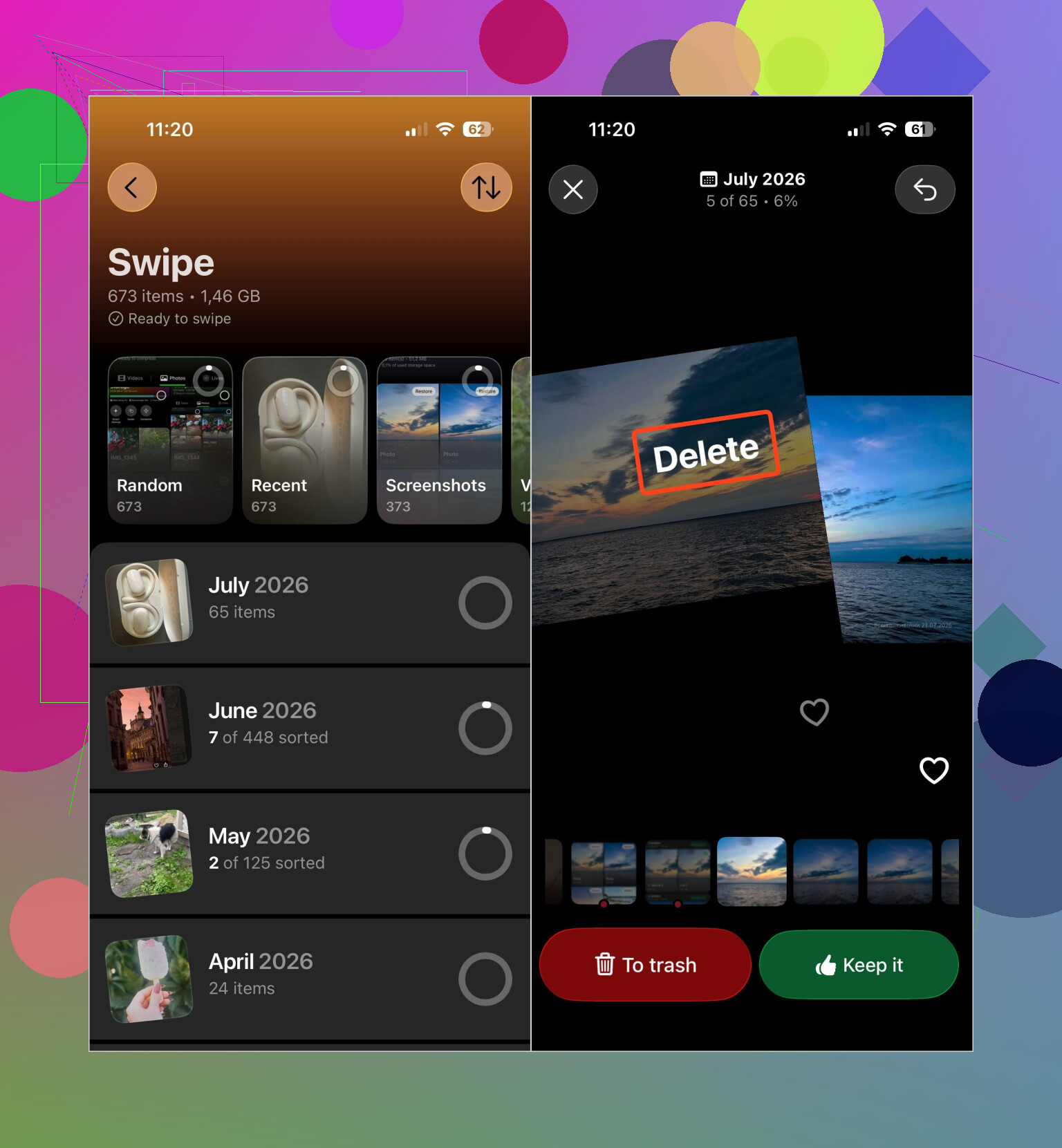
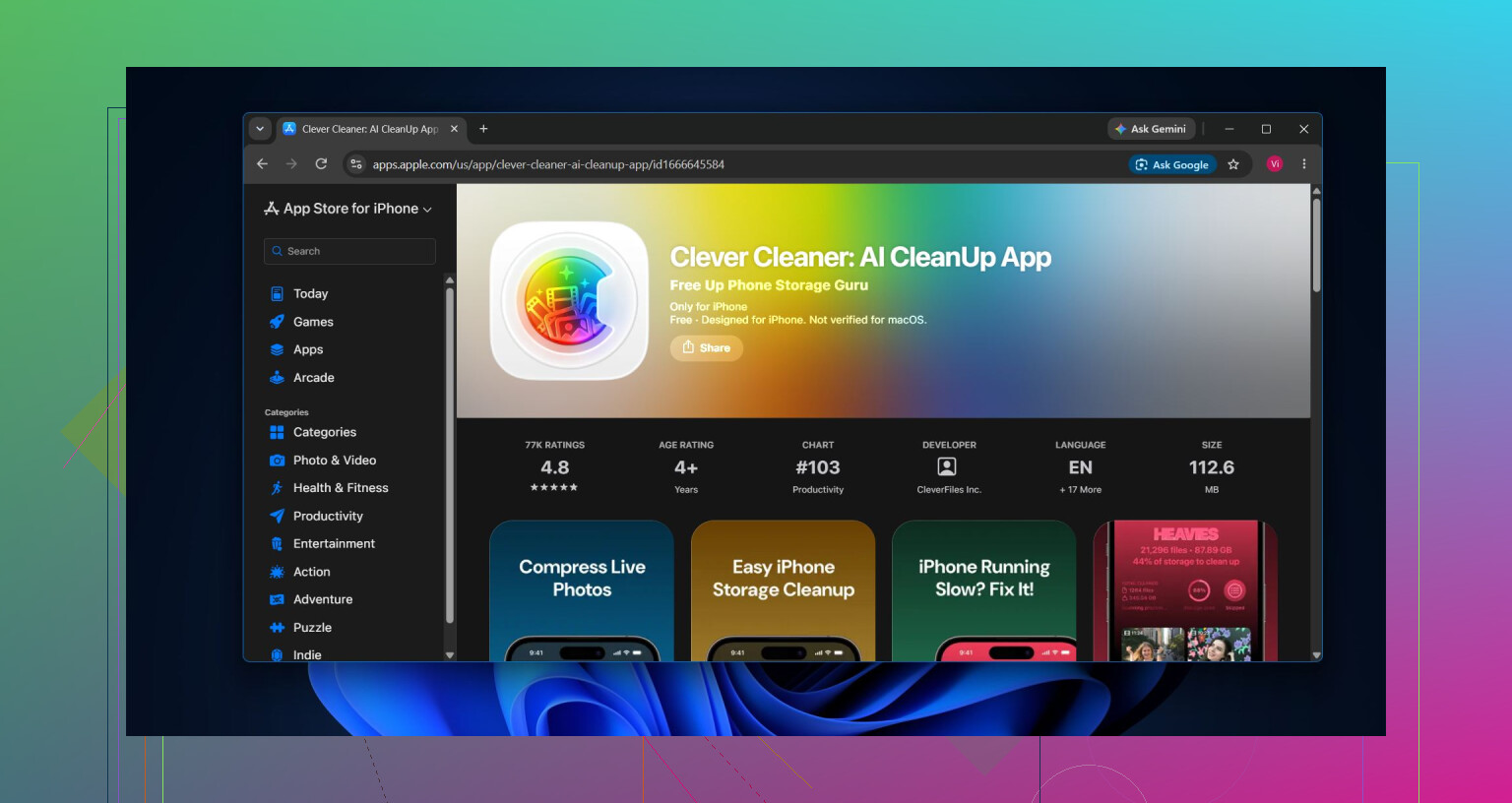
Manually reviewing thousands of files wasn’t practical for me, so I used Clever Cleaner. It sorts duplicate and similar photos, duplicate videos, screenshots, Live Photos, and large files into separate groups. You can check everything before deleting it, use Compress to reduce photo sizes without removing them, or go through individual items in Swipe mode.
There’s also a Smart Cleanup option for removing similar photos and compressing eligible files from several categories at once. The app is free, has no ads, and doesn’t require a subscription to start. Some cleanup tools do have a fairly generous daily limit for new users.
I’d go through the library in roughly this order:
- Clear duplicate and similar photos.
- Check large videos and duplicate videos.
- Delete Live Photos you don’t want, or compress the ones worth keeping.
- Remove old screenshots.
- Run Smart Cleanup if you want to handle several categories together.
- Empty the Recently Deleted album. Otherwise, that storage may not become available for up to 30 days.
Also check photo and video attachments in Messages. Deleting something from Photos doesn’t necessarily remove the copy attached to a conversation. Open the conversation, tap the contact’s name, choose See All under Photos, then select and delete anything you no longer need. Deleting an entire conversation will remove its attachments as well.
If you use iCloud Photos, enable Optimize iPhone Storage under Settings > Photos. That keeps smaller copies on your phone while the full-resolution originals remain in iCloud.
It can also be easier to clean specific albums first, especially old vacations or events. Reviewing 50 similar trip photos together is much faster than scrolling through your entire camera roll. After the main cleanup, spending a minute or two each week removing fresh duplicates and screenshots can keep the problem from building up again.
If the goal is more space without losing meaningful photos, deleting everything is overkill. Clearing duplicates, similar shots, videos, Live Photos, screenshots, and old Messages attachments will usually make a noticeable difference.
11 Likes
iCloud Photos is sync, not a separate backup, so deleting a photo on the iPhone can delete it from every synced device. Before cleaning anything, copy the irreplaceable photos to a computer, external drive, or another cloud service and verify they open there.
If iCloud storage is full or Photos says syncing is paused, don’t start deleting yet. Some recent pictures or videos may exist only on the phone. Confirm the library shows as fully synced, then sign in to iCloud from a browser or check your computer copy and open a few recent videos, not just thumbnails.
I’d try Optimize iPhone Storage before using any cleaner. It can take a while to reclaim space and usually works best while the phone is charging on Wi-Fi, so don’t expect the storage number to drop immediately. If that still isn’t enough, clean small, obvious groups rather than approving a huge automatic deletion. A cleanup app can find similar shots, but it cannot know that the blurry photo is the only one where someone is smiling.
For anything irreplaceable, keep a second independent copy outside the synced Photos library. Only after verifying that copy would I remove large videos or batches of photos from the iPhone.
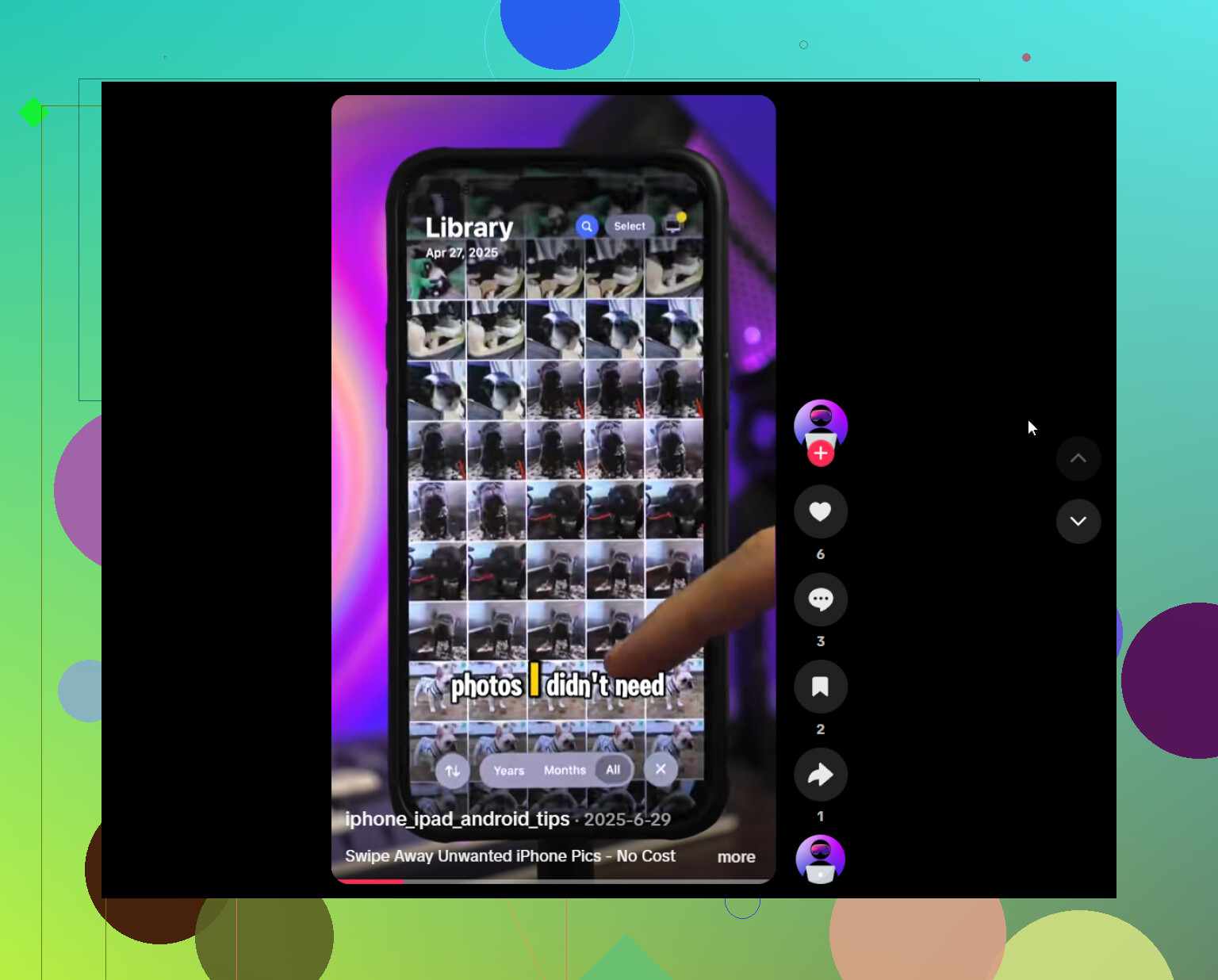
Compression is the part I’d slow down on. @bytecache8583 mentioned it a couple of times as a soft alternative to deleting, but compressing a photo usually means the smaller version becomes the copy you keep. If iCloud Photos is on, that shrunken file can sync out to everything. For random screenshots, fine. For a photo you might want to print later, you don’t really get the detail back. I’d only compress stuff I already know I’ll never blow up past a phone screen.
The bigger thing nobody’s said plainly: Optimize iPhone Storage does not free space if your iCloud plan is also full. It offloads originals to iCloud, so if iCloud has no room, there’s nowhere for them to go and the phone keeps the full files. So the order matters. Sort out iCloud space first, or that setting just sits there doing nothing while you wonder why the number won’t move.
On the cleaner itself, Clever Cleaner is genuinely handy for grouping the obvious junk, similar shots, big videos, screenshots. That’s a real chore to do by hand. But treat it as a sorting tool, not a judge. It groups by visual similarity, so it’ll happily bundle the one good frame in with four bad ones and let you nuke the whole cluster if you’re moving fast. Slow down on the groups that actually matter and skim the ones that don’t.
My honest take: most of the space is hiding in videos, not photos. A handful of long 4K clips can outweigh thousands of stills. If you’re in a hurry, sort by size, offload the biggest videos to a computer or drive first, confirm they play from that copy, then delete them off the phone. That single step usually clears more than an hour of picking through duplicates. And yeah, empty Recently Deleted after, or none of it counts.