My iPhone storage is almost full because I have thousands of screenshots and a lot of duplicate or similar photos in my Photos app. I’m trying to find the fastest way to delete screenshots on iPhone and clean up similar pictures in one go, but I’m not sure which built-in tools or settings actually work. I need help freeing up space without accidentally deleting important photos.
13 Likes
I ran into this same mess on my iPhone. Screenshots stack up fast. You grab a Wi Fi password, a tracking page, a receipt, some random meme, then forget about all of it. Half a year later, Photos is packed with junk. One screenshot might be 200 KB, or it might cross 2 MB. On larger iPhones, the total gets ugly fast. A few thousand screenshots can eat multiple GB without much effort.
The annoying part is the Photos app does not help much. You do not get file size sorting. You do not get a size readout while scanning the screenshot grid. So you end up deleting blind, which is a dumb way to manage storage.
Why I’d start with Clever Cleaner
If your main goal is freeing space, Clever Cleaner gives you the missing info. Here’s the video link:
What stood out to me was how direct it is. No ads. No in app purchase trap. In the Screenshots section, each thumbnail shows the exact file size. You know what each item costs before you remove it.
The Heavies section is the part I found more useful. It orders your media from biggest file down to smallest. So instead of poking through endless screenshots at random, you hit the worst offenders first. Full page captures, huge saved images, oversized HDR stuff, all of it floats to the top.
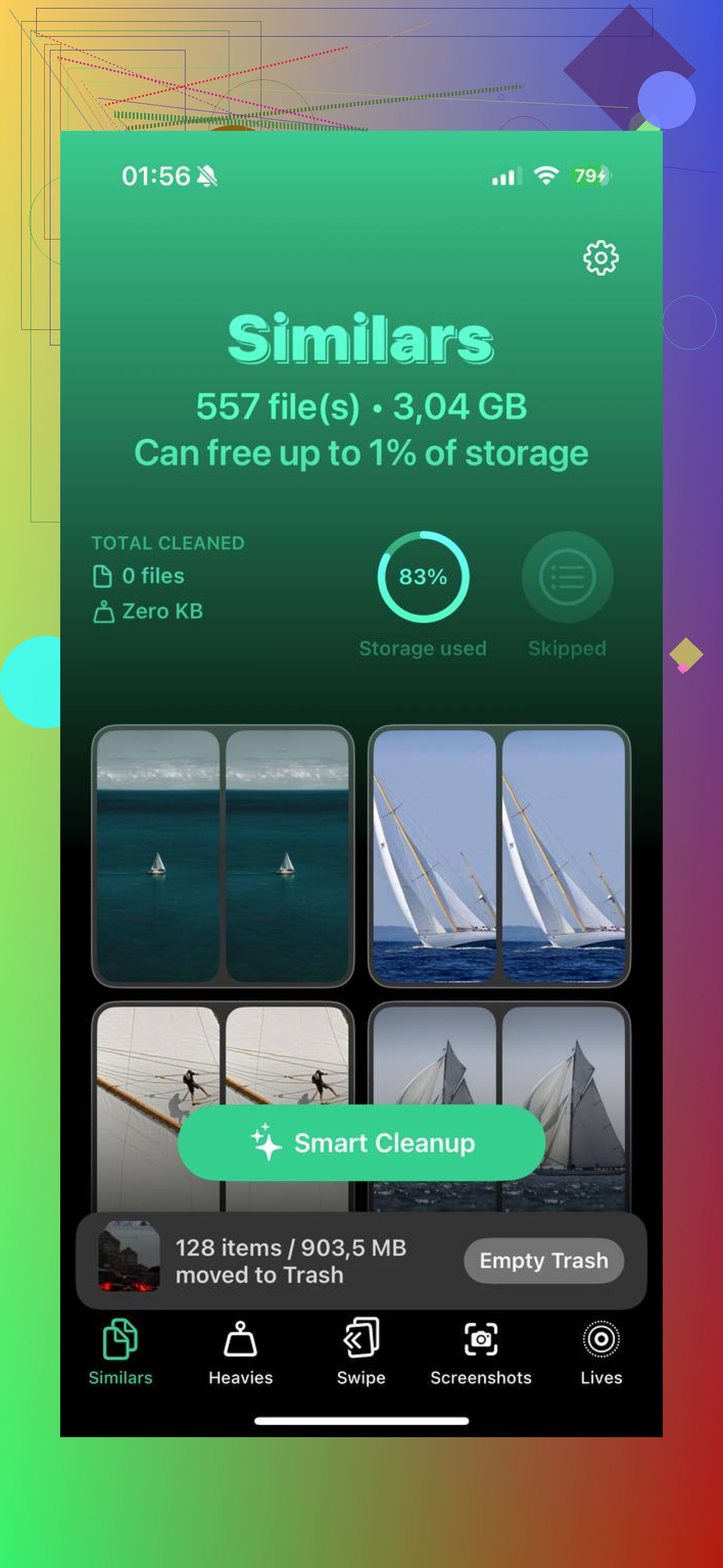
There is also the Similars tool. iOS 18 handles exact duplicates, but it misses those near duplicates you took a second apart. I mean those tiny framing changes where you kept trying to get it right. Clever Cleaner groups those together, suggests the best pick, and lets you wipe the rest in one go. For me, this cleaned up screenshot clutter and photo clutter at the same time.
If you want to use only the Photos app
Open Photos, go to Albums, scroll to Media Types, then open Screenshots. On iOS 18, Apple moved things around a bit, so you might need to swipe across the Media Types row to find it. If you use it often, move it higher. Scroll to the bottom of Albums, tap Customize and Reorder, then pin Media Types near the top.
From there, tap Select. Tap the first screenshot, then drag across and downward to grab a bunch at once. This works fine, but there is one catch. If you try to delete too many in one shot, Photos sometimes hangs. I saw this happen when free storage was already low. The phone seems to need some working room to process the delete job. If yours is almost full, do smaller batches, around 50 to 100 items. It feels slower, but it avoids freezes.
The part people forget
Deleting screenshots from the library does not free the storage right away. iPhone moves them into Recently Deleted for 30 days. So if you need the space back now, go into Recently Deleted under Utilities, tap Select, then Delete All. That is the step where the storage comes back.
How I stopped screenshot buildup later
For throwaway screenshots, the best move is Copy and Delete. After you take the screenshot, tap the little preview, hit Done, then choose Copy and Delete. The image goes to your clipboard, so you paste it into a text or email, and it never lands in Photos. This is good for login codes, order numbers, temporary confirmations, stuff you only need for a minute.
If you removed the wrong file
First stop is Recently Deleted. If it is still there, recovery is easy. If you already emptied it, recovery software is the safer route. I would trust that more than hoping iCloud happened to back up the exact version you need at the right time.
Once I cleaned mine out, the phone felt less cramped. Storage dropped, Photos loaded faster, and the whole thing stopped feeling so clogged.
Fastest route for me was skipping Apple’s slow manual flow and using the screenshot filter plus a cleaner app for the similar stuff.
For screenshots, go to Photos, Albums, Media Types, Screenshots. Hit Select, then Select All if iOS shows it, or drag your finger to mass-select fast. Delete, then empty Recently Deleted. People forget ths part, and the storage does not come back right away.
For similar photos, I kind of disagree with @mikeappsreviewer if the plan is to rely only on built-in tools. The Duplicates album helps, but it misses near-duplicates, burst leftovers, and same-shot edits. If you have thousands, it’s too slow.
What worked better for me was Clever Cleaner. It groups similar images, duplicate shots, and junk screenshots way faster than Photos does. You still review before deleting, so you don’t nuke important pics by mistake. On a 256GB iPhone, clearing 8 to 12GB is pretty normal if your library is messy.
If you want a quick read first, check this Clever Cleaner review for cleaning duplicate and similar photos.
One more tip. Go to Settings, General, iPhone Storage, Photos, and make sure Optimize iPhone Storage is on. It won’t delete clutter, but it cuts local storage use a lot. Kinda boring advice, but it helps fast.
I’d do one thing a little diffrent from @mikeappsreviewer and @codecrafter: before bulk deleting anything, use search to break the mess into chunks. In Photos, search terms like “screenshot”, app names, “receipt”, “meme”, “WhatsApp”, even dates like “2023”. It’s faster for spotting junk patterns than just scrolling forever like a maniac.
Also, if Live Photos are eating space, filter those next. People forget they’re basically mini videos. Same with burst shots. Those can be sneaky storage hogs.
Another move: if you connect your iPhone to a Mac, the Photos app there can make mass review less painful because the screen is bigger and selecting is way less annoying. Not as “one tap” as people want, but honestly safer if you’re worried about deleting something important.
Built-in iOS tools are fine for obvious dupes, but not great for near-duplicates. That’s where Clever Cleaner makes more sense, esp if your library is full of slightly different copies of the same pic. I wouldn’t trust any app to auto-nuke stuff without review though. That’s how people lose vacation photos and then post angry threads later lol.
If you want more real-world opinions, this thread on best free iPhone cleaner apps for duplicate and similar photos is worth skimming.
I’d push one extra angle that @sterrenkijker and @codecrafter only touched indirectly: stop future screenshot buildup before you do the big purge.
A few practical things:
- In Photos, sort by oldest first when reviewing screenshots. Old support-chat grabs, QR codes, payment confirmations, and map shots are usually easy deletes.
- Use Files or Notes for stuff you actually need short-term instead of leaving it in Photos forever.
- Turn off apps that save images to Photos automatically if they’re causing clutter.
On the similar-photo side, I mildly disagree that you always need to start inside Photos. If the library is already chaotic, review fatigue is the real problem. That’s where Clever Cleaner is useful because it surfaces clusters faster.
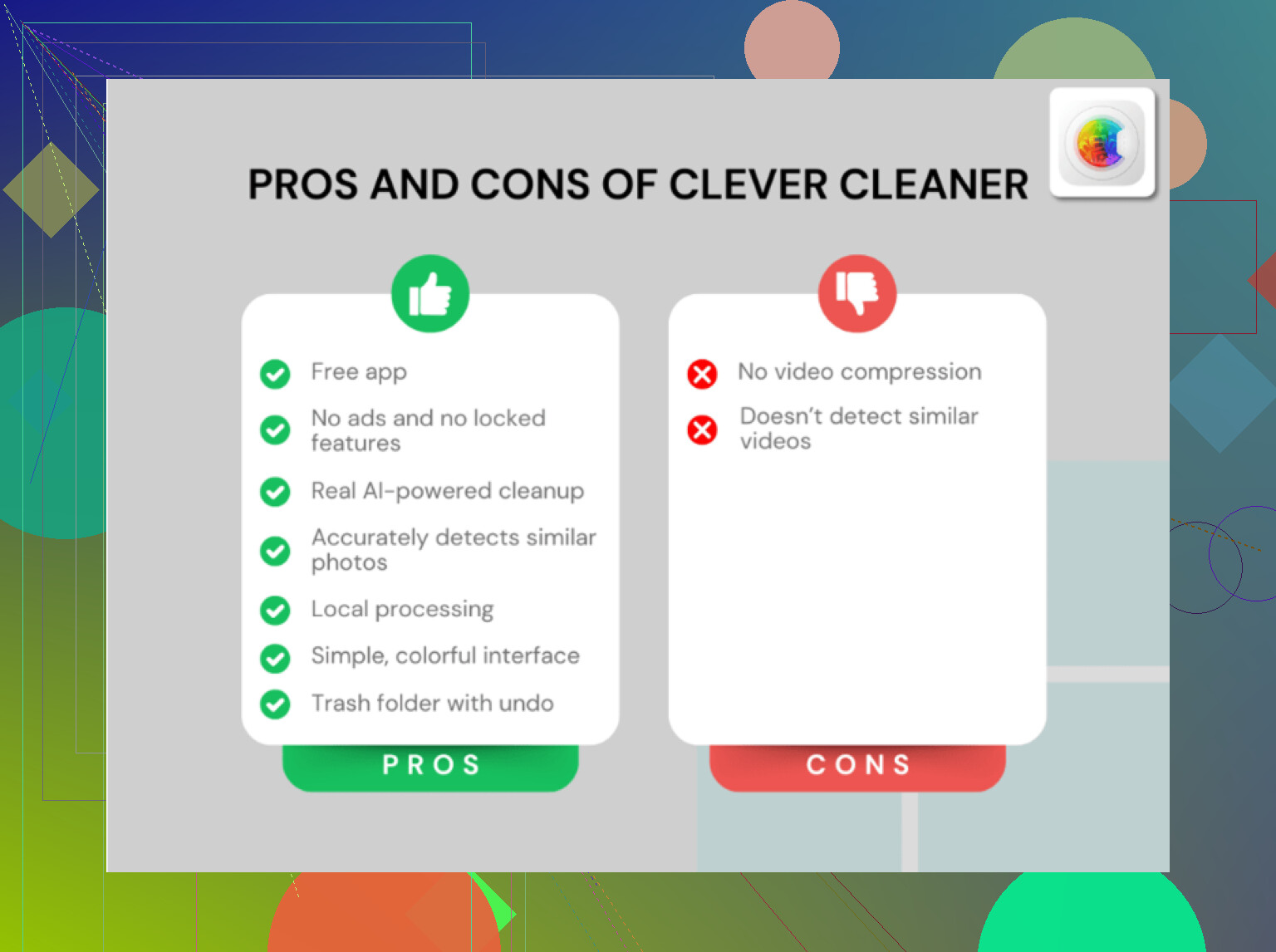
Pros for Clever Cleaner:
- catches similar photos, not just exact duplicates
- faster bulk review
- helps with screenshots too
Cons:
- still needs human review
- any cleaner app can suggest wrong picks sometimes
- some people prefer staying fully inside Apple’s tools
Also, after deleting, restart the phone if storage doesn’t update right away. iOS can lag on recalculating space.