I accidentally deleted important files from my USB drive and realized they never went to a Recycle Bin. I use this flash drive for work documents and family photos, so I really need a safe way to recover deleted files from a USB without making things worse. What actually works?
USB sticks don’t behave like your main drive. When you delete a file there, Windows often skips the usual Recycle Bin flow and treats it like a straight delete. A lot of people learn this the annoying way.
Still, deleted does not always mean gone. I’ve seen plenty of cases where the data stayed on the flash drive, but the file system stopped listing it and marked the space as free. The part where things go bad is after you keep using the stick. New files start landing over the old ones, and your odds drop fast. On a small USB drive, you don’t get much room for error. Mess up once, and yep, it gets ugly.
If your drive still shows up normally, I’d go with data recovery software. I would not do that if the stick has hardware trouble, like this:
- the USB is not detected at all;
- it reports 0 bytes or some nonsense capacity;
- it drops connection when you move it;
- the connector looks bent, loose, or cracked;
- the drive gets hotter than it should;
- the files matter enough where a recovery lab feels safer.
If none of those fit and the flash drive mounts like normal, software recovery is usually the cleanest next step.
Before scanning, I’d do the quick checks people skip. Look around your computer for copies you forgot about. Check cloud sync folders, old email attachments, backup folders, random desktop dumps, all of it. Then turn on hidden files and inspect the USB again. I’ve had files look deleted when they were only hidden by a changed attribute or some junky malware behavior.
Also poke around for folders like $RECYCLE.BIN, RECYCLER, RECYCLED, or .Trashes if the drive touched a Mac at some point. I would not count on this saving the day, but it takes almost no time, so I still check.
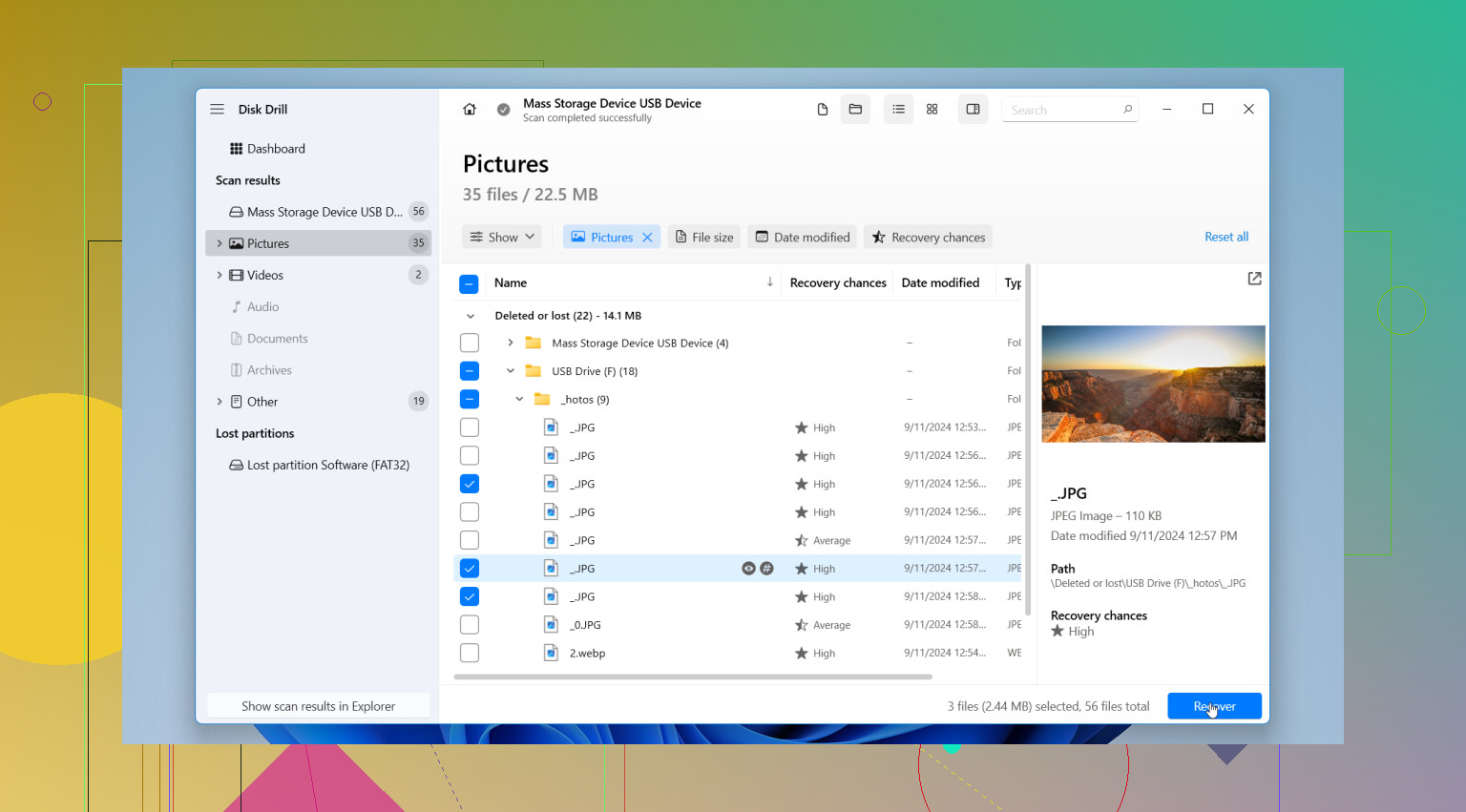
Once that fails, scan the drive. Most recovery apps do the same job in slightly different ways. The menus change, the results sorting changes, some previews are better than others, but the workflow stays close to this:
- Install the recovery program on your computer, not on the USB drive.
- Connect the USB stick.
- Pick the USB inside the recovery app.
- Start a deleted or lost file scan.
- Let the scan finish. Don’t kill it halfway through.
- Use search tools, filters, or file type groups to narrow the mess.
- Preview files where the app supports it.
- Save recovered files to your PC, an external drive, SSD, or another USB, never back onto the same USB stick.
That last part matters more than people think. If you restore files onto the same flash drive, you risk overwriting other deleted data you have not recovered yet. I did this once years ago, one time, and I did not do it again.
For the software, my first pick here is Disk Drill. I’ve tried a pile of recovery tools, and for a normal USB deletion case this one tends to be the least annoying. It works with common flash drive file systems like FAT32, exFAT, and NTFS. The layout is easy to read. The preview tool helps a lot.
If a file previews correctly, I usually take that as a good sign the recovered copy will be usable. Not a guarantee, but a strong hint.
It also helps when the file system is partly broken or missing some directory info, because it does signature-based scanning too. So even if the old folder tree is wrecked and filenames are gone, you still might pull back the file contents. The downside is you may get rebuilt files with generic names instead of the originals. Better than nothing, still annoying.
The other option worth mentioning is PhotoRec. It’s free, and yeah, it finds a lot. I’ve used it on ugly drives where cleaner apps struggled. But the experience is rough. The interface feels old, and the output often turns into a pile of recovered files with no useful names and no folder structure. It gets results, then leaves you sorting through a digital junk drawer for hours. If you’ve got patience, fine. I didn’t enjoy it much tbh.
I would stay away from CHKDSK before recovery. People throw that advice around way too fast. CHKDSK is for repair, not undelete. It changes file system structures, which is the opposite of what I want before trying to pull deleted files off a drive. My rule has been simple for a while, recover first, repair later.
So the short version is this. Stop using the USB. Check for hidden files, old copies, and recycle-style folders. If the drive looks stable, scan it with Disk Drill and restore anything you find to a different device. If the stick starts dropping out, reports weird capacity, or looks physically damaged, I’d skip DIY and send it to a recovery service.
4 Likes
Stop writing to the USB first. Every new save cuts recovery odds.
I mostly agree with @mikeappsreviewer on skipping repair tools early. I disagree a bit on one thing though, I like making a full image of the USB before scanning if the files matter. Work from the image, not the stick. Tools like USB Image Tool or similar are good for this. If the scan goes bad, you still have the original state. It takes extra time, but for family photos I’d do it.
My order would be:
- Unplug the USB.
- Plug it back in read-only if your setup supports it, or at least do not open and edit files on it.
- Make a sector image of the drive.
- Scan the image, or the USB, with Disk Drill.
- Recover files to your PC, not back to the flash drive.
Disk Drill is a solid pick for deleted files from USB drives because it handles FAT32, exFAT, and NTFS well, and its preview helps you sort docs and photos fast. If filenames are gone, sort by file type and date. For office files, search extensions like DOCX, XLSX, PDF. For photos, filter JPG, PNG, HEIC. Saves time.
One more thing people miss, check Previous Versions on any folder where you copied those files before. Also search Office temp files and auto-save folders on your computer. I’ve seen users recover the “lost” doc from Word cache instead of the USB. Kinda dumb, but it works.
If you want a quick visual walkthrough, this USB flash drive deleted file recovery video guide is short and easy to follow.
If the USB disconnects, shows 0 bytes, or gets hot, stop DIY. That’s where poeple turn a recoverable case into a dead one.

USB deletions are annoying because they usually bypass the Recycle Bin completely, so yeah, that part is normal even if it feels broken.
I agree with @mikeappsreviewer and partly with @espritlibre, but I’m a little less obsessed with imaging first in every case. If the flash drive is healthy and you deleted files recently, making an image is nice, not mandatory. On cheap USB sticks, long reads can sometimes make them act flaky too. So I’d judge by how stable the drive is.
What I would do that hasn’t been mentioned much: check whether the files were actually removed or just got their folder entries messed up. Open Command Prompt and run:
attrib -h -r -s /s /d X:\*.*
Replace X with your USB letter. This can unhide files if malware or a file attribute change made them disappear. It won’t undelete truly deleted files, but it solves more “missing USB files” cases than people think.
Also, if this was a work doc, check app-specific recovery:
- Word AutoRecover
- Excel temp files
- Adobe recent/cache
- Windows Search for
*.tmp,*.asd,*.wbk
If the files are really deleted, use Disk Drill or PhotoRec. My vote is Disk Drill for normal people because the preview is way less chaotic and it’s easier to recover deleted files from a USB drive without turning the process into a weekend project. Recover to your computer only, not back to the stick. Kinda obvious, yet ppl still do it.
One more check: Event Viewer can show disconnect errors. If you see repeated USB resets, stop messing with it.
Related discussion here too: USB flash drive file recovery discussion and tips
One small disagreement with @espritlibre and @yozora: imaging first is smart, but not always the first move on a bargain USB stick that already acts weird during long reads. If it is stable, fine. If not, every extra pass is a gamble.
What I’d add instead:
- Check File History, OneDrive, Google Drive, Dropbox version history
- Try Windows File Recovery if you want a free Microsoft option
- Look in Office recovery folders before deep scanning
- If photos are involved, check phone imports or messaging app exports on your PC
For actual undelete, Disk Drill is probably the easiest route.
Pros:
- good USB support for FAT32, exFAT, NTFS
- previews docs and photos well
- easier sorting than PhotoRec
- decent at finding deleted and raw-signature files
Cons:
- free recovery is limited on Windows
- raw recovery can lose original names/folders
- deep scans can return lots of junk
So my order would be: stop using the USB, check cloud/local backups and app autosaves, then scan with Disk Drill and recover to your computer only. If the drive shows 0 bytes, disconnects, or overheats, skip DIY.