My USB drive suddenly stopped opening after I moved important photos and work documents onto it, and now my computer says it needs to be formatted. I’m trying to recover files from a corrupted USB drive without losing everything. What should I do first, and are there any safe recovery tools that actually work?
I’ve been through this with a few USB sticks, and the first thing I’d say is, don’t hit Format. Don’t run repair stuff yet either. Windows often makes the problem look worse than it is. I’ve seen drives show up as RAW, throw the “needs to be formatted” message, or refuse to open, and the files were still there.
What matters first is getting your data off the drive. Fix the USB later.
Some causes are less scary than they look. I’ve had this happen after pulling a drive too fast, stopping a file transfer halfway through, dealing with file system damage, or getting hit by some junk software issue. Those are the cases where home recovery usually has a decent shot.
Physical damage is different. If the connector looks bent, the drive gets hot, drops in and out, never appears at all, or holds stuff you cannot lose, I would stop there and go with a recovery shop. I woudn’t poke at it myself.
For software recovery, I’d start with Disk Drill.
Why I keep pointing people there. It doesn’t rely only on the file system being healthy. So even if Windows says the USB is RAW or inaccessible, it often still reads the device at a lower level and pulls files out from there. In my use, it also did a better job keeping folder layout than a lot of other tools I tried. Preview helps too, because you can check whether your files open before you spend time recovering junk.
The part I would not skip on a flaky USB is the Byte-to-Byte Backup feature.
Corrupted flash drives tend to get worse with no warning. I’ve had one work fine for twenty minutes, then vanish on the next reconnect. Making a full image first gives you a snapshot of the drive in its current state. After that, you work from the image instead of hammering the USB over and over.
This is the order I’d use.
- Install Disk Drill on your PC, not on the damaged USB.
- Plug in the USB drive.
- Open Disk Drill and go to Byte-to-Byte Backup.
- Pick the USB and make a full backup image.
- When the image is done, mount or attach the image inside Disk Drill.
- Scan the image for recoverable files.
- Preview the files and check if they open.
- Recover everything to a different drive.
I’d do recovery from the image whenever corruption is involved. It takes the unstable hardware out of the loop as much as possible.
After your important files are safe, then I’d mess with repairs.
- Run Windows Error Checking or CHKDSK.
- Give it a new drive letter if Windows is being weird about detection.
- Reinstall the USB drivers if the device keeps appearing and disappearing.
- Format the drive and test it with throwaway files.
If the same USB starts corrupting again after a format, files vanish, writes fail, or it keeps acting unreliable, I’d retire it. Flash storage wears out. Once a stick starts doing this more than once, I stop trusting it. Even if you get it working again, I wouldn’t put anything important on it.
11 Likes
Do not format it.
I agree with @mikeappsreviewer on one big point, get the files first, fix the USB later. Where I differ a bit is CHKDSK. I would not run it early on a drive with important photos and docs. CHKDSK likes to “fix” file system errors, and sometimes your files end up renamed, moved, or gone. Fine for a spare drive, bad for irreplaceable stuff.
My order would be:
- Try a different USB port, then a different PC.
- Check Disk Management. If the USB shows the right size, recovery odds are better.
- If it shows as RAW or unallocated, scan it with Disk Drill first.
- Recover files to your internal drive or another external drive, never back onto the same USB.
If Disk Management shows 0 bytes, or the drive keeps disconnecting every few seconds, stop messing with it. That points more toward hardware failure.
A small trick people forget, if your photos were copied from a Windows PC, look in the source folders for thumbnails, temp copies, or cloud sync caches. OneDrive, Google Drive, Dropbox, and even Windows Recent Files have saved people more than once. Not ideal, but worth 5 mins.
Also, test the USB after recovery with H2testw. If it fails a write/read test, toss it. Cheap flash drives die fast, and some fake-capacity ones corrupt data from day one. Seen it happen way too meny times.
If you want a quick visual guide, this helps:
USB drive data recovery video tutorial
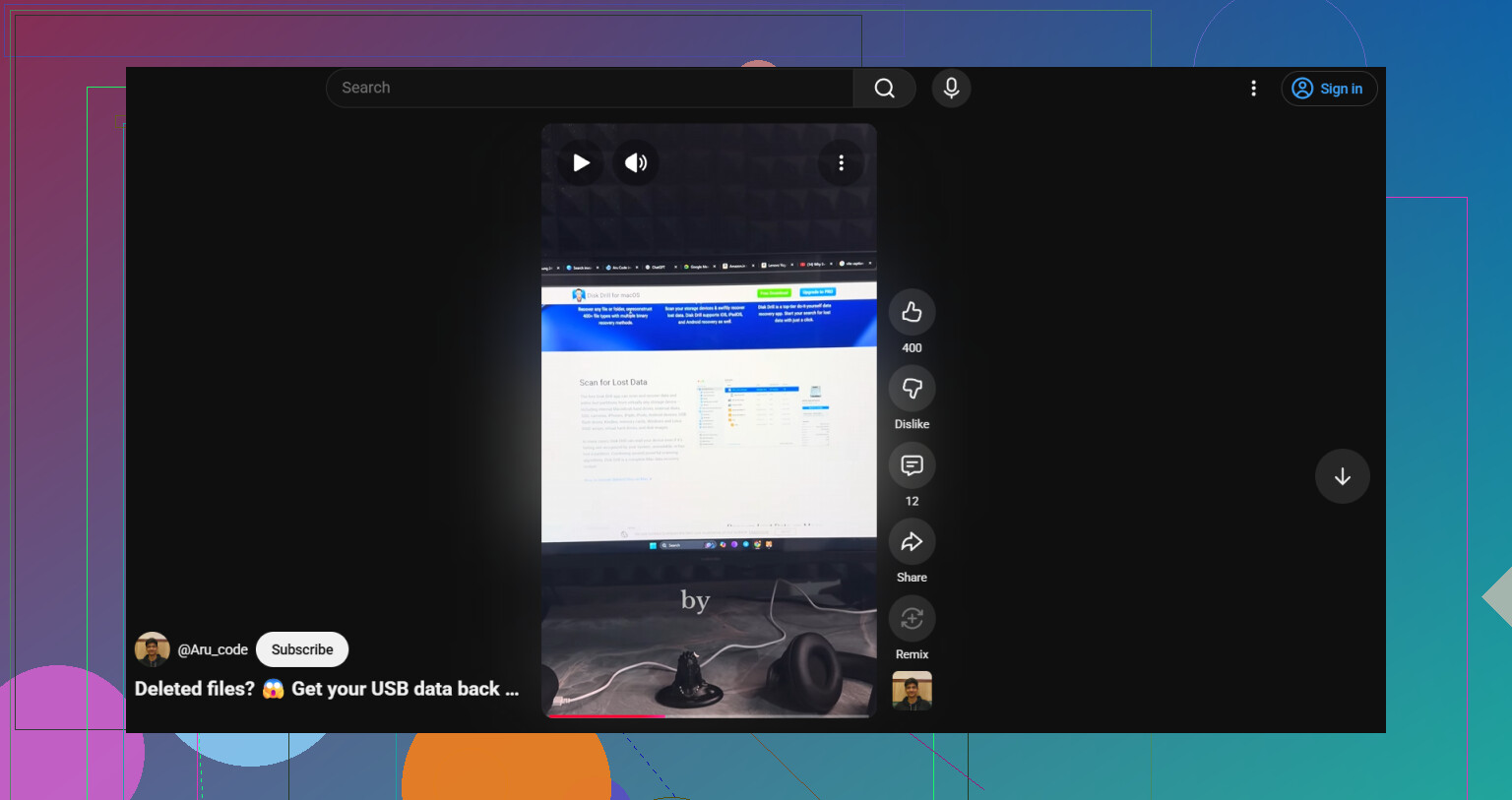
Don’t let Windows bully you into formatting it. That prompt is basicly the OS saying “I can’t read this right now,” not “your files are 100% gone.”
I mostly agree with @mikeappsreviewer and @boswandelaar about recovering first, but I’d add one thing people skip: check whether the partition itself vanished. Open Disk Management and look closely at the USB status. If it shows unallocated space, missing partition, or no file system label, that can be a partition table problem, not just file corruption. In those cases, partition recovery tools can sometimes rebuild access faster than file-by-file recovery.
If the drive is stable enough to stay connected, I’d scan it with Disk Drill before trying any Windows “fixes.” Not because it’s magic, just because it handles damaged USB drives, RAW partitions, and deleted partition cases better than the built-in tools. If the stick disconnects randomly, stop testing it over and over because repeated reconnects can make a dying flash drive worse.
One spot where I slightly disagree with the usual advice: trying a Linux live USB can be worth it before doing anything invasive. Sometimes Linux mounts a drive read-only when Windows just throws a format warning. If it opens there, copy everything off imediately to another drive.
Also, check easy fallback sources:
- Recent files
- OneDrive or Google Photos sync
- Email attachments
- Temp export folders from apps you used
And if you want a solid overview before using the software, this easy Disk Drill review and recovery walkthrough is actually useful.
If the USB shows 0 bytes, gets hot, or disappears during reads, I’d stop DIY and treat it as hardware failure.
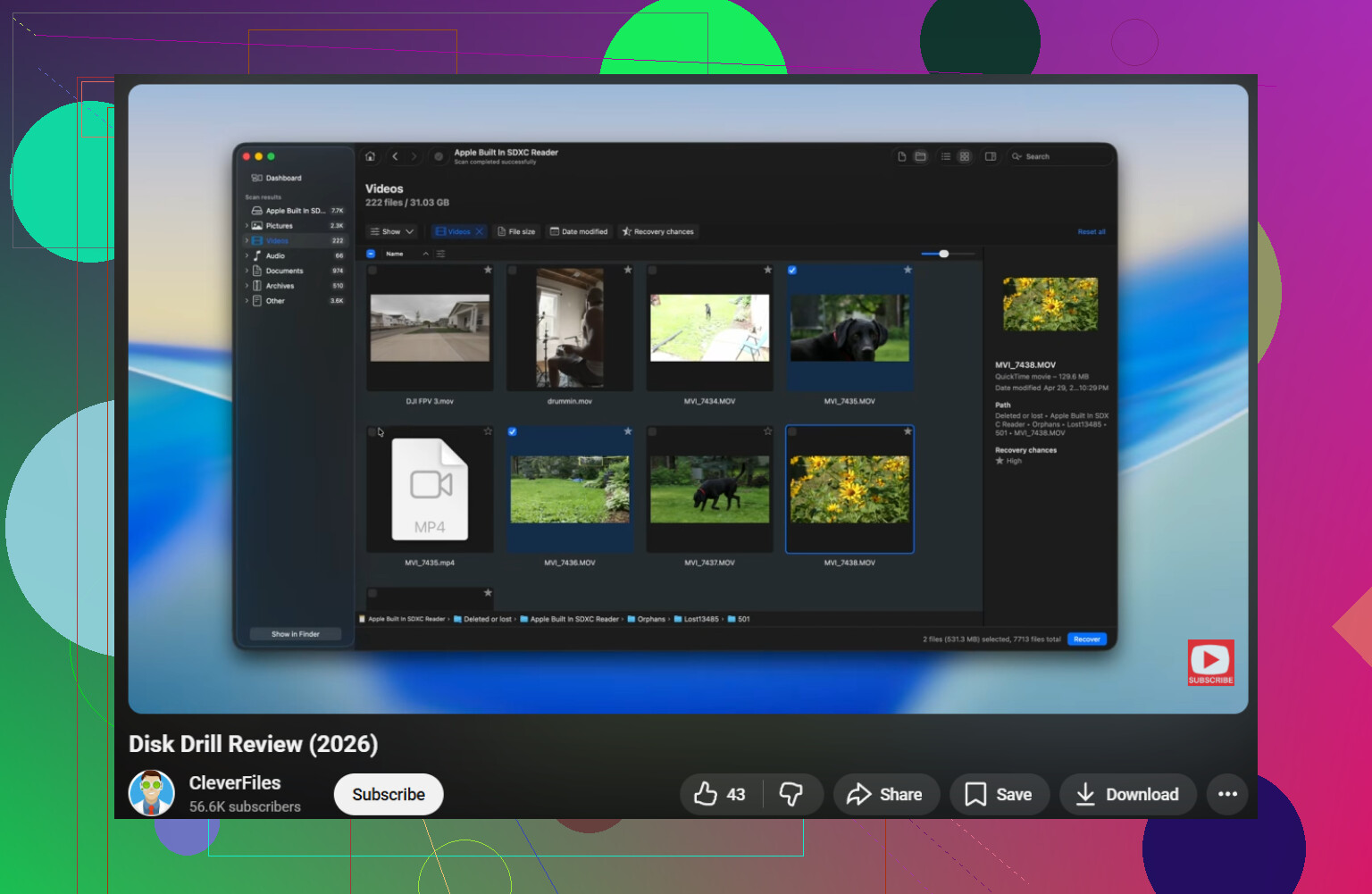
Skip one thing nobody mentioned clearly enough: check Event Viewer right after plugging it in. Windows Logs > System. If you see disk, ntfs, or volmgr errors repeating, that tells you whether this is file system corruption or the controller choking. Useful before you spend hours guessing.
I slightly disagree with running lots of tests on the stick itself after it starts throwing the format prompt. Even “safe” checks add reads, and flaky flash can go downhill fast. If it still stays connected, I’d do one careful pass with Disk Drill and stop there.
My take:
- If the USB shows normal capacity, that’s a decent sign.
- If it asks to format but still has a partition, recovery is often possible.
- If it flips between detected and not detected, treat it like failing hardware.
One extra trick: use a tool that can read the SMART-like USB bridge info if available, or at least verify whether the device ID changes between reconnects. If IDs keep changing, the controller may be unstable.
Disk Drill pros: easy preview, handles RAW/unreadable volumes well, image-based recovery is a plus.
Disk Drill cons: deep scans can be slow, file names/folders are not always perfectly preserved, full recovery may require paid version.
Also worth noting what @boswandelaar, @codecrafter, and @mikeappsreviewer are circling around: recover first, repair later. I’d only add that if the files are truly irreplaceable, don’t “experiment” too much. The cheapest mistake is stopping early and using a pro lab.