I just noticed my iPad Photos app has a lot of duplicate pictures, and it’s taking up storage. I’m not sure if they came from iCloud syncing, imports, or backups. What’s the safest way to find and delete duplicate photos without losing the originals?
No, your iPad is not going to quietly delete photos on its own. Apple does not automatically clean out your photo library without you starting the process. So if your storage is getting eaten up by old duplicate shots, you’ll need to handle it yourself, but you do not have to tap through every single photo one at a time.
The quickest built-in option is Apple’s Duplicates album, assuming your iPad is on iPadOS 16 or newer.
Use the Duplicates album first
Open Photos, then look under Collections or the sidebar and scroll down to Utilities. If your iPad has found duplicates, you should see an album called Duplicates.
Inside that album, Photos groups together images it thinks are copies. The useful part is the Merge button. When you merge a set, the iPad keeps what it considers the best version, usually the one with the best quality and metadata like location or tags. The extra copies get moved to Recently Deleted.
So it is not really wiping everything out immediately. It is keeping one version and putting the rest in the trash area where you can still recover them for a while.
If the Duplicates album is not showing up
That usually comes down to one of a few things.
- Your iPad may not be done scanning the library yet. After a big photo import or a software update, it can take time. Leave the iPad locked and plugged in, sometimes overnight or even longer, and check again later.
- If you are still on iPadOS 15 or older, the Duplicates feature is not available. In that case, you are stuck with manual cleanup or a third-party app.
- Apple’s duplicate finder can be picky. It is mostly looking for exact copies. Two nearly identical photos from the same moment may still count as different photos if the angle, light, or timing changed even slightly.
For “almost the same” photos
This is where the built-in tool may not be enough. If you have ten selfies from the same pose, or a bunch of vacation shots that are basically identical, Photos may not label them as duplicates.
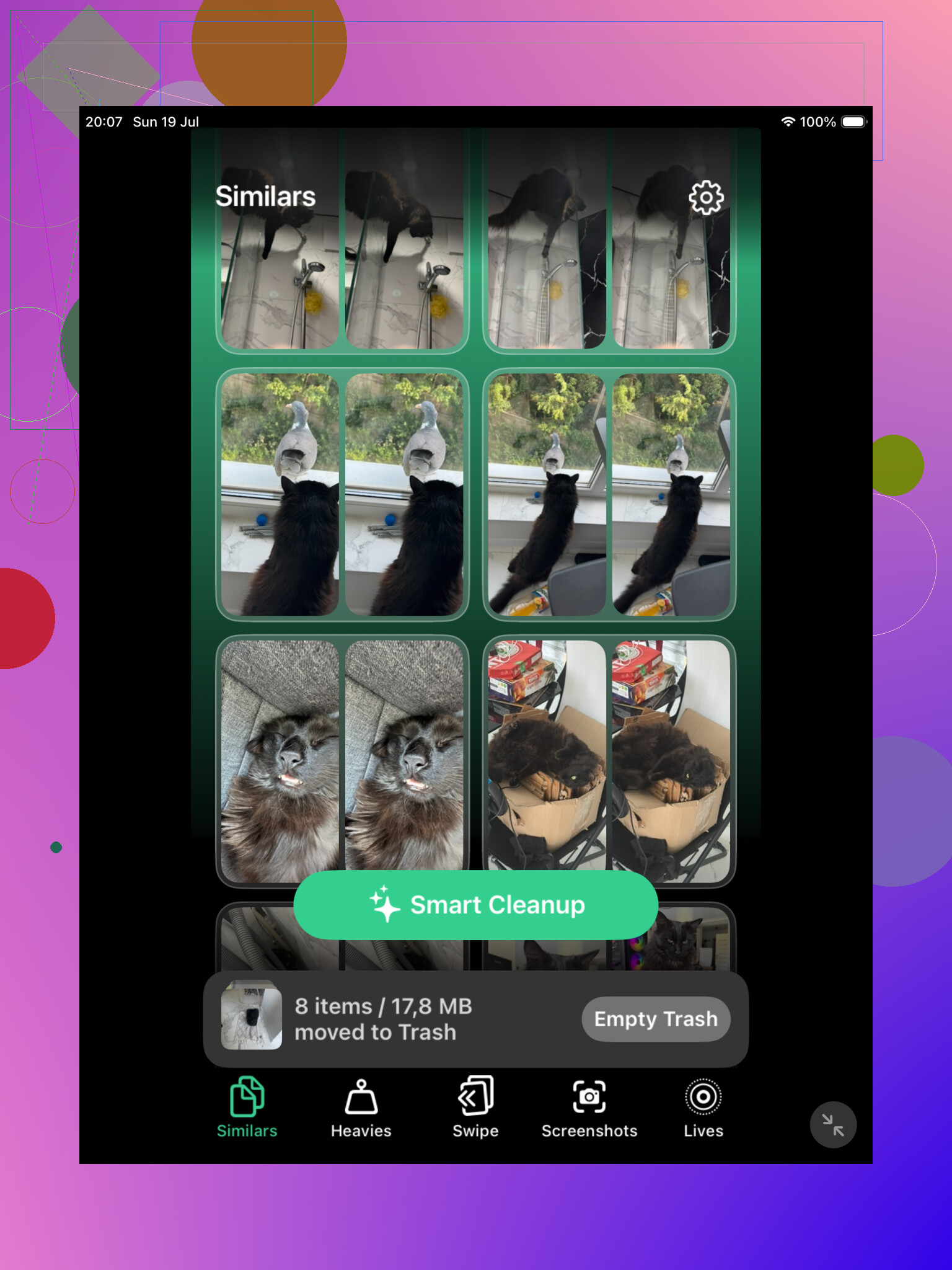
A cleaner app can make that part faster. Clever Cleaner is one option since it has a Similars section and groups photos that look alike. It can also suggest a best shot, so you can review the group and delete the extras without digging through your whole camera roll by hand.
If you want to avoid extra apps
Use Search in the Photos app. Tap the magnifying glass and search for things like “dog,” “beach,” “receipt,” or whatever category makes sense for your library. Photos is pretty decent at grouping stuff that way, and it makes similar shots easier to find.
You can also use the Months or Years view if you know the duplicates came from a specific trip, event, or time period. That is often faster than scrolling from the top of Recents forever.
Do not forget Recently Deleted
Merging or deleting photos does not immediately free all the space. The photos go to Recently Deleted and stay there for 30 days unless you empty that album yourself.
If you are trying to reclaim storage right away, go into Recently Deleted and delete them permanently from there.
Also, if iCloud Photos is enabled, deleting photos on your iPad deletes them from your other synced devices too, including your iPhone and Mac. That is useful if you want everything cleaned up everywhere, but double-check before you permanently delete anything.
Once you get through the first big cleanup, it is usually much easier to stay on top of it.
12 Likes
Don’t start deleting until you know whether iCloud Photos is turned on.
That changes the risk level. If iCloud Photos is enabled, your iPad is not just cleaning a local copy. Deletes and merges can sync back to your iPhone, Mac, and iCloud library. Before doing a big cleanup, I’d check Settings > your name > iCloud > Photos. If that is on, assume every delete affects the main library everywhere.
The safest order is boring but works: make sure you have a backup first, then use Apple’s Duplicates album in small batches instead of hitting merge on everything at once. Do a few groups, check Recently Deleted, and make sure the kept versions look right. I would not empty Recently Deleted immediately after the first pass unless you are very sure. Give yourself a day or two to notice if something important got merged oddly.
A detail people miss: this may not free as much iPad storage as expected if “Optimize iPad Storage” is enabled. Some of those photos may already be mostly cloud-based thumbnails, so the visible duplicate count can look scarier than the local storage savings. For actual iPad space, check Settings > General > iPad Storage > Photos before and after cleanup instead of judging only by the number of pictures removed.

Exact duplicates are a different problem from “I took six nearly identical shots and only want one.” For exact copies, the built-in Duplicates album is the safest place to start because it preserves one and sends the rest to Recently Deleted. For near-duplicates, I would slow down and review by event or date instead of trusting any app or bulk merge too much. Burst photos, edited versions, Live Photos, and pictures saved from Messages can look redundant but still have different value. My rule would be: clean one month or trip first, check what landed in Recently Deleted, then continue. The worst cleanup is the one where you save 3 GB and later realize you deleted the only edited copy you actually liked.
A duplicate sitting in Recents is storage; the same photo appearing in three albums is usually just organization. That’s the bit I’d check before deleting a ton of stuff. In Photos, albums are mostly pointers to the same library item, so removing a picture from an album is different from deleting it from the library. If you see the “same” photo under Recents, Favorites, a trip album, and maybe People, that does not always mean four copies exist.
I agree with using Apple’s Duplicates album first, but I’d do a quick sanity pass outside of it too. Open one suspicious photo, swipe up, and look at the date, file name, source, and size if shown. If two photos have different dates or one came from Messages/Files/AirDrop, they may only look identical. Screenshots and saved social media images are especially messy because they often lose original metadata, so Photos may treat them differently.
For safest cleanup, I’d avoid deleting from inside custom albums at first. Work from Library or the Duplicates utility so you know you’re affecting the actual photo item. Then leave Recently Deleted alone for a little while unless you desperately need the space today. The annoying truth is that the safest method is not the fastest one, but it beats finding out later that you deleted the copy that was actually attached to an album, edit, or memory you cared about.