I’m trying to clean up my attachments, but I’m worried that deleting them might erase both my photos and videos. I recently noticed some old media taking up space, and I don’t want to remove the wrong files by accident. Can someone explain what gets deleted and whether photos and videos are both affected?
Big attachments in Messages are still a mess to manage. I went looking for a quick cleanup route and, no, Apple still doesn’t give you an easy bulk delete flow. There are a couple paths, but both involve hand-picking files.
Is there any faster method than tapping files one by one?
A little. The closest thing to a shortcut is Settings > General > iPhone Storage > Review Large Attachments. That page pulls the biggest files from all your chats into one spot, which saves time if your storage is packed with random old videos and photos.
If you only want to clean one conversation, open it, tap the name at the top, then check Photos or Documents. Hit See All and you’ll get multi-select for items in that thread.
What annoyed me most, there’s still no Select All button. So even now, in 2026, you’re still doing part of this by hand.
Is it the same on iPad?
Yep. Same layout, same storage menu, same result. iPadOS and iOS handle message attachments the same way.
If you use Messages in iCloud, deleting on your iPhone should sync over to the iPad too. I’ve seen it lag before, so if nothing changes right away, wait a bit before assuming it failed.
Does this remove both photos and videos?
Yes. Attachments include both.
The part people miss is whether you ever saved the file into the Photos app. If you hit Save Image or Save Video earlier, your phone made a separate copy in your library. Deleting the item from Messages removes the message copy only. The saved one in Photos stays there.
If you never saved it outside the chat, once you delete it from Messages, it’s gone.
Why deleted attachments show up again
I ran into this once and it looked like iOS was ignoring me. Two usual reasons.
First, Messages has its own Recently Deleted area. Deleted stuff sits there for 30 days unless you clear it yourself. Open Messages, tap Edit from the main conversation list, then choose Show Recently Deleted. If you skip this part, the files are still taking space.
Second, sync gets weird sometimes. If iCloud Messages is active, or your phone is doing storage optimization in the background, iOS seems to re-check what belongs there and occasionally brings things back into view. After I emptied Recently Deleted, a reboot fixed the loop and storage numbers started making sense agian.
Why storage space doesn’t drop right away
Most of the time, it’s the same culprit, Recently Deleted.
Those files still count toward storage for the full 30-day window until you empty that folder. Even after you clear it, the storage meter updates slowly. Restarting the phone usually forces the system to recalculate.
When deleting message attachments still isn’t enough
For me, Messages was only part of the problem. The bigger space hogs were duplicate-looking photos, old 4K clips, and piles of screenshots I forgot existed. You clean out Messages, feel good for ten minutes, then the low storage warning comes back because the photo library is still bloated.
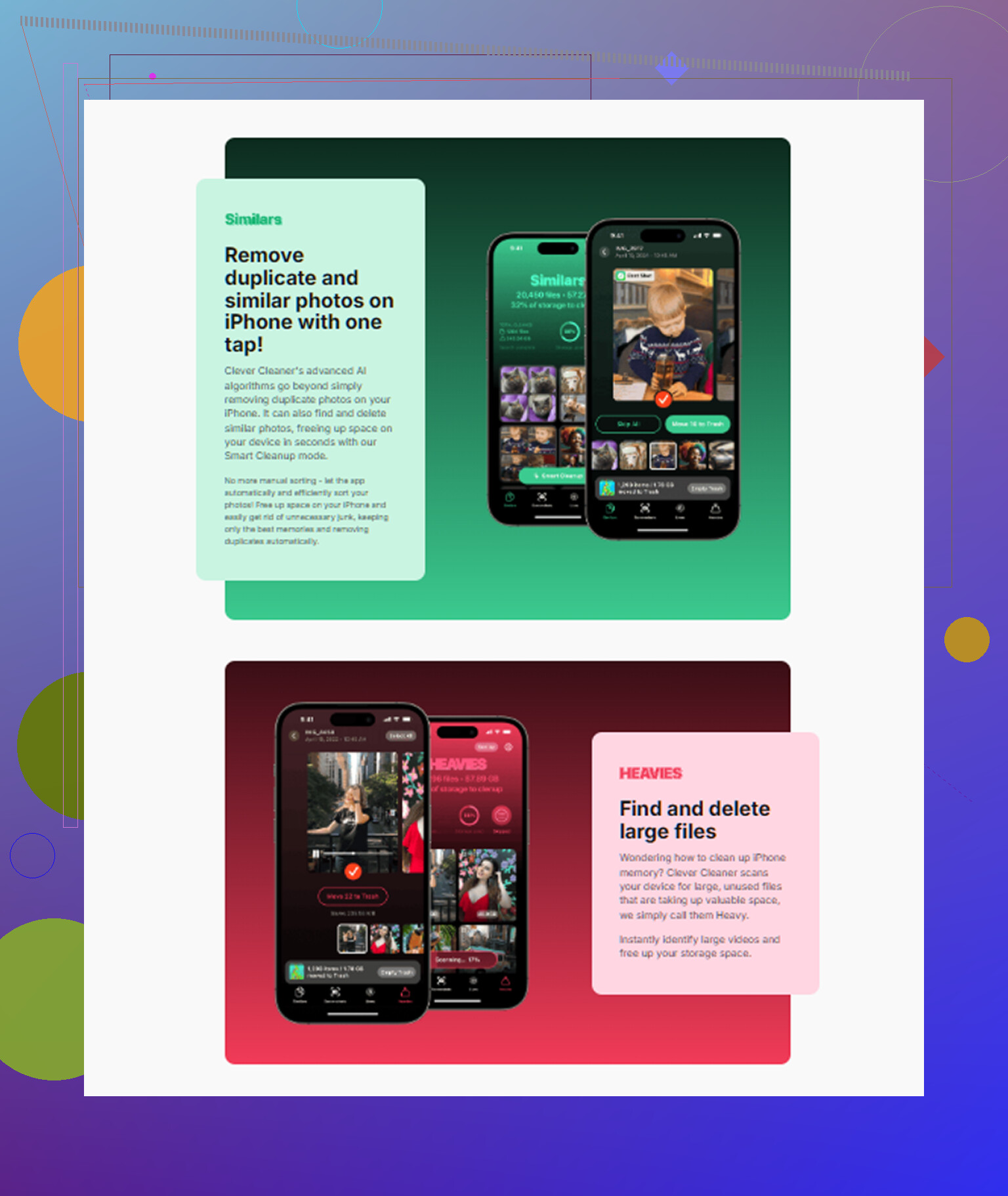
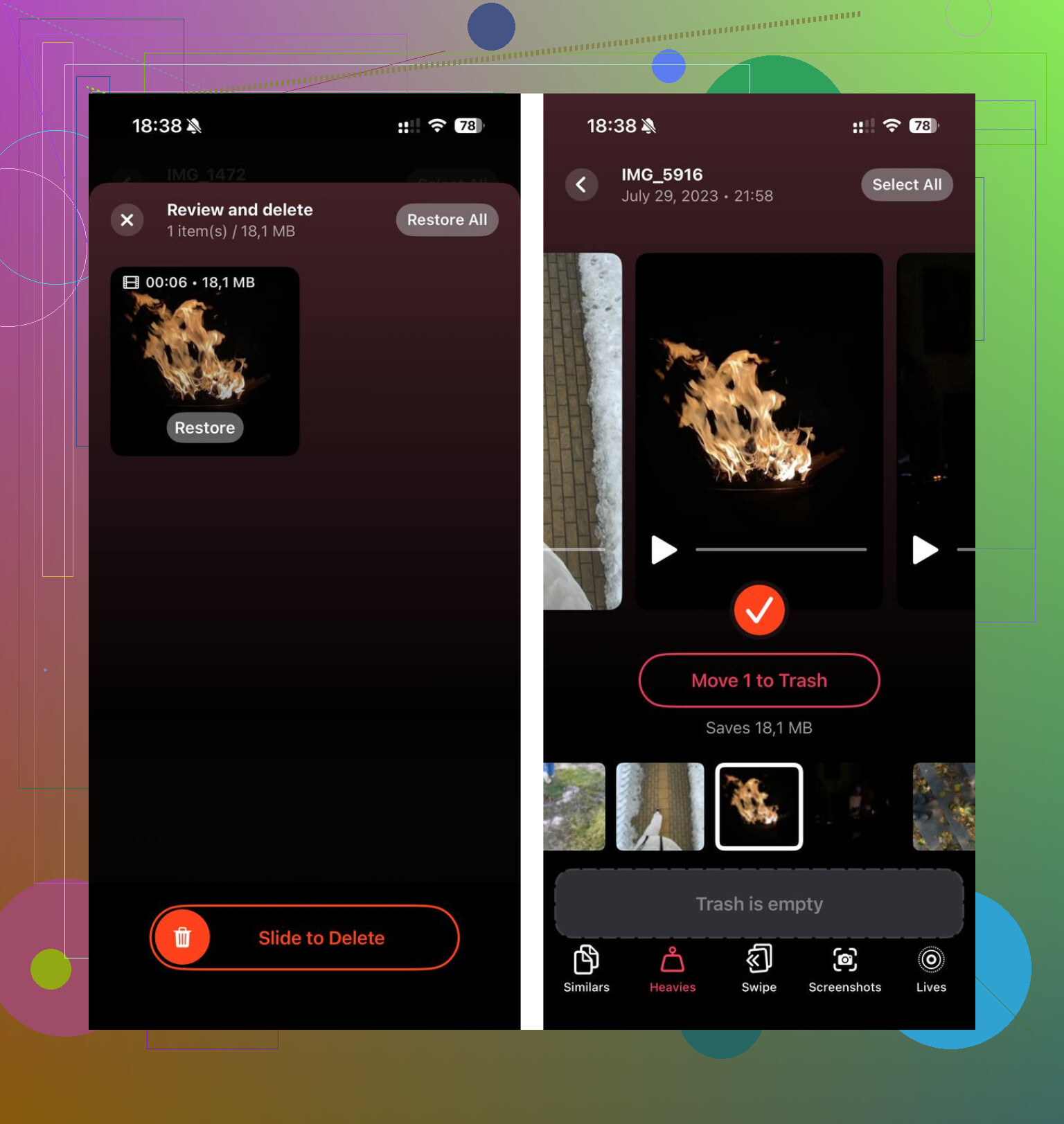
I ended up using Clever Cleaner for the rest. What helped me most was the Heavies section. It lists your largest files first with exact sizes, so the worst offenders are easy to spot. The Similars section groups near-duplicate photos and picks a best shot, which helped with burst photos and repeated pics from the same moment. It also shows file sizes before you remove screenshots. Processing stays on the device, which I preferred.
After I cleared about 15GB there and then emptied Messages Recently Deleted, my storage finally settled down and the weird lag from running low on space stopped.
12 Likes
Yes. In Messages, “attachments” means both photos and videos. Delete the attachment, and the copy stored in that chat is removed.
One part where I differ a bit from @mikeappsreviewer, the bigger risk usually isn’t deleting the wrong file type. It’s forgetting where the file lives. If you saved a pic or video to the Photos app before, deleting it from Messages does not erase the saved library copy. If it only exists in the conversation, it’s gone from there.
Simple way to think about it:
- In Messages only = deleted from Messages.
- Saved to Photos too = stays in Photos.
- Shared across devices with Messages in iCloud = deletion syncs, though it sometiems lags.
If your goal is storage cleanup, check your Photos library too. A lot of space loss comes from large videos there, not message threads. Clever Cleaner helps sort heavy files and duplicates faster than digging around by hand.
Helpful Reddit discussion on free iPhone cleaner apps: best Reddit thread for finding a free iPhone cleaner with no ads
Yep, deleting attachments in Messages can remove both photos and videos. “Attachments” is basically the catch-all bucket, not just pics.
Where I slightly disagree with @mikeappsreviewer and @viaggiatoresolare is the word removed can sound scarier than it is. It removes the Messages copy. It does not automatically wipe your Photos app library unless that item only ever lived inside the chat. That’s the part that trips people up allll the time.
Quick reality check:
- Deleted from a text thread = gone from that thread
- Saved to Photos earlier = still in Photos
- Using Messages in iCloud = deletion may sync to your other Apple devices too
So if you’re cleaning space, check what’s bloating storage first. Sometimes people nuke message attachments and save like 800MB, then realize their videos in Photos are eating 20GB. Kinda painful lol.
Also, before deleting a bunch, open one or two files and confirm whether they were already saved to your library. That’s the safer move imo.
If your main goal is iPhone storage cleanup, Clever Cleaner is actually useful for spotting giant videos and duplicate pics outside Messages. This watch Clever Cleaner free up iPhone storage fast clip shows the basic idea pretty well.
Yes, both can be removed, but I’d add one nuance to what @viaggiatoresolare, @cazadordeestrellas, and @mikeappsreviewer said: deleting an attachment is really deleting that item’s place in the conversation, not necessarily every copy on your phone.
The practical risk is less “photo vs video” and more “was this ever saved elsewhere?” If you forwarded it, saved it to Photos, or exported it to Files, that separate copy usually survives.
One thing I’d check before mass-deleting is your backup habit. If Messages is your only archive for certain clips, don’t trust memory. Save the keepers first.
For cleanup, Clever Cleaner makes more sense after Messages cleanup, not before.
Pros:
- fast at spotting large media
- useful for duplicates and similar shots
- easy to scan big videos
Cons:
- won’t manage message attachments directly
- similar-photo suggestions still need review
- less useful if your storage issue is mostly chats, not Photos
So: yes, attachments includes photos and videos, but deletion does not always equal total erasure.