My iPad has been getting noticeably slower after each iPadOS update, and now apps take longer to open, typing lags, and the battery drains faster. I’m trying to figure out whether this is a common iPad performance issue, a setting I can change, or a sign my device is too old for newer updates. I need help with fixes that can speed up a slow iPad after updating.
I ran into this with my iPad too, and the restart trick barely changed anything. Restarting clears temporary memory, sure, but it does not fix the stuff piling up underneath. If you installed an iPadOS update recently, give it some time first. After an update, the system keeps chewing through background tasks like indexing files and rebuilding caches. Mine stayed sluggish for most of a day once.
The first thing I’d check is storage. This is the part people skip, then they wonder why opening Mail feels slow. iPadOS needs free space to handle temp files, caches, and swap. Apple likes some breathing room there. From what I saw on my own device, once storage got past roughly 80 percent used, performance started slipping. App launches dragged. Animations felt off. Even switching tabs had a delay.
Newer iPads also lean on storage for virtual memory swap. So if your free space is nearly gone, the system loses one of the tools it uses to stay smooth. It turns into a chain reaction. Less free storage, worse swapping, more lag across the board.
That was my mess a while back. I had old screen recordings, duplicate photos, random downloaded PDFs, and giant videos sitting there for no reason. I kept blaming Safari and iPadOS. Turned out I had packed the storage so full the thing was limping.
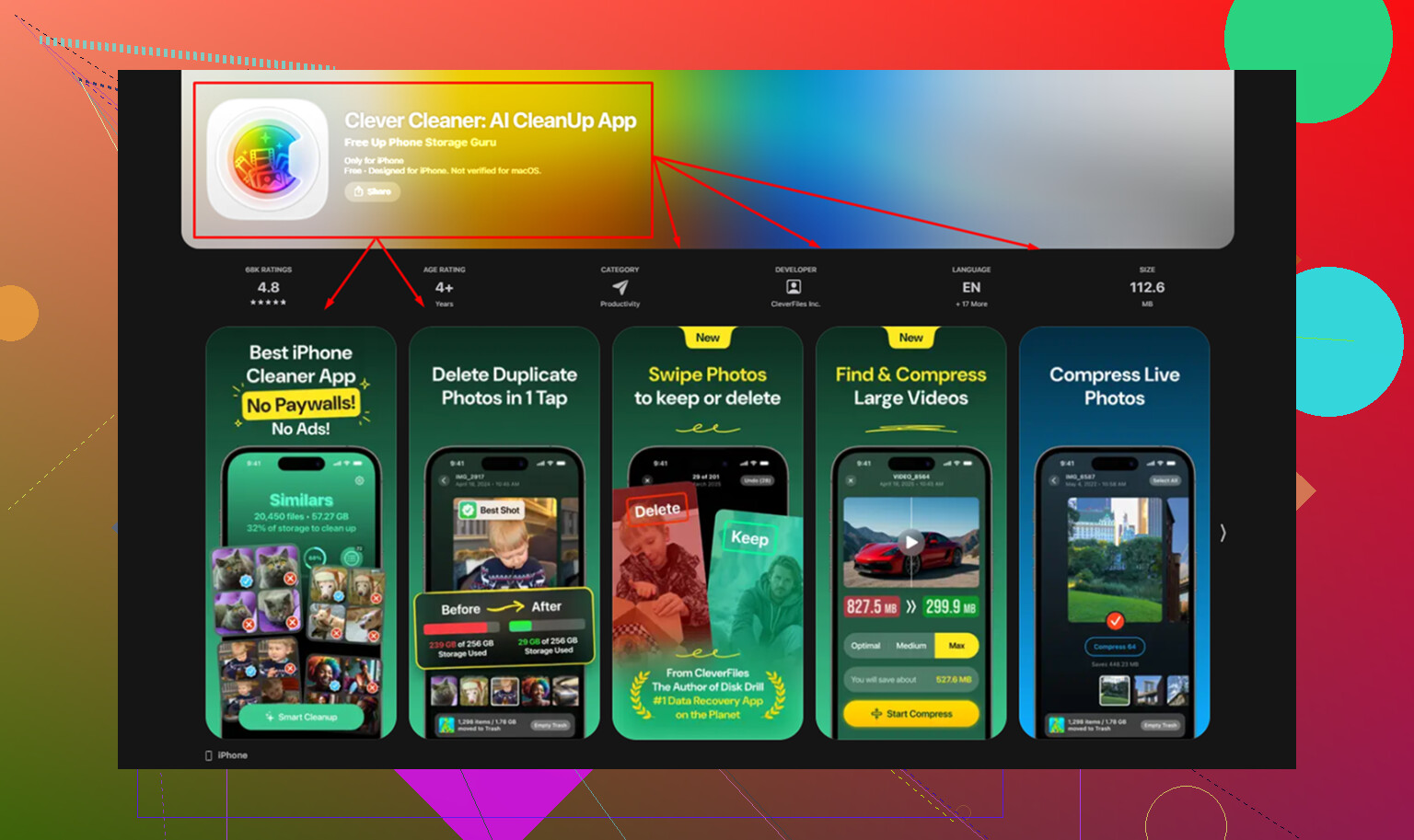
I cleaned mine up with Clever Cleaner. I found it after trying junk apps I deleted five minutes later. This one was free, no ads in my face, no paywall popping up after scan results.
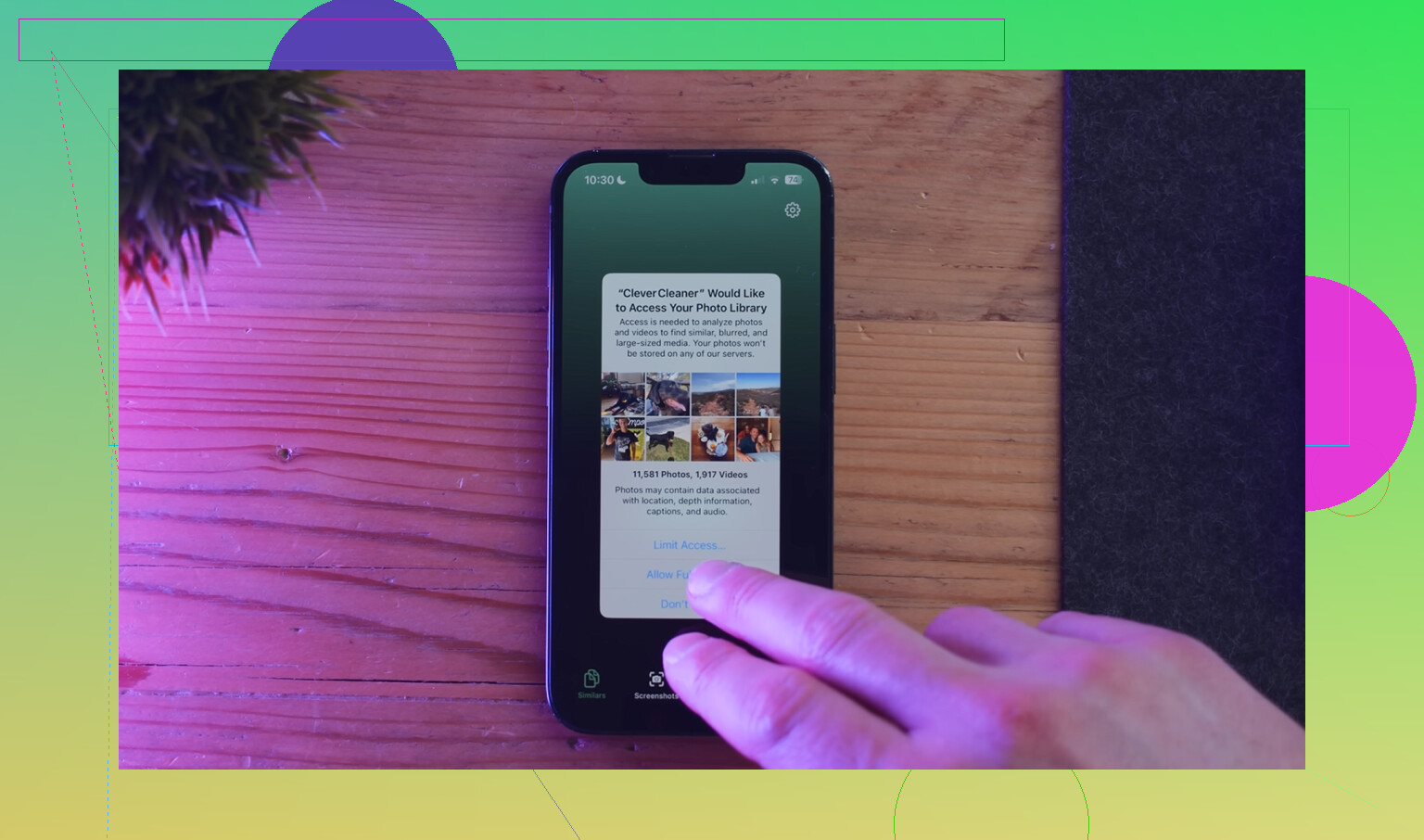
The part I used most was the Heavies section. It sorts media by size, so the big offenders show up first. I found old 4K clips eating gigabytes. The Similars section helped too. It grouped near-duplicate photos, which was useful because I had entire bursts of the same shot sitting around. It also lists screenshot sizes before deletion, which saved me from guessing. What mattered more to me, it handles the scan on-device, so my photos were not getting shipped off somewhere else. After I cleared around 15 GB, the iPad felt normal again. Not magic. It was storage.
If Safari is the only slow part, I’d treat it separately. Go to Settings, Safari, then clear History and Website Data. Old cache and broken cookies build up over time and page loading starts to feel weirdly heavy. Check your tab count too. If you keep dozens open, the iPad keeps more web junk hanging around in memory than you think.
Other stuff I checked after that:
- Low Power Mode
If the battery icon is yellow, performance is being held back on purpose. Good for battery life, bad for speed. Turn it off in Battery settings and test again. - Background App Refresh
Go to Settings > General. I shut this off for most apps. You do not need every app waking up to fetch data while the iPad sits on a table. - Reduce Motion
On older iPads, this helped more than I expected. Go to Accessibility > Motion and enable Reduce Motion. The interface feels quicker because the heavier zoom animations get replaced with simpler transitions.
One more thing. If your iPad is four or five years old, the battery might be part of it. Older batteries struggle to deliver peak power, and the system scales performance down to avoid crashes. Still, I would not start with battery panic. I’d start with storage, because in my case that was the whole problem.
So if your iPad still feels slow after a restart, check free space first. If storage is crowded, clean it out hard, then test again. Mine went from annoying to usable the same day.
17 Likes
Yes, it’s common. No, it’s not always “Apple made it slow.”
I agree with part of what @mikeappsreviewer said, but I think people overfocus on storage. Full storage hurts, sure. Typing lag and battery drain right after updates often point to two other things first.
-
Battery health
Older iPads with worn batteries dip in voltage under load. Then performance drops and drain gets worse. If your iPad is a few years old, this matters more than ppl think. Apple does not give a clean battery health screen on all iPads, which is annoyng, so you may need Apple Support diagnostics. -
Bad app behavior after updates
One app with a broken background process wrecks the whole device. Check Settings, Battery, then look at activity for the last 24 hours and 10 days. If one app keeps showing high background usage, delete it and reinstall it. I fixed a laggy keyboard issue this way with Outlook once. -
Keyboard lag fix
Go to Settings, General, Keyboard. Turn off Predictive, Slide to Type, and Dictation for a test. Also remove extra keyboards you do not use. Third party keyboards are often the culprit. -
Network features
Turn off Wi-Fi Assist, VPN, and private relay for a bit if Safari and app loading are slow. DNS and filtering apps sometimes drag the whole system down after an update. -
Last resort
Back up the iPad. Do a full erase. Set it up as new first, before restoring everything. This is the fastest way to tell if the slowdown is OS level or junk carried over for years.
If storage is tight, Clever Cleaner is worth a look. This week-long Clever Cleaner review with real usage results gives a decent breakdown. I’d still check battery stats before anything else.
Yep, it’s common, but I don’t fully buy the idea that every slowdown after an update means your iPad is “aging out.” Sometimes it’s just the update exposing old cruft.
I’d add one thing neither @mikeappsreviewer nor @kakeru really hit hard enough: check Accessibility stuff and System Services. Sounds random, but features like live captions, excessive location polling, analytics uploads, and widget-heavy home screens can make older iPads feel weirdly sluggish. Same with a bloated Today View full of widgets constantly refreshing. Remove a few and test. People forget the UI itself can get heavy.
Also, if typing lag is the big symptom, test in Safe-ish mode by uninstalling any third-party keyboard apps, font apps, VPN/filter apps, and device management profiles. Those can mess with text input more than ppl realize.
For battery drain, open Battery and see whether it says background activity or screen activity is the problem. Big difference. If it’s screen-heavy, brightness, widgets, and ProMotion behavior matter. If it’s background-heavy, something is stuck.
One place I slightly disagree with @kakeru: erase-and-set-up-as-new is useful, but I would not jump there until you check for thermal issues. If the iPad is getting warm doing basic stuff, performance tanks fast. Cases can make this worse. Sounds dumb, but I fixed one iPad by taking off a thick case and stopping wireless charging overnight.
If storage is crowded, then yeah, clean it. Clever Cleaner is a decent option for cutting duplicate photos, videos, and other junk so the system can breathe again. If you want a more detailed outside look, this NY Weekly review of Clever Cleaner for iPhone and iPad cleanup is easy to skim.
My order would be:
- Wait 24 to 48 hours after update
- Check heat
- Remove problem apps, keyboards, VPNs
- Cut widgets
- Free storage
- Only then consider full reset
If it’s an A10 or A12 era iPad, tho, some slowdown is just the tax for newer iPadOS. Not fun, but kinda real.
I’m with @kakeru and @waldgeist on the “wait after the update” part, but I’d push back a bit on the idea that storage or battery is usually the main villain. On some iPads, the real killer is RAM pressure from modern apps. Newer iPadOS builds are heavier, and older models with 3 GB RAM can feel wrecked even when storage looks fine.
A few checks I’d do that haven’t been stressed enough:
- Look at per-app settings and disable Photos access for apps that do not need full library access. Some apps keep re-scanning media.
- Turn off automatic app updates for a week. Sometimes an app update right after iPadOS is what causes the slowdown, not iPadOS itself.
- Reset all settings, not full erase. This keeps data but clears a lot of broken system prefs, network junk, keyboard weirdness, and notification clutter.
- Check Mail accounts. Large Exchange or Gmail accounts can hammer background sync and make typing feel delayed.
- Reduce Home Screen clutter. Huge widget stacks and live widgets are heavier than people admit.
I also disagree slightly with @mikeappsreviewer on Safari-specific fixes being enough if app launch is slow too. That points broader.
If storage is tight, Clever Cleaner is fine for quick cleanup. Pros: free, easy duplicate and large file cleanup, simple UI. Cons: cleanup apps never fix true OS lag by themselves, and you still need to review deletions carefully. Good helper, not a cure.