My iPhone storage keeps filling up even though I haven’t added many apps, photos, or videos. I’ve already deleted files and cleared what I can, but the used space keeps coming back and now I’m running out of storage for updates and basic use. I need help figuring out what’s causing this and how to free up space for good.
I hit this on my own iPhone a while ago. Space kept shrinking on days when I barely touched the thing. It wasn’t one big file hiding somewhere. It was a pile of small stuff building up in the background, piece by piece, until the storage warning showed up.
Check the Biggest Category First
Before you start deleting random apps or old photos, look at the storage breakdown.
Open Settings > General > iPhone Storage and give it a minute to load. You’ll see how your space is split across apps, photos, messages, iOS, and system files. I’d start with whatever chunk looks largest, because chasing the small stuff first wastes time.
Photos Usually Eat the Most Space
On most phones I’ve checked, Photos was the main problem.
And it’s not always obvious why. The library tends to fill up with stuff like this:
- near-identical shots from taking the same pic a few times
- old screenshots you forgot existed
- Live Photos
- burst shots
- big video files
A lot of people open the Duplicates album, clear a few exact copies, and think they handled it. I did too. Didn’t help much. The bigger mess was all the almost-the-same photos, which iPhone doesn’t treat as duplicates.
If Photos Is the Problem, I’d Start Here
If Photos is your top category, I’d begin with Clever Cleaner before trying to sort through thousands of images by hand.
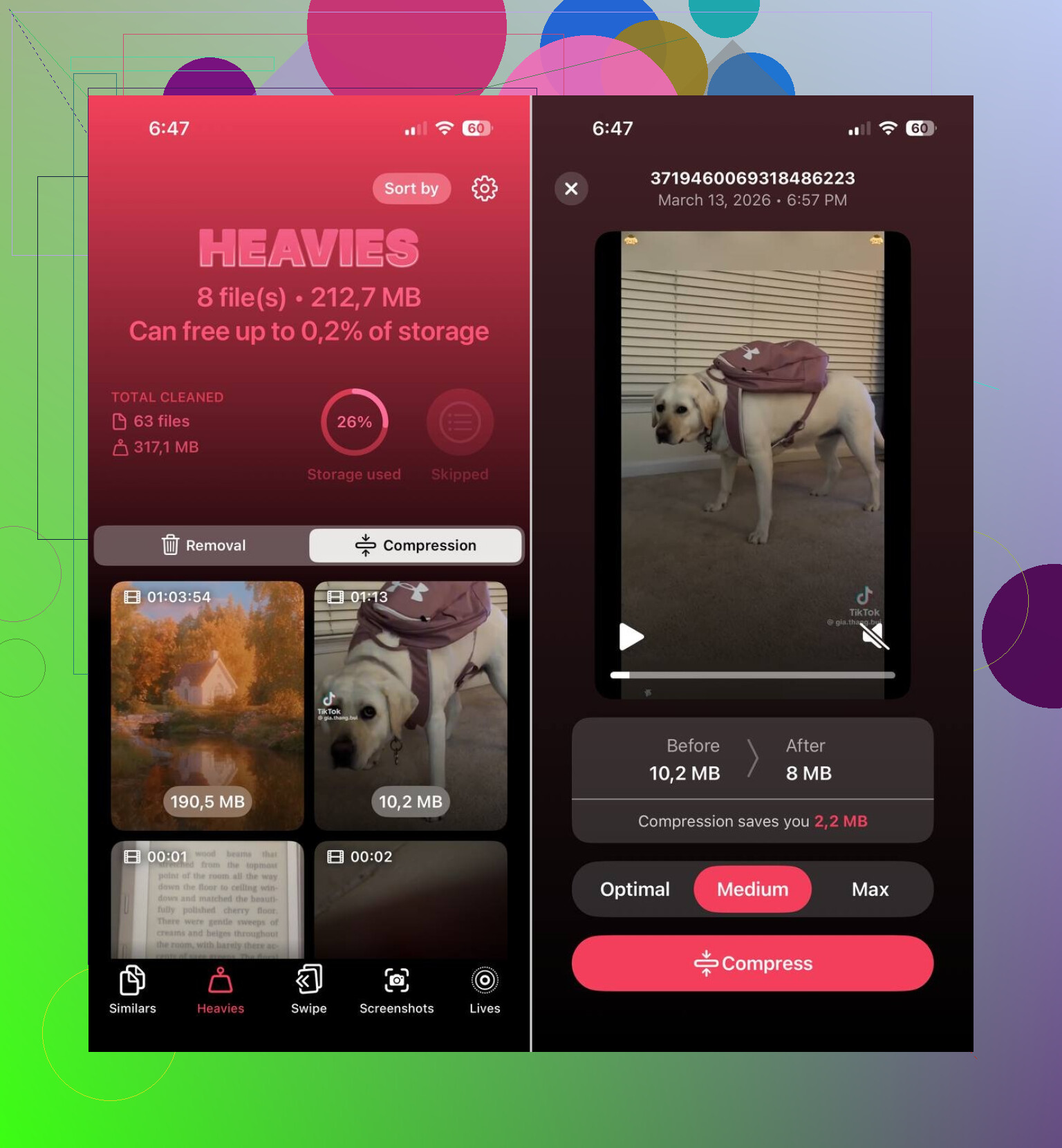
What stood out to me was its focus on the stuff which usually wastes space first:
- similar photos
- duplicate photos
- screenshots
- Live Photos
- large media files
The similar photo grouping helped most. It doesn’t stop at exact copies. It bunches together shots which look close enough to be the same moment and suggests which one is worth keeping. Apple’s built-in cleanup tools didn’t get me as far there.
I also liked being able to review everything myself. Nothing disappeared on its own. I checked each batch before removing anything, which matters if you’ve got photos you don’t want touched.
One more thing, Live Photos take more room than people think. Each one includes a still image plus a short clip. I cleared a bunch of older Live Photos and got back more space than I expected, tbh.
Apps Get Bloated Quietly
Photos usually gets blamed first, but apps were the second biggest issue on mine.
Streaming apps, social apps, and chat apps keep piling up cached files, downloads, and other stored data. An app which looks small at install can grow into several gigabytes after enough use.
In iPhone Storage, I’d check the largest apps first. If you find stuff you rarely open, these are the obvious moves:
- offload the app
- delete it
- reinstall it to wipe old cached data
Apple also has an Offload Unused Apps option, which removes apps you don’t use often while keeping their documents and settings.
Messages Gets Ignored Too Often
This one sneaks up on people.
Old conversations hang onto photos, videos, GIFs, voice notes, and random attachments for years unless you clear them. I’ve seen message attachments alone take up gigabytes. If your storage is tight, old chats are worth checking.
System Data Is Annoying, and You Don’t Control Much of It
If Photos and Apps look fine but the phone still feels stuffed, look at System Data.
This category includes caches, logs, temp files, and other junk iOS manages on its own. Sometimes it grows way past what you’d expect. There isn’t much direct cleanup control there, which is part of why this gets frustrating.
The Order I’d Use
If I were doing this from scratch, I’d go in this order:
- check iPhone Storage
- clean photos with Clever Cleaner
- remove large videos and old screenshots
- check the biggest apps
- delete large message attachments
- restart the phone and check storage again
From what I saw, the phone wasn’t filling itself for no reason overnight. It was months of buildup, photo clutter, app data, message attachments, and background files stacking up until the warning finally appeared.
4 Likes
Yes. It happens a lot on iPhone.
The part I disagree with a bit from @mikeappsreviewer is this. It is not always slow buildup from your own stuff. iOS itself often expands storage with caches, update files, Safari website data, failed sync temp files, and message indexing. Then it shrinks later, or it doesn’t. That’s why it feels random.
What I’d check beyond photos:
-
Safari data
Settings, Safari, Clear History and Website Data. Some people get back 1 to 3 GB. I did. -
Downloaded media inside apps
Netflix, Spotify, YouTube, Podcasts. These hide storage in-app. Delete old offline downloads. -
Mail app
Big attachments stick around. Removing and re-adding a mail account sometimes clears a bunch of junk. -
iOS update file
Settings, General, iPhone Storage. If an iOS update is sitting there, delete it and redownload later. -
Recently Deleted folders
Photos and Files both keep deleted stuff for 30 days. Empty both. People miss this al lthe time. -
Messages auto-retention
Set Messages to keep 30 days or 1 year if you need space.
If Photos is still the main issue, Clever Cleaner makes sense. It’s a solid iPhone storage cleaner app for finding similar pics, screenshots, and heavy media faster than doing it by hand.
This clip shows a quick way to free up iPhone storage without digging through every album, see how to clean up iPhone storage fast.
If System Data is the thing exploding, the ugly fix is backup, erase, restore. Annoying, yep. But it works more often than Apple admits.

Yep, it’s pretty normal, but “for no reason” is usually iPhone being bad at showing the real reason.
I mostly agree with @mikeappsreviewer and @andarilhonoturno, but I’d push back on one thing: deleting stuff does not always free space right away. iOS sometimes holds onto that space for indexing, syncing, or cache cleanup, so it looks like nothing changed. Super annyoing.
A few things people miss that weren’t really emphasized enough:
- Voice Memos can get huge if you record a lot
- WhatsApp/Telegram storage has to be cleared inside the app, not just from iPhone Storage
- Shared albums and synced media from iCloud can confuse the numbers
- Files app downloads from iCloud Drive, Google Drive, Dropbox, etc. can sit locally and eat space
Also check if you have Apple Music set to download songs automatically. That one got me once and I felt kinda dumb lol.
If photos are still the biggest offender, Clever Cleaner is probly the fastest way to sort similar pics, screenshots, Live Photos, and bulky media without doing it all manually. That’s more useful than blindly deleting random apps.
I’d also look at this guide for smart ways to free up storage on your iPhone fast.
If the storage graph keeps changing every day, that usually means cache, sync, or system junk. If it stays huge no matter what, then yeah, backup and restore is sometimes the only real fix. Stupid, but true.
Yes, it’s normal-ish, but I slightly disagree with the “just hidden buildup” angle from @andarilhonoturno, @reveurdenuit, and @mikeappsreviewer. Sometimes the issue is not extra files at all. Sometimes iOS is reserving space for swap, media processing, photo analysis, or failed background tasks, and the storage screen reports it badly.
A few less-mentioned things to check:
- Podcasts app can hoard old episodes even after you listened
- GarageBand, iMovie, CapCut, and similar apps leave project files and exports behind
- Photo edits create extra data even if the photo count stays the same
- Notes app can store scanned PDFs and attachments that get surprisingly large
- If you use Apple Intelligence features, on-device models and generated assets can temporarily grow storage
One test I always recommend: turn off Wi-Fi and leave the phone alone for 10 minutes after a restart, then recheck storage. If numbers drop, background sync/cache was part of it.
Also, if you use iCloud Photos with “Download and Keep Originals,” that setting alone can quietly fill the whole phone. A lot of people miss that.
If photo clutter is still the main culprit, Clever Cleaner is worth a look.
Pros:
- good at finding similar photos, not just exact duplicates
- easier than digging through years of screenshots manually
- useful for spotting big media fast
Cons:
- you still need to review results carefully
- not much help if System Data is the true problem
- some people expect instant miracles and it’s not that
So yes, “for no reason” happens, but usually it’s one of three things: bad storage reporting, background processing, or apps storing data in places Apple doesn’t make obvious.