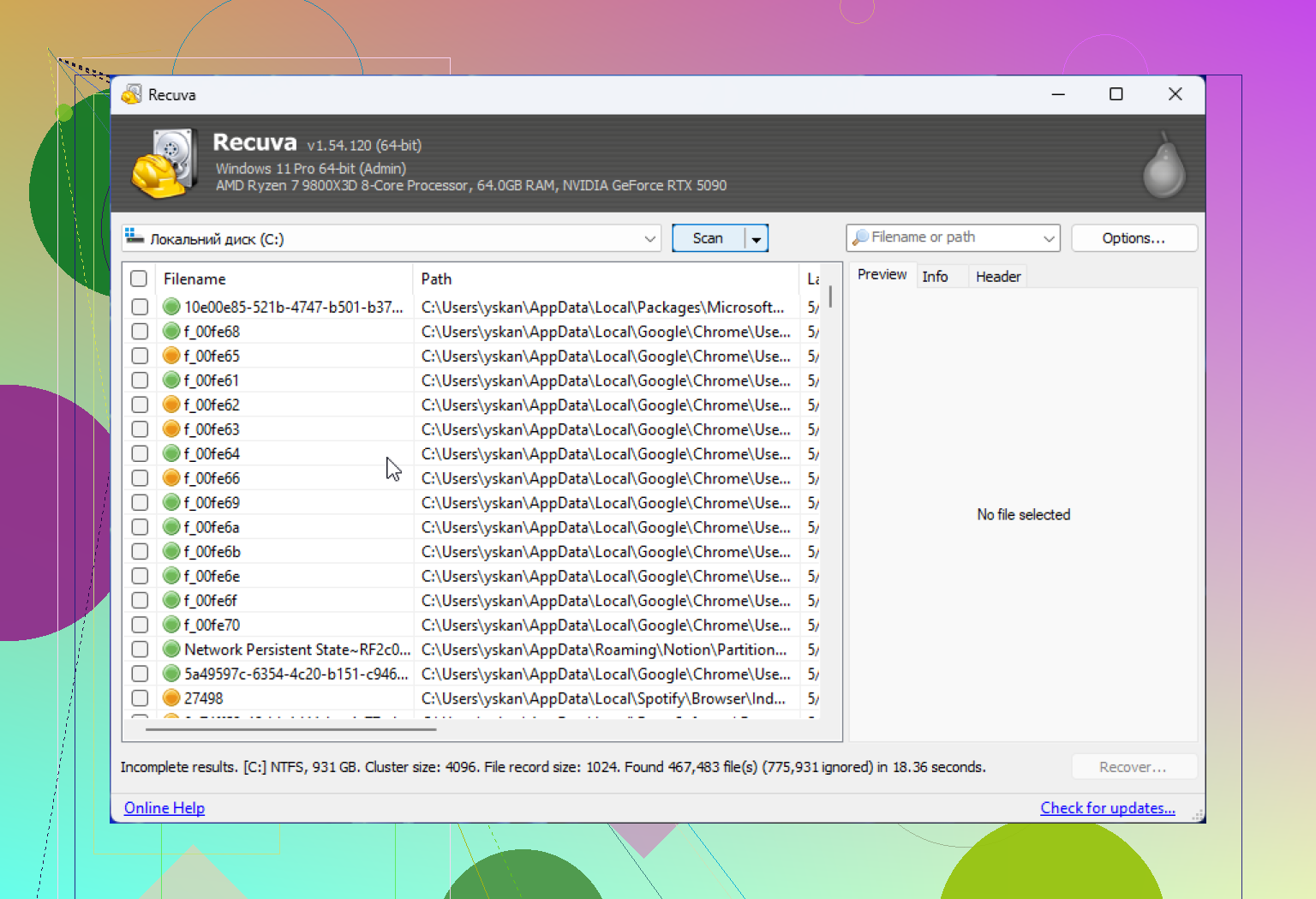
I accidentally deleted some important work files and I’m trying to figure out if Recuva is a safe file recovery tool to use on a company computer. I need help understanding any security, privacy, or IT policy risks before I install anything, because I don’t want to make the situation worse or break workplace rules.
If you want the short version, yes, Recuva is safe to run. I installed it, scanned it, and never saw anything pointing to malware or some hidden payload. It is not ransomware, it is not a trojan, and it is not built to wreck your PC. The part people skip is this. Safe software and safe recovery are two different things. Recuva itself is fine. Your deleted files are still at risk if you use it the wrong way.
I’ve been testing recovery tools on old SSDs, USB sticks, and one dying laptop drive I should’ve retired years ago. Recuva sits in a weird spot in 2026. It still works for simple mistakes. It also shows its age fast once the job gets messy.
About the old malware scare
A lot of the fear traces back to the 2017 CCleaner mess. Same company lineage. Piriform made both tools, and one CCleaner update got hit in a supply chain attack. Millions got exposed. People still bring it up, and I get why.
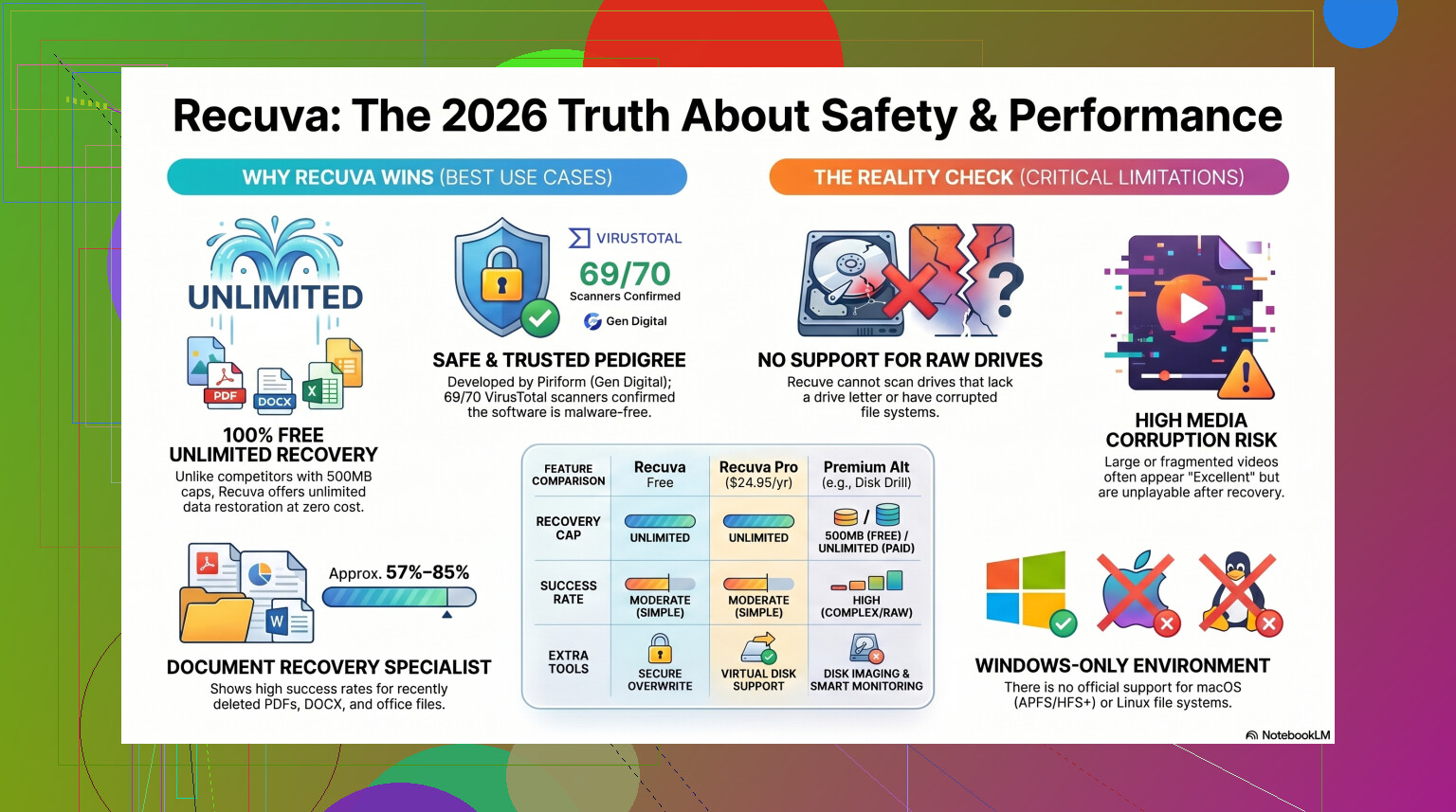
Still, Recuva in 2026 is a different story. Piriform moved under Avast, then into Gen Digital, which also owns Norton. Current builds are checked heavily. If you throw the installer into VirusTotal, the usual result is clean or close to it. Once in a while one tiny antivirus engine throws a warning. I saw this myself. It looked like a heuristic flag, not a confirmed infection. Recovery apps poke around low-level disk areas, and some scanners hate anything doing stuff like that.
If you grab it from the official source, the virus angle is low risk. Stick to the real site and skip random download portals.
Safe from malware, not quiet about data
This part matters more than people admit. Recuva does collect some data under the current ownership setup. Their policy is not hidden, but you still need to read it with your eyes open. Things like IP address, device details, operating system info, and location data are in the mix for licensing and fraud checks.
I turned off the usage sharing right after install. You should too if this bugs you. Open Options, go to Privacy, and uncheck the usage data setting. It takes a few seconds. From what I saw, IP records stick around for 36 months before anonymizing. For a free utility, that tradeoff might annoy you. Depends on your tolerance level.
The part where people wreck their own recovery
This is where most failures start. Recuva is not the thing ruining files. The user often does it first.
Do not install Recuva onto the same drive where the deleted files lived.
That rule is the whole game. When Windows deletes a file, the data often stays there until new data lands on top of it. So if your missing photos were on drive C, and you download and install Recuva to drive C, you might overwrite the exact space you needed to recover. I’ve seen people do this and then wonder why the scan found half a file and a bunch of garbage.
The safer move is the portable version. Put it on a USB drive and run it from there. No install on the target drive. Same goes for recovered files. Save them somewhere else. External drive, second internal drive, different partition if you have no better option. Anything except the drive you are scanning.
How well it works now
Here’s my blunt take. Recuva is old, and you feel it. The big design bones have not changed much since around 2016. There were later patches so it still runs on modern Windows, sure, but under the hood it still feels like a straight undelete tool, not a full recovery platform.
For easy jobs, it’s fine. Empty Recycle Bin by mistake five minutes ago on a healthy Windows drive. Recuva usually does okay there. It runs fast. It is light. It does not lock basic features behind some recovery cap.
Once the drive is damaged or the file system goes sideways, things get rough. If Windows sees the disk as RAW or asks you to format it, Recuva often won’t handle it well, or won’t see it at all. On formatted USB media, the results I saw matched what other people report, somewhere around 63 to 67 percent recovery success. And even then, success on paper does not always mean a usable file.
I had it recover image files marked in excellent condition, then Windows Photos refused to open them. Same with videos. The file was back, sort of. The contents were cooked. Folder structure is another weak spot. Sometimes you get a heap of files dumped into one directory with names like 000123.jpg, 000124.jpg, and now your afternoon is gone.
When free stops being cheap
If the file is replaceable, trying Recuva first makes sense. If it is your only copy of wedding shots, tax docs, client work, or family video, I wouldn’t spend too long hoping the free tool pulls off a miracle.
Each scan puts wear on the drive. On a failing disk, time matters. Repeated scans are not harmless. I learned this one the dumb way with an old HDD clicking like a metronome. First scan, okay. Second scan, slower. Third scan, drive vanished. Great.
If Recuva misses the files, or if the drive is RAW, or if you’re dealing with trickier file systems, move up fast. I had better luck with Disk Drill when things got ugly.
What stood out for me was its handling of damaged partitions and RAW drives, where Recuva often stalled out. Recovery rates on formatted media were also much stronger in my testing, more in the 95 to 97 percent range. The feature I wish Recuva had is byte-to-byte disk imaging. You clone the failing drive first, then scan the clone. That cuts risk a lot. If the original drive dies mid-job, your image still exists.
Photo and video work is another gap. Recuva tends to struggle with fragmented video files and camera RAW formats from brands like Nikon and Canon. If your work depends on those file types, Recuva feels underpowered fast.
Worth watching before you decide: Recuva vs Disk Drill, tested side by side.
So, should you use it
Yeah, with limits.
If you deleted something simple on a healthy Windows machine and you want a no-cost first try, Recuva is still a reasonable option. The setup wizard is easy. The scan is quick. It does not feel bloated.
What I’d do, in order:
- Download it from the official site only.
- Use the portable build if you have one.
- Turn off data sharing in the privacy settings.
- Recover files to another drive, not the same one.
- Quit early if the results look bad.
If the first scan shows corrupted files or misses everything important, stop using the drive. Don’t keep poking at it for hours out of panic. Switch tools or image the disk first if the data matters.
My take is simple. Recuva is safe enough to try. It is not the best tool once the problem stops being simple. For easy undelete jobs, it still earns a spot. For damaged drives and high-stakes recovery, I’d move on fast.
10 Likes
Recuva itself is usually safe. On a work PC, the bigger risk is policy, not malware.
If this is a company-managed laptop, stop and check with IT first. A lot of orgs block unapproved recovery tools because they scan deleted data, temp files, browser cache, and other stuff your company treats as sensitive. Even a clean tool trips compliance rules. I’d worry more about EDR alerts and audit logs than viruses.
I slightly disagree with @mikeappsreviewer on one point. Privacy settings are not the main issue on a work machine. The main issue is whether you are allowed to run it at all. If your device has BitLocker, DLP, or endpoint monitoring, Recuva might get flagged or blocked. If you recover files onto a USB drive, that alone might break policy.
Best move:
- Stop using the PC.
- Check OneDrive, SharePoint, Teams, network drives, and Previous Versions.
- Open a ticket with IT.
- Ask if they want to handle recovery or approve a tool.
If IT approves a recovery app, Recuva is okay for simple deletes. If the files are important and the first pass fails, Disk Drill is often the better data recovery software choice for harder cases. Also worth bookmarking this guide to compare trusted file recovery tools, best data recovery software for deleted work files.
Short version, safe app, risky on a work PC without approval. Don’t wing it.
Safe-ish app, unsafe decision if you do it on a company box without approval. That’s my take.
I agree with @techchizkid more than @mikeappsreviewer here. Malware is not the first question on a work PC. Governance is. A recovery tool can surface deleted docs, cached attachments, temp exports, even stuff from other user profiles depending on permissions. That can make security teams real twitchy, and honestly for good reason.
Also, if your company uses EDR, DLP, BitLocker, or app control, Recuva may get blocked, quarantined, or logged. Not because it’s evil, but because it behaves like software that rummages through disk remnants. Same result for you though: awkward converstaion with IT.
One thing I’d add that neither answer hit hard enough: chain of custody. If these are important work files tied to clients, finance, legal, HR, or regulated data, DIY recovery can create a mess. IT may need to document what was touched, where recovered copies were stored, and whether anything left the machine. Saving recovered files to your own USB stick is where a small mistake becomes a policy problem real fast.
If you want a plain-English overview of how Recuva file recovery software works, that’s a decent starting point.
My order of operations would be:
- Stop using that PC as much as possible.
- Check the obvious restore paths your company already has.
- Ask IT before installing anything.
- If they approve a tool, Recuva is okay for simple accidental deletes.
- If the drive is acting weird or the files are business-critical, ask for a stronger option like Disk Drill, since it’s usually better for tougher recovery cases.
So yeah, Recuva is generally safe software. On a work PC, the real danger is getting fired for being “helpful.” Bit dramatic maybe, but not by much tbh.