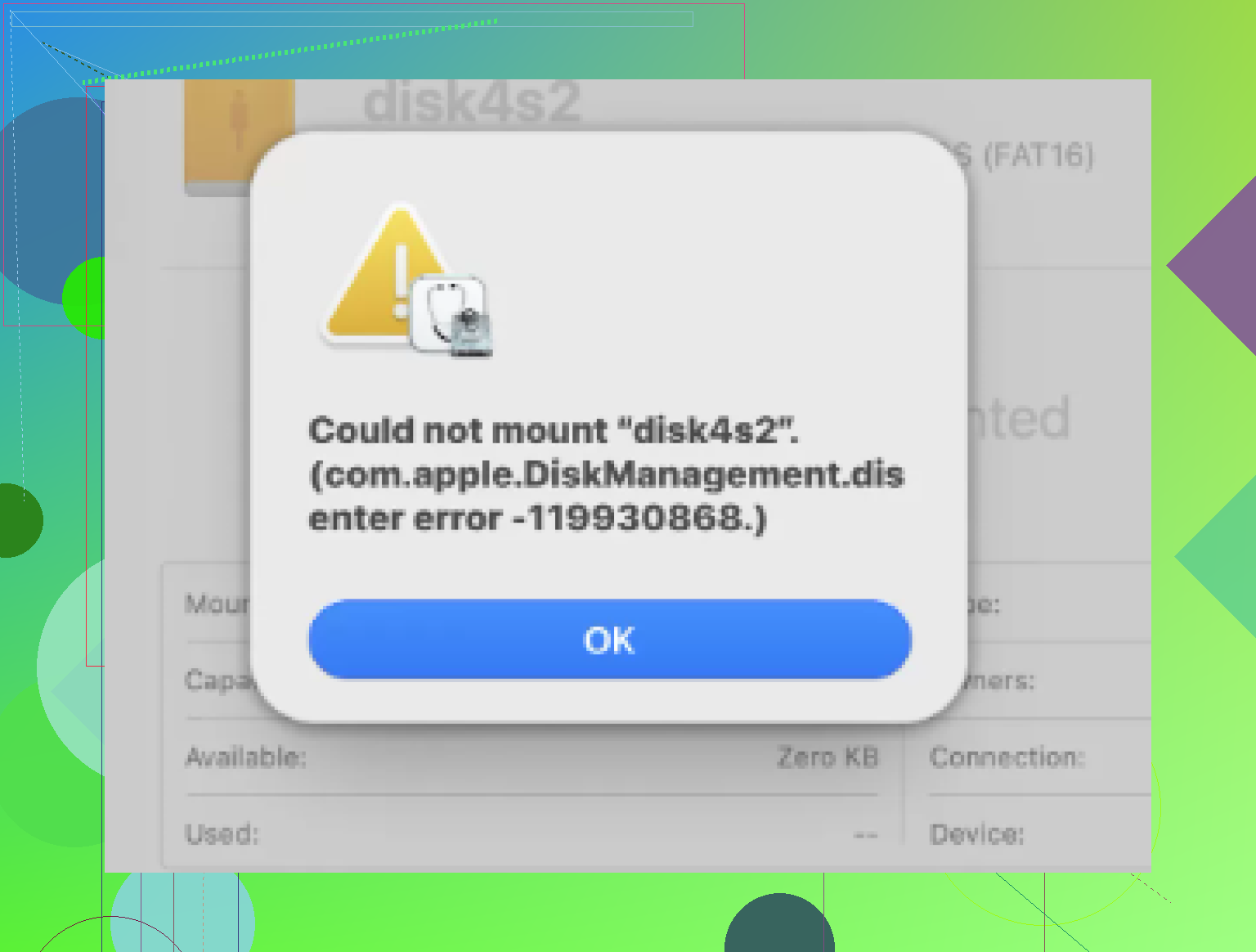
My Mac won’t mount an external drive and shows the Com.apple.diskmanagement.disenter error. This started when I plugged in the drive, and now I can’t access important files. I need help figuring out what’s causing it and the safest way to get the drive working again without losing data.
I ran into this on a Mac with an external SSD. Disk Utility saw the drive, Finder did not, and the error tied back to “com.apple.DiskManagement.disenter”. What I learned was simple enough. The Mac sees the hardware, but the file system is not mounting cleanly.
From what I saw, the usual triggers were these: the drive got unplugged without ejecting, the file system picked up damage, the format was awkward for macOS, or a repair task started in the background and then hung there doing nothing useful.
What I’d try first
I’d go from least invasive to most invasive. If your files matter, do the gentle stuff first.
1. Stop the stuck disk check
macOS likes to kick off fsck after an unsafe removal. On paper, fine. In practice, I’ve seen it stall on large exFAT drives and leave the disk in limbo.
Open Terminal and run:
sudo pkill -f fsck
Enter your password. You won’t see the characters appear. That part always looks broken, but it isn’t.
If the drive mounts right after this, don’t trust it yet. I wouldn’t poke around more than needed. Copy off your important stuff first. Fast. I made the mistake once of testing folders before backing up, and the drive dropped again mid-copy. Annoying mess.
2. Check the full disk layout in Disk Utility
Disk Utility hides part of the picture by default. Go into Disk Utility, hit View, then Show All Devices.
You want to see the full stack, the physical disk, then any container, then the volume itself.
Run First Aid in order from top to bottom:
physical disk
container
volume
I would not quit after one failed pass. I’ve had First Aid do nothing on round one, then clean up enough on round two for the volume to mount. Not elegant, but I saw it happen.
3. Refresh your user session
This one sounds dumb till it works. I logged out, logged back in, and the drive mounted on the next try. DiskManagement gets weird sometimes.
If you’ve got another user account on the same Mac, test there too. If it opens fine in the other account, your main profile might have some busted preference, permission issue, or old cache hanging around.
4. Turn off Time Machine for a bit
If this disk was ever used with Time Machine, macOS sometimes keeps reaching for it like it still owns the thing.
Go into System Settings and switch off automatic backups for the moment. Then try the mount again.
I’ve seen this clear whatever hold the system had on the drive. Not often, but enough times where I’d still check it.
When repair attempts keep failing
5. Switch to recovery before you make it worse
If First Aid keeps throwing errors and the disk still won’t mount, I’d stop trying to force repairs. Repeated repair attempts on a damaged file system can make recovery uglier. I learned this one the hard way years ago on a flash drive full of project files. I kept “fixing” it until the folder tree turned into soup.
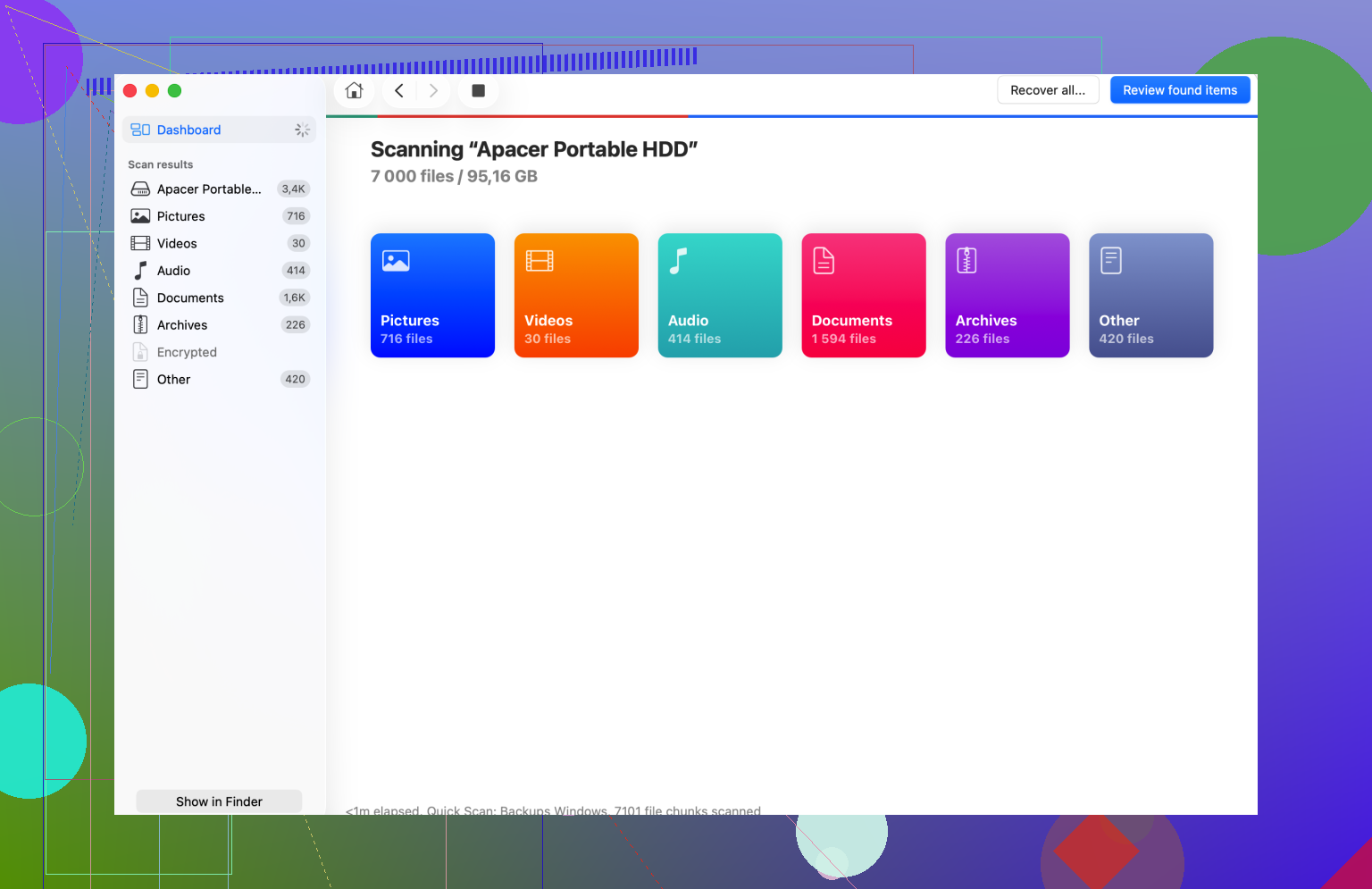
At this point, recovery software makes more sense than more poking around. Disk Drill is one option. It scans the raw disk even when Finder refuses to mount it, and sometimes it pulls back files or enough folder structure to sort your data out onto another drive.
Important part, do not write recovered files back to the same damaged disk. Send them to a different healthy drive. Always.
6. Wipe and reformat only after the data is safe
Once your files are copied somewhere else, erase the problem drive in Disk Utility. Pick the physical disk itself, then Erase.
For format choice:
APFS if you’re staying on Mac only.
Mac OS Extended Journaled if you need older Mac support.
exFAT if the drive moves between Mac and Windows.
I’ve had fewer weird exFAT issues when the drive was formatted on the Mac that was going to use it, instead of arriving preformatted from somewhere else. Not a rule, still worth doing.
The part I wouldn’t skip
My order is always the same now. Recover first. Reformat second.
And yeah, eject the drive before unplugging it. I used to ignore that step when I was in a hurry. Then I spent a whole evening trying to recover a drive with client files on it. That habit changed fast.
13 Likes
If you see com.apple.diskmanagement.disenter, I’d check one thing first that @mikeappsreviewer did not lean on much. The mount itself from Terminal. This tells you if macOS is failing at Finder level, volume level, or file system level.
Run:
diskutil list
Find the external disk identifier, like disk4s1, then try:
diskutil mount disk4s1
If it throws a more specific error, you get better info fast. If it says unsupported filesystem, then the issue is often Linux ext4, BitLocker, or a damaged exFAT/APFS header. If it says resource busy, something still has a lock on it.
Next, check System Information, not Finder.
Apple menu > About This Mac > System Report > USB or Thunderbolt.
If the drive shows there with proper size and serial, your Mac sees the hardware. If it does not, test a new cable, port, and power source first. A weak USB hub causes this stuff all the time. Kinda dumb, but true.
I also disagree a bit with killing fsck right away. If the disk is making odd noises or disconnecting, I’d avoid repeated process killing and remount attempts. That sometimes turns one bad file system into a worse one. Read first, write later.
If the drive matters more than the disk itself, clone or recover before heavy repair. Disk Drill is solid for a Mac external drive not mounting, especially when Disk Utility sees the disk but won’t open the volume. Save recovered files to a different disk. Not the bad one. Peolpe mess this up a lot.
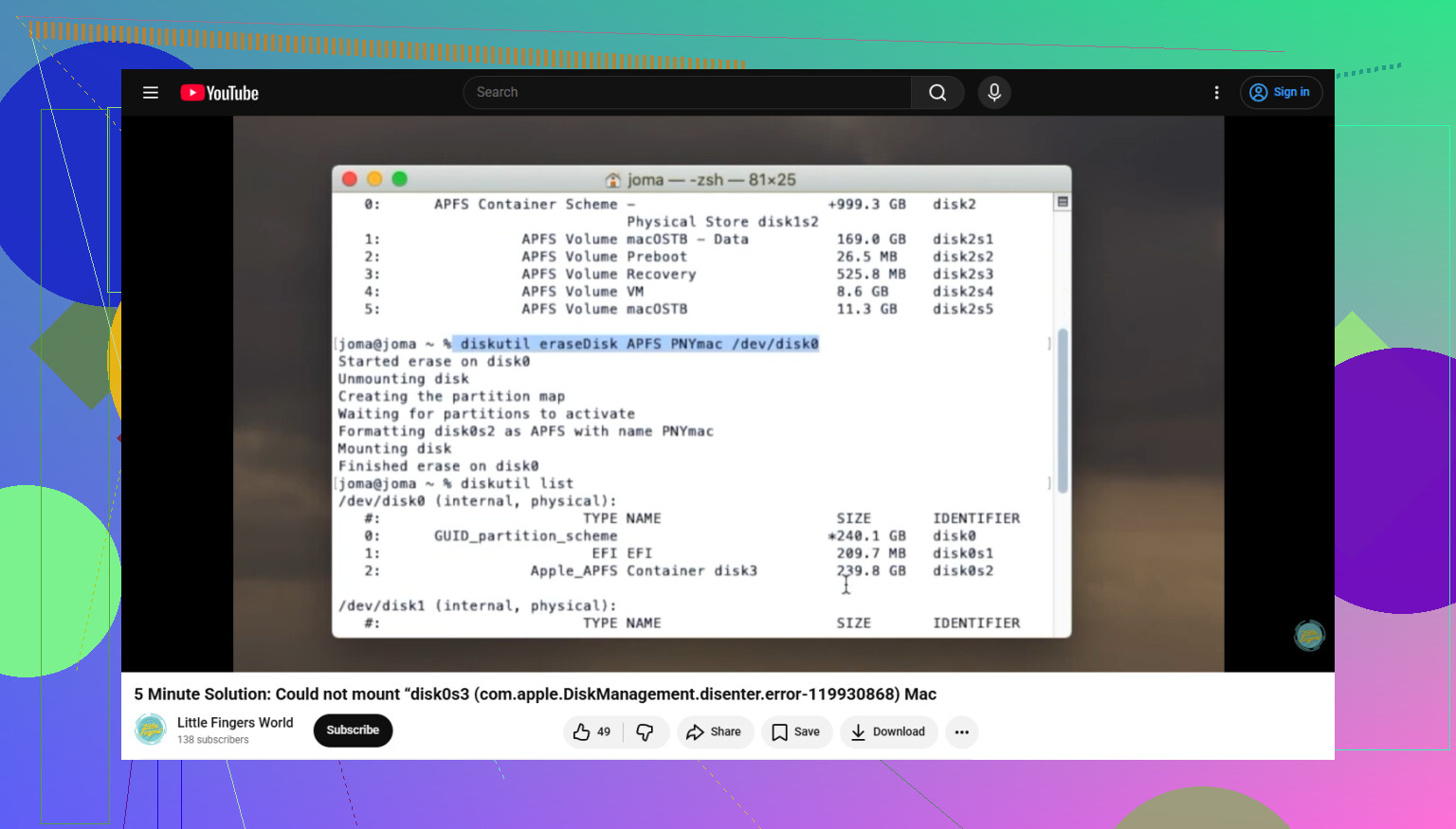
If you end up wiping it, this guide for formatting a problem drive in Terminal on Mac covers the terminal side clearly.
One more check.
Open Terminal and run:
log show --last 10m | grep -i diskmanagement
That log often shows the real reason, unsupported format, I/O errors, bad partition map, or permission failure. If you post the diskutil list output, the next step gets way less guessy.
I’d add one angle that @mikeappsreviewer and @yozora kinda danced around but didn’t fully stress: sometimes this error is not the file system itself, it’s the enclosure or bridge chip lying to macOS.
If the drive is an external HDD/SSD in a USB case, pull it out and test it in another enclosure, dock, or directly in a SATA/NVMe adapter if possible. I’ve seen perfectly fine drives throw com.apple.DiskManagement.disenter because the cheap USB bridge was flaking out. Disk Utility made it look like a software issue when it was really garbage hardware doing garbage hardware things.
A couple more checks I’d do:
- Try the drive on another Mac, not just another port.
- If it works there, copy data off imediately.
- Check if the drive is encrypted. FileVault, BitLocker, or vendor encryption can make mount errors look weirdly generic.
- In Terminal, run
diskutil info /dev/diskXon the parent disk, not just the volume. Look for “Read-Only Media” and partition map type.
Also, if this is an old spinning drive and it takes forever to appear, that’s a red flag for failing hardware, not just a mount bug. In that case I would skip extra repair attempts. Recover first. Disk Drill is solid for a Mac external drive not mounting because it can scan a disk that Finder refuses to open.
If you need a clearer step-by-step for this exact issue, this guide on fixing Mac DiskManagement disenter error codes and mount failures is pretty easy to follow.
My hot take: if the files are important, stop “testing stuff” after the basic cable/port swap. People turn a recoverable drive into a dead one by getting too brave.
One thing I’d add to what @yozora, @andarilhonoturno, and @mikeappsreviewer covered: check whether the volume is simply marked do not auto-mount or got hidden by macOS after a bad attach.
In Terminal, try:
diskutil info diskXs1
Look for:
- Mount Point
- File System Personality
- Volume Name
- Owners
- Read-Only Media
- Device Location
If the file system shows as valid but the mount point is empty, try mounting it to a manual folder:
sudo mkdir /Volumes/testmount
sudo mount -t exfat /dev/diskXs1 /Volumes/testmount
Swap exfat for the actual filesystem if needed. I know @andarilhonoturno leaned toward enclosure issues, and that’s fair, but I’d disagree slightly on jumping there too fast if System Information already shows the disk cleanly and consistently.
Also worth checking:
sudo gpt -r show /dev/diskX
If the partition map is weird or incomplete, Disk Management errors can be a partition-table problem, not the volume itself.
If the files matter, I would avoid erase/repartition until you’ve tried recovery. Disk Drill is useful here when the device is visible but macOS refuses to mount it.
Disk Drill pros
- Easy scan workflow
- Can recover from unmounted volumes
- Good preview support
Disk Drill cons
- Deep scans can take a while
- Recovery quality depends on how damaged the filesystem is
- Best results usually require another drive to save recovered data
My order would be: verify partition map, check manual mount behavior, recover with Disk Drill if needed, then repair or reformat last.