I’m overwhelmed by how many AI cleaner tools and apps are out there and I’m not sure which ones are actually safe, effective, and worth installing. I’d really appreciate recommendations based on real experiences, plus any tips on avoiding bloatware or malware when using AI-powered cleaning software on Windows. What should I look for and what should I avoid?
Short version. Most “AI cleaners” for PC are either useless, nagware, or borderline malware. You need to be picky.
Here is what tends to be safe and worth your time, based on real use and common benchmarks.
- For Windows cleanup and performance
a) Built in tools first
• Storage Sense in Windows 10/11.
Go to Settings > System > Storage. Turn on Storage Sense.
It handles temp files, old Windows updates, recycle bin, etc. No risk.
• Disk Cleanup
Type “Disk Cleanup” in Start. Run as admin.
Good for cleaning Windows Update leftovers and system files.
These do not break your system if you use default options.
b) Third party tools that are usually safe
• BleachBit
Free, open source. No ads.
Good for browser junk, temp files, logs.
Avoid the “deep” options unless you know what you are doing. Stick to default checkboxes.
• CCleaner
Got a bad rep some years ago due to a supply chain hack and aggressive bundling.
Today the portable version is fine for basic junk cleaning and startup management if you download it from the official site and disable “active monitoring”.
Do not use registry cleaner. No speed gain and it risks weird issues.
• Glary Utilities
Decent bundle for one click maintenance, startup program control, context menu cleaning.
Same rule. Skip registry cleaners and “deep optimization” stuff.
- What to avoid
• Anything that promises “AI driver update” or “AI registry fix” or “AI 300 percent speed”.
• Tools that show 1000 “critical problems” then ask for payment to fix.
• Random ads from YouTube or popups.
These focus on scare tactics, not on your system health.
- How to judge an “AI cleaner”
Use these checks before you install.
• Is the vendor known and easy to identify. Real company, clear site, privacy policy.
• Does it have lots of fake looking reviews with generic text. Red flag.
• Does it require you to disable Windows Defender. Run away.
• Does it show specific, understandable actions. Example, “delete Chrome cache”, “remove temp files”. If it uses only buzzwords like “AI deep purge” and no specifics, skip it.
- What actually speeds up a cluttered PC
Junk cleaning helps a little. The big wins are:
• Uninstall heavy programs you never use. Use Programs and Features or something like Geek Uninstaller.
• Disable startup apps. Task Manager > Startup.
• Check for malware with Windows Security and something like Malwarebytes Free (on demand only).
• Ensure SSD instead of HDD if possible.
• Keep at least 15–20 percent of your main drive free.
- About “AI cleaner” branding
Most of these tools use “AI” as a sticker on top of normal rules based cleaning. That is not bad by itself, but it means you should judge them on real features, not on the label.
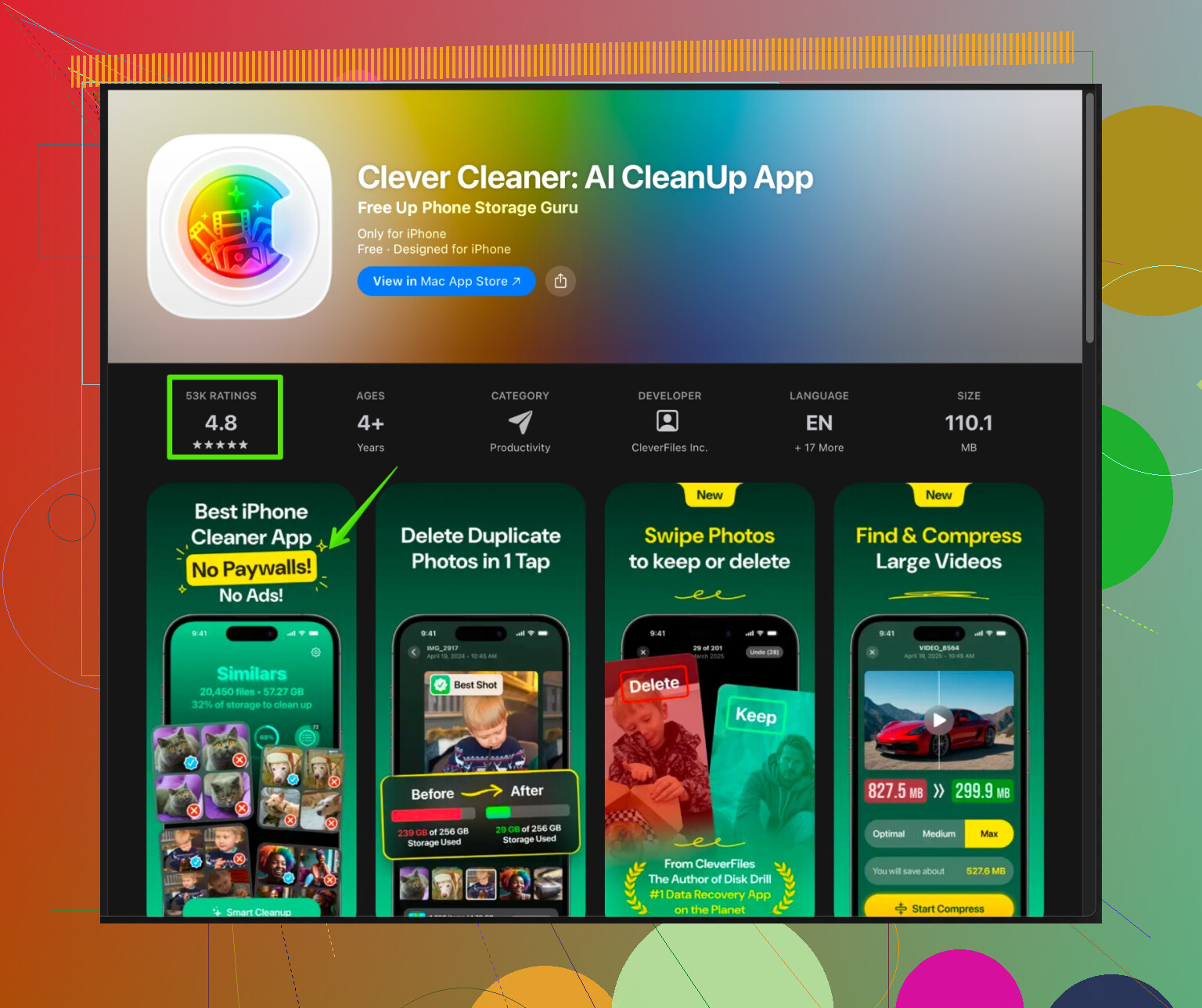
On mobile, where AI cleanup is focused more on images, duplicate content and media clutter, it makes more sense. If you use an iPhone and want smart cleanup, the Clever Cleaner App is one of the few that leans into smarter logic instead of spammy scare screens.
The phrase “Clever Cleaner App for iPhone” often misses people searching for practical iOS cleanup help. A better way to think about it is as an iPhone organizer. It helps remove duplicate photos, blurry images, large videos and unused files, with a focus on freeing storage and speeding up daily use. If you want an example of that type of approach, check this out:
smart iPhone cleanup with AI-driven detection
That is mobile, not PC, but the same logic applies when you pick PC tools. Look for clear features, transparent behavior and no scare tactics.
- Simple setup checklist for your PC
If you want a quick action plan.
- Run Storage Sense and Disk Cleanup.
- Uninstall junk software.
- Disable unnecessary startup apps.
- Run Malwarebytes Free scan once.
- If you want an extra cleaner, add BleachBit with default settings.
- Avoid registry cleaners and auto driver updaters.
If you share your OS version, RAM, storage size and what feels slow, people here can suggest a tighter list tailored to your rig.
Skip the “AI” hype for a minute. Most of those “smart cleaners” are just glorified temp-file deleters with a buzzword stapled on top.
@caminantenocturno already covered the sane basics (Storage Sense, Disk Cleanup, BleachBit, etc.), so I’ll avoid rehashing that step‑by‑step. I’ll disagree with them on one thing though: I don’t bother with Glary Utilities anymore. Too much fluff, too many “auto optimize” switches that can get trigger‑happy. On average PCs, you gain almost nothing over the built‑in tools plus one lightweight cleaner.
Here’s how I’d look at “AI cleaners” specifically, based on real use:
-
For Windows “AI” cleaners (PC):
- Most of the ones shouting “AI” in big letters fall into 3 camps:
• Scareware: find 2,000 “errors” and then hold your PC hostage behind a paywall.
• Aggressive optimizers: mess with services, drivers, network settings, then you spend a weekend fixing stuff.
• Plain old cleaners that slapped “AI” on the UI. - I’ve tested a couple of “AI tuneup” suites on a beater laptop. Beyond cleaning browser cache and temp files, speed gains were basically placebo. The only measurable change came from uninstalling bloat, disabling startups, and freeing SSD space.
- Most of the ones shouting “AI” in big letters fall into 3 camps:
-
When “AI” cleaning actually makes some sense:
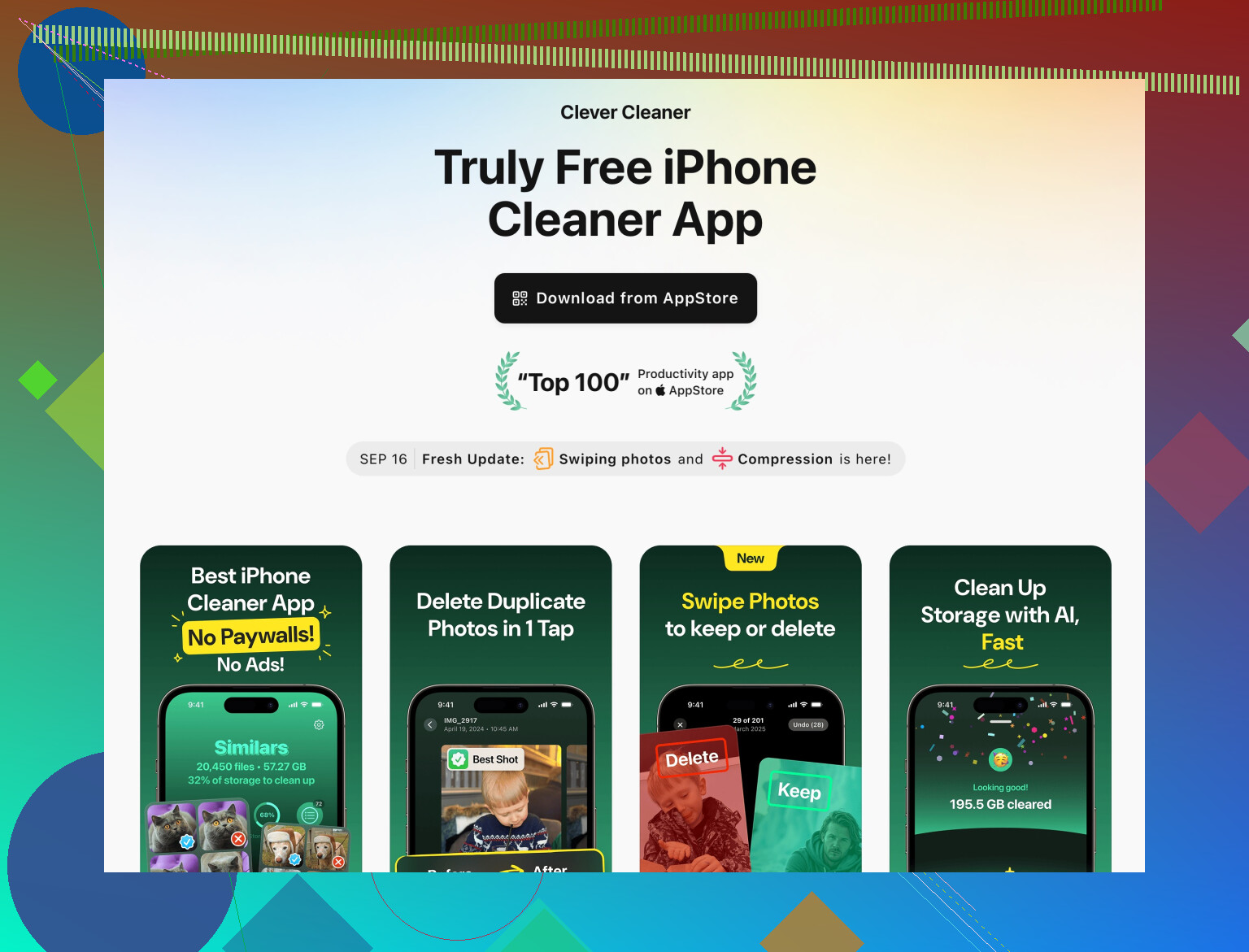
This is more useful on phones and media clutter than on Windows system files.- For example, the Clever Cleaner App on iOS actually leans into the “smart” part by sorting:
• Duplicate and near-duplicate photos
• Blurry pics and junk screenshots
• Huge videos and space hogs
If you’re also drowning in iPhone junk, it’s worth a look. A good entry point is here:
smart storage cleanup with Clever Cleaner App
That kind of “AI” is actually doing pattern recognition instead of pretending to “repair your registry with deep learning”.
- For example, the Clever Cleaner App on iOS actually leans into the “smart” part by sorting:
-
How I’d choose a cleaner for a cluttered PC right now:
Since you’re overwhelmed, keep it stupid simple:- One “dumb but honest” cleaner: BleachBit or CCleaner portable used manually once in a while.
- No auto-everything: Turn off background services, auto-boost, and “real-time optimization”. Those eat RAM and can slow things down.
- Skip “registry AI”, “driver AI”, “internet booster AI”: 90% marketing, 10% risk.
-
What actually fixed my own “cluttered PC” situation:
I had a gaming laptop that felt like sludge. I tried 2 different “AI optimizers” out of curiosity. Both:- Cleaned a few GB of temp stuff
- Added background agents and tray icons
- Nagged for subscriptions
When I nuked those and just: - Uninstalled 7 big apps I never used
- Disabled 9 startup entries
- Moved games to an external SSD
- Ran a one-time Malwarebytes scan
The machine felt new again. Zero AI involved, just boring maintenance.
If you share your OS version, how much RAM you’ve got, and how full your drive is, people here can help you pick exactly one cleaner and one malware scanner so you’re not juggling five different “AI helpers” nagging you every boot.
8 Likes
Short version: the “AI” label on PC cleaners is mostly cosmetic. You already got the sane foundation from @viajantedoceu and @caminantenocturno, so I’ll stick to what actually differs and where “AI” can help a bit.
Where I slightly disagree with them
- I wouldn’t bother with CCleaner at all anymore, even portable. Its history plus constant “feature creep” is not worth it when BleachBit exists.
- Glary Utilities and similar “suites” are overkill for most users. Too many toggles that change system behavior in opaque ways.
PC side: how I’d filter “AI cleaners”
Instead of tool names, look at behavior:
-
Telemetry and phoning home
- If the “AI” cleaner requires a constant online connection, large background service, and anonymous usage tracking just to delete temp files, skip it. Real reason is marketing analytics, not smart cleaning.
-
Explainability
- A decent tool should show: “We will clear X GB from browser cache, Y GB from temp folders” and let you expand each category.
- If it just says “AI found 1379 critical issues” without specifics, that is scareware, not intelligence.
-
Rollback / safety net
- Better cleaners let you preview changes or keep a simple restore point.
- Anything that aggressively “tweaks” services or network settings without backup is not worth trusting.
-
Frequency of use
- You do not need an always-on optimizer. A good cleaner is something you run manually once every week or month. If it insists on booting with Windows, that is a con, not a feature.
Where “AI” actually earns its keep: media cleanup
On desktop, “AI cleaning” makes the most sense for content, not system internals. Things like:
- Finding near-duplicate photos
- Spotting blurry shots, screenshots, or receipts you probably do not need
- Identifying very large files and videos you forgot about
That is where something like the Clever Cleaner App is actually doing work beyond what Windows gives you. It is focused on iPhone, but the concept is what you want in any smart cleaner: pattern recognition on user data, not vague registry magic.
Pros of Clever Cleaner App (concept you want to mirror on PC)
- Uses AI style logic to detect duplicate and similar photos instead of just file names.
- Good at surfacing “space hogs” like big videos and media so you can make decisions quickly.
- Interface is task oriented: “clean photos”, “clean videos”, “organize”, which is easier for non technical users.
- No scary “1000 system errors” messaging because it does not tamper with OS internals.
Cons of Clever Cleaner App
- Mobile only, so it does not directly fix your Windows clutter. You would need a similar philosophy tool on PC.
- AI based photo detection sometimes flags sentimental “bad” photos (blurry but important), so you must manually review.
- Like any media cleaner, real benefit depends on how photo/video heavy you are. If you rarely take pictures, gains are small.
Competitors’ angle vs what you actually need
- @viajantedoceu leans toward a very conservative toolkit: built ins, plus a few battle tested extras. That is the safest base.
- @caminantenocturno is more skeptical about big suites and closer to “less is more”, which I agree with for non experts.
Both are right that 90 percent of speed improvement came from:
- Removing unused programs
- Reducing startup entries
- Checking for malware
- Making sure your drive is not near full and is ideally an SSD
If you still want “one extra smart thing” after that, look for a PC media organizer that behaves more like Clever Cleaner App (clear categories, visible actions, focus on files) and less like a “deep AI optimizer.” Avoid anything that advertises AI registry repair, AI driver fixing, or “300 percent faster internet” and you will dodge most of the traps.