Windows suddenly stopped detecting my WD My Passport, and it has important files I can’t replace. I’ve tried different USB ports and another PC, but the drive still won’t show up correctly. I need help with safe WD My Passport data recovery steps before I risk making the problem worse.
What I’d check first on a WD My Passport with “missing” files
I’ve dealt with enough WD My Passport drives to stop panicking when files vanish. A lot of the time, the files are not gone. What I usually found was a broken file system, a messed up partition, or a plain old delete mistake.
First step, see if Windows still sees the drive.
Open Disk Management and look through the disk list for the WD My Passport. I wouldn’t focus on the drive letter yet. What matters first is simple:
- Does Windows detect the device?
- Does it show about the right storage size?
Here’s how I read the result:
- If the drive shows up with the expected capacity, I take that as a decent sign. Even when Windows marks it as RAW, Unallocated, or throws a format prompt at you, recovery often still works because the drive electronics are still responding.
- If the drive does not appear, drops connection over and over, or starts making odd clicking or grinding noises, I’d treat it like a hardware problem first, not a file system issue.
Stop writing anything to it
If the drive is visible, leave it alone until you pull your data off.
I learned this the hard way years ago. People copy a few files over, Windows creates temp data, or they accept the format prompt, then recovery gets worse. If the files were deleted recently, or the partition suddenly stopped opening, new writes lower your odds because old data gets overwritten.
Check for copies before doing recovery
This part gets skipped a lot.
Before you scan the drive, look through:
- OneDrive
- Google Drive
- Dropbox
- any sync app you’ve used on the PC
I’ve seen people spend an hour chasing “lost” folders, then notice the same stuff sitting in a cloud account they forgot was syncing. It sounds dumb, but it saves time.
If no backup exists, use recovery software
If there’s no second copy anywhere, I’d go straight to a recovery tool. On WD My Passport drives, Disk Drill has been one of the first ones I try.
Reason is simple. It handles a few common failure cases without much fuss:
- deleted files
- formatted partitions
- RAW volumes
It also works with NTFS and exFAT, which are common on these drives. The preview feature matters more than people think. If a file previews cleanly, your odds are usually solid.
The workflow I usually follow
- Install the recovery app on your computer drive, never on the WD My Passport.
- Plug in the My Passport and wait for the software to detect it.
- If the drive is unstable or acting weird, make a byte to byte backup first and scan the image file instead.
- Run a full scan.
- Go through the results and preview the files you care about.
- Recover them to a different drive.
Not back to the same Passport. I know it feels convenient. Don’t do it.
Why preview matters
Preview is the fast sanity check.
If your photo opens, your document renders, or your video starts playing in preview, recovery usually has a good shot. If filenames are missing but the content previews fine, I’d still pull those files out first and sort the mess later.
After recovery, fix your backup setup
Once your files are safe, then deal with the drive.
External drives are fine for storage. I still use them. I do not trust them as the only copy anymore. If you keep important files on one portable drive and nowhere else, you’re setting yourself up for a bad weekend.
Use something. File History, Acronis, cloud sync, a second external drive, whatever fits your setup. The point is simple, two copies beats one. Every time.
12 Likes
If it fails on two PCs, I’d stop treating this like a Windows issue.
A few checks I’d do before any scan:
-
Open Device Manager.
See if it shows under Disk drives, or as an unknown USB device. If it appears and disappears, the USB bridge or power side is suspect. -
Check Disk Management for the disk number only.
I disagree a bit with @mikeappsreviewer here. Capacity matters, sure, but status matters too. If Disk 2 shows as 0 bytes, No Media, or never populates, software recovery is not your first move. -
Feel and listen.
Normal spin and steady vibration is one thing. Repeating clicks, spin-up spin-down, or beeping is bad. Stop there. -
Try a different cable if your Passport model has a detachable one.
Bad Micro-B 3.0 cables fail all the time. Seen it more than once.
If the drive is detected at hardware level, make an image first, then recover from the image. This matters more than scanning the live disk if the connection is flaky. Disk Drill is fine for this because it handles byte-level backups, RAW partitions, deleted files, and damaged file systems in one workflow. Better for data recovery on WD My Passport than poking at CHKDSK and making things worse.
If the drive never identifies properly, no size, no stable connection, pro recovery lab is the safer path. Expensive, yep. But if the files are irreplaceable, DIY has limits.
This video gives a clean feature overview of Disk Drill and what it does for lost files on external drives, see how Disk Drill recovers data from external drives.
Big thing, do not run CHKDSK, do not format it, do not keep reconnecting it for hours. Tha’ts where people lose data.
If it fails on multiple PCs, I’d stop thinking “Windows bug” and start thinking one of two things: bad USB bridge/enclosure, or the drive itself is degrading.
I mostly agree with @mikeappsreviewer and @yozora, but I’d push one extra angle before you keep testing software. Check whether the Passport gets unusually warm, disconnects after 10 to 30 seconds, or shows up in WD’s own utilities at all. Sometimes the disk inside is fine but the USB-SATA bridge board is toast. On some My Passport models that matters a lot, because WD liked doing weird hardware/encryption stuff.
So my order would be:
- Test with a known-good cable if detachable
- See if it appears in BIOS/UEFI or a Linux live USB, not just Windows
- If detected even briefly, clone/image first
- Then scan the image with Disk Drill, not the original drive if possible
I would not keep hot-plugging it fifty times hoping it magically works. That’s how “maybe recoverable” turns into “lab only.”
Also, slight disagreement with the usual “open it up” advice you may see around forums: don’t crack the enclosure unless you already know your specific Passport model doesn’t use onboard USB encryption. Some do, and then you’ve made things worse. Annoying, I know.
If Disk Management shows 0 bytes, Unknown, or it vanishes/reappears, skip CHKDSK completely. For safe WD My Passport data recovery, Disk Drill makes sense only after the drive is at least readable enough to image. If it never reports proper size, software won’t perform mirracles.
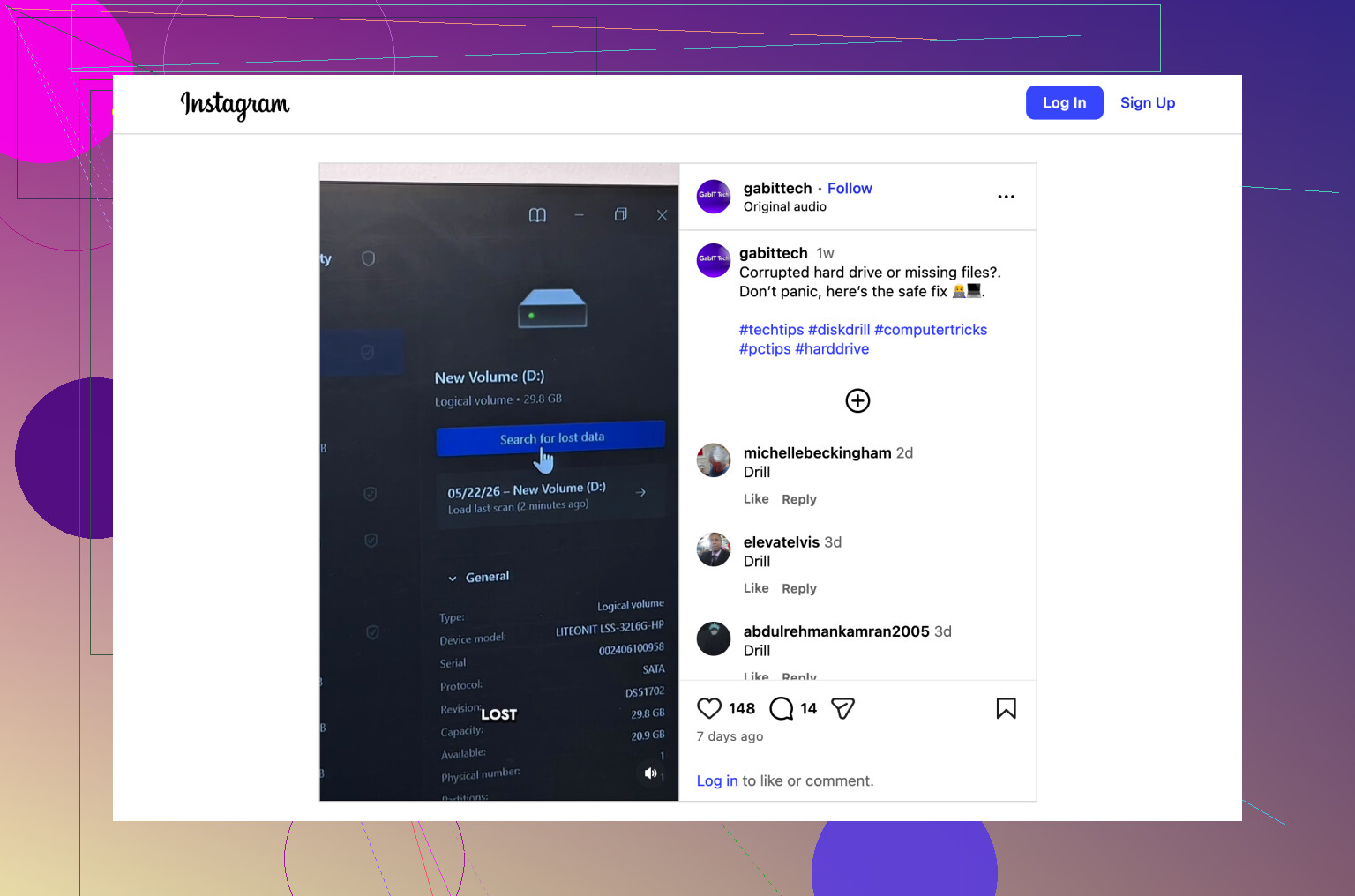
For a quick visual walkthrough, this is a decent external drive data recovery walkthrough.
If the files are truly irreplaceable, the honest answer is pro recovery lab before too much DIY fiddling. It sucks, but that’s probly the safest call.
I’d add one check nobody’s mentioned clearly enough: look in USB Device Tree Viewer or even Event Viewer for repeated USB resets. If Windows logs connect/disconnect loops every few seconds, that points more to bridge/power instability than a recoverable file system problem.
Small disagreement with @yozora and @hoshikuzu on Linux testing as a default next move: useful, yes, but if the drive is already clicking, dropping, or heating up fast, more spin-up attempts are not automatically “safe diagnostics.” Sometimes less testing is smarter.
A practical fork:
- Shows correct capacity consistently: image it first, then scan the image with Disk Drill.
- Shows wrong capacity / 0 bytes / keeps resetting: stop DIY and consider a lab.
- Asks to initialize: absolutely do not accept.
Disk Drill pros:
- easy imaging workflow
- good preview support
- handles RAW and lost partitions well
Disk Drill cons:
- not magic if hardware is failing
- deep scans can be slow
- recovered filenames/folders may be messy
So I mostly agree with @mikeappsreviewer: treat this as hardware-adjacent first, software second.