I accidentally deleted important photos and videos from my SD card and realized it before backing anything up. I stopped using the card right away because I’m worried the files could be overwritten. What’s the best way to recover deleted files from an SD card, and are there any safe tools or steps I should try first?
I’ve been in this exact mess. Mine was a full card from a weekend trip, gone in one bad click. First thing, stop touching the SD card.
- Stop using the card now.
- Pull it out of the camera or phone.
- Do not take new photos or videos on it.
Here’s the part people miss. Deleting files from an SD card usually removes the file entries, not the photo data itself. The images often stay on the card until new data lands in the same spots. If you keep shooting, you start overwriting the stuff you want back. If the card stayed unused, your odds are still decent.
Before you run recovery tools, do two quick checks.
- Look in Trash or Recycle Bin if you deleted the files while the card was connected to your computer.
- Look through cloud backups like Google Photos, Dropbox, or OneDrive. Phones sometimes auto-upload in the background and you forget it was even on.
If the files are gone for real, use recovery software. One thing matters here. Don’t connect the camera to your computer with a USB cable and call it done. I did this once and the scan was lousy. Use an SD card reader so the card shows up directly and the software gets proper access.
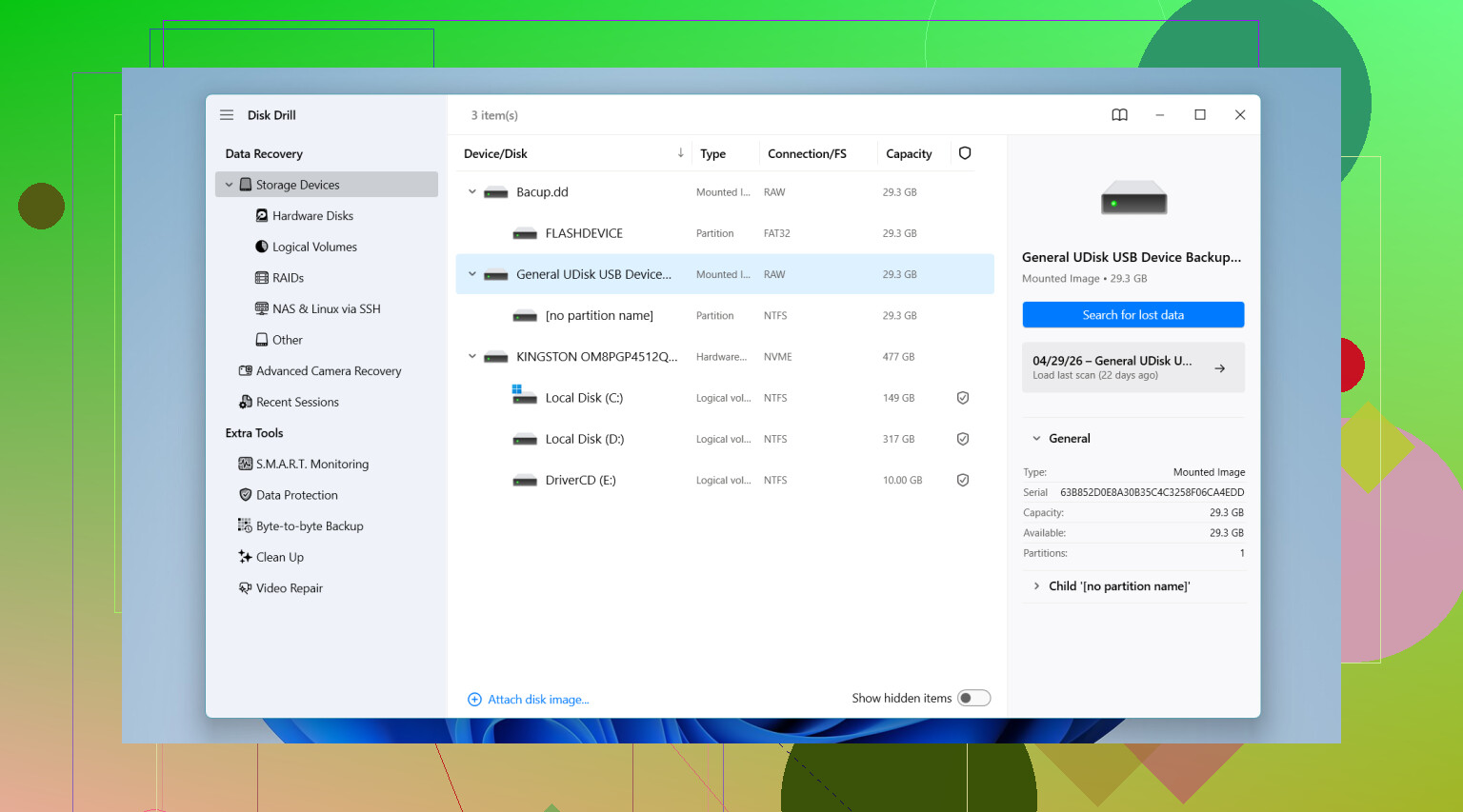
I tried a few tools, and Disk Drill gave me the best results on camera media. On my card, it pulled back photos I thought were done for.
Why I ended up sticking with it:
- It handles camera files well. It has an Advanced Camera Recovery scan aimed at RAW photos and broken-up video files from cameras.
- You get previews. I like this part because you can check whether the photos open before recovering a pile of junk.
- You can test it first. On Windows, the free tier recovers up to 100 MB, so you can see if your files show up before spending time or money.
If you want other routes, these are the usual ones people bring up.
- Windows File Recovery is Microsoft’s own tool and it’s free. I used it once. Felt rough. No normal interface, only command line input. It also tends to be less friendly with FAT32 and exFAT cards, which is what a lot of SD cards use.
- DiskDigger is small and easy to carry around since it doesn’t need a full install. It’s decent for photo recovery. The annoying part is the free PC version makes you wait and confirm files one by one. Fine for ten photos. Miserable for 600. There’s also an Android version, but deep scans on phones usually need root.
If you use Disk Drill, the flow is simple enough. Put the SD card in a reader, open the app, select the card, run the Advanced Camera Recovery scan, then wait. Don’t rush it. Big cards take time.
One more rule, and this one matters almost as much as stopping use of the card in the first place. Do not save recovered files back to the same SD card. Save them to your computer’s internal drive or another separate storage device. If you write recovered files back onto the card during recovery, you might overwrite photos the software hasn’t pulled yet. I’ve seen people do this and make a bad day worse.
12 Likes
You did the most important part already, you stopped using the card. That keeps your odds decent.
I agree with @mikeappsreviewer on the card reader part, but I’d skip one thing people often do first, random free tools from search results. A lot of them recover junk names, broken files, or push installs you do not want. If the photos and videos matter, start with one solid scan and keep the process clean.
My approach:
-
Make a full image of the SD card first.
If the card is failing, repeated scans make things worse. Use a tool like USB Image Tool on Windows or ddrescue on Mac/Linux and copy the whole card to an image file. Then scan the image, not the card. This is slower, but safer. -
Check the card’s condition.
If your PC asks to repair or format it, do not click yes. That writes changes to the file system. Bad move. -
Scan for file signatures, not only deleted entries.
This matters for videos. Photos often come back easier. Videos get fragmented more often, esp on larger SD cards and action cams. A tool with stronger SD card photo recovery and SD card video recovery support helps here. Disk Drill is one of the better picks for this because it does both file system scans and deeper signature scans. -
Recover to a different drive.
Internal SSD, external HDD, whatever. Not back to the SD card. Ever. -
Sort by previewable files first.
If you have 2,000 hits, pull the files with valid previews first. Those tend to be intact. Saves time.
One more thing I disagree on a bit. Trash and cloud checks are useful if you deleted from a computer or phone workflow, but if this was done in-camera, they usually waste time. I’d move straight to imaging and scanning.
If your main issue is deleted clips, this SD card video recovery guide is a decent walkthrough:
watch this SD card video recovery walkthrough
If Disk Drill finds the files and previews look fine, recover the important stuff first. Family photos, one-off videos, RAWs. Do the big cleanup later. Small typo lesson from my own mess, don’t keep rescanning for a “better result” for hours on the same card. I did that once. Dumb move.

You already did the biggest thing right: stop using the SD card.
I mostly agree with @mikeappsreviewer and @nachtschatten, but I’d add one thing people overlook: check whether the card has a write-protect switch if you’re using a full-size SD adapter. Lock it before plugging it into a computer. It’s not perfect protection, but it can prevent accidental writes while you’re figuring stuff out.
Also, if the deletion happened in-camera, I wouldn’t spend too long chasing Recycle Bin theories. That advice is fine sometimes, just not usually for camera-deleted stuff.
What I’d do:
- Connect the card with a proper reader.
- If the card mounts normally, scan it once with something reliable like Disk Drill.
- Recover the most important previewable files first.
- Save them somewhere else, not back to the SD card.
- If videos are super important and come back corrupted, stop DIYing before you make it worse.
One reason Disk Drill is solid for SD card recovery is that it tends to find both normal deleted entries and deeper lost file data, which matters when the card was formatted or the file table got messy. For photos it’s usually pretty decent. Videos are more hit-or-miss, becuase they fragment more.
If you want more background, this thread is actually pretty useful:
how to recover deleted files from an SD card before they get overwritten
One place I slightly disagree with @nachtschatten: imaging first is ideal, yeah, but for a healthy card and a normal accidental delete, some people overcomplicate it and lose time. If the card seems physically fine, a careful direct scan is often enough. If the card is acting weird, disconnecting, asking to format, or reading slooow, then image first.