I accidentally permanently deleted important files on my Windows 11 PC and already emptied the Recycle Bin. I’m trying to recover documents and photos I really need, but I’m not sure if they can still be restored. Looking for help with the best way to recover permanently deleted files in Windows 11 before they’re gone for good.
I went through this once, and yeah, it hits fast when a file vanishes. On Windows 11, a permanently deleted file is not always gone for good. If new data has not taken over its space yet, you still have a shot.
First thing I’d do, stop using the drive as much as possible. No installs. No big downloads. No moving files around. Each write gives Windows a chance to reuse the exact space your deleted file was sitting in. If the drive is an SSD, move fast. TRIM tends to wipe deleted blocks in the background, and after tht, recovery gets ugly.
Before you touch recovery tools, check the boring places people forget:
- OneDrive
- File History
- Previous Versions
- Any cloud backup you set up months ago and forgot
- An old external drive with a backup on it
I’ve seen people spend an hour scanning a disk, then realize the file was sitting in OneDrive the whole time. If a backup exists, use it first. Less risk, less mess.
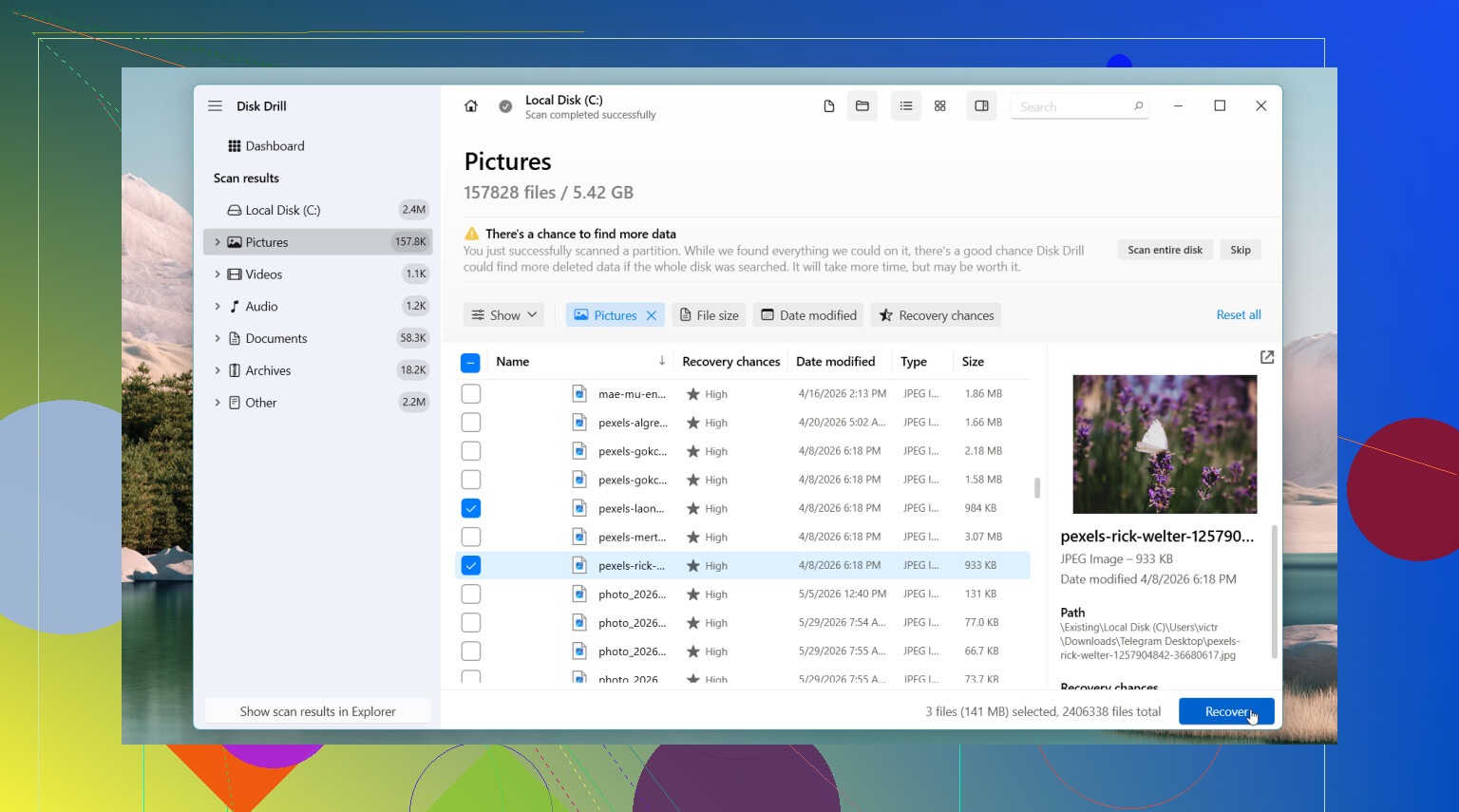
If all of those come up empty, I’d move on to recovery software. The one I’d try first is Disk Drill. What I liked there was simple stuff. It’s easy to run, and it often pulls files back with the original file names and folders still there. Sorting unnamed junk after a scan is a pain, so this matters more than people think.
What I’d do:
- Install Disk Drill to a different drive, if you have one.
- Scan the drive where the file got deleted.
- Filter or search through the results.
- Preview the file before restoring it.
- Save recovered files to another drive, not the same one.
On Windows, it lets you scan and preview without a limit, and the free recovery cap is 100 MB.
If your issue is bigger than a plain delete, there are other tools worth a look. DiskGenius helped me more with cases involving lost partitions, RAW volumes, or file system damage. Windows File Recovery is Microsoft’s own tool, free too, but it runs in the command line. I used it once, and it worked, but it was not something I’d hand to a person who wants a couple clicks and done.
One part people skip, if the drive starts clicking, drops offline, vanishes from Windows, or has stuff you cannot afford to lose, stop. At tht point I’d look at a professional recovery service before trying random fixes from search results.
Usually, your odds are best when you act early and keep the drive idle. That part matters more than the software name.

11 Likes
Stop writing to the PC first. That part matters most.
I agree with @mikeappsreviewer on one thing, check backups before you scan. I’d add a few Windows 11 spots people miss:
- Open the folder where the files used to live, right click, Properties, Previous Versions.
- Search by file type in File Explorer, like .docx, .jpg, .png. Sometimes the file got moved, not erased.
- Check temporary folders. Win + R, type %temp%, then look by date.
- If it was from an app like Word, Excel, Photoshop, check its recent and autosave list.
I disagree a bit on TRIM panic. Yes, SSD recovery gets worse fast, but it is not always instant. If the files matter, scan now instead of assuming it’s over.
For software, Disk Drill is one of the easier picks on Windows 11. Preview first. Recover to USB or another drive, not C:. Recuva is ok for simple deletes, but in my tests it misses more filenames after deep scans. Microsoft’s Windows File Recovery works too, but the syntax is annoyng if you want photos back fast.
If the drive is external, make a byte-for-byte image first if you know how. Recovery from the image is safer.
For a simple Windows 11 deleted file recovery guide, this short walkthrough helps: see this Windows 11 file recovery tutorial.
If the SSD is making noises, freezing, or disconnecting, stop. Software won’t fix failing hardware.

If the files were on your main Windows 11 SSD, I’d add one thing neither @mikeappsreviewer nor @codecrafter really pushed hard enough: check whether you have app-level recovery before doing a full disk scan. Word, Excel, Adobe apps, even some photo editors keep autosave or recovery caches outside the original folder. I’ve seen “deleted” docs come back from Office recovery while disk tools found nothing useable.
Also, don’t waste time rebooting over and over. Every normal boot writes logs, temp data, updates, all that fun stuff.
My order would be:
- Check Office/Adobe/recent files/autorecover
- Look in hidden user folders like AppData
- If the files mattered and the SSD is internal, consider shutting down and attaching the drive to another PC for scanning
- Run a recovery app like Disk Drill from a different drive
- Recover only to another disk or USB
Small disagreement with the “check temp folders” advice people always give: temp folders are hit or miss and usually a time sink unless you know the file was open in a specific program right before deletion.
If you want more real-world cases, this thread is decent: Windows 11 SSD deleted file recovery discussion
If nothing shows up and the files are truly irreplaceable, pro recovery may be the only non-bad option. SSDs can be brutal tbh.
One angle missing from @codecrafter, @mike34, and @mikeappsreviewer: check Windows Search index leftovers and thumbnail caches. Sounds weird, but for photos especially, you can sometimes at least recover previews or prove the files existed. Search %LocalAppData%\Microsoft\Windows\Explorer for thumbcache files. Not a full recovery method, but useful if the originals are gone.
I’d also check whether the deleted files were inside a synced library. Windows 11 can point Documents or Pictures to OneDrive without people realizing it. Sometimes the local copy is gone, but the cloud version or version history is still there.
Slight disagreement with the “scan now no matter what” approach: if this is your only internal SSD and the files are truly critical, the safer move is often to power off first and scan the drive from another machine. Live scanning your system disk keeps generating writes.
If you do scan, Disk Drill is a reasonable pick because it is easy to sort results and preview files.
Disk Drill pros
- Simple interface
- Good file preview
- Usually decent folder/name reconstruction
- Good for documents and photos
Disk Drill cons
- Free recovery limit on Windows is small
- Deep scans can return lots of renamed junk
- Not magic on TRIM-cleared SSD data
If the files are business, legal, or family-only copies, I’d skip experimenting after one careful pass and go straight to a recovery lab. Software recovery is best when the drive is healthy and the deletion was recent.