After a system crash, my NTFS volume suddenly shows up as RAW and I can’t open any of my files. I need help figuring out if the data is still there and what safe recovery steps to try before I make things worse. Looking for advice on NTFS RAW drive recovery after a crash.
I ran into this before, and I would not touch any 'RAW to NTFS' fix first. When Windows shows a drive as RAW, I read it as, 'the data structure is messed up enough that Windows stopped recognizing it.' Your files might still be sitting there. The part that maps them is what usually breaks.
So I’d do this in two stages. First, pull data off. After that, rebuild the drive.
Get your files off first
- Stop writing anything to the RAW drive. No format, no initialize, no CHKDSK. I know Windows likes to nag here. Ignore it for now.
- Install Disk Drill somewhere else. Different internal drive, different SSD, even another external disk. Anywhere except the broken one.
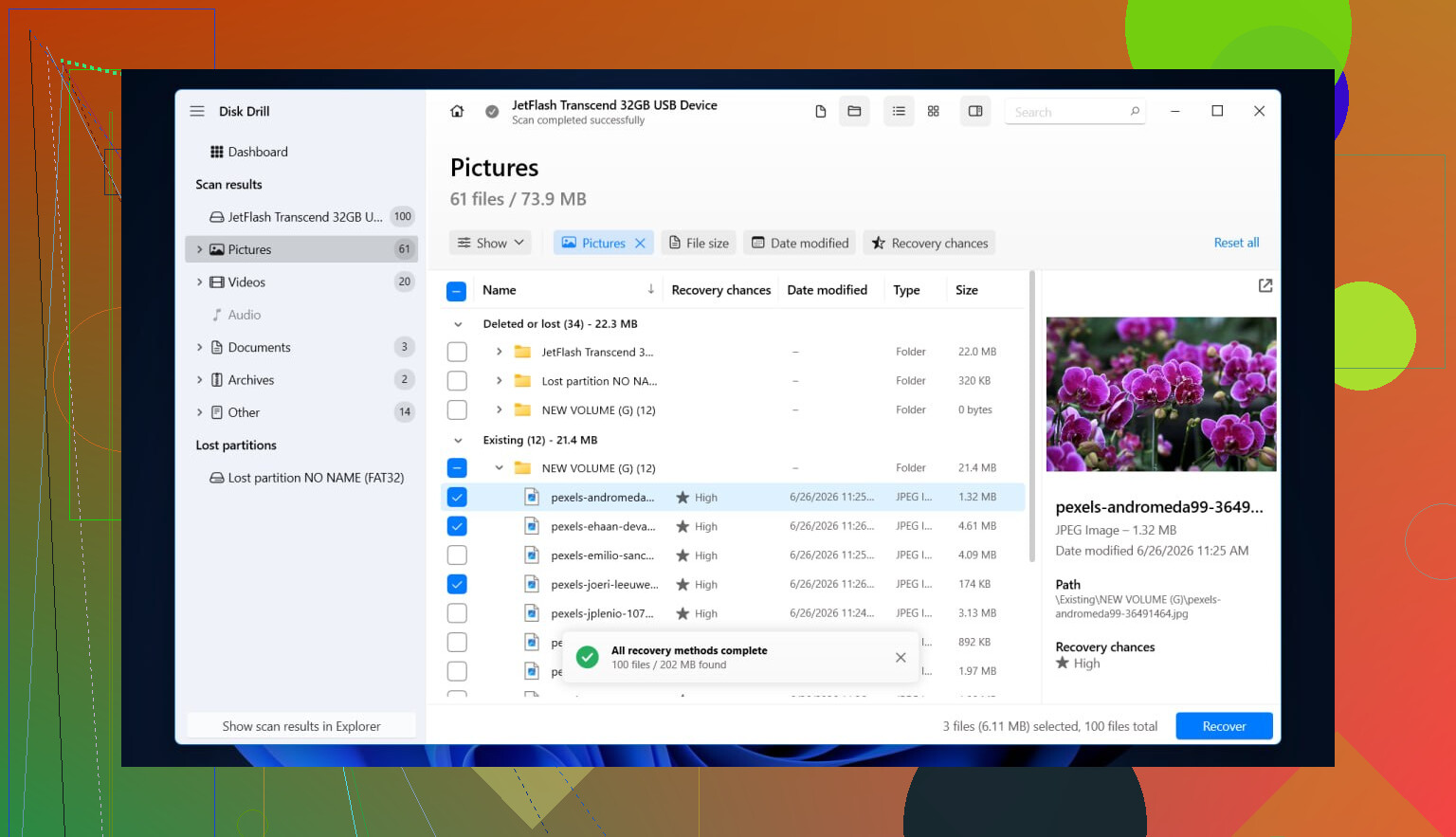
- Launch Disk Drill and look for the problem drive. If it shows both the partition and the full physical device, pick the full disk. I had better results doing it that way.
- Hit Search for lost data.
- Wait. Large hard drives take a while, and RAW scans are not fast. I left one running for hours once.
- When the scan finishes, check all the result groups, Existing, Deleted or lost, and Reconstructed.
- Use file filters and search terms so you are not scrolling forever. If you need photos, docs, or video files, narrow it down early.
- Preview a handful of files before you recover them. If previews open cleanly, I usually take that as a decent sign the file itself survived.
- Select what matters.
- Recover everything to a different drive with enough space. Do not write recovered files back onto the RAW disk. Thats where people make it worse.
What helped in my case was Disk Drill reading past the part Windows gave up on. It scans RAW volumes without needing the partition to mount normally. If some NTFS records are still readable, you might get original folder names and filenames back. If those records are trashed, it falls back to file signatures, which is less neat but still useful.
Then deal with the drive itself
Once your files are safe somewhere else, you can wipe and rebuild the RAW volume as NTFS.
Method 1, Disk Management
- Open Disk Management.
- Find the partition marked RAW.
- Right-click it, then choose Format.
- Pick NTFS.
- Leave Quick Format on.
- Name it if you want.
- Click OK and let it finish.
This is the plain fix. It does not repair the old file system. It creates a new one, so I would only do it after recovery.
Method 2, File Explorer
- Open This PC.
- Right-click the RAW drive.
- Choose Format.
- Select NTFS.
- Keep Quick Format enabled.
- Start it.
Method 3, DiskPart, if Windows refuses to format it normally
- Open Command Prompt as admin.
- Type
diskpart - Type
list disk - Type
select disk X, replace X with the RAW drive number. - Type
list volume - Type
select volume X, replace X with the RAW volume number. - Type
format fs=ntfs quick - Type
assign - Type
exit
Double-check every number in DiskPart. I almost picked the wrong disk once, and DiskPart does not save you from dumb mistakes.
One more thing. If you format it, it looks fine for a day, then it flips back to RAW again, I would stop trusting the drive. From what I’ve seen, that usually points to bad sectors, flaky USB hardware, enclosure issues, or a dying disk.
6 Likes
Yes, the data is often still there.
RAW usually means Windows lost the NTFS map, boot sector, MFT, partition entry, or all three. A crash does this. The files do not vanish on impact. The index breaks, so Windows stops mounting it.
I agree with @mikeappsreviewer on one big point, do recovery first. I disagree a bit on one part though. Before a full file scan, check drive health. If the disk is failing, long scans stress it.
Do this first.
- Check SMART with CrystalDiskInfo or smartctl.
- If you see reallocated sectors, pending sectors, read errors, or bad health, clone the disk first with ddrescue or HDDSuperClone.
- Work from the clone or image, not the original.
Then inspect the partition with TestDisk. It is better for NTFS structure repair than blind formatting. If the NTFS backup boot sector is intact, TestDisk sometimes restores access fast. No format needed. If TestDisk only shows damaged structures, switch to file recovery.
Disk Drill is fine here. It tends to do well on RAW volumes, esp if the MFT is partly readable. You keep folder names more often than with pure signature carving.
Skip CHKDSK unless you already have a backup or recovered copy. CHKDSK on damaged NTFS has a habit of ‘fixing’ records into oblivion. Seen it. Hated it.
If the drive is an external, also swap the USB cable, port, and enclosure. I have seen a bad SATA-USB bridge make a healthy NTFS disk show as RAW. Weird, but yup.
For a readable walkthrough, this guide on how to convert RAW to NTFS without losing data covers the usual path.
If your files matter a lot, image first. Dont poke the original disk more than needed.

RAW after a crash does not automatically mean your files are gone. Usually it means Windows can’t read the NTFS metadata cleanly enough to mount it, which is a diff problem from “all sectors got erased.” So yeah, there’s a decent chance the data is still there.
I mostly agree with @mikeappsreviewer and @voyageurdubois, but I’d push one extra thing before doing any heavy recovery work: check whether the partition size still looks correct in Disk Management. If your 2 TB volume suddenly shows as some nonsense size, or unallocated space appears where it shouldn’t, that hints at partition table damage, not just NTFS corruption. That matters because recovery strategy changes a bit.
Also, I would not rush into “repairing” the file system just because a tool offers it. Sometimes a simple mount failure becomes a much uglier recovery after a bad repair attempt. Windows is fantastic at pretending it’s helping while quietly making things worse. Been there, real fun.
What I’d do:
- Look at SMART / health first
- Confirm the disk’s full capacity is detected properly
- If the drive clicks, disappears, gets slow as hell, or throws I/O errors, stop and clone/image it first
- If it seems stable, scan it with Disk Drill or another recovery app from a different drive
- Recover only the important stuff first, not every single temp file on earth
One more thing people skip: try reading the disk from another OS. A Linux live USB can sometimes access an NTFS volume that Windows insists is RAW, or at least give cleaner error messages. Doesn’t always save the day, but it can tell you whether this is true corruption or just Windows being Windows.
If you want a decent roundup of recovery tools, this best data recovery software comparison is worth a look.
If the data is important enough that losing even part of it would hurt, image first. If it’s just a messy crash on an otherwise healthy drive, Disk Drill is a pretty reasonable first pass for NTFS RAW recovery.