My Outlook PST file is missing after I moved some folders and restarted my PC. Now my emails, contacts, and calendar items are not showing, and I can’t open the data file from Outlook. I need help with Outlook PST file recovery, how to find a lost PST file, and the safest way to restore my mailbox data without making things worse.
Losing a PST file feels bad fast, especially if it got wiped while you were cleaning out Documents, Downloads, or the Outlook Files folder. I did this once during a late-night folder purge and the damage looked worse than it was.
First thing, stop using the PC for anything extra. Don’t download stuff. Don’t install tools. Don’t keep moving files around. When Windows deletes a file, it often only removes the pointer and marks the space as free. Your PST might still be sitting there until new data lands on top of it.
Start with the easy places
Check the Recycle Bin. A normal delete often ends up there. If you used Shift+Delete, skip expecting miracles from the Bin.
Then look at any sync service tied to the folder. OneDrive, Dropbox, and similar apps usually keep deleted items and older versions for a while. Don’t rely on the folder view in File Explorer. Sign in on the provider’s website and check the trash or deleted files area there.
Try Windows folder history and previous versions
I’d check this before running recovery software.
Go to the folder where the PST lived. A common path is:
C:\Users\YourName\Documents\Outlook Files
Right-click the folder, pick “Restore previous versions,” then look for a copy from before the file vanished. If you see one, open it and copy the PST somewhere else. Don’t restore over the same spot first. Copy it out.
Use recovery software if the normal places are empty
If the file is gone from the Bin, gone from cloud trash, and there’s no useful previous version, I’d move to a file recovery scan.
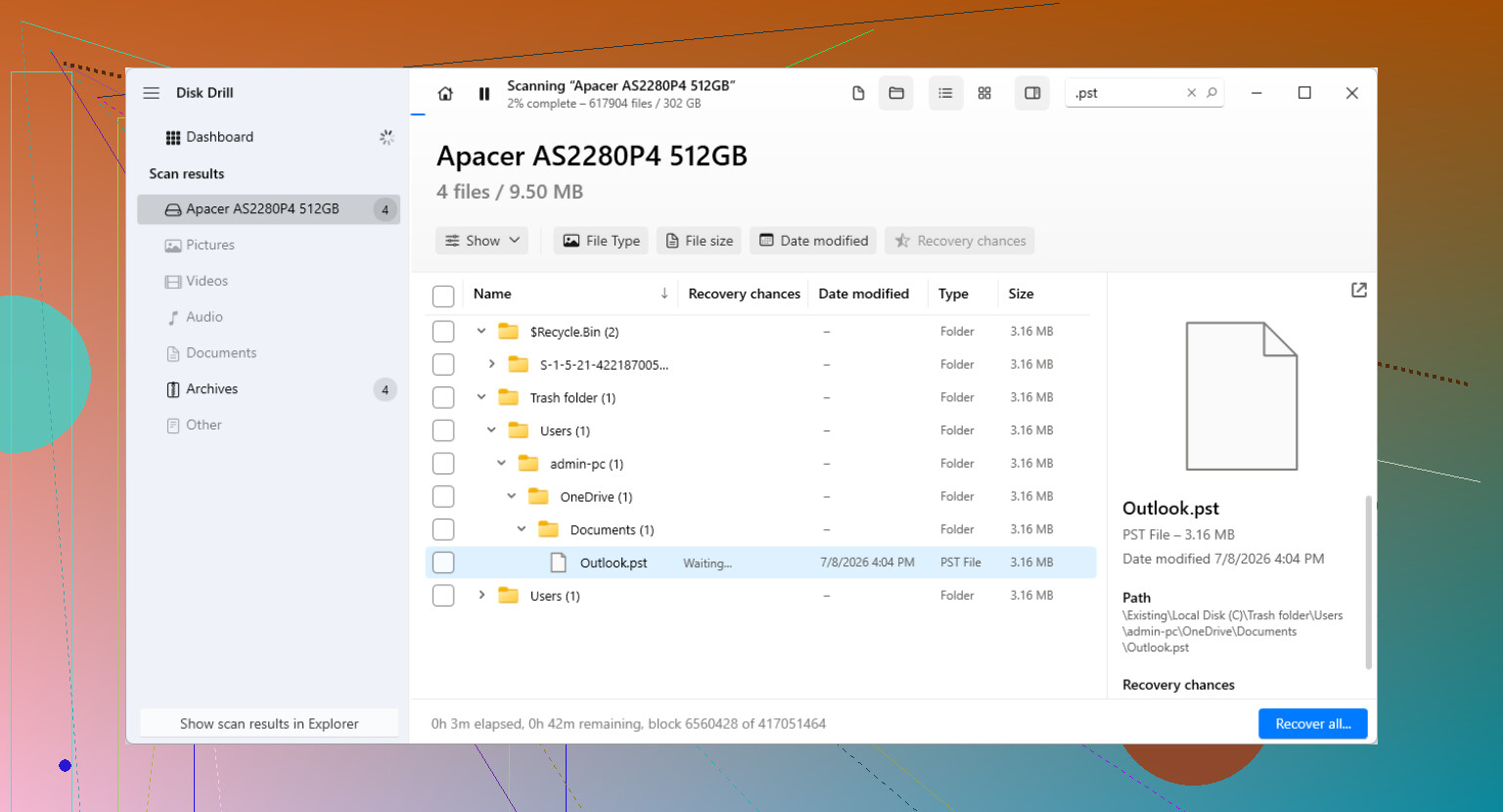
Disk Drill is one option for this. The useful part is simple. It scans past what Windows is willing to show you.
The part people mess up is the install. If the lost PST was on C:, don’t install recovery software to C: if you’ve got any other choice. Use another drive, or run it from external storage. Less writing to the problem drive gives you better odds.
What I’d do:
Install the recovery app on a different drive if possible.
Scan the drive where the PST was deleted, often C:.
Filter or search results for .pst.
Compare file sizes. This matters more than people think. Outlook likes to generate a fresh empty PST sometimes, and those are tiny. Your older mail archive is usually much larger.
Recover the file to a different folder or drive. Don’t put it back in the same place yet.
Open the recovered file the right way in Outlook
This part trips people up. Outlook might have already created a new blank data file, so the mailbox looks empty and you think recovery failed. It didn’t always fail. Outlook often made a replacement file with none of your old folders in it.
Open Outlook, then go here:
File > Open & Export > Open Outlook Data File
Pick the recovered PST. If it’s the right one, your old folders should appear in the left pane. After you confirm the mail is there, go into Account Settings and switch Outlook to use the recovered PST as the default data file if needed.
If your account uses IMAP, some mail might come back on its own
For Gmail, Yahoo, Comcast, and other IMAP accounts, a lot of your mail lives on the mail server. Re-adding the account often rebuilds the synced mailbox through a new OST file.
Still, don’t count on this for everything. Local archive folders, custom folders, imported mail, and anything stored only inside the PST won’t come back from the server. I’ve seen people reconnect Gmail and think all is fine, then notice ten years of old local archives are missing. Different problem.
After you get it back
Once the PST is safe again, set up some kind of backup routine. Keep the file in a folder included in backups. Copy it to an external drive now and then. Export a backup on a schedule if you know you won’t remember manual copies.
PST files tend to hold years of mail, receipts, attachments, and random old stuff you only need once every two years. Keeping only one copy is asking for pain.
If the recovery scan shows a large PST, I’d restore that one first and test it in Outlook before touching smaller ones.
9 Likes
Before you chase file recovery, check if Outlook is pointing to the wrong file. This happens a lot after moving folders.
Open Control Panel, then Mail, then Data Files. Look at the full path for the default PST. If the path shows a folder that no longer exists, Outlook is loading a broken reference, not your old mail. Use Add to browse to the moved PST if you still see it somewhere on disk. Windows search for *.pst across the whole PC helps here.
I slightly disagree with @mikeappsreviewer on one point. I would check for an AutoArchive PST too, not only the missing main file. Outlook often stores older mail in a second PST and people forget it exists. Search for files like archive.pst, outlook.pst, or anything large, like 1 GB or more. Size matters.
If you find a PST but Outlook refuses to open it, run Inbox Repair Tool, scanpst.exe. Common paths:
C:\Program Files\Microsoft Office\root\Office16
C:\Program Files (x86)\Microsoft Office\root\Office16\
Make a copy of the PST first. Then run scanpst on the copy. If scanpst fails or the file is gone, Disk Drill is a solid next step for Outlook PST file recovery. Recover to another drive, then attach the recovered file in Outlook.
Also worth checking:
File, Account Settings, Data Files
File, Open & Export, Import/Export
C:\Users\YourName\AppData\Local\Microsoft\Outlook
C:\Users\YourName\Documents\Outlook Files
If your account was POP, your mail lived in the PST. If it was IMAP or Microsoft 365, mail might resync, but contacts and calender data stored localy still need the old file.
For extra reading, this Outlook PST file recovery thread is useful:
recover a permanently deleted Outlook PST file discussion
I’d do one check first that neither @mikeappsreviewer nor @himmelsjager really pushed hard enough: make sure the PST was not just detached from your Outlook profile.
Outlook profiles get weird after folder moves. Sometimes the file still exists, but Outlook keeps pointing to the old path and acts like your mail vanished into the void. Go to Control Panel > Mail > Show Profiles > Properties > Data Files and see what path it expects. If that path is dead, create a new Outlook profile and attach any PST you find there. A fresh profile fixes a surprsing number of “missing PST” cases.
Also check this in File Explorer search, but search by size too:
*.pst- sort by Date Modified
- look for anything bigger than a few MB
Why size matters: if Outlook made a new blank PST after the reboot, it will often be tiny. Your real mailbox file is usually much larger.
One thing I slightly disagree on with the other replies: don’t rush straight into import/export if you recover the file. Open the PST directly first and inspect it. Importing too early can duplicate folders and make the mess worse.
If you find the PST but it errors out, copy it somewhere safe and try scanpst.exe on the copy only. If you do not find it at all, then yes, Outlook PST file recovery software becomes the next move, and Disk Drill is one of the more practical options because it can scan for deleted PST files and let you recover them to another drive.
Another angle people miss: check whether your contacts/calendar were actually tied to the mailbox account, not only the PST. If this was Exchange, Microsoft 365, or IMAP plus server-side contacts/calendar, some of it may come back after rebuilding the Outlook profile. If it was POP, then yeah, the PST is basically the whole enchilada.
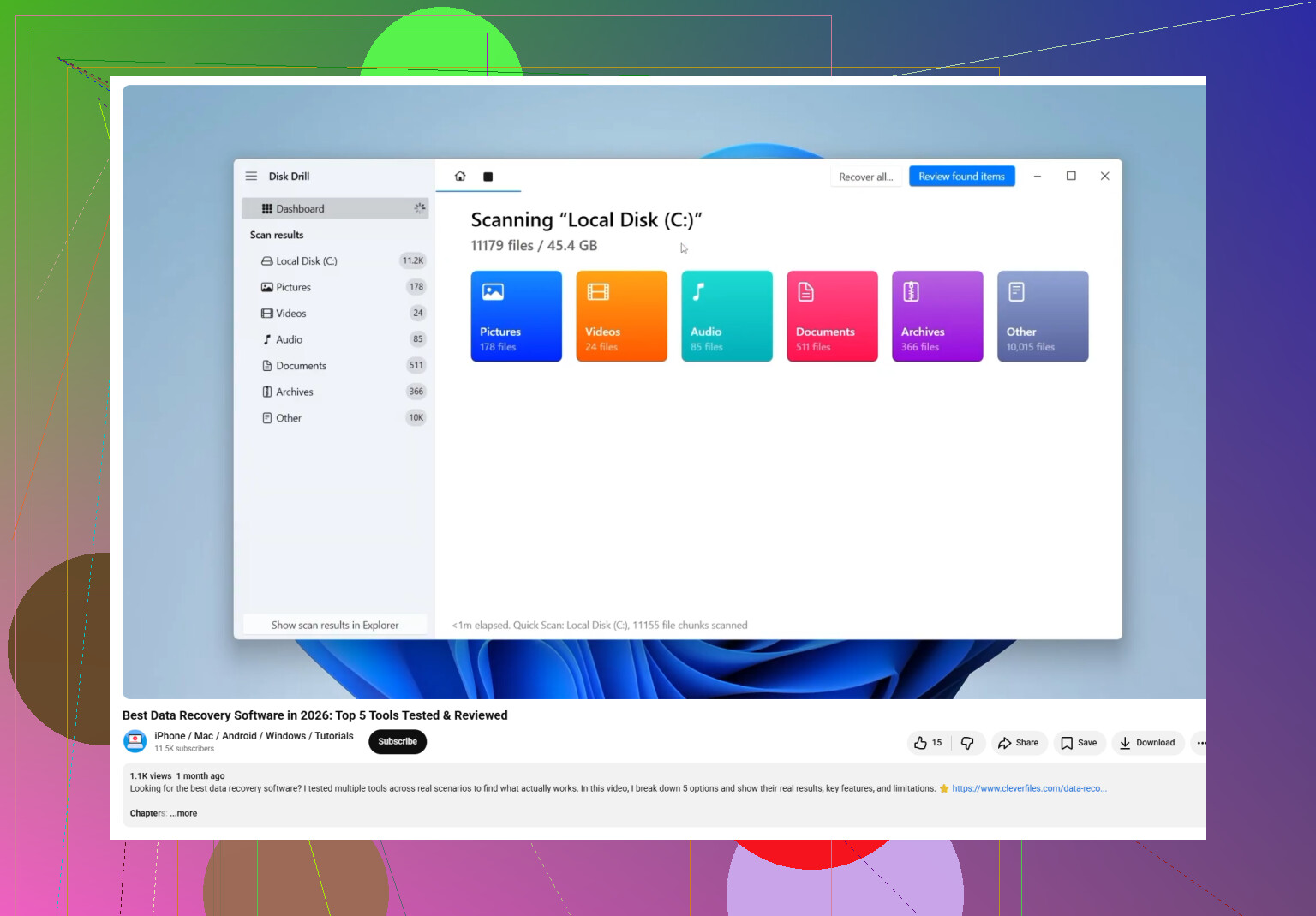
For anyone researching the best software to recover a lost or deleted Outlook PST file, this video is a decent starting point:
best PST recovery software options for Outlook data loss
So my order would be:
- Check Outlook profile path
- Search whole PC for large PSTs
- Create a new Outlook profile and attach found PSTs
- Repair copy with scanpst if needed
- Use Disk Drill if the file is actually gone
If you want, post the exact Outlook error message and whether the account was POP, IMAP, or Microsoft 365. That changes the recovery path alot.
I’d add one angle the others barely touched: Windows indexing and profile corruption can make a PST look “missing” when the file is still fine.
Before doing recovery, try this:
Win + R→outlook.exe /safe- If Outlook opens, create a new mail profile and do not reuse the old one
- In Control Panel > Mail, set the new profile as default, then attach any PST you locate
I slightly disagree with jumping into recovery tools too early. If the restart damaged the Outlook profile, file recovery won’t fix that. Also check Event Viewer > Windows Logs > Application for Outlook or disk errors right after the reboot. If you see filesystem warnings, that points more toward actual file loss/corruption.
Another overlooked check:
chkdsk /scanon the drive- File History / system backup software
- OneDrive version history if Documents was synced
On Disk Drill specifically:
Pros
- Good at finding deleted
.pstfiles by signature - Simple filtering by file type/size
- Useful if the PST was truly deleted or the folder got wiped
Cons
- Recovery quality depends on whether the sectors were overwritten
- Large PSTs can recover partially and still need repair
- Best results usually require recovering to another drive
So my order is: profile test, Safe Mode, new profile, event logs, disk check, backups, then Disk Drill if the file is genuinely gone. @himmelsjager, @hoshikuzu, and @mikeappsreviewer already covered the common PST paths and ScanPST side well, so I’d focus on ruling out profile failure first.