My hard drive suddenly stopped opening, and I’m worried I may lose important photos, work documents, and other personal files. I need advice on the best hard drive data recovery steps, software, or repair options that might help me get my files back without causing more damage.
I’ve been through this once, and the worst move I made at first was poking the drive over and over to “see if it still worked.” If your files disappeared or the HDD started making odd noises, stop using it now. Don’t copy anything onto it. Don’t install recovery apps there. Don’t keep opening folders to check if stuff came back. Every write raises the odds of wiping out data you still had a shot at getting back. If it’s your boot drive, I’d pull it and hook it up to another PC as a secondary disk if you can.
Next, figure out what kind of failure you’re dealing with. The fix changes a lot depending on whether this is file system damage or the drive itself starting to die. Deleted files, a bad format, or a broken partition table sit in one bucket. Clicking heads, bad reads, and random disconnects sit in another. I’d check S.M.A.R.T. first. CrystalDiskInfo on Windows and DriveDx on Mac are easy places to start. They’ll show stuff like reallocated sectors, pending sectors, and read error flags.
Signs the drive is in physical trouble
Repeated clicking or ticking
Grinding or scraping during spin-up or file access
The drive drops out while you’re using it
Your whole system hangs when the disk gets touched
It spins, but the computer never detects it
If you’re seeing any of that, go slow. Repeated scans on a failing mechanical drive can make a bad situation worse. I’ve seen people keep retrying until the drive went from flaky to dead. If the files matter more than the price tag, this is where a recovery lab like DriveSavers or Ontrack starts making sense.
Check the easy places before running recovery tools
This sounds dumb, but I’d still check it.
Recycle Bin or Trash
Windows File History
Windows Previous Versions
Mac Time Machine
Cloud trash folders in OneDrive, Google Drive, Dropbox, and iCloud
Your email, both inbox and sent mail, for attachments
On Windows, right-click the folder and look for “Restore previous versions.” Even without File History set up, I’ve seen shadow copies save people.
If the files still aren’t there
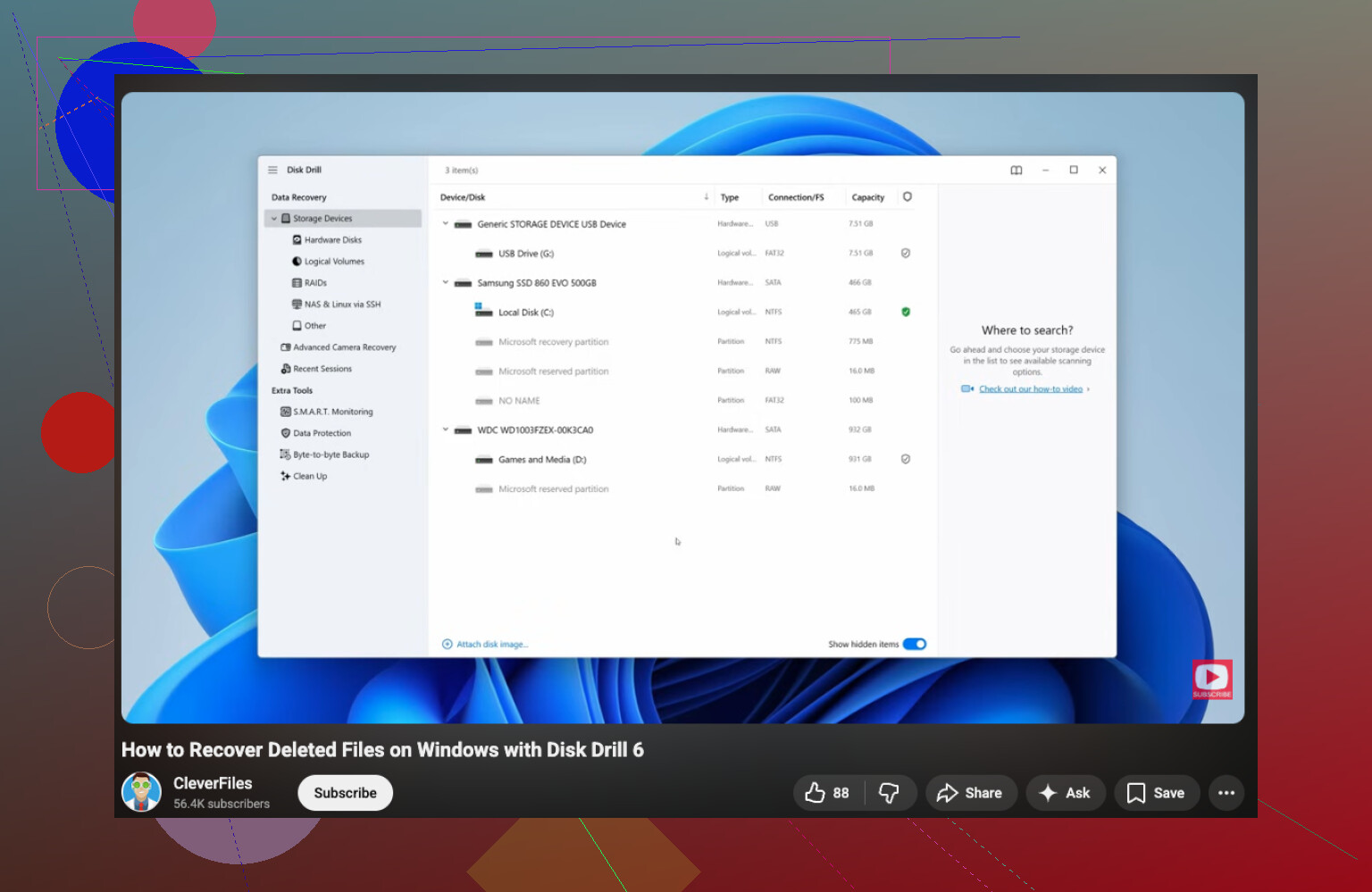
Then I’d move to recovery software. Disk Drill is one of the easier ones to start with. It handles deleted files, formatted volumes, broken partitions, and RAW drives decently. The file preview matters. If the preview opens, your odds are better.
Install the recovery app on another drive.
Connect the damaged HDD as a secondary disk if possible.
Run a quick scan first.
If the quick scan misses your files, move to a deep scan.
Preview files before recovering them.
Save recovered data to a different drive, never back onto the same HDD.
Open the recovered files and confirm they work.
If bad sectors show up, I’d image the drive first, sector by sector, and work from the image. That gave me some peace of mind the last time I dealt with a sketchy disk. If a scan crashes halfway through, you still have the original state preserved.
When software is the wrong tool
If the drive clicks loudly, refuses to spin up, vanishes all the time, or recovery apps return nothing useful even though the disk sort of shows up, I’d stop there. A pro lab is the safer route at that point. The usual range is around $300 to $1500 or more, depending on how bad it is. Pricey, yep. Still cheaper than making it unrecoverable by hammering it with scans for two days stright.
Best case, this is only logical damage and software gets your stuff back. Start with the S.M.A.R.T. check and see what it reports.
4 Likes
If the drive ‘stopped opening’ but still shows up in Disk Management or Finder, I’d try one thing before a full recovery scan. Make a clone first. Use ddrescue on Linux or HDDSuperClone if the disk is flaky. Those tools read around bad sectors better than most consumer apps. I disagree a bit with @mikeappsreviewer on starting with app scans right away. On a weak HDD, imaging first is safer than poking the original disk for hours.
A few checks I’d do.
- Try a new SATA or USB cable, and a different port.
- Check if the drive shows the right size in BIOS.
- If it shows 0 bytes, wrong size, or makes noise, stop.
- If it mounts as RAW, the file system is damaged, not always the hardware.
For file system damage on Windows, TestDisk is free and strong for partition repair. PhotoRec is ugly but good for raw file carving. Disk Drill is easier if you want previews and a simpler workflow, esp if you need photos and docs fast. Recover to another drive only. Don’t run CHKDSK first if the files matter. CHKDSK fixes structure, but it also throws away broken entries. I’ve seen it make recovry worse.
If you want a quick visual walkthrough, this easy video guide to HDD recovery software and file rescue steps is a decent starting point.
If the data is worth more than a few hundred bucks, skip DIY after the first signs of hardware failure. That part gets expensive fast, and mistakes are permenant.
If the drive is super important, I’d add one thing neither @mikeappsreviewer nor @boswandelaar really stressed enough: check whether it’s the enclosure, not the actual disk. A lot of “dead external drives” are just bad USB bridge boards. Pop the drive out of the enclosure if it’s one of those desktop externals, then connect it directly by SATA or with a different adapter. I’ve seen that fix it more than once.
Also, I would not jump straight into “repair” tools. Stuff like CHKDSK, First Aid, random partition fixers, all that can be a bit too eager. Recovery first, repair later. Different goal.
My order would be:
- Stop using the drive.
- Test different cable, port, power supply if external.
- See if BIOS/Disk Management detects the correct capacity.
- If yes, recover data before trying fixes.
- If no, and especially if there’s clicking, stop messing with it.
For software, Disk Drill is honestly one of the better easy options for hard drive data recovery because previews save time. If it can preview your photos/docs, that’s a solid sign. If you want free/open tools, TestDisk and PhotoRec are worth a shot, but they’re less friendly and a bit more “hope you like weird menus” lol.
One more thing people forget: if the drive is encrypted with BitLocker/FileVault and suddenly won’t open, recovery gets way harder without the key. Check that before going too far.
If you want a simple Windows hard drive recovery tutorial step by step, that may help with the basics.
Short version: recover first, repair second. If the HDD is making noise, don’t DIY it to death.