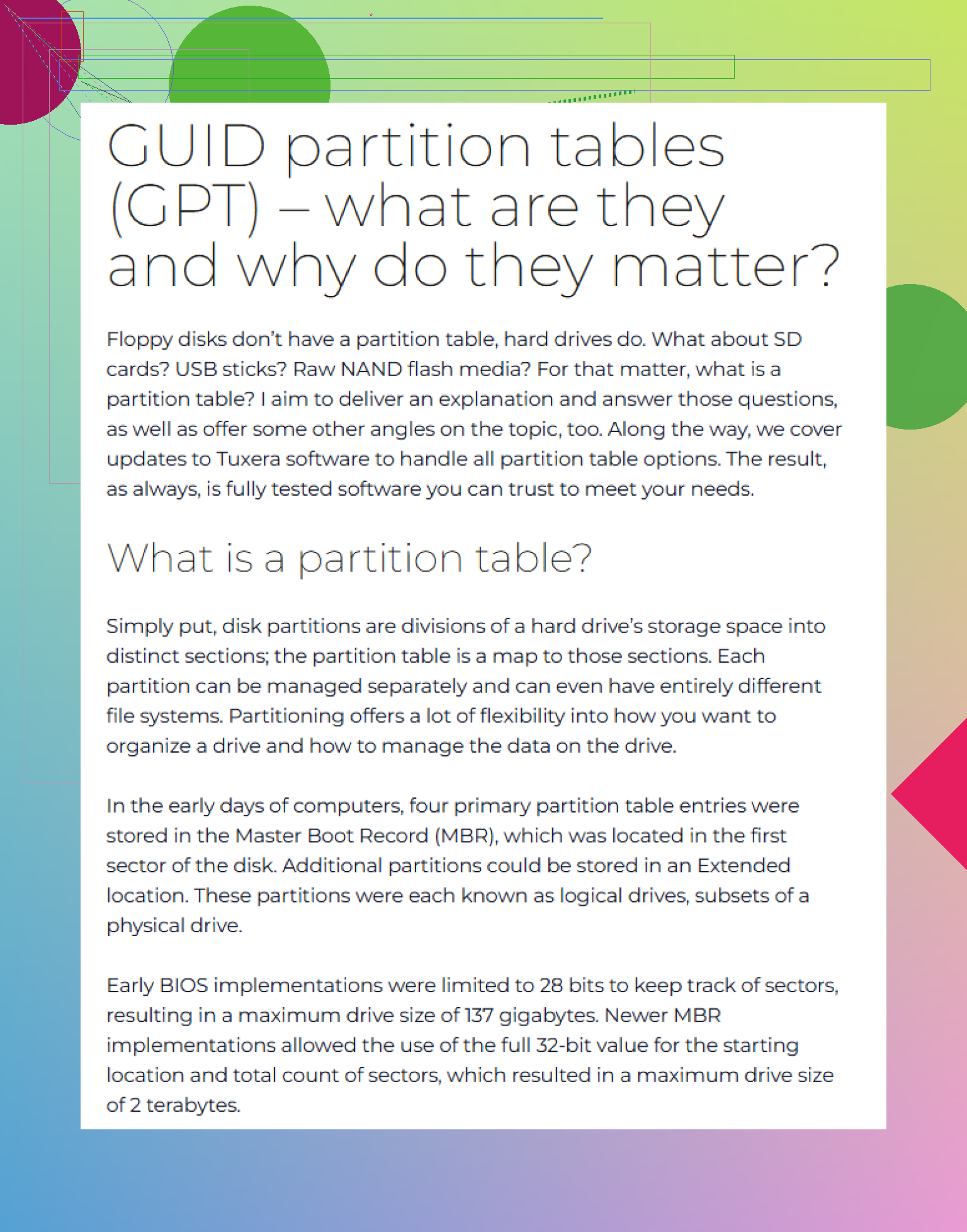
My drive suddenly stopped mounting, and disk tools show the GPT partition table is damaged. I’m trying to recover important files without making the data loss worse. What’s the safest way to repair or recover data from a damaged GPT partition?
If a drive suddenly shows up as “RAW,” “Unallocated,” or “GPT Protective Partition,” don’t assume the files are already gone. It usually means Windows can’t read the partition information correctly. On GPT drives, there may still be a backup copy of the partition table at the end of the disk, so one damaged area doesn’t automatically wipe out everything.
The big rule: don’t write anything to that drive yet. Don’t initialize it. Don’t format it. Don’t create a new volume. Don’t run random Diskpart commands because a forum post said it worked. Every write can make recovery harder.
Start by making a full sector-by-sector clone or image of the disk if you can. That gives you something safer to work on instead of poking at the original drive. Tools like dd and ddrescue are commonly used for this, and ddrescue is the better pick if the drive might have bad sectors since it handles read errors more carefully.
Once you have an image, scan that instead of the real drive. If a recovery tool messes something up, or the first attempt doesn’t work, your original disk is still in the same state.
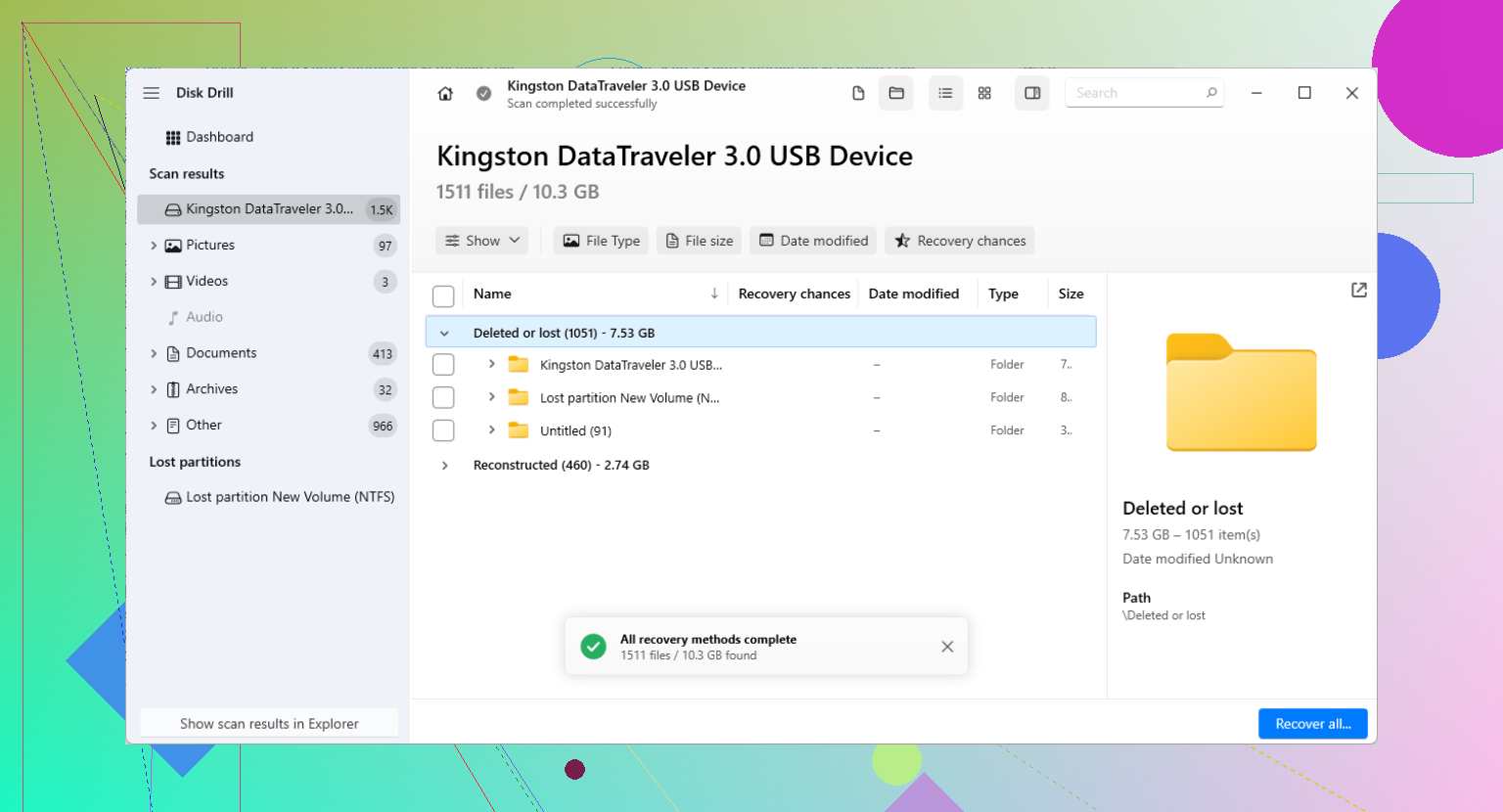
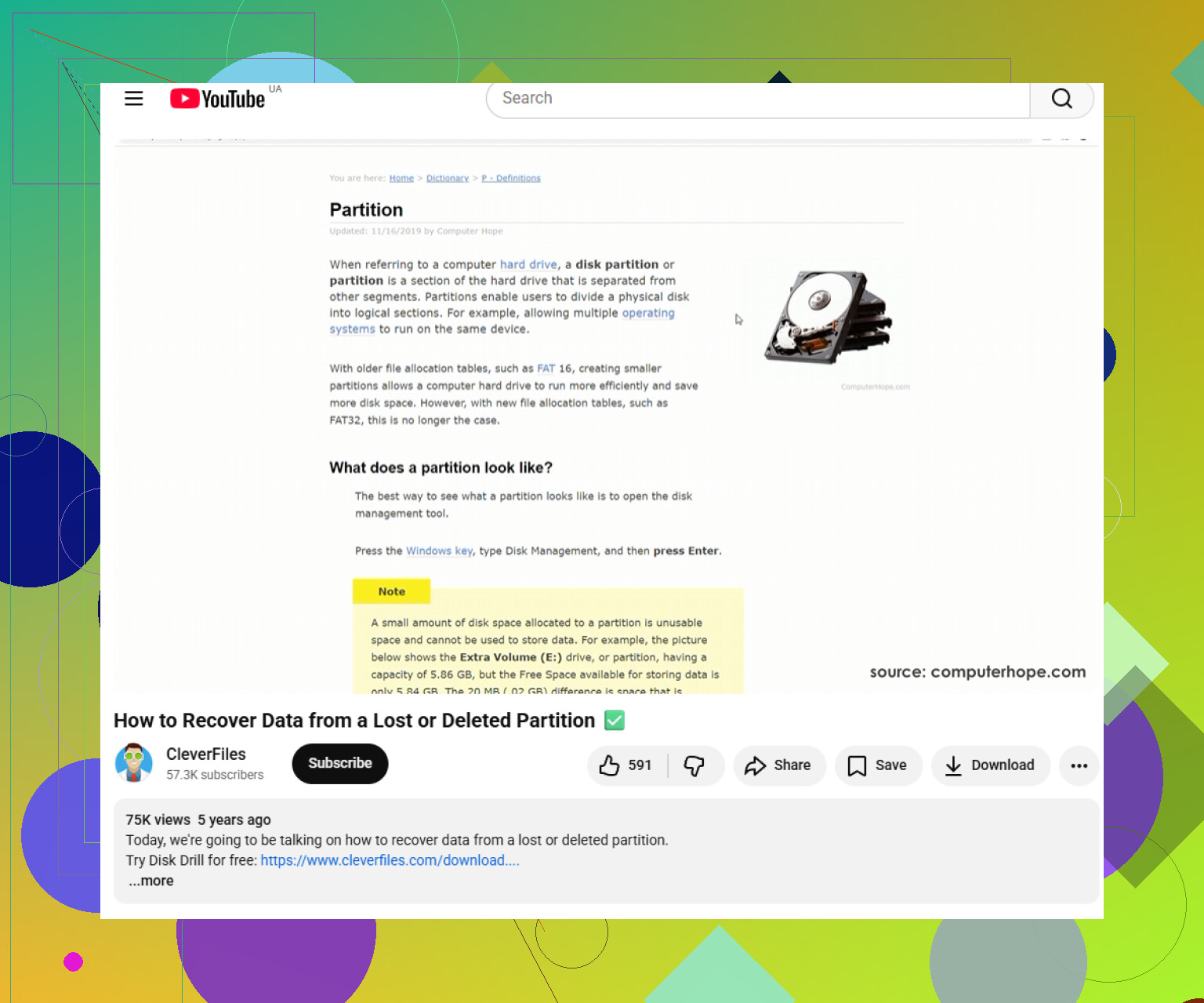
For most users, it’s better to recover the files first and worry about fixing the GPT later. Disk Drill is a reasonable option for this because it can look for lost partitions, damaged file systems, and file signatures without making you manually edit the partition table. The scan itself doesn’t modify the disk, so you can see what it finds before doing anything else.
If the scan shows your files and the previews look right, recover them to a different drive with enough free space. Don’t save anything back onto the damaged disk. That can overwrite data you still need to recover.
After the important files are safely copied elsewhere, then you can think about repairing the partition table. TestDisk is often used for this because it can search for lost partitions and write a rebuilt partition table when it finds the correct layout. Just be careful at that stage. Don’t write changes unless the detected partition clearly matches what was there before.
gdisk can also help with GPT-specific damage. Since GPT normally keeps a secondary header near the end of the drive, gdisk may be able to rebuild the main GPT header from that backup.
One extra warning for “GPT Protective Partition”: don’t treat Diskpart clean as a harmless fix. It removes partition information and can make the recovery job worse.
That label can show up for a few reasons, including an older OS, a compatibility issue, or a USB dock/enclosure that isn’t reporting the drive properly. Before doing anything destructive, scan it with recovery software and check whether the files are still readable. A lot of the time, the data is still sitting there even though Windows won’t mount the volume normally.
2 Likes
Do not rebuild the GPT until you’re sure the disk is being reported with the same sector size it had when the partitions were created. A weird USB adapter, dock, or enclosure can make a healthy GPT look broken because it presents the drive differently, especially with larger drives. If this is an external drive, try the original enclosure or a direct SATA connection before writing any “fix.” I agree with recovering to another disk first, but I’d treat TestDisk/gdisk repairs as the last step, not the first. Scanning with something like Disk Drill or another recovery tool is fine as a read-only check, but if the drive is clicking, dropping offline, or getting slower during scans, stop and image it with a rescue-oriented tool before doing more.
Do not run chkdsk, First Aid repair, or fsck on it just because the volume won’t mount. Those tools are for fixing a filesystem they can understand, and on a disk with a bad GPT or a failing drive they can turn a recoverable mess into a different mess. I’d follow the clone-first advice above, but before even doing a long scan, check whether the drive is stable: SMART status, weird noises, disconnects, or the same read errors repeating. If it’s physically healthy, work from an image and recover files to another disk. If it’s unstable, stop trying “normal” recovery software and image it with ddrescue or send it out if the files are worth the cost. Repairing the GPT is only worth doing after the files are somewhere safe.
If the files are worth more than the recovery cost, stop before doing any long scans and get a lab quote. Disk Drill/TestDisk/gdisk are fine for a stable disk or an image, but they are the wrong “first step” if the drive is physically failing because every read attempt can burn more time off the drive.