I accidentally deleted some important files a few hours ago and now I can’t find them in the Recycle Bin. I need help figuring out the best way to recover recently deleted Windows files before they’re overwritten or permanently lost.
If you already emptied the Recycle Bin, don’t assume the file is gone for good. Windows often just removes the pointer to the file and marks that space as available again. The file may still be recoverable, but only until new data gets written over it.
First, check the Recycle Bin one more time. Look for the file itself, but also search for the folder it used to be in. If the whole folder was deleted, the file may be easier to spot that way. If you find it, right-click it and choose Restore.
If it’s definitely not there, stop using that drive as much as possible. Don’t install recovery tools on it, don’t download stuff to it, don’t copy files onto it, and avoid creating new documents there. Everyday use can overwrite the deleted data, which makes recovery harder or impossible.
Next, check whether Windows has an older backup of the folder. Go to the folder where the file used to live, right-click it, and choose Restore previous versions. If there’s a version from before the deletion, open it and copy the file back.
You can also get to File History here:
Control Panel > System and Security > File History > Restore personal files
Use the arrows to move through older backup dates, then restore the file you need if it shows up.
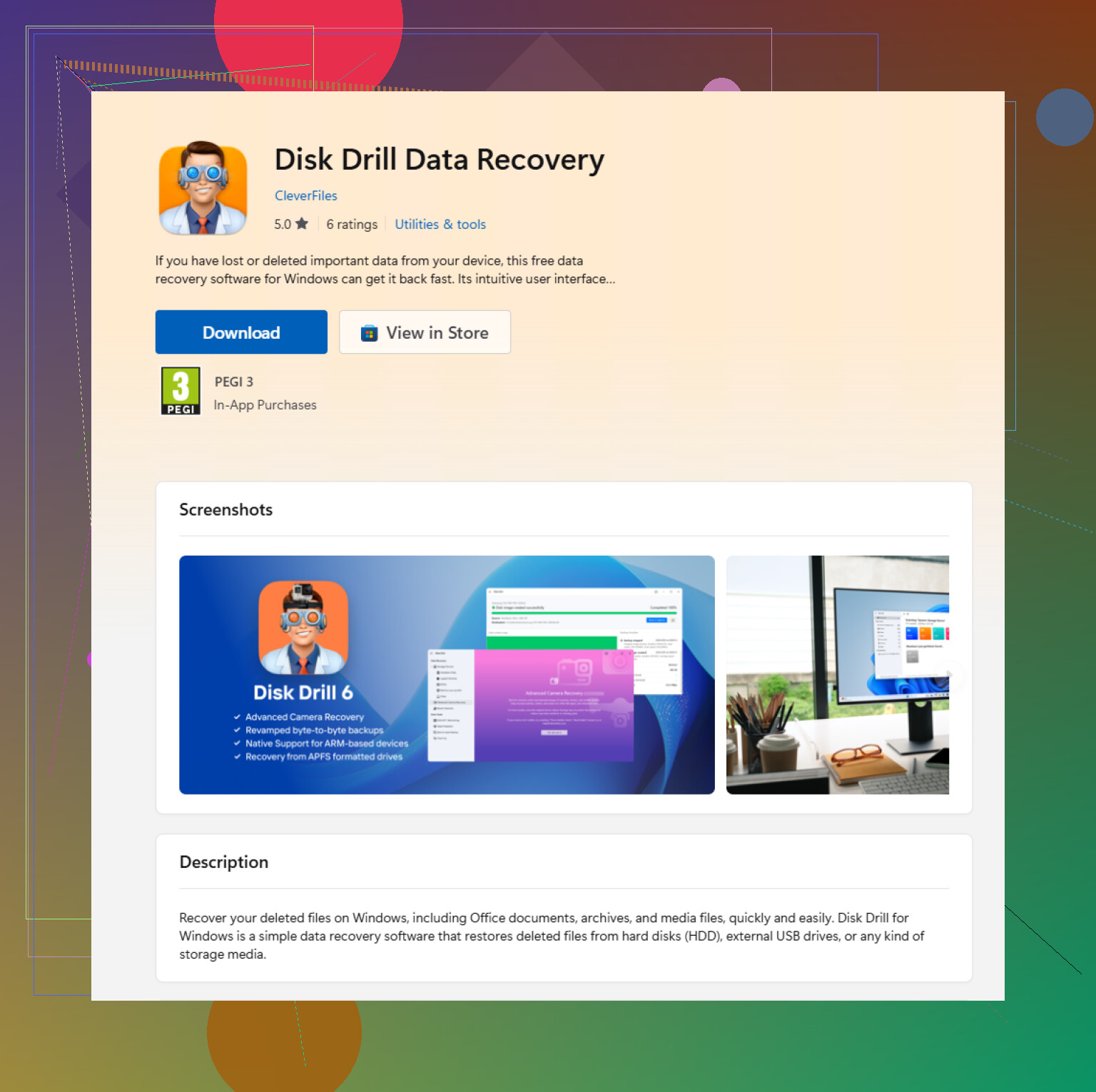
If there’s no backup, use recovery software to scan the drive. A tool like Disk Drill can look for deleted files that Windows no longer shows.
The safer way to do it is:
- Install the recovery app on a different drive, not the one the file was deleted from.
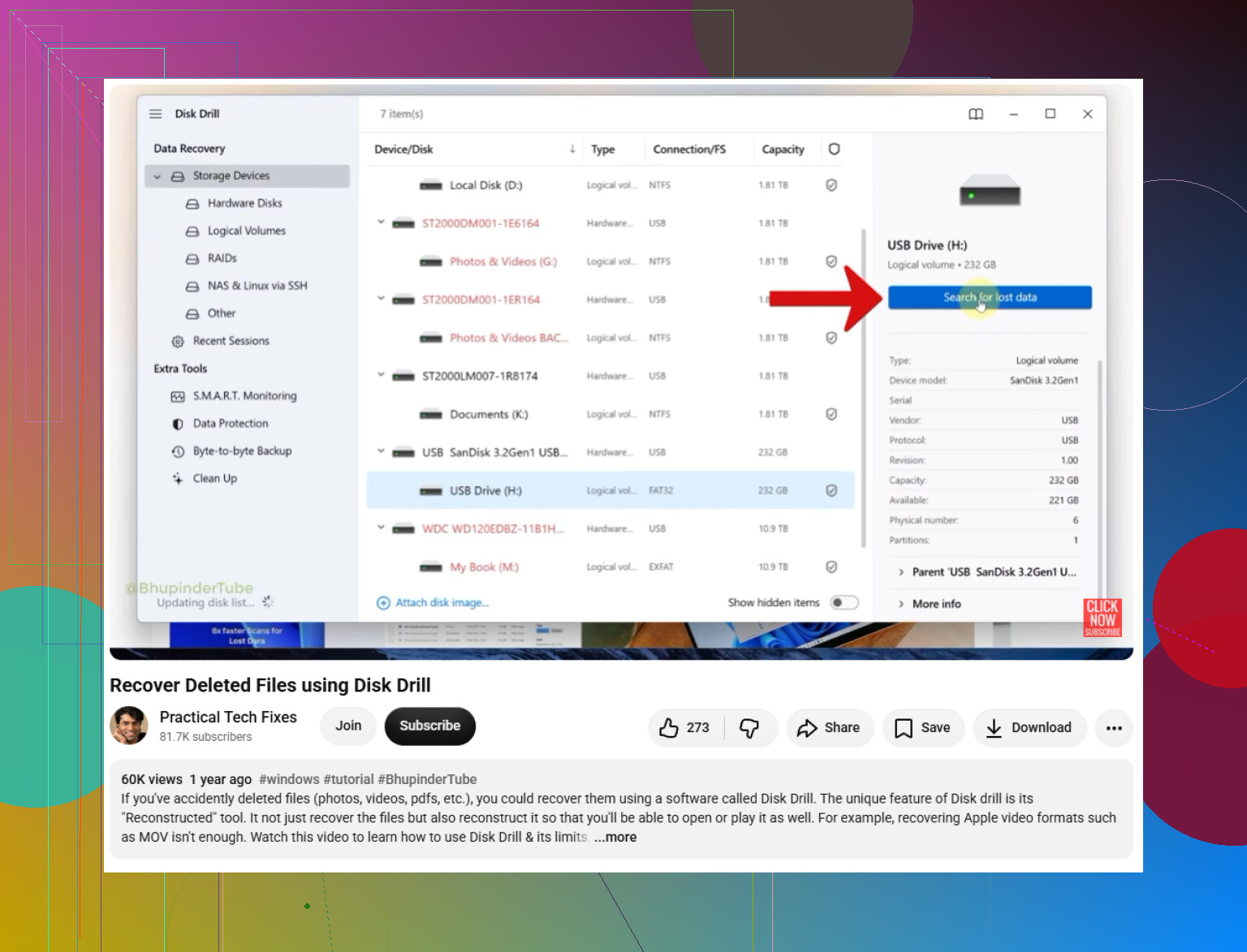
- Select the drive where the file was originally stored.
- Run the Search for lost data scan.
- Preview the files it finds.
- Recover the needed files to another drive.
A deep scan can sometimes find data even if the original name or folder path is gone. Preview is useful because it shows whether the file still looks readable, but check the recovered copy afterward too.
Disk Drill may include a limited amount of free recovery on Windows, but that limit can change. Check the app or the official site for the current allowance.
One thing to keep in mind: recovery from an SSD is much less predictable. Many SSDs use TRIM, and once TRIM clears the deleted blocks, recovery software may not have anything left to restore.
The sooner you stop using the drive and try recovery, the better your odds usually are.
14 Likes
Do not install anything on that same Windows drive right now. @mikeappsreviewer is right about overwriting, but the awkward bit is that Microsoft Store apps usually land on your system drive, so using the Disk Drill Microsoft Store app from the same PC may be a bad move if the deleted files were on C:. If the files matter, shut the machine down and either scan the drive from another computer or boot from a separate recovery USB, then save anything found to an external drive. If the files were on a different drive, like D: or a USB stick, installing the recovery tool on C: is much less risky.
Don’t run “cleaner,” defrag, chkdsk, or drive repair tools on that disk while you’re trying to recover the files. Those can create extra writes or rearrange things, and that is the opposite of what you want right now.
A missing angle here is cloud sync. If the files were under Desktop, Documents, Pictures, or any folder backed up by OneDrive, Dropbox, Google Drive, etc., check the web version of that service before messing with recovery scans. Their online recycle bin/version history can save you a lot of trouble, and it doesn’t touch the local drive. Same idea if the files were in a work or school folder synced through SharePoint or OneDrive for Business.
If you do go the recovery software route, I agree with the warning above about not installing it onto the same drive. But before scanning for hours, figure out what kind of drive you deleted from. On an HDD, a few hours old deletion can be very recoverable if the PC has stayed mostly idle. On a modern SSD, especially the Windows C: drive, TRIM may already have made the deleted data unrecoverable even though the deletion was recent. In that case, backups, cloud trash, email attachments, recent exports, or copies on another device may be a better use of time than repeated scans.
The sneaky downside is that “not in the Recycle Bin” can mean Windows never put it there in the first place. If the files were deleted from a network share, a USB stick, a synced work folder, with Shift+Delete, from Command Prompt/PowerShell, or because they were larger than the bin’s limit, the normal restore path may be gone even though the deletion was recent.
Before running a long recovery scan, check whether the files were simply moved or renamed. Windows search can be slow and bad, but searching the original drive for part of the filename or extension is still worth a minute. If they were Office files, check the app’s Recent list and AutoRecover/Unsaved Files area. Same for apps that keep their own recent-project or backup folders. This is low risk compared with installing things or scanning the disk repeatedly.
I agree with the others about not writing to the same drive. If you do use Disk Drill or another recovery tool, treat the first scan as your best shot, especially on an SSD. Recover to a different physical drive, not just a different folder. And don’t be surprised if recovered files have weird names or broken folders. For deleted files, getting the content back matters more than preserving the old directory tree.