I accidentally deleted important photos and video files from my SD card while using my Mac, and I need help figuring out the best way to recover them before they’re overwritten. I’m looking for safe SD card recovery methods for Mac, including software recommendations or built-in options that might help restore deleted files.
I’ve had this happen, and yeah, it feels bad fast. You finish a shoot, plug the SD card into your Mac, and Finder shows an empty card. Or you meant to remove one bad frame and wiped the whole thing. Same mess either way.
First thing, stop touching the card. Pull it out of the camera. Unplug it from the Mac. When files get deleted, macOS usually marks the space as free and leaves the data sitting there until something new lands on top of it. If you keep shooting, importing, copying, or trying random fixes, you raise the odds of overwriting the stuff you want back. After overwrite, it’s done.
Before installing anything, check the simple stuff.
Look at the lock switch on the side of the SD card. If it slid into Lock, the Mac might behave oddly, fail to write, or act like the card is broken. Then try another card reader, another cable if you use one, or a different USB port. I’ve lost an hour blaming a card when the real problem was a junk reader.
Also, check the card’s own hidden trash folder. On macOS, files deleted from removable media often end up in a hidden folder on the card itself called .Trashes, not in the main Trash on your Mac.
Open the card in Finder, then press Command + Shift + . to show hidden files. See if a faded .Trashes folder appears. If it does, open it and look around. I once got back a full set of client images this way, no scan needed, which felt almost stupid after all the panic.
If the card does not show up in Finder, open Disk Utility from Spotlight. Check the sidebar. If the card appears but looks grayed out, try Mount. If it shows up and looks unstable, First Aid is there, but I’d be careful. Repair tools sometimes shift things around enough to make later recovery harder. I learned tht one the annoying way.
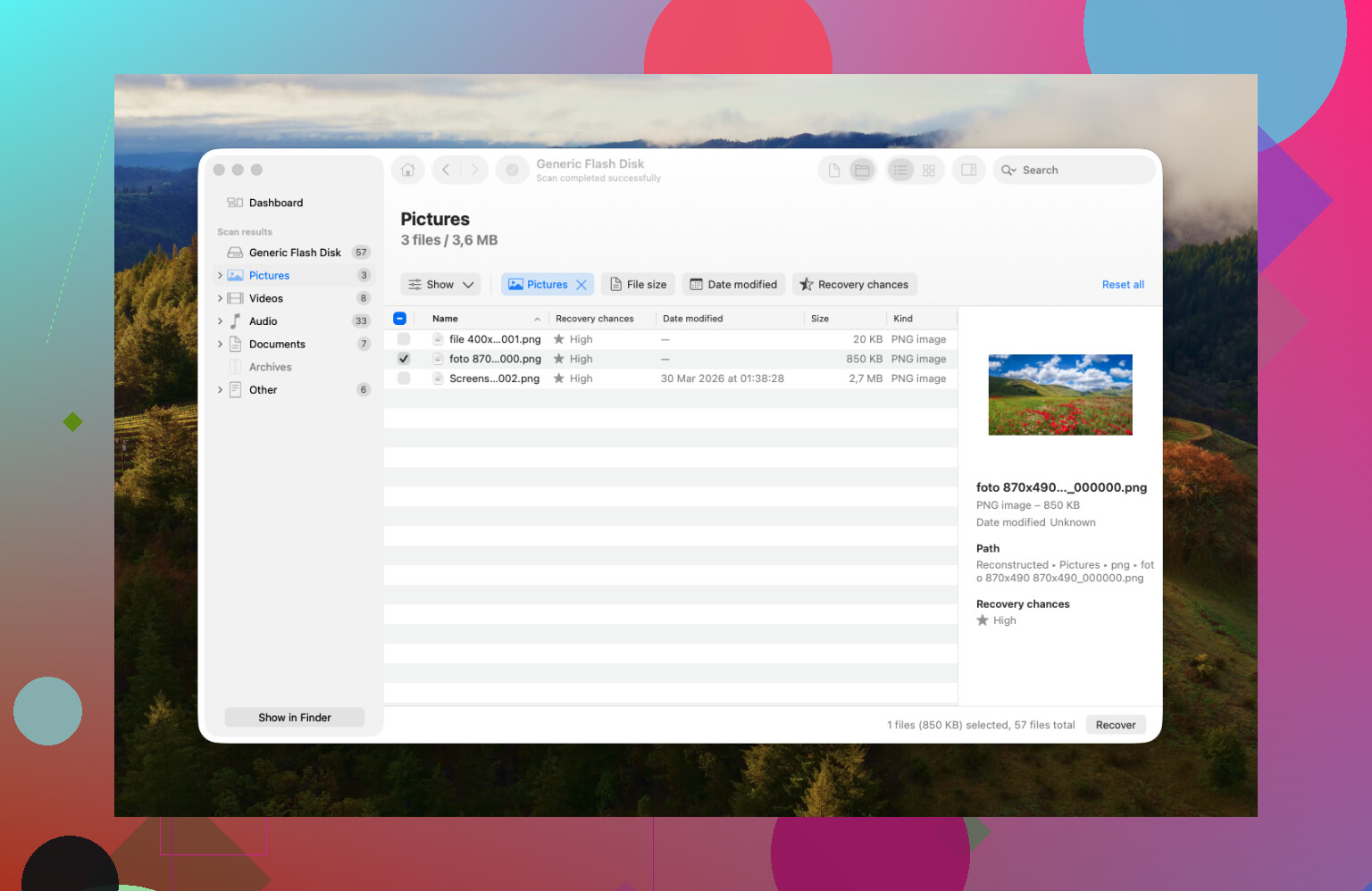
When Mac’s built-in tools don’t get you anywhere, recovery software is usually the next step. I’ve tried a pile of them over time, and for Mac users I tend to point people to Disk Drill.
Main reason, it fits macOS well and doesn’t feel awkward. The feature I’d use first on a flaky card is Byte-to-Byte backup. It clones the entire SD card into an image file, then you scan the image instead of hammering the original card for an hour. If the card is starting to fail, this matters a lot. Some cards hang on right up until you do one long scan, then quit.
If you shoot photo or video, there’s another reason people lean that way. Regular recovery apps often bring back video files in pieces, especially from action cams and drones. You get a file back, but it won’t play, or it opens to a black screen. Disk Drill has an Advanced Camera Recovery mode for fragmented footage, including stuff from GoPro and DJI. It tends to do better with those messy file structures. You can scan first and see what turns up before paying, which helps if you’re trying not to throw money at a dead card.
If money is tight and you don’t mind doing things the hard way, PhotoRec is still worth a look. It’s free and open-source. The tradeoff is rough. No polished Mac interface, mostly terminal-driven, and recovered files usually come back with generic names like File001.jpg, File002.jpg, and so on. If the card had a few thousand photos, sorting them later is ugly. Still, for free, it gets results often enough.
A few things I’d stick to from here:
- Do not recover files onto the same SD card. Save them to your Mac or to an external drive. Writing recovered files back to the source card is how people ruin the second half of a recovery.
- Eject the card properly. I know, nobody likes waiting. But pulling a card while macOS is still indexing or reading thumbnails is one of the easiest ways to corrupt it.
- Format the card in the camera after recovery is done. Once your files are safe, use the camera’s own format option instead of Disk Utility. In my expereince, cameras behave better when they create their own file structure.
So, short version. Stop using the card, check .Trashes, look in Disk Utility, then move to recovery software if needed. If you avoid writing anything new to it, your odds are still decent.
4 Likes
If the files were deleted while the card was mounted on your Mac, I would check one more place before doing a full scan. Open Terminal and run mdls on a known file path if you still have any old alias or preview reference. Spotlight metadata sometimes keeps enough info to confirm what was on the card and which file types to target first. It does not recover data, but it saves time.
I slightly disagree with @mikeappsreviewer on First Aid. I would skip it at the start if deletion is the main issue. Repair tools are for file system problems, not undelete. If the card is readable, scan first. Repair later.
My order would be:
- Put the SD card in read-only mode with the lock switch.
- Create a full image of the card.
- Scan the image, not the card.
- Recover to your Mac’s internal drive or another external drive.
- Sort results by original folder structure first, raw signature scan second.
On Mac, Disk Drill is a solid pick for this because it handles SD card imaging and recovery in one app. If your deleted stuff includes MP4 or MOV clips, try file system scan results before raw recovery. Video names and folder paths matter, and raw recovery often spits out broken clips or no names. Been there, it sucks.
If your SD card came from a camera, check the DCIM and MISC folder patterns in recovered results. Cameras often store sidecar files, thumbnails, and clip indexes there. Those help you identify complete sets faster.
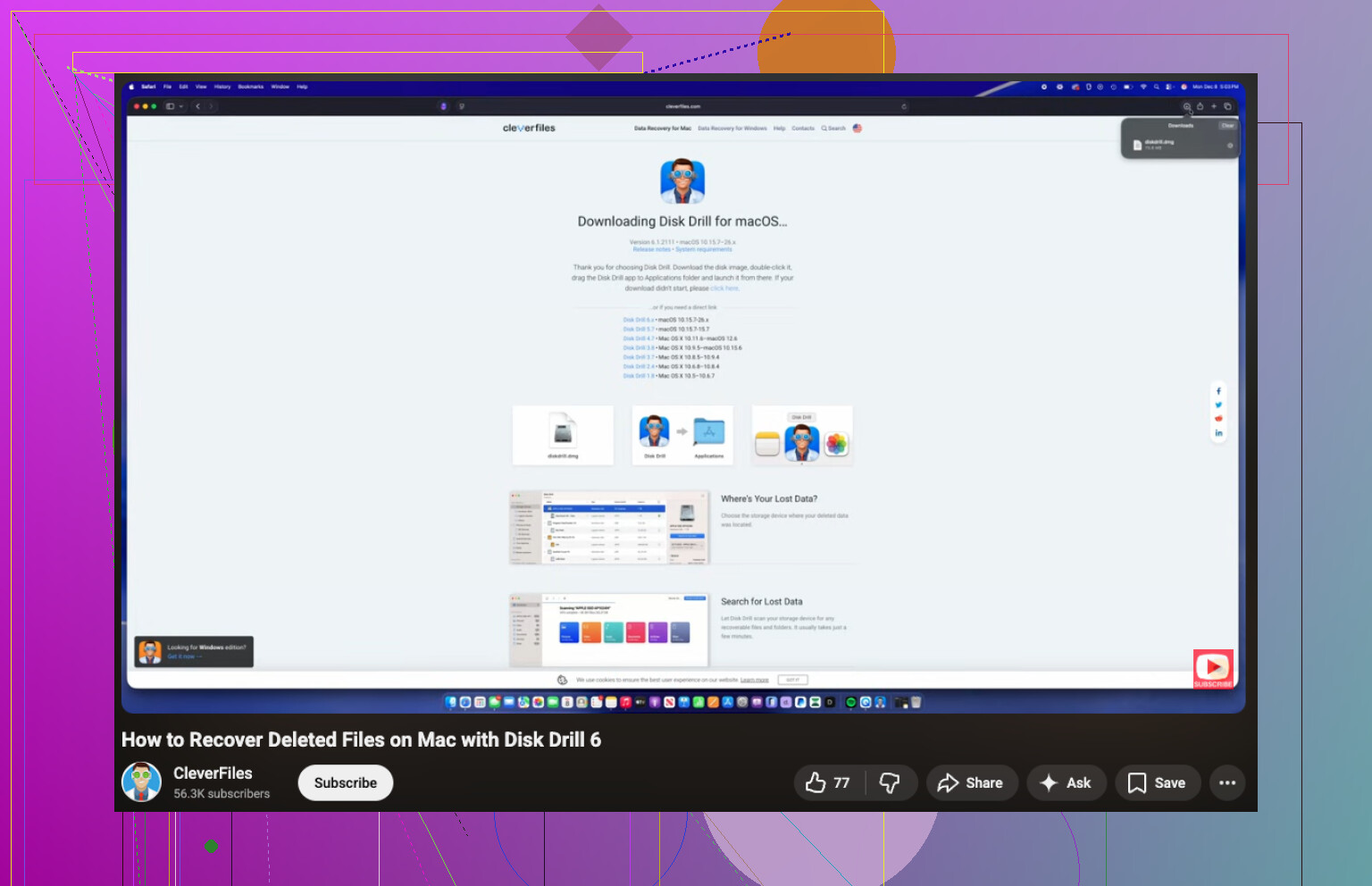
For a clean walkthrough, this page title says it better for search and readability, SD Card Recovery on Mac, How to Recover Deleted Photos and Videos from macOS. Also, this video is decent if you want to watch the steps: watch how to recover deleted SD card files on Mac
One last thing. If the card is exFAT and your Mac threw any write errors before deletion, stop messng with it and image it first. exFAT gets ugly fast when it starts failing.
I’d add one thing neither @mikeappsreviewer nor @byteguru really emphasized enough: check whether your camera app or Photos app already imported previews/copies before you panic. A lot of people think the SD card is the only copy, then find the images sitting in Photos, Lightroom cache, or an old import folder on the Mac. Search by file extension and date first. Boring step, but it saves time.
I also kinda disagree with the hidden-folder obsession a bit. Sure, .Trashes is worth a quick peek, but if the card was deleted from inside a camera app, or if the file system got weird, that folder may tell you absolutley nothing. I would not spend too long there.
What I’d do:
- Stop using the SD card.
- Use a different storage device for any recovered files.
- Check your Mac for imported copies, caches, and temp libraries.
- If the card is physically fine, image it first.
- Scan the image with Disk Drill or another recovery app.
Disk Drill makes sense on Mac because it’s not a pain to use, and it handles deleted photos/videos from SD cards pretty well. If your clips matter more than the photos, preview anything recoverable before restoring all of it. Video recovery can look “successful” and still be half-broken. Annoying, but true.
Also, if the card starts disconnecting randomly, stop DIY stuff and consider a pro lab. That’s the line where software often stops helping.
If you want a readable thread on the same kind of issue, this is useful: SD card recovery on Mac for deleted photos and videos