I deleted a bunch of photos from my iPhone to free up storage, but the available space hasn’t changed much. I also checked the Photos app, and iPhone storage still looks full. Is there something else I need to clear, like Recently Deleted, iCloud Photos, or cached data?
Yeah, this is incredibly annoying. You delete a massive batch of photos, expect your storage to finally calm down, and then the number barely changes. Sometimes it even looks worse. It feels broken, but there are a few iPhone storage quirks that explain most of it.
The big one is Recently Deleted. Deleting photos from your main library does not actually remove them right away. iOS moves them into Recently Deleted for 30 days, and they still take up space the whole time. Open Photos, go to Albums, scroll down to Recently Deleted, then delete everything from there. Until that’s done, you probably have not freed up much actual phone storage.
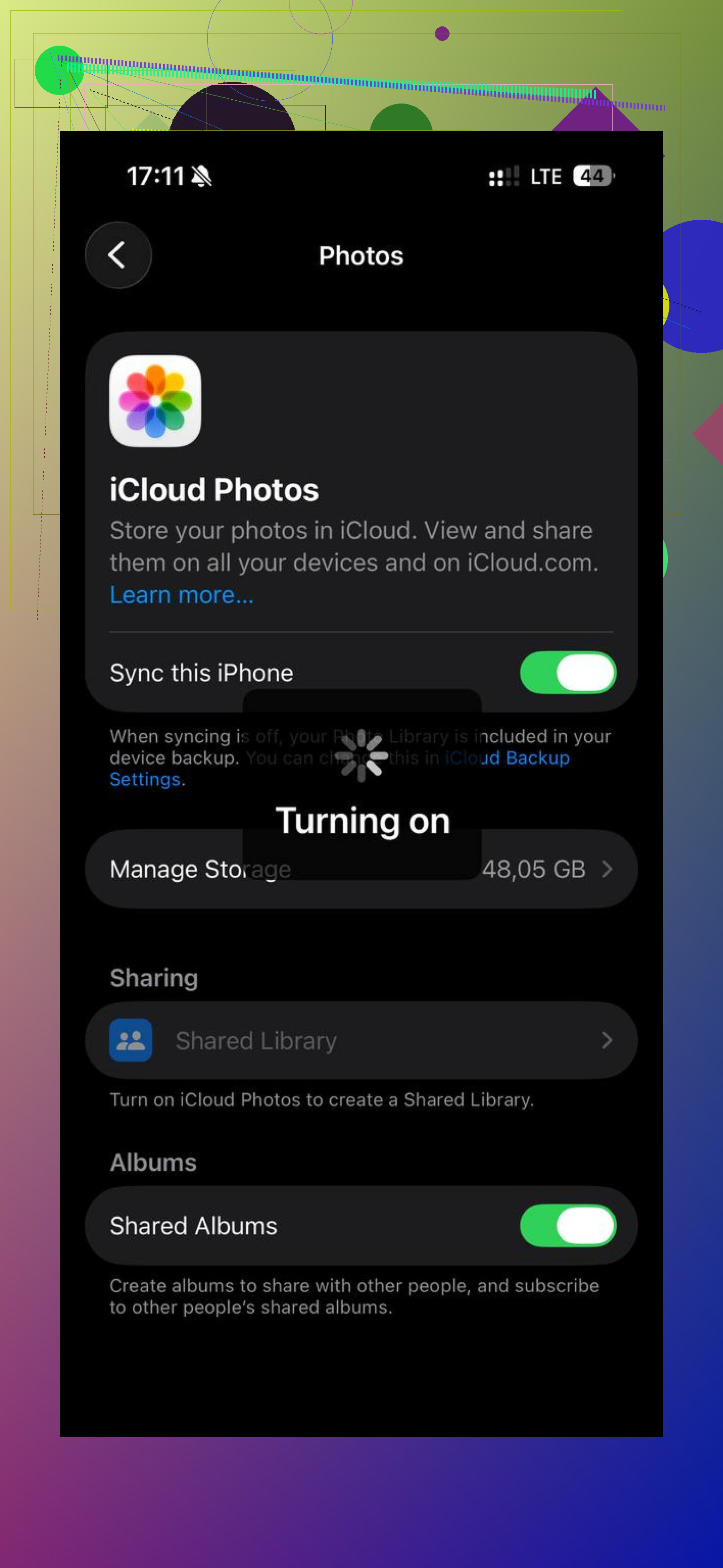
If that album is already empty, iCloud Photos is usually the next thing to look at. When iCloud Photos is on, your phone has to sync the deletions across Apple’s servers and your other devices. If your connection is slow, or the phone is already packed full and barely functioning, that process can lag behind for a while.
Also check whether Optimize iPhone Storage is enabled. This setting trips a lot of people up. If your full-resolution photos and videos are already stored in iCloud, your iPhone may only have smaller local versions on the device. So deleting a thousand photos might not clear the huge amount of space you expected, because you were mostly deleting thumbnails from the phone, not the original full-size files.
When my storage was maxed out, the whole phone started acting awful. Apps opened slowly, the camera lagged, and sometimes the phone would randomly restart. Low storage can make an iPhone feel older than it really is because iOS needs some free space for temporary files, caching, updates, and background stuff.
One simple thing that helped was forcing a restart. The storage screen does not always update right away, and iOS seems to cache that number sometimes. On newer iPhones, press volume up, press volume down, then hold the side button until the Apple logo shows up. After the restart, the storage reading may finally refresh.
If the bar still barely moves, start looking for the stuff that actually eats space: big videos, burst photos, duplicate shots, old screenshots, and forgotten screen recordings. The built-in Photos app is not great for this because it does not let you sort everything by file size.
I ended up trying a few cleanup apps, and the one I’d actually recommend is Clever Cleaner. I’m usually pretty skeptical of these, but this one is free. No ads, no fake trial, no paywall nonsense. The most useful part for me was the Heavies tab, since it sorted my media by size and made it obvious which 4K videos were destroying my storage.
The Similars tab was useful too. It finds photos that are almost the same and helps pick one to keep. I had a bunch of near-identical shots I didn’t even realize were sitting there. It also processes everything on the device, so your photos are not being uploaded somewhere else. And seeing the exact file size of screenshots and videos makes the decision a lot easier.
Don’t ignore Messages either. If you’ve had the same group chats for years, there may be a ridiculous amount of videos, memes, and attachments hiding in there. Go to Settings > General > iPhone Storage > Messages, then look through the large attachments.
If none of that works, you might be dealing with some weird storage database glitch. Some people have had luck changing the phone’s date a couple years forward, opening Photos, then changing the date back, which can sometimes force old cached items to clear. I’d treat that as a last-resort trick though. Most of the time, emptying Recently Deleted, clearing out the largest videos and duplicates, checking Messages, and restarting the phone is enough to make the storage number finally move.
13 Likes
If the phone is nearly at zero free space, the cleanup can lag because iOS has no room to rebuild its storage index. After emptying Recently Deleted, leave it locked on Wi-Fi and power for a while, then restart before assuming the photos didn’t clear.
If those photos came from WhatsApp, Telegram, Instagram, Messages, or a camera/import app, deleting them from Photos may only remove the copy in your camera roll. The app that received or created them can still be sitting on its own cached media, so the Photos number might drop a bit while the total phone storage barely changes.
I’d check Settings > General > iPhone Storage and look at the actual app list, not just the colored storage bar. If Photos went down but WhatsApp, Messages, Files, or “System Data” is huge, then the delete worked and something else is holding the space. For chat apps, you usually have to clear media inside that app’s own storage settings. For Files, check Downloads and “On My iPhone.” A surprising amount of video gets duplicated there.
I agree with the Recently Deleted advice above, but I’d avoid doing weird date-change tricks until you’ve checked app caches and local files. That can create more confusion than it solves. Empty Recently Deleted, restart, then look at the app-by-app storage list. That screen usually tells you whether Photos is really still the problem or if the storage bar is blaming the wrong thing.
Removing from an album does nothing for storage. Make sure you actually used “Delete from Library,” not just “Remove from Album,” because the photo can still be sitting in Recents and taking up space. After that, Recently Deleted is the only place I’d check before blaming iOS.