I noticed a section called synced media on my iPhone and I’m not sure if it’s safe to delete. Some of these files may have come from syncing with my computer, and I don’t want to lose photos, music, or other content I still need. I need help understanding what synced media is, what happens if I remove it, and whether it could affect my iPhone storage or anything backed up elsewhere.
Apple changed the labels a few times, so yeah, this trips people up. “Synced Media” and “Synced Content” point to the same bucket. It usually means stuff pushed from your computer to your iPhone, old-school style, with a cable or over local Wi-Fi.
What synced media means on iPhone
This category usually includes music, movies, TV shows, and photos copied from a Mac or PC onto the phone.
The part people miss is the direction of the transfer.
iCloud works like a shared library. You add or remove something on one device, and the others follow along. Synced Media does not work like that. It is a one-way move from computer to iPhone. Your computer stays in charge, so if you want those files gone, you usually need to remove them from Finder or the Apple Devices app, not from the phone itself. I learned this the annoying way after trying to wipe a photo batch on-device and seeing nothing happen.
Why synced content suddenly looks huge
Since iOS 17, a lot of people have seen weird storage math. Example, you might have 20GB of music, then iPhone Storage shows 20GB under Music and another 20GB under Synced Content. It looks like your phone stored two copies.
From what I saw, most of the time it is a storage reporting bug, not a real duplicate pile of files. The bad part is iPhone still treats the inflated number like it matters, so downloads fail, updates stall, and free space looks gone when it sort of isn't. Messy.
How I removed synced media after iTunes disappeared
Apple split the old iTunes job into newer apps. On Mac, you use Finder. On Windows, you use the Apple Devices app.
Mac steps
- Plug the iPhone into your Mac.
- Open Finder.
- Click your iPhone under Locations.
- Open the tab for the type of content, Music, Photos, Movies, whatever is stuck.
- Turn off the sync option, like “Sync photos to your device.”
- Click Apply.
Windows steps
- Install the Apple Devices app from the Microsoft Store.
- Connect the iPhone.
- Open the same content tabs you would see in Finder.
- Disable the sync option for the media you want removed.
The empty folder fix, when the normal method fails
I had one case where unchecking sync did not clear the photo chunk. This worked instead.
- Make a new empty folder on your desktop.
- In Finder or Apple Devices, set photo sync to use that empty folder.
- Click Apply.
What happens next is simple. The phone compares its synced photo set to the empty folder, sees zero matches, then clears the old synced photos. For stubborn leftovers, this tends to do it.
Is deleting synced media safe
Yes. You are removing the copies stored on the iPhone. The originals stay on your computer. If your source library is intact, nothing there gets erased. I checked this before doing a big cleanup because I did not feel like losing years of random albums and travel pics lol.
Why your iPhone still feels slow after clearing it
Synced content is often one part of the storage mess, not the whole thing. On mine, the bigger drain ended up being duplicate-ish photos, burst shots I forgot about, 4K video clips, and a stupid number of screenshots.
When storage gets tight, iPhone starts dragging. Apps pause, updates hang, the system feels off. It needs free room for temp files and background tasks, so even if synced content was part of the problem, you might still need to clean the rest.
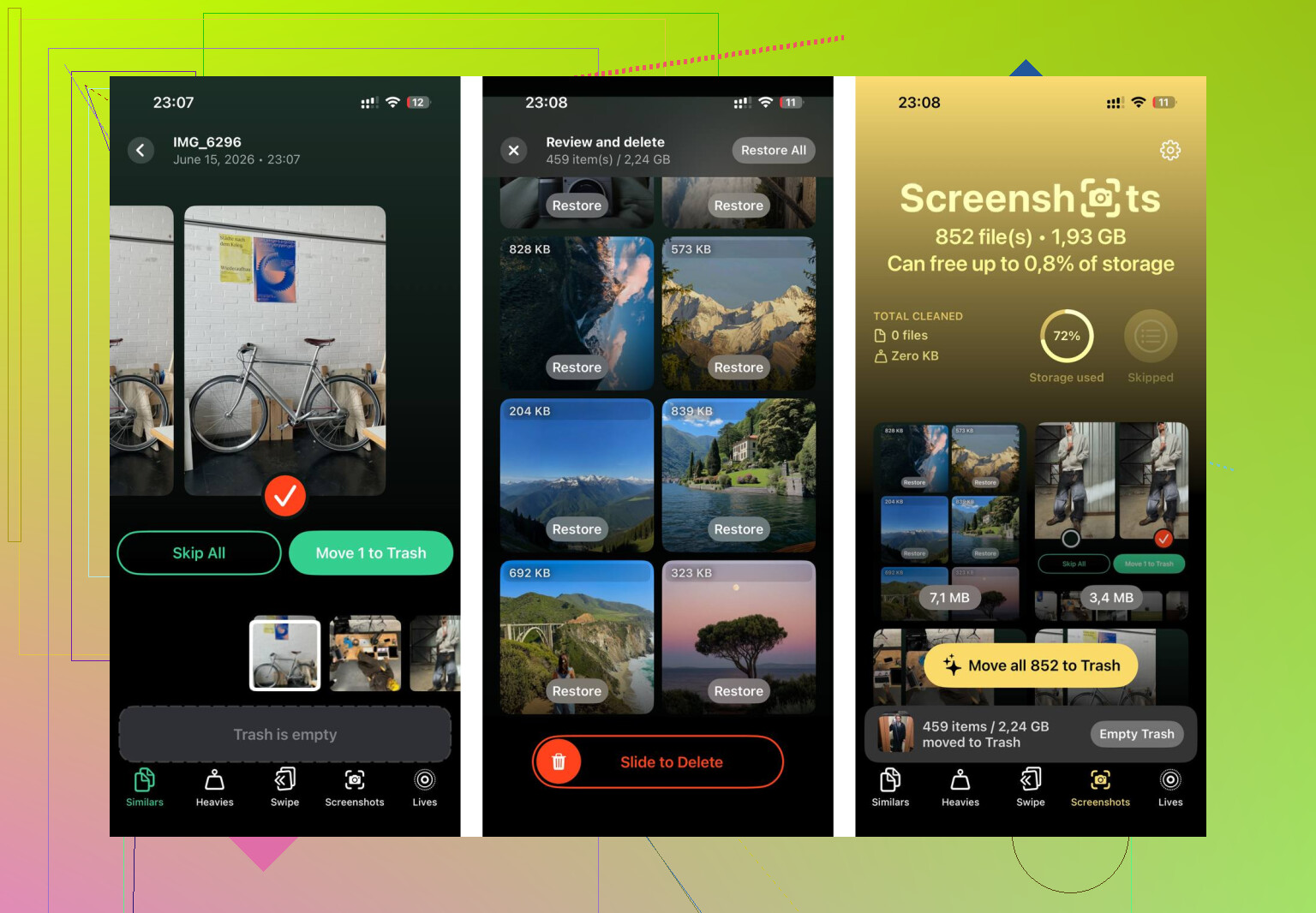
After the synced stuff was cleared, I went through the photo library too. The Screenshots tab shows file sizes before deletion. The Heavies tab sorts the biggest files first. The Similars tab groups near-matching photos and picks a Best Shot, which helps with burst clutter. It runs on-device, so nothing gets uploaded elsewhere.
Doing both, clearing the synced content from Finder and then cleaning the photo library, got back around 15GB on one phone I worked on. Lag was gone after that. Night and day, tbh.
1 Like
Yes, if you remove Synced Media from the iPhone, you are removing the iPhone copy, not the source on your computer.
One important split.
If the content came from Finder, iTunes, or Apple Devices sync, your iPhone is not the master copy. Your Mac or PC is. So deleting it from the phone does not wipe the original library. That part is safe.
Where I slightly disagree with @mikeappsreviewer is the storage bug angle. Sometimes it is bad reporting, sure. But I have also seen old synced photo libraries keep real space occupied after people stopped using cable sync years ago. So I would not assume it is always fake storage.
Fast check before you delete anything.
- Open Music, TV, Photos, or Files.
- See if the missing stuff exists on your computer or in iCloud.
- If those originals are there, you are fine to remove the synced copy from the phone.
If you use iCloud Photos or Apple Music now, old synced media is often dead weight anyway. Mixing old manual sync with newer cloud libraries is where people get confused and stuff gets messy fast.
Also, if your goal is free space, check photo junk too. Synced Media is often not the whole problm. Duplicate pics, screen recordings, and giant videos eat more storage on most phones. I cleaned one 128GB iPhone last month and got 18GB back. Only 4GB was synced content.
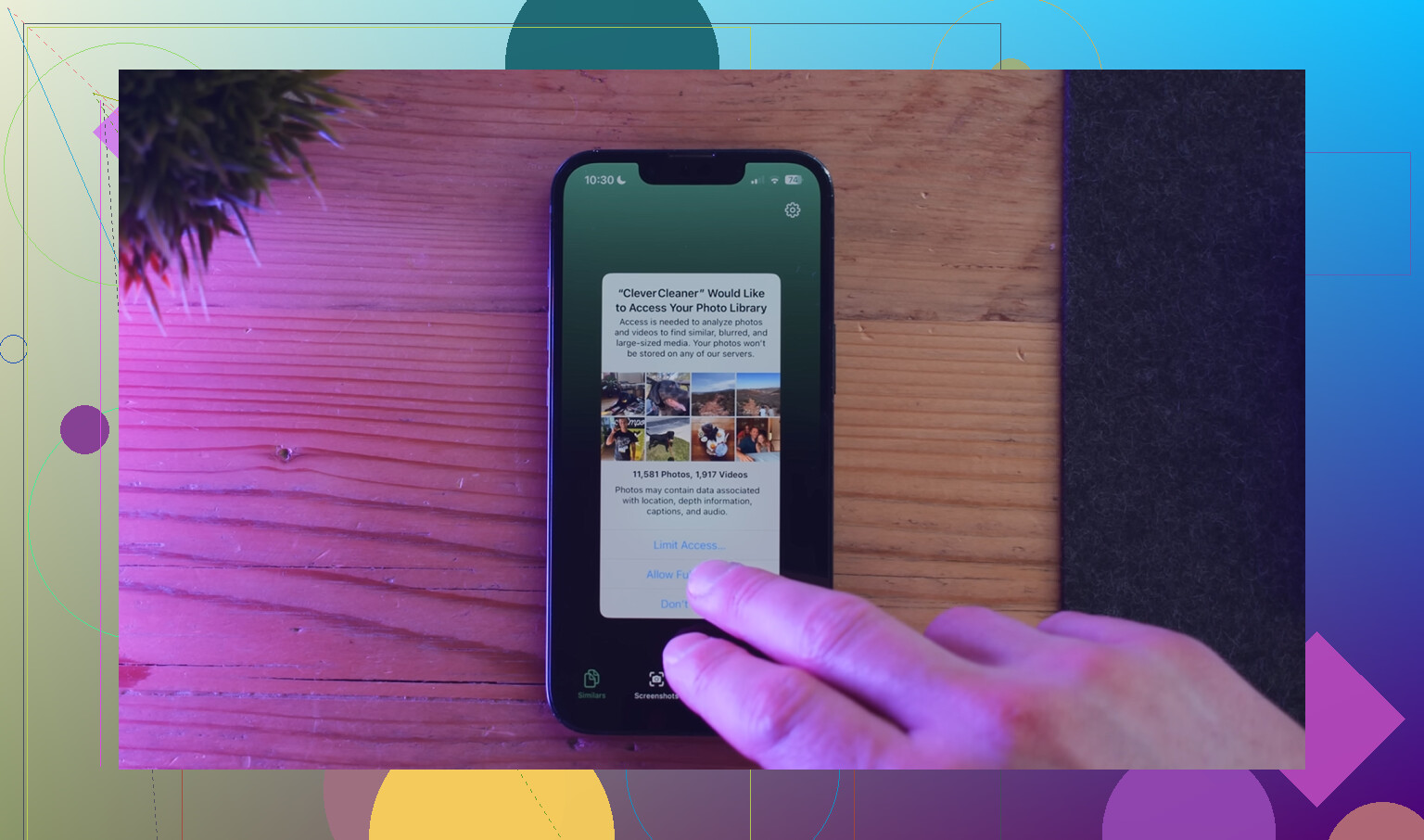
If you want a solid cleanup tool, Clever Cleaner is worth a look for duplicate and large photo cleanup. I found this Clever Cleaner review for iPhone storage cleanup useful before clearing out my camera roll.
Short version. Safe for the iPhone copy, yes. Unsafe only if those files exist nowhere else and you did not check first.
Yes, usually safe, but I’d put a giant asterisk on “usually.”
“Synced Media” is generally stuff copied to the iPhone from a Mac/PC through older sync methods. So if you remove it from the phone, you’re normally deleting the iPhone copy, not the original on the computer. That part @mikeappsreviewer and @voyageurdubois got right.
Where I slightly push back: I would not trust iPhone storage labels 100%. Apple’s storage categories get weird, and sometimes “Synced Media” includes leftovers that are no longer obvious in Photos or Music. So before nuking it, spot-check a few albums/playlists on the computer first. Takes 2 mins, saves regret later.
Big thing: if those photos were synced from a computer, they are not the same as iCloud Photos items. People mix that up allll the time. If it was manual sync years ago, your phone may be showing old copies that can be removed without harming your current iCloud library.
My rule:
- If it exists on your Mac/PC or in iCloud, delete away.
- If the phone is the only place it exists, stop and back it up first.
- If storage still looks wrong after removal, it may be stale system reporting, not real double files.
Also, if you’re freeing space, Synced Media is often only part of the mess. Screenshots, duplicate pics, giant videos, and Live Photos usually eat way more. Clever Cleaner helps with that side of it if your library is bloated. I found the best Clever Cleaner guide for iPhone storage cleanup pretty useful.
Short version: safe to delete from the iPhone if the originals are somewhere else. Just verify first so you don’t do an oops.
One thing I’d add to what @voyageurdubois, @kakeru, and @mikeappsreviewer said: the real risk is not deletion, it’s forgetting what sync system made those files appear in the first place.
If “Synced Media” came from old computer sync, deleting it from the iPhone is usually fine. But if you still have an active sync relationship set up, the stuff can come right back on the next sync and make it look like nothing changed. That’s the part people miss.
My quick sanity check is simpler:
- Look at a few items inside that category
- Ask: do I still want them on the phone?
- Ask: where is the master copy now, computer, iCloud, or nowhere?
- If “nowhere,” back up first
I also slightly disagree with the idea that this is mostly a storage-label bug. Sometimes yes. Sometimes it’s genuinely old local media hanging around from years-old photo or music sync.
If your goal is free space, Synced Media may be only a slice of it. Photos and videos usually dwarf everything else. That’s where Clever Cleaner can help after you deal with the synced stuff.
Clever Cleaner pros
- Good for duplicate/similar photo cleanup
- Helps surface large files fast
- Easier than hunting manually
Clever Cleaner cons
- Doesn’t solve Apple sync settings itself
- You still need to verify originals before deleting
- Cleanup apps can tempt people to remove too much too fast
So yes, you can usually delete Synced Media without breaking anything, as long as the originals exist somewhere else. The safest move is thinking of it as disposable iPhone copies, not primary storage.