I cleared the Twitter/X cache on my iPhone to free up storage, but it started building back up again pretty quickly. Is this normal app behavior, or is there a setting or fix to keep Twitter cache from taking up so much iPhone storage?
If your goal is to free up space, clearing the Twitter cache is a good first step, but it is not the same thing as managing storage long term. The cache comes back pretty fast. That is just how the app works.
Clearing cache will not remove your search history
Your recent searches are handled separately. If you want those gone, open the Search tab, tap into the search bar, and delete the searches one by one with the X next to each entry. The cache options under Data Usage do not clear that list.
Clearing Twitter cache on iPhone
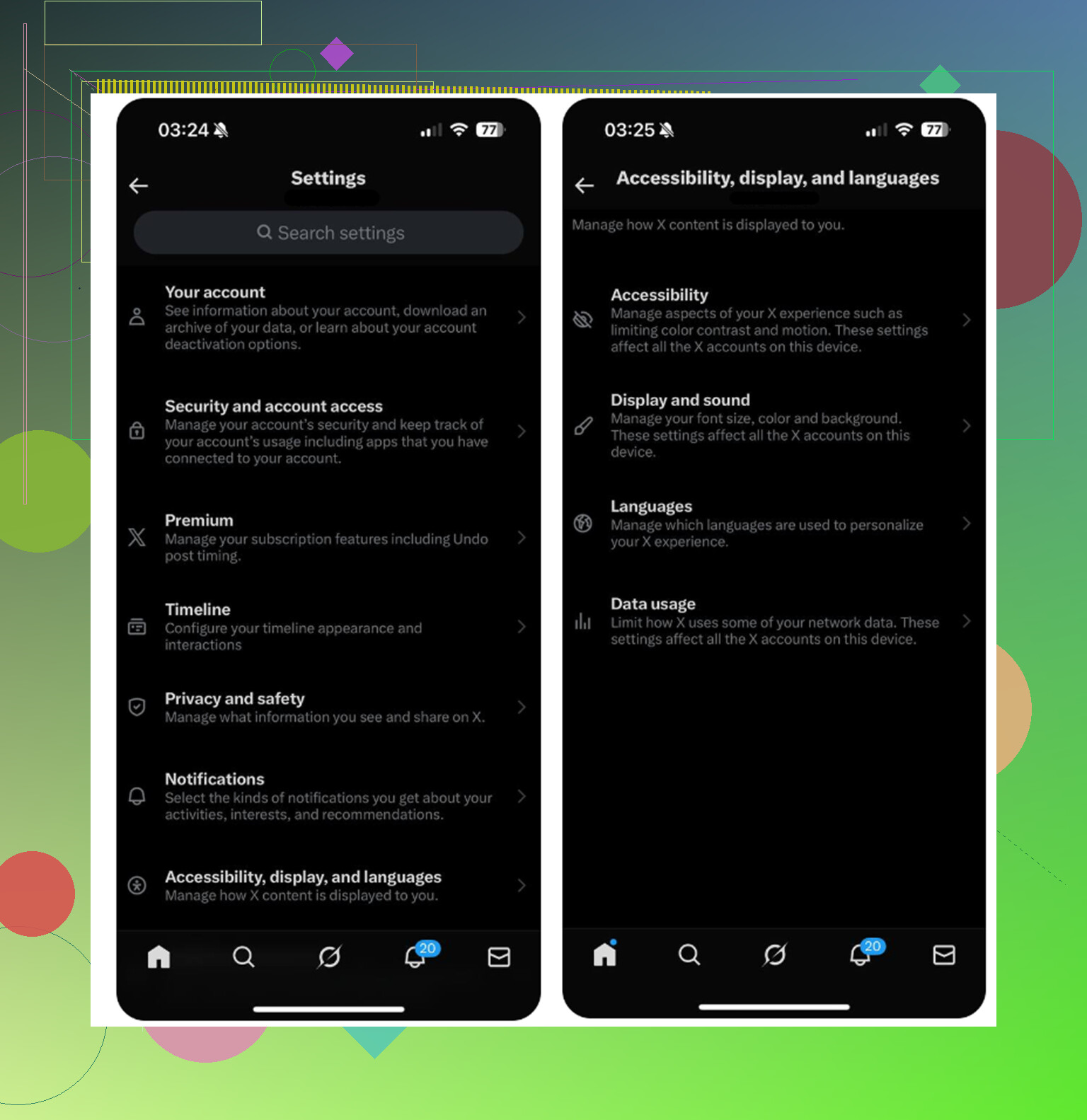
- Open Twitter and tap your profile icon in the upper left
- Go to Settings and Support, then Settings and Privacy
- Open Accessibility, Display and Languages
- Tap Data Usage
- Scroll down to Storage
Media storage is the one that usually contains cached photos, GIF pieces, and video thumbnails from your feed. You can clear it without losing your account login.
Web storage is a little different. Clearing web page storage removes cached website data and usually leaves you signed in. Clearing all web storage also removes cookies, so that can sign you out. If you choose that option, make sure you know your password first.
Doing this regularly is fine
Clearing the cache every month or so, maybe every four to six weeks, is reasonable. Just do not expect it to stay empty. Twitter rebuilds cache as you scroll because it loads images, thumbnails, and video previews ahead of time.
If you want it to grow more slowly, go back into Data Usage and change video autoplay to Wi-Fi only, or turn autoplay off completely.
Why clearing cache sometimes does not fix the phone
This is the part people usually miss. Twitter cache might give you back 1 or 2GB for a while, but if your iPhone is still slow or the storage warning comes back a few days later, Twitter probably was not the main issue.
iOS needs some free space to work properly in the background. Once the phone is really close to full, everything can start feeling sluggish, not just one app. App cache is easy to blame, but on most iPhones the bigger storage problem is the photo library. Old screenshots, repeat shots, burst photos, and large videos that have been sitting around for months can take up way more space than Twitter cache.
Where the bigger cleanup usually happens
After clearing Twitter cache, check the photo library next. Clever Cleaner is aimed at that part specifically. It is free, with no ads and no subscription.
It does not clear Twitter data or app cache. You still need to do those steps manually. What it does is help find the stuff in Photos that is actually taking up space.
The Heavies tab shows your largest files first, with the file sizes listed. That makes old 4K videos much easier to spot instead of digging through thousands of photos.
The Similars tab groups photos that are almost the same and chooses a Best Shot from each set, so you can clear a batch of repeat attempts without checking every single one manually.
It also shows file sizes on screenshots before you delete them, which helps because screenshots pile up quietly and are easy to forget.
Everything is processed on the device, so the files are not uploaded to an outside server.
The practical combo
Clear the Twitter cache first if you want quick space back. Then clean up the photo library, because that is usually where the bigger storage savings are hiding.
One last step matters: after deleting photos or videos, open Photos, go to Recently Deleted, and choose Delete All. Otherwise those files can sit there for 30 days and still count against your storage. That is why people sometimes delete a bunch of stuff and then wonder why the storage number barely moved.
2 Likes
Check Settings > General > iPhone Storage > X and see whether the big number is “Documents & Data” or the app size itself.
If the cache keeps ballooning and X’s own clear-cache button barely changes it, the faster workaround is deleting and reinstalling the app, but expect it to start filling again as soon as you scroll video-heavy feeds.
The hidden downside is that clearing it can make X feel “fresh installed” for a bit, but it also means the app has to download a bunch of the same images, videos, previews, and profile pictures all over again. So if you clear it constantly, you may save storage temporarily but burn more data and battery while it rebuilds.
Yes, it is normal for it to come back fast. X is basically a scrolling media app now, especially if your feed has autoplay videos, ads, GIFs, Spaces cards, link previews, and image-heavy posts. The cache is not a bug by itself. It is the app trying to avoid reloading everything from scratch every time you scroll back or reopen the app.
Where I’d push back slightly is on treating “clear cache” as a fix. It is more like taking out the trash while the faucet is still running. Useful, but temporary. If you open the app and scroll for twenty minutes, it can start filling again the same day. That does not mean the clear button failed.
A few things that can slow it down:
Turn off video autoplay, or at least set it to Wi-Fi only.
Use X’s data saver option if your version of the app still has it.
Avoid opening lots of video threads if storage is already tight.
Don’t keep clearing it every hour. You’ll just make the app redownload the same stuff.
Offload App is not the same as Delete App. If you use iPhone Storage and choose Offload App, iOS removes the app but keeps its documents and data. That may not get rid of the storage you’re trying to clear. If X is really bloated, deleting the app completely and reinstalling is usually the cleaner reset.
The other catch is that iPhone Storage can lag behind reality. Sometimes you clear app data and the number does not change instantly. Rebooting the phone or waiting a bit can make the storage screen recalculate. I would not panic over a small amount coming back right away. I would only care if X keeps climbing into multiple GB and stays there.
There is no great “never let X cache more than 500 MB” setting on iPhone. Apple does not give users much control over per-app cache limits, and X is not exactly known for being gentle with storage. The realistic setup is: limit autoplay, clear media storage when it gets annoying, and delete/reinstall if it gets ridiculous.
If your phone is close to full, though, I’d stop chasing X after you’ve cleared it once. A cache that comes back is normal. A phone with only a few hundred MB free is the real problem, because iOS itself needs breathing room. That is when everything starts acting weird, including apps that are not actually the cause.

Don’t keep deleting and reinstalling X every time the number moves, unless it is actually eating several GB and staying there.
A fast rebuild after scrolling is normal, and iPhone Storage can be slow to update, so judge it after a restart or a few hours rather than right after clearing. If storage is tight again the next day, the better target is usually videos/photos on the phone, not trying to make X behave like a zero-cache app.
Worth knowing that iOS treats app cache as purgeable, which means the system will dump it automatically when you actually run low on space. So the number you’re watching climb back up isn’t really ‘using’ storage in the way a big video file does. That’s why @jeff is right that iPhone Storage lags and shouldn’t be judged right after clearing.
The bit I’d push back on is the reinstall habit. Deleting and reinstalling X to reset cache is overkill unless it’s genuinely stuck at several GB for days. You lose your login and settings for a temporary win the system would’ve handled anyway. And Clever Cleaner makes sense for the photo side since that’s real permanent storage, but it won’t touch what you’re asking about here, so don’t expect it to fix the cache regrowth. Honestly, if the phone isn’t throwing storage warnings, I’d just leave the cache alone and stop staring at the number.