I accidentally deleted important files from my external drive and emptied the recycle bin before realizing they were gone. I need help finding reliable file recovery software that actually works, because some of these documents and photos are really important and I’m worried about losing them for good.
I’ve burned time on a pile of recovery apps, and the pattern is always the same. The sales page looks polished. Then you point the tool at a real drive with missing folders, broken partitions, random read errors, and the whole thing falls apart.
My short version, from stuff I tested on old SSDs, failing USB drives, a scratched SD card, and one NTFS partition I wrecked myself by being careless:
This is still where I’d start first for most people. I don’t mean it’s magic. I mean it wastes less of your time.
What I liked was the layout. You open it, pick the drive, scan, and you’re not buried under ten storage terms before you even begin. A lot of recovery tools seem built for people who already know file systems inside out. This one felt less hostile.
The feature I kept coming back to was the byte-to-byte backup. If a drive starts dropping off, freezing, or sounding sketchy, repeated scans are a bad habit. I learned this the hard way years ago. Making a full image first and scanning the copy is safer for your odds. On unstable drives, this mattered more than any polished interface.
On Windows, the free recovery cap is 100 MB. Small limit, sure, but for a few deleted docs or photos, it sometimes covers the whole problem.
- UFS Explorer
When the easy tools start missing stuff, this is one I take more seriously.
It handles ugly cases better. RAID arrays, Linux file systems, damaged partitions, messy storage setups, corrupted structures. I’ve seen it pull results from situations where simpler programs gave me half a folder tree and a lot of garbage filenames.
I would not hand this to someone who wants a quick point-and-click fix. The interface feels dense. You need patience, and you need to pay attention to what you’re selecting. If you’re dealing with a harder recovery job, it earns its spot. If you want something easy on day one, this isn’t where I’d send you.
- DiskGenius
This one doesn’t get mentioned enough.
What stood out for me was the mix of partition work and file recovery in one place. When a drive flips to RAW, or a partition vanishes and Windows suddenly acts like the disk is empty, DiskGenius has been useful. I used it once on an external HDD where the partition table got mangled after an unsafe unplug. It gave me a clearer picture of what was broken before I touched anything else.
The UI is busier than I like. Feels cramped. A little old-school too. Still, for partition-related damage, I’d keep it in the rotation. The free version hits limits fast on bigger jobs, so don’t expect miracles there.
- Windows File Recovery
This is Microsoft’s own tool, and yeah, it’s free.
It’s also command-line only, which scares off a lot of people for good reason. You run it in Command Prompt, and if you typo the source or destination, you waste time. I tested it on a plain accidental deletion from an NTFS drive, and it did fine. For simple cases, especially if you don’t want to install random third-party software first, it has a place.
For damaged file systems, unstable disks, or broad deep scans, I wouldn’t reach for this first. It feels thin. Still useful to know it exists.
A few things matter more than the software you pick.
Stop using the drive right away. If files were deleted, they usually sit there until new data overwrites them. Every install, every update, every copied video, every browser download cuts into your chances. I’ve seen people lose recoverable photos because they kept using the same laptop for two more days before trying recovery.
Also, don’t install the recovery app onto the same drive you’re trying to save data from. People do this all the time. Bad move. Use another disk, an external SSD, or even a USB stick if you’re stuck.
And this part matters a lot. Recovery software helps with logical damage. It does not fix physical failure.
If your drive is clicking, grinding, beeping, dropping connection, overheating, or not showing up in BIOS or Disk Management, stop. Don’t keep hammering it with scans. I did this once with an old 2.5-inch HDD and got punished for it. Each new power cycle made it worse. At that point, you’re in lab territory. A proper recovery shop with cleanroom gear costs real money, yep, but pushing a dying drive at home is how people turn a bad situation into a dead one.
6 Likes
If the drive still shows up and isn’t making weird noises, I’d start with Disk Drill. It’s one of the better picks for deleted files from an external drive, especially when you already emptied the Recycle Bin. It finds a lot on exFAT, NTFS, and SD cards, and the preview helps you avoid paying for junk.
I disagree a bit with @mikeappsreviewer on one point. I would not send most normal users straight to UFS Explorer unless the file system is damaged or the drive layout is messy. For plain deletion, it’s overkill and easy to mis-click stuff.
My order would be:
-
Disk Drill
Best first shot for accidental deletion.
Fast scan, deep scan, preview, decent folder recovery.
If the drive acts flaky, image it first. -
R-Studio
Better than a lot of “consumer” tools once things get uglier.
Less friendly UI. Better control.
Worth it if Disk Drill misses files. -
PhotoRec
Free. Ugly. No proper filenames in many cases.
Still good for photos, videos, docs when you’re desprate.
Do this now:
Stop using the external drive.
Do not install recovery software onto it.
Recover files to a different drive.
For a simple, readable Disk Drill overview, this video helps: see how Disk Drill file recovery works in real use
If the drive is clicking, disconnecting, or freezing your PC, stop testing softwre and go lab route.
I’d split this into two cases, because people lump them together and that’s how they waste hours.
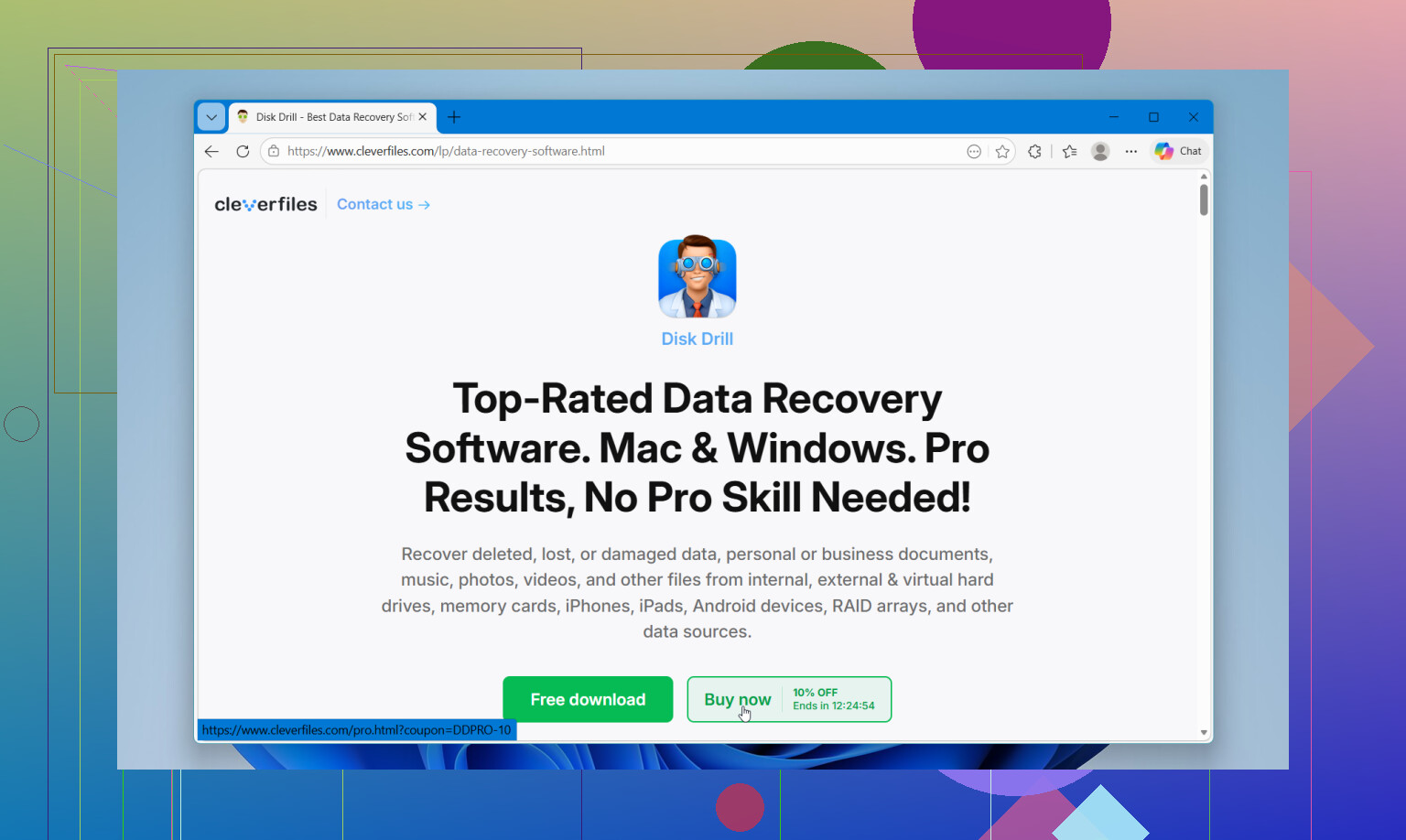
If the external drive is healthy and this was just delete + emptied bin, I’d actually start with Disk Drill file recovery software. Not because it’s “the best” in every scenario, but because it’s one of the few that balances decent recovery results with a UI that doesn’t feel like punishment. @andarilhonoturno is right about it being the easiest first shot.
Where I kinda disagree with @mikeappsreviewer is on going too deep too fast. UFS Explorer is powerful, sure, but for plain accidental deletion? Feels like bringing a server rack to fix a toaster.
My practical ranking:
-
Disk Drill
Best first try for deleted files on external HDD/SSD, USB, SD card. -
R-Studio
If Disk Drill misses stuff, this is where I’d go next. Better for weird file system damage, less friendly. -
Recuva
Yeah, old pick, but for simple deletions it still punches above its weight sometimes. Not my first choice, but not dead either.
One thing people forget: previews matter. If a program “finds” 200k files but half are corrupt nonsense, that scan result is basicly inflated junk.
Also worth reading some community experiences here: real-world file recovery advice from the Facebook data recovery community
If the drive is making noises, disconnecting, or hanging Explorer, stop messing with software. That’s not an app problem anymore.
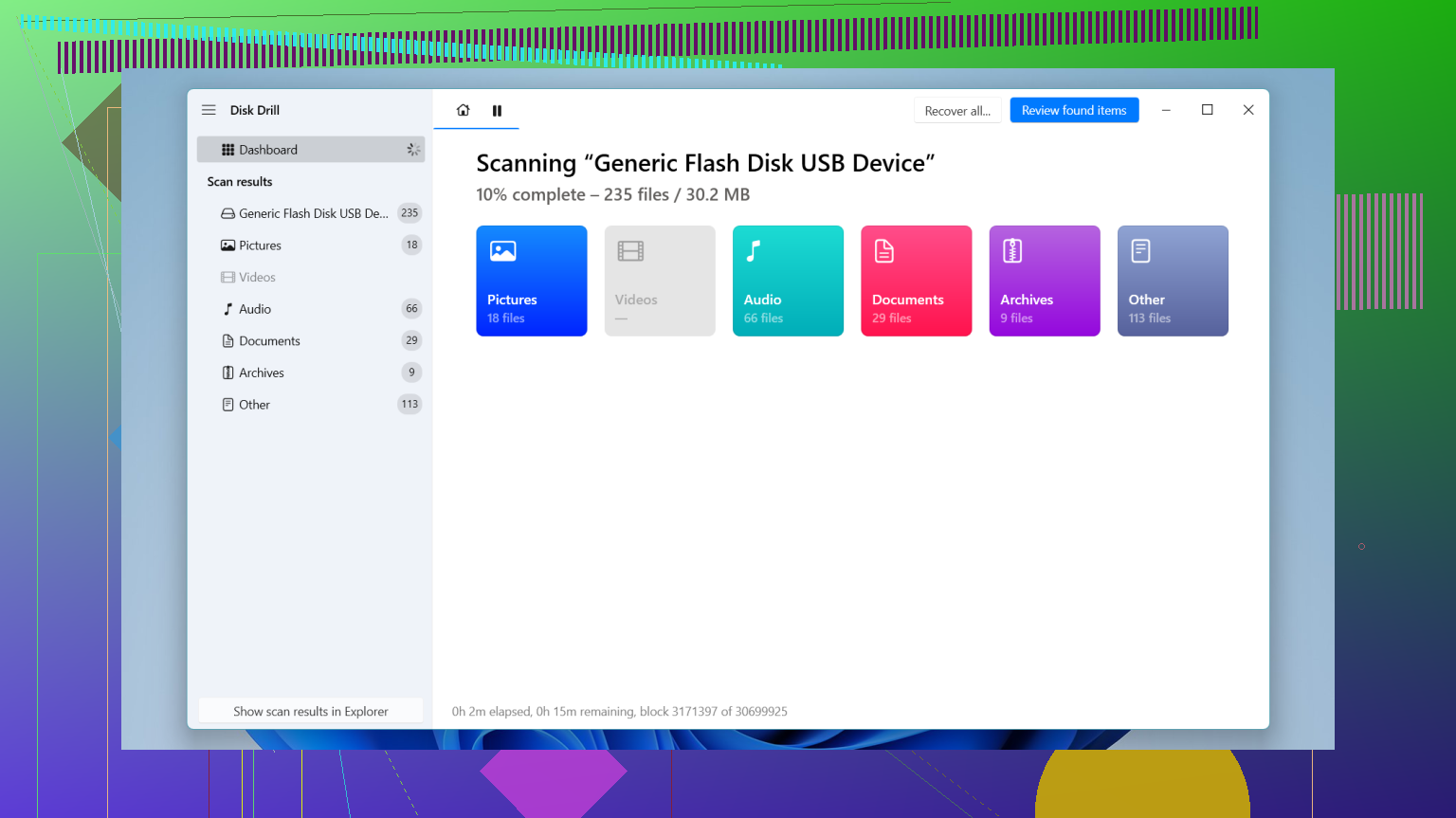
I’d add one thing the others only touched lightly: check SMART/health first before you commit to any big scan. If the external drive has bad sectors climbing or USB bridge errors, even good recovery apps can turn into a stress test.
For a normal accidental delete case, Disk Drill is still a sensible first pass.
Pros of Disk Drill
- very easy to use
- good file previews
- decent results on common external-drive file systems
- can create a backup image before recovery
Cons of Disk Drill
- free recovery on Windows is limited
- deep scans can return lots of raw results with messy names
- not my favorite when the filesystem itself is badly damaged
Small disagreement with @andarilhonoturno and @sonhadordobosque: I would try DMDE before jumping to some heavier paid options. It’s less beginner-friendly than Disk Drill, but excellent when the deleted files still exist in filesystem records and you want a more precise recovery instead of a giant raw carve. @mikeappsreviewer is right that tougher cases need stronger tools, I just think DMDE deserves a spot in that middle tier.
My practical order:
- Disk Drill for fast first scan and preview
- DMDE if folder structure matters
- R-Studio if things look more broken than deleted
If the drive disconnects, clicks, or freezes File Explorer, stop software attempts and image or send it out.