My external hard drive was working normally, but now Windows says it’s not accessible and shows “The parameter is incorrect.” I need help figuring out what caused this error and how to safely access or recover the files without making the drive worse.
If Windows is giving you 'The parameter is incorrect.' on an external drive, don’t jump straight to CHKDSK or formatting it. That error often means the file system or partition info is messed up, not that the files are automatically gone. But repair tools can write changes to the disk, so the safer order is: get the data off first, then try to fix the drive.
Start with the boring checks, because sometimes it really is just the connection:
- Use a different USB cable.
- Try another USB 3.0 port.
- Plug the drive into a different computer.
- Open Disk Management and see if Windows detects the drive and shows the right capacity.
I’d also look at the drive health before doing anything heavy. CrystalDiskInfo can show the S.M.A.R.T. status, and Disk Drill has a built-in S.M.A.R.T. monitor too. If you see warnings, pending sectors, reallocated sectors, or the drive keeps dropping in and out, treat it like it may be failing.
If the drive still shows up in Disk Management, even if File Explorer refuses to open it, recovery may still be possible. I’d recover the important files before running repairs.
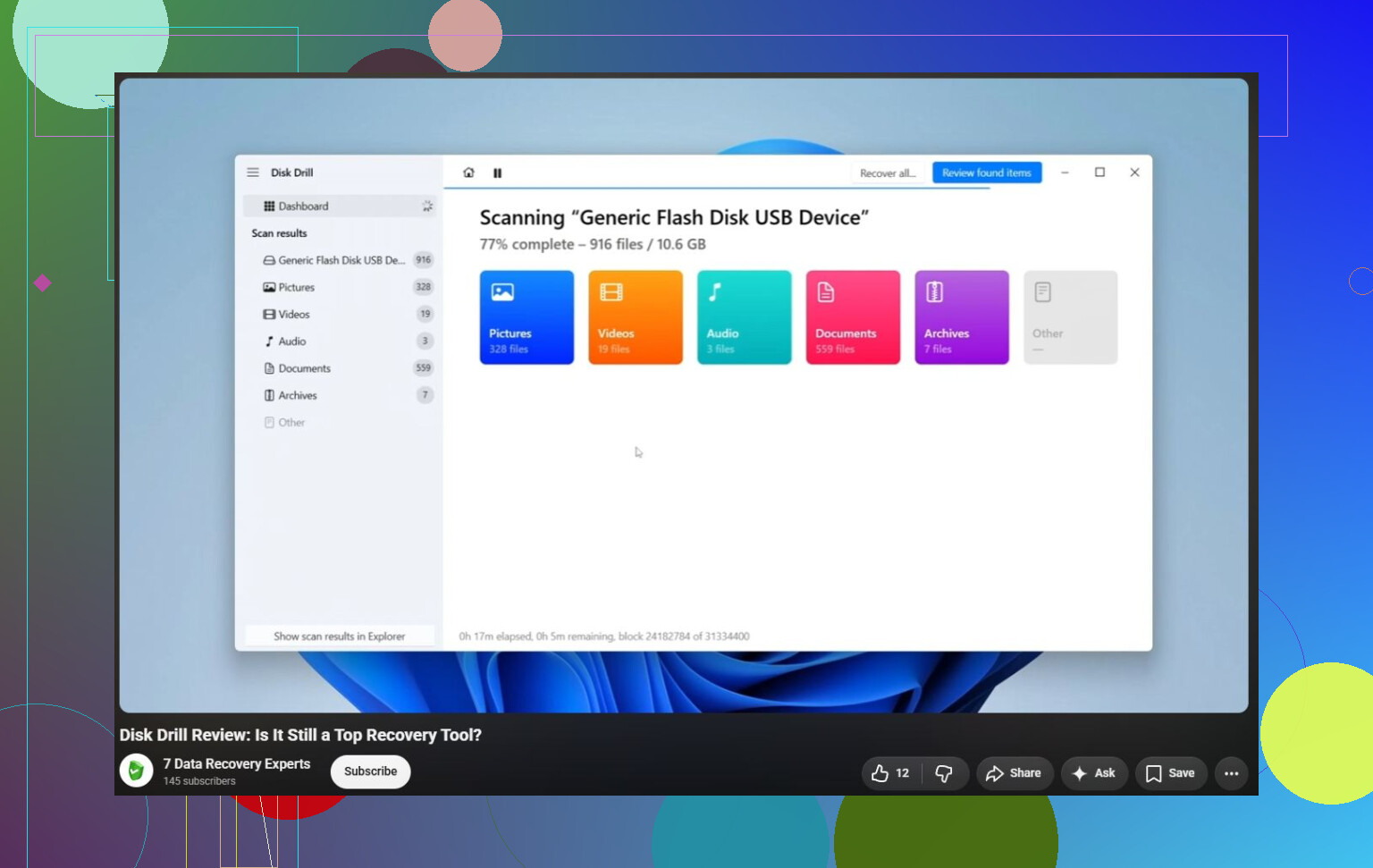
Disk Drill is a decent option for this kind of situation because it can scan damaged NTFS, exFAT, FAT32, RAW partitions, and drives Windows won’t mount properly.
The safer workflow would be:
- Install Disk Drill on your internal drive, not on the problem drive.
- If the external drive seems unstable, make a Byte-to-byte Backup first so you can scan an image instead of stressing the original disk.
- Run a Universal Scan on that image, or on the drive itself if it seems stable.
- Preview the found files before recovering anything.
- Save recovered files to a different drive, never back onto the damaged one.
The Windows version also lets you recover up to 100 MB for free, which is useful for checking whether your files are actually recoverable before paying.
Once your important stuff is copied somewhere safe, then I’d think about repairs.
- Use CHKDSK, like
chkdsk X: /r, if Windows still recognizes the file system. - Try TestDisk if the partition shows as RAW or CHKDSK won’t run. It’s very good with damaged partition structures, but the interface is not exactly beginner-friendly.
- If recovery is already done and the drive only has logical corruption, a quick format can often make it usable again by creating a clean file system.
There are a few Windows-side fixes worth checking if the error is happening in other places too, or with more than one drive. Look at your decimal separator in regional settings, and run SFC plus DISM to check Windows system files. Those are not the usual cause, but they have helped some people with this error.
I’d stop trying DIY fixes if the drive:
- clicks or beeps,
- disconnects repeatedly,
- vanishes from Disk Management,
- shows serious S.M.A.R.T. errors,
- or can’t stay online long enough for Disk Drill to finish scanning.
At that point it starts looking like hardware failure. Keeping the drive powered on and repeatedly scanning it can make recovery harder.
For anything truly irreplaceable, a professional data recovery lab is the safer route. Most good labs evaluate the drive first and give you a quote before doing the work. Many also work on a 'no data, no fee' basis, meaning you usually don’t pay for the recovery itself if they can’t get anything back. A logical recovery might start around $300-600 USD, while clean-room or hardware repair cases are often more like $700 to $2,000+ USD.
And after this is over, keep at least two copies of anything important. External drives are fine for backups, but they’re a bad place for the only copy of years of photos or documents. A second external drive or a cloud backup can save you from this exact panic later.
3 Likes
Don’t keep forcing it to open in Explorer if it hangs, because every retry can make a bad drive or bad USB bridge act worse. @mikeappsreviewer is right about getting the data first, but I’d separate the drive from the enclosure issue if possible. A lot of “parameter is incorrect” cases on external drives are really the USB adapter, power supply, or enclosure board misbehaving, especially on larger 3.5-inch drives. If it’s a desktop external drive, try the original power brick or another known-good one with the same specs. If it’s a bare SATA drive in a cheap dock, try a different dock or direct SATA connection. Just be careful with branded externals like some WD/My Book models, because the enclosure may handle encryption, so removing the disk can make it look worse, not better. If Windows shows the correct size but no usable file system, recover or image it first. If it shows the wrong size, 0 bytes, or drops offline, stop treating it like a Windows repair problem.
Do not click Initialize, Format, or “Scan and fix” just because Windows offers it. Those prompts are Windows trying to make the volume usable again, not Windows being careful with your files. If the partition table or file system is damaged, accepting the wrong prompt can turn a recoverable mess into a harder recovery job.
The annoying thing about “The parameter is incorrect” is that it is more of a symptom than a diagnosis. It can come from a bad USB cable, a flaky enclosure, file system corruption after an unsafe unplug, bad sectors in the spot where NTFS/exFAT stores important metadata, or Windows getting confused by a volume it cannot mount cleanly. So I’d treat the drive as “read only” for now. Check Disk Management first. If it shows the correct size and the partition is still there, copy or recover files before trying repairs. If it asks to initialize the disk, cancel. If it shows RAW, don’t format it just to see what happens.
A cheaper quick test that hasn’t been mentioned much is trying to copy from outside normal Windows Explorer, because Explorer is terrible with half-broken drives. A Linux live USB or even a file manager that does not hang as easily can sometimes let you grab folders from a drive Windows refuses to open. That does not replace recovery software, and if the drive is clicking, disconnecting, or showing SMART problems, imaging it first is still the safer move. Disk Drill is fine for scanning if the disk stays connected, but don’t keep running full scans over and over on a drive that is clearly dropping offline. In that case the problem is probably no longer “Windows being Windows.”