My iPhone’s iOS system storage has jumped up a lot without me installing many new apps or saving big files, and now I’m running out of space. I’ve already deleted photos, apps, and cleared Safari data but the iOS system section still takes up a huge chunk of storage. Can anyone explain what might be causing this and how I can safely reduce the iOS storage without losing important data?
iOS system storage is like a black hole on iPhones, yeah. Seen this a lot. Here is what usually eats space and what you can try.
- What “System” usually includes
- iOS itself (5–10 GB on most models)
- System data and caches for updates
- Message attachments, Spotlight indexing, Siri data
- App caches that iOS counts as “System” sometimes
When it inflates fast, it is often due to caches, logs, or half‑downloaded updates.
- Quick checks first
- Go to Settings > General > iPhone Storage
- Wait a minute or two for it to finish loading
- Look at:
• System
• System Data
• Messages
• Apps with huge “Documents & Data”
If System Data is 15–30 GB or more, you have bloat.
- Try these steps, in this order
A. Restart and force some cleanup
- Do a full restart, not only lock screen.
- After restart, open Settings > General > iPhone Storage again and see if System/System Data dropped.
B. Remove iOS update leftovers
Sometimes an update file sits there.
- Settings > General > iPhone Storage
- Scroll and check for “iOS xx.x” under the apps list
- If you see an update file, tap it and tap Delete Update
- Restart again
C. Offload or delete chat data
Messages data often counts toward System.
- Settings > Messages > Keep Messages
Set to 1 Year or 30 Days if you are ok with older messages going away - Under Settings > General > iPhone Storage > Messages
Check “Photos”, “Videos”, “GIFs and Stickers”, “Documents”
Delete large threads and attachments you do not need
Same idea for WhatsApp, Telegram etc, go into each app’s storage settings and clear old media.
D. Reinstall problem apps
If one app shows large “Documents & Data”, it often stores caches.
- Settings > General > iPhone Storage
- Tap the app
- If “Documents & Data” is huge, delete the app, then reinstall from the App Store
This frees space that iOS sometimes counts as System Data.
E. Use a cleaner helper
If you want to speed this up a bit for gallery junk, burst photos, duplicates and videos, a helper app is easier.
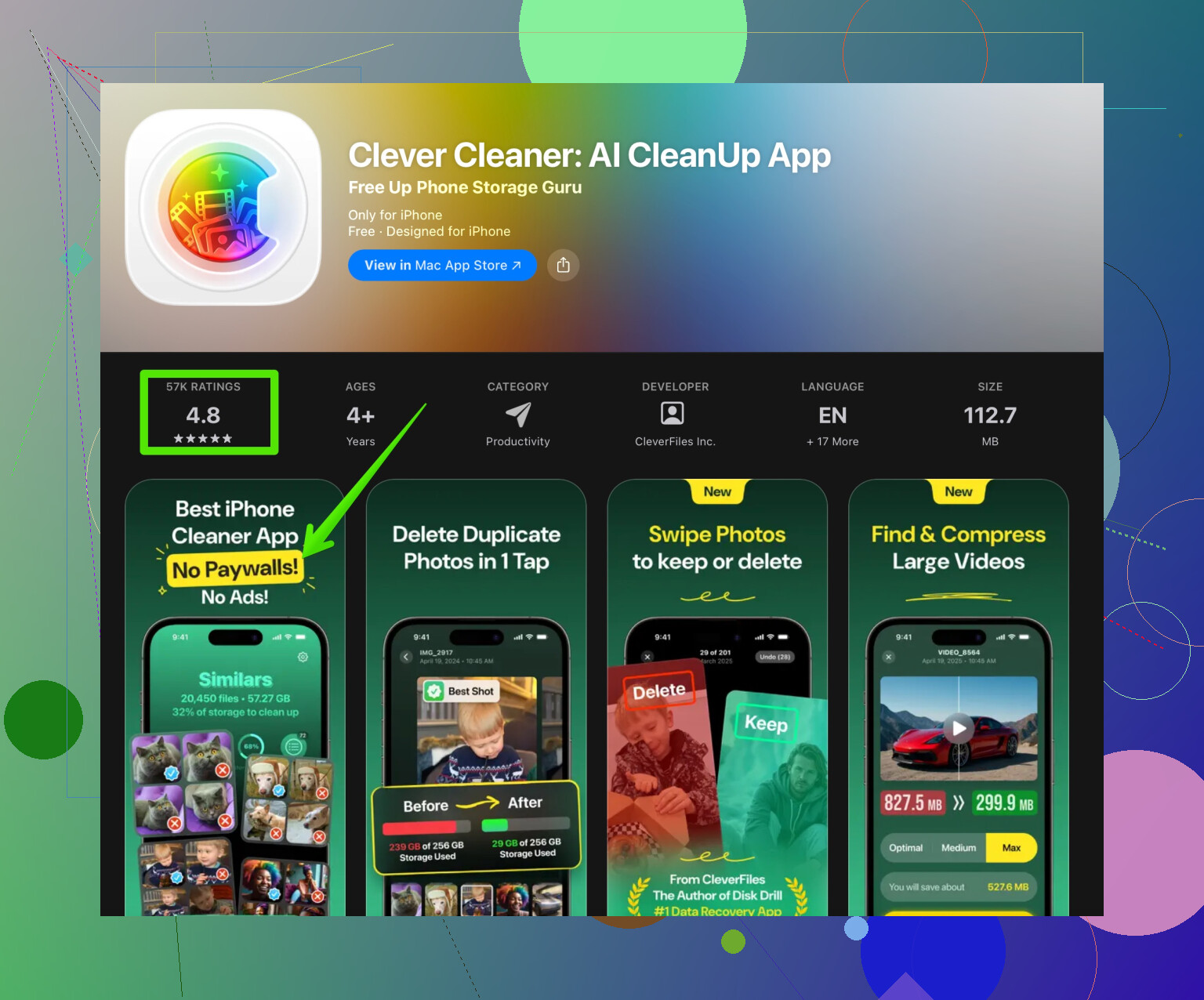
Something like the Clever Cleaner App scans your photos, videos, contacts and helps you remove duplicates and big files faster than doing it by hand.
You can check it here:
Clean up iPhone storage with Clever Cleaner AI
Do not give it blind trust, still double‑check what it suggests to delete, but it helps with repeated cleanup.
- Bigger hammer solutions
If System storage is insane, like 30–60 GB, and nothing helps:
A. Try a local backup and restore
- Connect to a computer
- Use Finder on macOS or iTunes on Windows
- Make an encrypted backup
- Then hit Restore iPhone and set it up from that backup
Often System Data shrinks a lot after this because old caches and logs do not come back.
B. As a last step, clean install
This is more work but fixes stubborn storage bugs.
- Backup with iCloud or to a computer
- Erase all content: Settings > General > Transfer or Reset iPhone > Erase All Content and Settings
- Set up as new, not from backup, and install apps again manually
If space problem goes away on a clean setup, the old backup had junk.
- Some habits to keep it under control
- Keep free space above ~10–15 percent of total storage to reduce random bloat.
- Periodically delete old message threads with big media.
- Offload unused apps in Settings > App Store > Offload Unused Apps.
- Avoid keeping huge video projects in editing apps like CapCut or iMovie. Export, back them up, then remove from the phone.
If you share your iPhone model, iOS version, and how much “System” and “System Data” show, people here can say if the numbers look normal or broken.
iOS system storage jumping like that is usually iOS hoarding junk in the background, not you doing anything “wrong.”
@viajeroceleste already covered the usual suspects and standard fixes pretty well, so I’ll skip repeating the restart / delete-update-file / reinstall-apps routine and hit some other angles that often get missed.
1. iCloud stuff that secretly eats local space
People assume “iCloud” = only in the cloud. Not quite.
Check these:
-
iCloud Drive sync
- Settings > your name > iCloud > iCloud Drive
- Tap “Apps using iCloud Drive”
Some apps keep a local cache of iCloud files (PDF scanners, note apps, file managers).
Open Files app > iCloud Drive > look for big folders and move / delete stuff you really don’t need locally.
-
iCloud Photos with “Optimize Storage”
Even with Optimize, iOS keeps a local cache of pics and vids you opened recently.
Sometimes it bugs out and holds too much.- Try toggling Settings > Photos > turn off iCloud Photos, wait a bit, then turn it back on.
Only do this if your photos are fully synced. Let it re-index while plugged in and on Wi‑Fi.
- Try toggling Settings > Photos > turn off iCloud Photos, wait a bit, then turn it back on.
This extra cache often gets lumped into “System Data” or “Other” instead of Photos, which is confusing.
2. Mail and attachment caches
Mail is sneaky. Even if it only shows a small size, it can force “System Data” to balloon with cached attachments and message bodies.
- Settings > Mail > Accounts
- Temporarily remove your biggest account (like a work Exchange or Gmail account)
- Restart
- Check iPhone Storage again
If “System” drops a lot, that account was pushing a ton of cached mail. You can re-add it but maybe limit “Mail Days to Sync” in the account settings if available.
3. Keyboard, dictation, and language data
These are small individually but over time can stack up, and sometimes they bug out.
Try:
- Settings > General > Transfer or Reset iPhone > Reset > Reset Keyboard Dictionary
- Settings > General > Keyboard > turn off Dictation temporarily
Restart afterward and watch if System Data shrinks over a day or two.
Not a miracle fix, but I’ve seen a few GB come back from this when predictive text had gone nuts over years of use.
4. Home Screen & Spotlight indexing loop
When Spotlight indexing glitches, it keeps rebuilding its database and the index files swell inside “System.”
Things to try:
- Settings > Siri & Search
- Temporarily turn off:
- “Show on Home Screen”
- “Show in Spotlight”
- “Show in App Library & Spotlight”
- Restart
- After a while, turn them back on
Give it some time on Wi‑Fi and charging. This can normalize index size. I’ve had this cut 3–5 GB of phantom “System Data.”
5. Large background processes from 3rd‑party apps
I slightly disagree with the idea that deleting a “problem” app and reinstalling is always the best first move. Some apps (video editors, offline maps, pro camera tools) build big internal databases that iOS counts as “System Data” or lumps weirdly.
Before deleting:
- Open the app itself
- Look in its own settings for:
- “Clear cache”
- “Delete temp files”
- “Remove offline data”
Sometimes that’s safer than a full nuke, especially if the app stores projects that are not backed up anywhere.
6. Check Analytics logs & sharing settings
Analytics logs can grow more than they should:
- Settings > Privacy & Security > Analytics & Improvements
- Turn off “Share iPhone Analytics”
- Tap “Analytics Data” and see if there are thousands of log files
You can’t delete them manually, but turning analytics off and rebooting can slow down future growth. iOS will eventually purge old ones when space is tight.
7. When you don’t want to restore from backup
I’ll be the annoying contrarian here: a backup & restore (like @viajeroceleste mentioned) works often, but it can also bring back some hidden cruft from older setups.
If your System is only slightly insane (like 20–25 GB on a 128 GB iPhone), I’d first try:
- Manual cleanup of apps with lots of temp data (social media, video apps, offline downloads)
- Reducing Messages retention and deleting big threads
- Cleaning Mail / iCloud Drive / Photos caches
If System or System Data is like 40–60 GB, then sure, at that point a full erase or restore-from-clean is worth the headache.
8. Using a cleaner app without letting it wreck your life
You already cleared photos and Safari manually, but for repeated, deep cleanups of junk photos and videos, something automated really helps.
A decent option is the Clever Cleaner App. It focuses on duplicate photos, similar pics, giant videos, and random junk that piles up, and that indirectly reduces how much extra storage iOS has to manage.
You can grab it here:
smart tools to clean up your iPhone storage
Just don’t go full send on “Delete All.” Review what it suggests, especially for photos and videos, and keep iCloud backups in mind.
9. Worth knowing what is “normal”
Very rough ranges:
- 64 GB iPhone: System + System Data around 8–18 GB is pretty normal
- 128 GB and up: 10–22 GB is common, can spike a bit around major updates
If you’re way above that, like 30–50 GB, that’s when I’d seriously consider:
- Local encrypted backup to a computer
- Erase all content and settings
- Either:
- Restore from that backup, or
- Set up as new if you’re tired of fighting ghosts
SEO-friendly summary of what’s basically happening
Why is iOS storage so high on my iPhone?
Because iOS often fills up with hidden system data like caches, logs, half-downloaded updates, message attachments, iCloud and Mail caches, and Spotlight indexes. You can reclaim storage by cleaning up message media, reducing Mail sync, managing iCloud Drive and Photos cache, resetting parts of the system like keyboard and Siri indexing, and trimming down app caches from inside the apps themselves. When that fails, a full backup and clean restore or a clean install is the most reliable way to get rid of corrupted and bloated system data that normal settings won’t touch. Using a helper like the Clever Cleaner App to quickly remove junk photos, duplicates, and huge media files can also prevent iOS system storage from growing out of control again.
30 Likes
Connect your iPhone to a Mac or PC and run one full sync.
Open Finder on Mac, or Apple Devices on Windows. Select your iPhone, then click Sync. Leave it connected for 20 to 30 minutes. Restart the phone afterward. Open Settings, General, iPhone Storage, then wait several minutes for it to recalcuate.
A computer sync often prompts iOS to purge temporary update files, failed downloads, and stale cache indexes. It also refreshes incorrect storge totals. This requires no reset and keeps your personal data intact.
Don’t expect the System Data number to ever sit still. It’s an estimate iOS keeps rewriting, and it’ll drift up and down on its own no matter what you clear. Everyone’s pushing Clever Cleaner as a speed thing, but the part that actually keeps me from uninstalling it is that it doesn’t hit you with a subscription, so I let it deal with photo pileup and leave the real system bloat to a reboot.