My iPhone has been getting really slow and laggy over the last few weeks, especially when opening apps, switching between screens, or typing. I’ve cleared some storage and restarted it, but nothing seems to fix the performance issues. What could be causing this slowdown, and what steps can I take to speed it up again?
Sounds like classic iPhone slow-down stuff, esp if it built up over weeks. Storage is only one piece. I’ll list what usually helps, in order of “least effort to most effort”.
-
Check battery health
• Go to Settings > Battery > Battery Health
• If “Maximum Capacity” is under ~85% and “Peak Performance Capability” shows any warning, iOS might throttle your CPU to avoid shutdowns.
• If it says performance management is applied, that explains lag, slow app launches, keyboard delay.
• Only real fix there is a battery replacement. Performance jumps a lot on older phones once the battery is fresh. -
Kill background stuff that eats RAM and CPU
• Settings > General > Background App Refresh > turn it off for apps you do not need updating all the time, like shopping, social, random games.
• Settings > Privacy & Security > Location Services > set most apps to “While Using” or “Never”. Constant GPS hits slow older CPUs.
• Settings > Siri & Search > disable “Listen for ‘Hey Siri’” if you do not use it. -
Turn off system eye candy
• Settings > Accessibility > Motion > turn on “Reduce Motion”.
• Settings > Accessibility > Display & Text Size > turn off “Transparency” and “Blur” stuff.
• Home screen animations and parallax eat resources on older iPhones. -
Clear real cruft, not only photos
You already freed storage, but check this too.
• Settings > General > iPhone Storage.
• Look at “System Data”. If it is huge, something like cached logs or app data is bloated.
• Delete and reinstall social apps like Instagram, TikTok, Facebook. They blow up to multiple GB over time.
• Clear Safari data: Settings > Safari > Clear History and Website Data.If you do not want to hunt through each app, a tool helps.
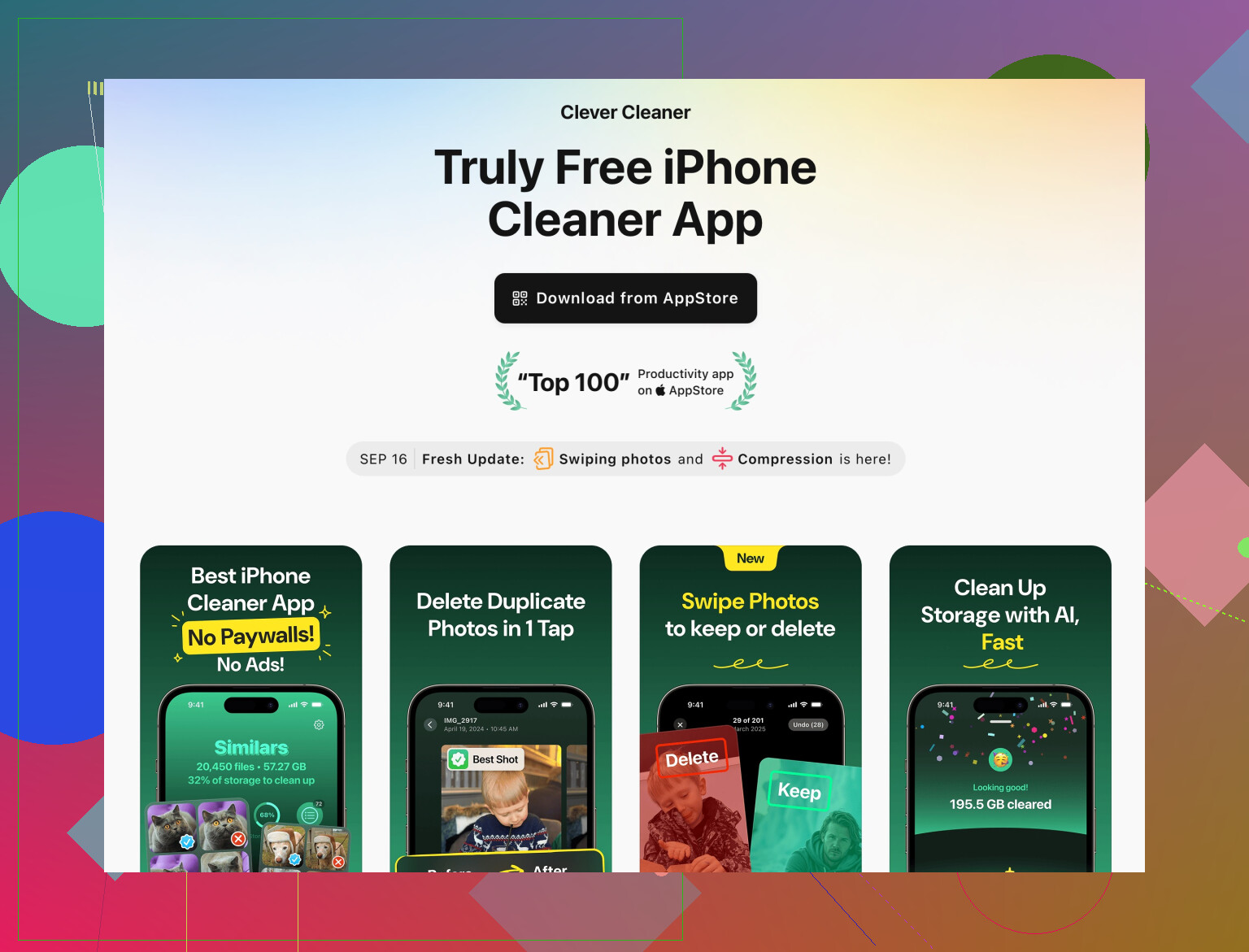
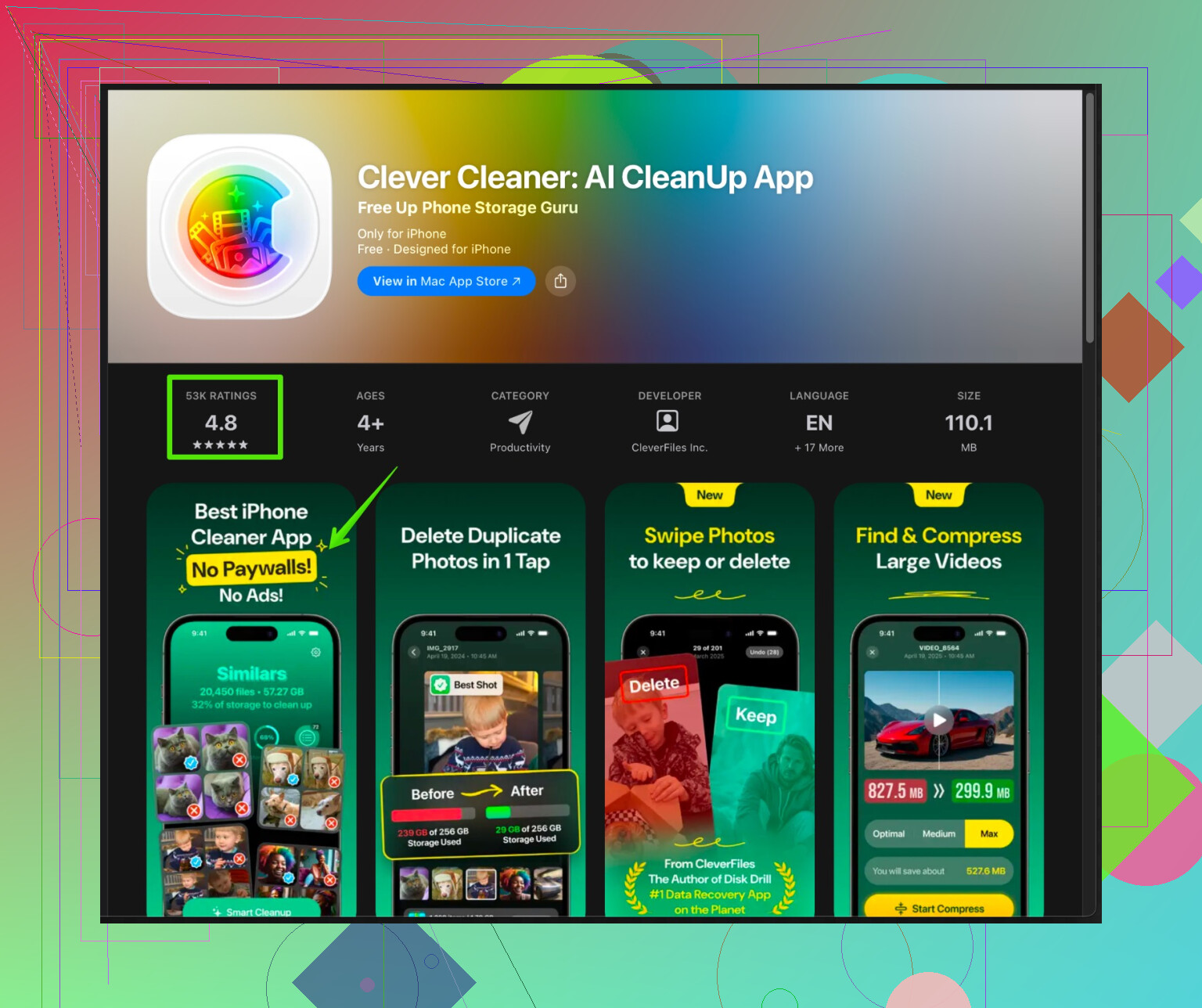
The Clever Cleaner App for iPhone focuses on junk files, duplicate photos, and big unused media that slow down the device. It organizes large videos, similar photos, and old screenshots so you remove what you do not need. You can check it out here:
clean up your iPhone and improve performance
It is useful when the Photos app is a mess and manual cleanup takes forever. -
Check storage headroom
• Try to keep at least 10 to 15 percent of total storage free.
• If your phone is 64 GB, aim for at least 7 to 10 GB free. When iOS runs too close to full, it slows app installs, updates, and even keyboard response. -
Look at iOS version
• Settings > General > About > iOS Version.
• If you have an older iPhone on the latest iOS, performance often drops a bit with each major update.
• If you updated recently and lag started soon after, that is likely the cause.
There is no supported way to go back, so the best move is to reduce workload with the steps above. -
Reset settings, not data
If things still feel sluggish.
• Settings > General > Transfer or Reset iPhone > Reset > Reset All Settings.
• This keeps your data, photos, and apps. It resets Wi Fi, Bluetooth, wallpapers, and some system preferences.
Sometimes a bugged setting or profile slows the UI, and this clears it. -
Check for storage corruption or major OS issues
If everything fails, backup to iCloud or computer, then:
• Settings > General > Transfer or Reset iPhone > Erase All Content and Settings.
• Set it up as new first, without restoring backup. Test speed with default apps.
If it feels fast as new, your backup has junk or a bad app. You can then restore and see if the lag returns.
Quick priority order if you want a simple plan:
- Check battery health and throttling.
- Turn off Background App Refresh and Reduce Motion.
- Deep clean storage with something like the Clever Cleaner App plus manual removal of bloated social apps.
- Reset All Settings.
- If nothing works and battery is low health, replace battery.
Most slow and laggy cases I see end up being a mix of worn battery, overfilled storage, and too much background stuff running. Once those three are fixed, the phone feels close to new again, unless it is extremely old hardware.
17 Likes
Yeah, sounds like classic “my iPhone is aging in dog years” stuff, but there are a few angles @nachtdromer didn’t hit that are worth checking, especially since you already freed some storage and rebooted.
I’ll skip repeating the battery / background refresh / animations thing they covered and focus on other culprits:
1. Check for specific app culprits instead of “general slowness”
A few apps can completely choke the phone, even if the OS itself is fine.
- Go to Settings > Privacy & Security > Analytics & Improvements > Analytics Data
Scroll and see if any app shows up over and over with “JetsamEvent” or obvious crash logs. Those are RAM killers. - If you spot the same app repeatedly:
- Offload it: Settings > General > iPhone Storage > [that app] > Offload App
- Or just delete and reinstall it.
Also, watch what happens when you don’t open those heavier apps (Instagram, TikTok, Snapchat, Facebook, some banking apps). If the phone feels way smoother right after a reboot and before you open them, that’s your culprit list.
2. iCloud syncing lag (especially Photos & Messages)
This one makes typing and scrolling feel sticky, even if CPU and battery are fine.
- If you recently:
- Turned on iCloud Photos
- Enabled Messages in iCloud
- Switched to a new device and this one is still syncing in the background
Then it can be doing massive upload / indexing quietly.
Check:
- Photos:
- Open Photos, go to Library > All Photos, scroll to the bottom.
- If you see “Updating…” or “Uploading…” or “Restoring from iCloud,” the phone is working in the background.
- Settings > Your Name > iCloud > iCloud Backup / Photos / Messages
- If storage is almost full or lots of apps are backing up, backups and syncs can drag performance for hours or days.
You don’t have to disable it permanently, but temporarily turning off iCloud Photos or Messages in iCloud can help test if that’s what’s choking performance.
3. Spotlight indexing & Siri suggestions
After an update or big data change (new apps, lots of files, big message history), Spotlight re-indexes. That can cause lag all over the UI.
- Go to Settings > Siri & Search
- For apps you rarely search, turn off:
- “Show App in Search”
- “Show Content in Search”
- “Show on Home Screen”
- This reduces how much data Spotlight tries to index.
- For apps you rarely search, turn off:
You can also toggle Siri & Search for big hogs like Photos, Mail, Messages off for a while and see if things feel better.
4. Check network‑dependent lag (weird but real)
Some screens feel slow because the OS is waiting on a timeout or a slow call, especially:
- App Store
- iCloud-heavy apps
- Anything with sign-in / ads
Try:
- Put the phone in Airplane Mode, then turn Wi-Fi on with a known solid connection.
- Or temporarily disable VPN / Adblocker / “security” apps if you use them. These can make every app launch feel like it’s moving through molasses.
If your keyboard lag and app opening delay get better on strong Wi-Fi with no VPN, the problem is partly network / DNS / filtering, not just the phone.
5. Look at thermal throttling (overheating)
iPhones silently slow down when they’re running hot, not only when the battery is weak.
Signs:
- Back of the phone warm even when doing light tasks.
- It gets worse after, say, 10–15 minutes of normal use.
Try:
- Take off any thick or non-vented case for a bit.
- Avoid charging and using heavy apps at the same time.
- If it’s been sitting in a hot car or under a pillow, let it cool and test again.
If lag disappears when it’s cooler, you’re hitting thermal limits.
6. Keyboard & text lag specifically
You mentioned typing being slow. That’s often separate from “general app slow.”
Try:
- Disable third‑party keyboards:
- Settings > General > Keyboard > Keyboards
- Remove anything that isn’t the default Apple one and test.
- Turn off Keyboard dictation if you don’t use it:
- Settings > General > Keyboard > turn off “Enable Dictation.”
Also, in Settings > General > iPhone Storage > Messages, if Messages is eating tens of GB, heavy indexing of old chats (especially with lots of pics / videos) can cause lag while typing in Messages.
7. Focus on cleaning smart, not just deleting random stuff
Clearing a bit of storage sometimes barely moves the needle if the type of data is wrong (caches, duplicates, temporary junk).
A more targeted cleanup helps:
- Look for:
- Huge “System Data” or “Other” in Settings > General > iPhone Storage.
- Social / media apps over several GB.
This is where a dedicated cleaner tool actually makes sense. Something like the Clever Cleaner App can help automate the annoying part:
- It scans for:
- Duplicate and similar photos
- Old screenshots
- Massive videos you forgot about
- Hidden junk and temporary files bloating your storage
If you want to try offloading a bunch of garbage quickly, check out
cleaning and speeding up your iPhone efficiently
and see how much space you can realistically free. Getting back 10–20 GB of “real” storage can make a big difference, especially on 64 GB models.
I actually don’t fully agree with just “delete and reinstall every big app” like some people suggest. That can work, but it’s also a time sink and sometimes overkill if a cleanup tool can handle caches and media more selectively.
8. Test in a clean state before you nuke everything
Before you go for the nuclear “erase all content and settings” option:
-
Hard restart (not just normal power off):
- If your phone has Face ID:
- Quick press Volume Up
- Quick press Volume Down
- Hold Power until the Apple logo appears
- If it has a Home button, use the appropriate force restart combo.
- If your phone has Face ID:
-
After that restart:
- Don’t open every app like usual.
- Just test:
- Opening Settings
- Swiping between home screens
- Keyboard in Notes
If it’s smooth before you open your usual set of apps, then one or more of those apps is the problem, not the OS itself.
9. When it’s just straight‑up old hardware
Blunt version: If it’s an older iPhone running the newest iOS, at some point it will feel like a laptop from 2012 trying to run a 2024 game.
In that case:
- Minimize what runs:
- Fewer widgets
- Fewer active apps that load content on launch
- Keep storage extremely light
- Accept that it might never feel “new” again, and weigh the cost of:
- Battery replacement plus cleanup
vs - Just moving to a newer device
- Battery replacement plus cleanup
If you want a quick “test path” without going too crazy:
- Check for overheating and remove thick case for a while.
- Kill VPN / adblocker / weird security apps temporarily.
- Turn off search/Siri indexing for less-important apps.
- Deep‑clean storage with something like the Clever Cleaner App plus manual deletion of any 5+ GB monsters.
- If it still lags badly even in Notes right after a hard restart, and your phone is a few years old, you’re probably at the point where battery + age + iOS version are all stacking against you.