My iPhone has recently become really slow when opening apps, typing, and even swiping between screens. I’ve tried restarting it and closing background apps, but nothing has helped so far. I need advice on what might be causing this slowdown and what steps I can take to fix the performance issues without losing my data.
Laggy iPhone is super common, so you are not going crazy. Here is a simple checklist that fixes most slowdowns.
-
Check storage first
- Go to Settings > General > iPhone Storage.
- If you are above 85–90% used, iOS slows down a lot.
- Delete large videos, old photos, unused games, and old message threads with lots of media.
- Offload apps you rarely use instead of deleting them fully if you want to keep data.
-
Restart, but the proper way
- Do a force restart, not only a normal one.
- For Face ID phones: Volume Up, then Volume Down, then hold Side button until the Apple logo.
- For Touch ID models, check the exact key combo online for your model.
- This clears some stubborn lag.
-
Check battery health and throttling
- Settings > Battery > Battery Health & Charging.
- If Maximum Capacity is under ~80%, performance often drops.
- If you see “performance management” applied after shutdowns, your phone slows to avoid crashes.
- In that case, you either live with the slowdown, disable performance management (risk more shutdowns), or plan for a battery replacement.
-
Turn off heavy stuff
- Settings > General > Background App Refresh > set to Wi‑Fi or Off for apps you do not need.
- Settings > Accessibility > Motion > Reduce Motion = On.
- Settings > Accessibility > Display & Text Size > Reduce Transparency = On.
- These small tweaks remove visual effects that add lag on older devices.
-
Clear Safari and system cruft
- Settings > Safari > Clear History and Website Data.
- Remove old VPN profiles or device management profiles if you installed any for work or school and no longer use them.
-
Update iOS smartly
- Settings > General > Software Update.
- Install the latest stable version, but if you have a very old device, sometimes the latest iOS runs heavier.
- If the slowdown started right after an update, wait a day with the phone plugged in on Wi‑Fi, indexing and photo analysis run in the background and slow things down at first.
-
Check for a misbehaving app
- Settings > Battery and look at the last 24 hours.
- If one app uses a big chunk of “Background Activity”, that app drags the phone down.
- Delete it, reinstall, or turn off its background refresh and notifications.
-
Use a cleanup app if you do not want to micromanage
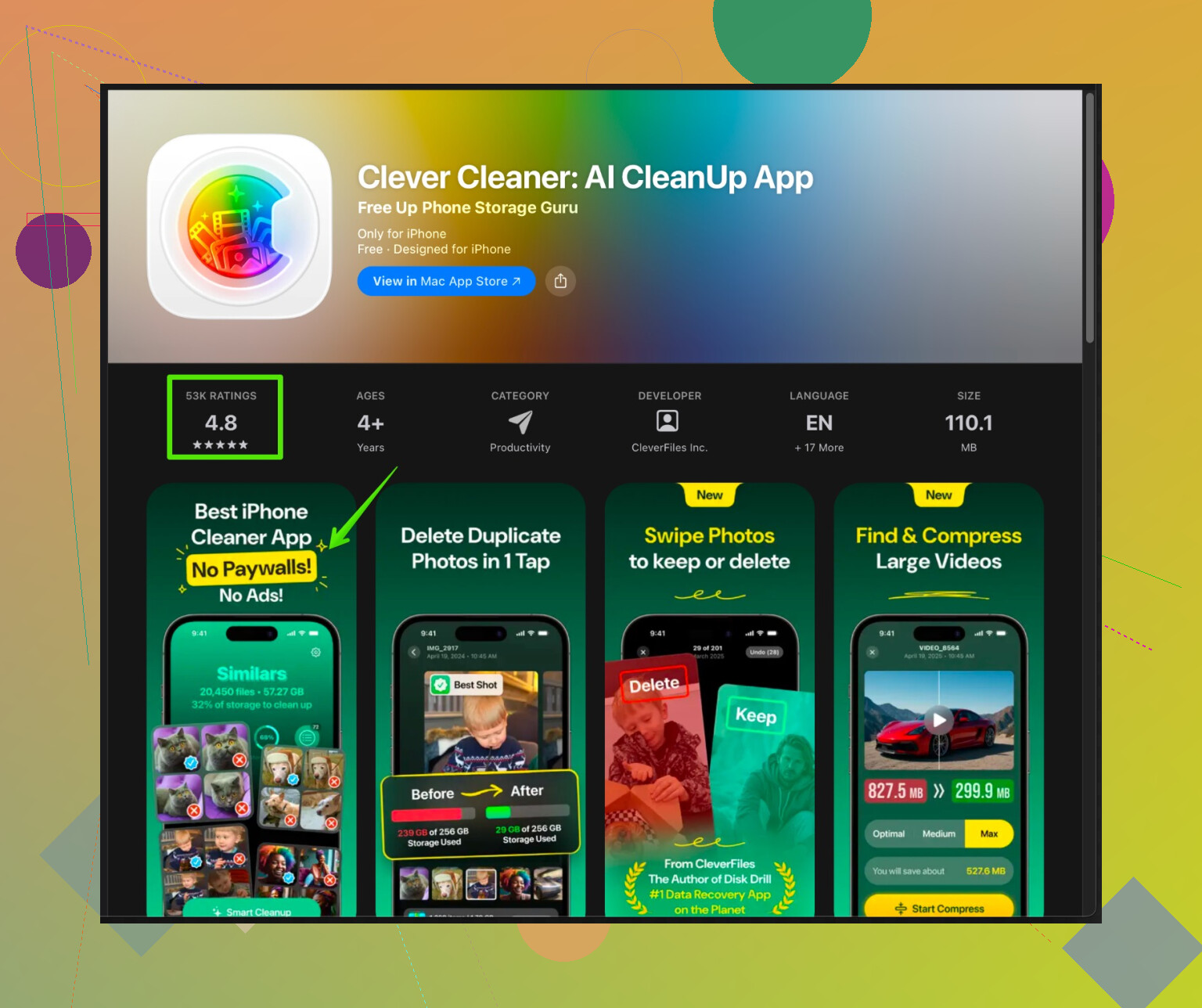
- If your storage is a mess with duplicates, similar photos, and random junk, try something like the Clever Cleaner App.
- It helps clear duplicate photos, huge videos, blurred shots, and other space hogs so your iPhone has room to breathe again.
- Check this link for more info on the app and features:
smart iPhone cleaner for faster performance
-
If all else fails
- Backup to iCloud or a computer.
- Settings > General > Transfer or Reset iPhone > Erase All Content and Settings.
- Set it up as a new phone first, test performance before restoring your backup.
- If it is still slow even as a “new” phone, you likely have hardware trouble, usually battery or storage.
Start with storage and battery health. Those two cause most slowdowns from what I see. Then move through the list until the lag eases up.
18 Likes
First thing: don’t stress, this happens a lot and it’s not always just “phone is old now lol.” @voyageurdubois covered the obvious stuff pretty well (storage, battery, background refresh, etc.), so I’ll try not to rehash the same checklist.
Here are some other angles that are often missed and can cause the exact lag you’re describing:
1. Keyboard and typing lag in particular
Since you mentioned typing is slow:
- Go to Settings > General > Keyboard
- Turn off “Predictive,” “Smart Punctuation,” and temporarily “Auto‑Correct” to see if it helps.
- If you use third‑party keyboards (Gboard, etc.), switch back to Apple’s default for a bit. Those can absolutely cause stutter, especially after updates.
Also:
Settings > General > Transfer or Reset iPhone > Reset > Reset Keyboard Dictionary.
Corrupted keyboard data can make typing laggy without affecting other stuff.
2. Widgets and Home Screen clutter
iOS widgets look nice but can be performance hogs, especially on older phones:
- Long press on your Home Screen
- Remove any widgets you never actually look at (Weather, Photos memories, giant stack widgets, etc.)
- If you have tons of widget stacks, cut it down to 1 or 2 max
This can make swiping between screens feel a lot smoother.
3. Focus on system processes, not just apps
Instead of closing apps (which honestly doesn’t help much and can sometimes hurt performance):
- Plug the phone in, connect to Wi‑Fi, lock it, and leave it alone for an hour or two
- After updates, the phone does indexing, photo scanning, etc. in the background.
- If you never let it sit idle on power, it keeps trying to finish that work while you’re using it, which feels like random lag.
I actually disagree a bit with the “just update to latest iOS” advice in a blanket way.
If your phone is on the oldest supported model for the current iOS, sometimes each new point release can feel heavier. In that case, make sure:
- You’re on the latest point release for your major version (e.g., 17.x.y), but maybe don’t jump to a brand new major version on day one if you’re already struggling.
4. Check for iCloud sync overload
If your Photos or iCloud Drive just started a big sync, the whole phone can feel laggy:
- Settings > Your Name > iCloud > Photos
- If “Syncing…” or “Uploading…” is going crazy, that’s a clue.
- Also open the Photos app and see if it says things like “Updating…” or “Analyzing…”
In that case, leave the phone plugged in on Wi‑Fi overnight and let it finish its life crisis.
5. VPNs, profiles, and security apps
You already restarted and closed apps, but:
- Settings > VPN
- Turn off / delete any VPN you’re not actively using. Some of them slow down everything, not just browsing.
- Settings > General > VPN & Device Management
- Remove old work/school profiles you don’t need. They can push policies that affect performance.
Security / “antivirus” / parental control apps can also hook deeply into the system and cause jank.
6. Overheating = automatic throttling
If your phone feels warm a lot:
- Check if you use a super thick case or a metal one that traps heat
- Try using it for a while with no case and see if the lag improves
- Don’t charge + game + full brightness at the same time
iOS will silently throttle performance when your phone is hot, even if battery health is fine.
7. Freeing usable space, not just a tiny bit
You tried closing background apps, but that’s not the same as freeing disk space. iOS really hates running with barely any “headroom.”
Past what @voyageurdubois said about storage, one extra trick:
- Go to Messages
- Settings > Messages > Keep Messages > Set to 30 Days (if you’re ok losing old chats)
- Then let it clean itself up. Huge media-heavy chats can slow search and storage handling.
If your photo library is a disaster (duplicates, burst pics, blurred shots, 20 variations of the same screenshot), that alone can bloat things.
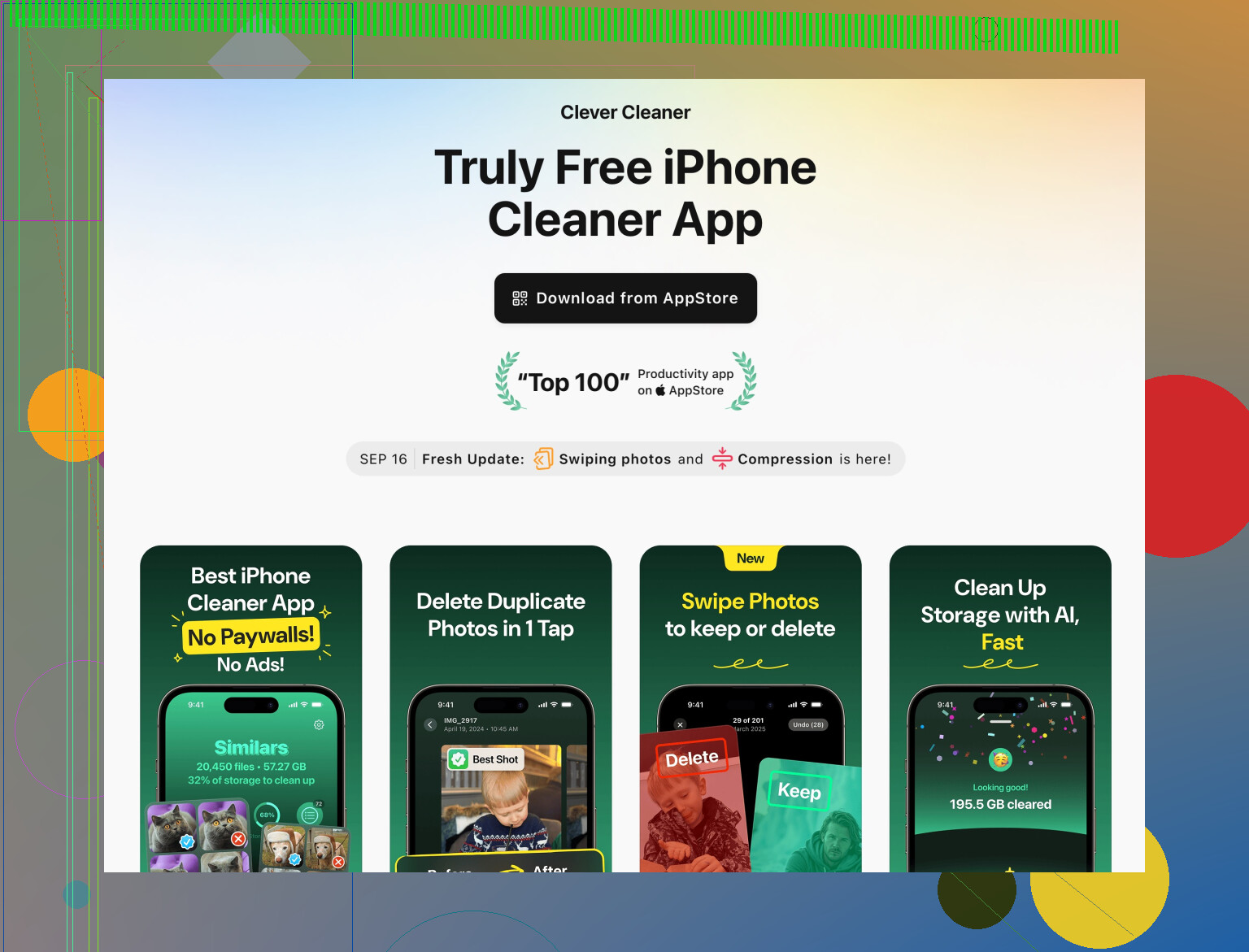
This is where something like the Clever Cleaner App can actually be useful. Instead of just randomly deleting stuff:
- It scans for duplicate and similar photos
- Finds giant video files
- Helps clear out blurred or useless shots
- Frees up storage without you manually digging through everything
For people with years of junk on their phones, a tool like that can be way more efficient than trying to micro-manage every folder. You can check out this smart iPhone cleaning and optimization guide to see what it does and how it helps speed things up.
8. Test if it’s software vs hardware without going nuclear
Before jumping straight to “erase all content,” a simpler test:
- Create a new temporary user environment by:
Settings > General > Transfer or Reset iPhone > Reset > Reset All Settings- This does not delete your data
- It resets Wi‑Fi, layout, settings, etc.
- If performance improves a lot after this, your slowdown was config-related, not hardware.
If it’s still laggy after:
- Reset All Settings
- Freeing a bunch of storage
- Letting indexing/iCloud finish
- Killing widgets, VPNs, and heavy keyboards
then yeah, you’re probably looking at:
- Aging battery that’s not yet under 80% but underperforming
- Failing storage chip (NAND) which only shows up as random lag and stutter
At that point, full backup + erase + test as a “new” phone is the hard truth test.
If you want to narrow it down, reply with:
- Your iPhone model
- iOS version
- How much free storage you have
- Battery health percentage
and which parts feel the worst (typing, camera, scrolling in certain apps). That can point pretty strongly to where the bottleneck actually is.
Quick angle that @nachtdromer and @voyageurdubois didn’t lean on as much: figure out when the lag hits and tie that to what the phone is doing internally, instead of only flipping settings.
1. Narrow down the pattern
Ask yourself:
- Is it worst right after unlock, then slightly better?
- Does it spike when you open anything that needs network (Mail, App Store, social apps)?
- Is it mainly in typing / keyboard, or literally every animation?
If it is mostly:
- Right after unlock: suspect iCloud, Photos, or heavy widgets loading.
- Anything online: suspect flaky Wi‑Fi / DNS / VPN, which can feel like “laggy phone” when it is really “waiting for network.”
- Typing: keyboard / text services corruption.
You already got the fix ideas, but this pattern check tells you whether it is worth doing a full wipe or just targeted cleanups.
2. Look for network bottlenecks, not just CPU
This part often gets ignored:
-
Try turning Wi‑Fi off for a few minutes and use only cellular. If things suddenly feel snappier, the issue is probably:
- Slow or unstable Wi‑Fi
- Bad DNS (often from a VPN or custom profile)
- A “security” or filtering app watching all traffic
-
Try the reverse: Airplane Mode on, then Wi‑Fi only. If lag vanishes, some background cellular process or location-based app is hammering the radios.
If network-related lag is the culprit, deleting and reinstalling a few network-heavy apps can help more than toggling animations.
3. System logs check (lightweight way)
Not a full-on dev thing, but you can get a clue:
- Go to Settings > Privacy & Security > Analytics & Improvements > Analytics Data.
- Scroll and see if any single app name keeps repeating around the latest timestamps.
If you see the same app a lot near the current date, that app may be crashing or spinning in the background and slowing the whole system. Removing it, then reinstalling, can have a big impact.
4. When I actually disagree a bit
- Constantly force closing apps, like some people recommend, is usually a waste on iOS and can even make things feel slower because every reopen is a cold start.
- I am also not a fan of immediately doing a full erase unless you have clear signs of corruption. It is overkill if the issue is a single misbehaving app, a clogged photo library, or one bad keyboard.
I would only consider “Erase All Content and Settings” after you have:
- Freed at least 10 to 20 GB of space.
- Tested without VPNs / weird profiles.
- Reset keyboard settings and turned off third‑party keyboards.
- Let the phone sit plugged in on Wi‑Fi for a few hours to finish indexing.
5. Storage cleanup with a bit of realism
Both replies already talked about storage, but here is the nuance: it is not just how full it is, but what fills it.
- Huge video files, decades of photos, and bloated Messages threads slow thumbnail generation, search, and backups.
- Random app caches are less important; iOS manages a lot of that itself.
This is where a cleaner tool can actually make sense. Since you mentioned not wanting to dig manually forever, a dedicated photo and junk cleaner can be worth it.
The Clever Cleaner App is one of those “let me clean your chaos” tools. Some context so you can decide if it is worth bothering with:
Pros:
- Finds duplicate and similar photos, which are a common space hog.
- Flags giant videos that you might not realize are eating several GB.
- Can help prune blurred or low quality shots, which you probably do not care about.
- Once storage is back under control, iOS generally becomes more responsive, especially for Photos and Messages.
Cons:
- Any cleaner app needs access to your photos and data to work, so privacy‑sensitive people should check permissions carefully.
- It is not magic. If your lag is due to hardware (aging storage, failing battery) or a rogue app, no cleaner app will fix that.
- If you are already disciplined with storage, the gains will be smaller and maybe not worth another installed app.
I would treat Clever Cleaner App as a targeted tool for:
- Enormous photo libraries
- Video junk
- People who have had their phone for years without ever doing a serious cleanup
Not a daily “booster” you constantly run.
6. Hardware suspicion checklist
If after:
- Cleaning storage (manually or with something like Clever Cleaner App)
- Killing weird VPNs and profiles
- Resetting keyboard settings
- Reducing widgets
- Letting indexing finish
it is still laggy on a fresh reboot, then the boring truth might be hardware:
- Subtle storage degradation: manifests as random stuttering and hanging when opening apps or saving photos, even if you have free space.
- Battery that is not yet under 80% but sags under load, causing frequent micro‑throttling.
At that point, a backup + erase + test-as-new is a valid next move. If even a fresh setup, with no extra apps or data, is choppy, that is your signal to talk to Apple about hardware, not keep flipping settings.
If you post your exact model, iOS version, free space, and battery health, people here can usually guess pretty accurately whether you are dealing with “just needs a cleanup” or “this phone is nearing end-of-life performance-wise.”