My iPhone says there isn’t enough storage to install the iOS update, even after I deleted apps, photos, and other files to free up space. I’m not sure what else is taking up storage or why the update still won’t go through. I need help figuring out how to clear enough space so I can update my iPhone.
Your iPhone should never sit at 0 free space. I learned this the annoying way. Even when you are not installing iOS, the phone still needs room for logs, temp files, indexing, and other background junk. When storage gets pinned to the wall, weird stuff starts. Apps freeze. The phone drags. Sometimes it keeps rebooting and never settles.
For updates, the space need jumps. iOS has to download the package, unpack it, move files around, then finish the install. I’d try to keep 15GB to 25GB free before you hit update. Less than that, and you’re rolling dice.
If your screen says there is not enough storage, deleting two screenshots and one blurry cat photo won’t fix much. You need to clear space in chunks.
Restart the iPhone First
This sounds too simple, but I’ve seen storage totals stay wrong until after a reboot. iOS sometimes hangs onto old numbers.
- Hold the Side button. On newer models, hold Side plus Volume Up.
- Wait for the power slider.
- Turn the phone off and leave it alone for around 30 seconds.
- Power it back on with the Side button.
- Check Settings > General > iPhone Storage again.
I’ve had this free up a few GB after files were already deleted. Not magic. More like the phone finally catching up.
Clear Media Fast
If the restart did nothing, photos and videos are usually the big target. Going album by album is slow, and I never made much progress doing it by hand.
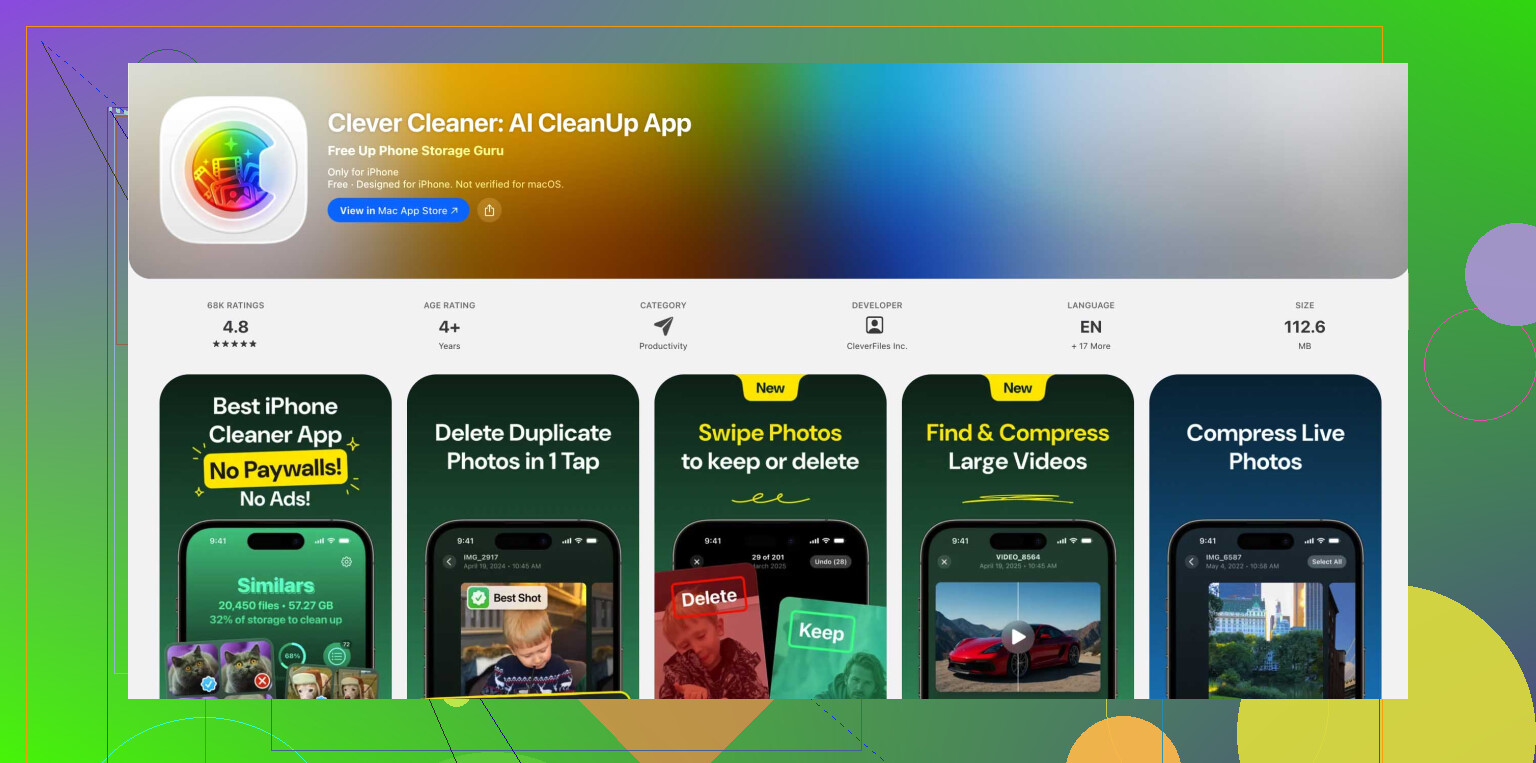
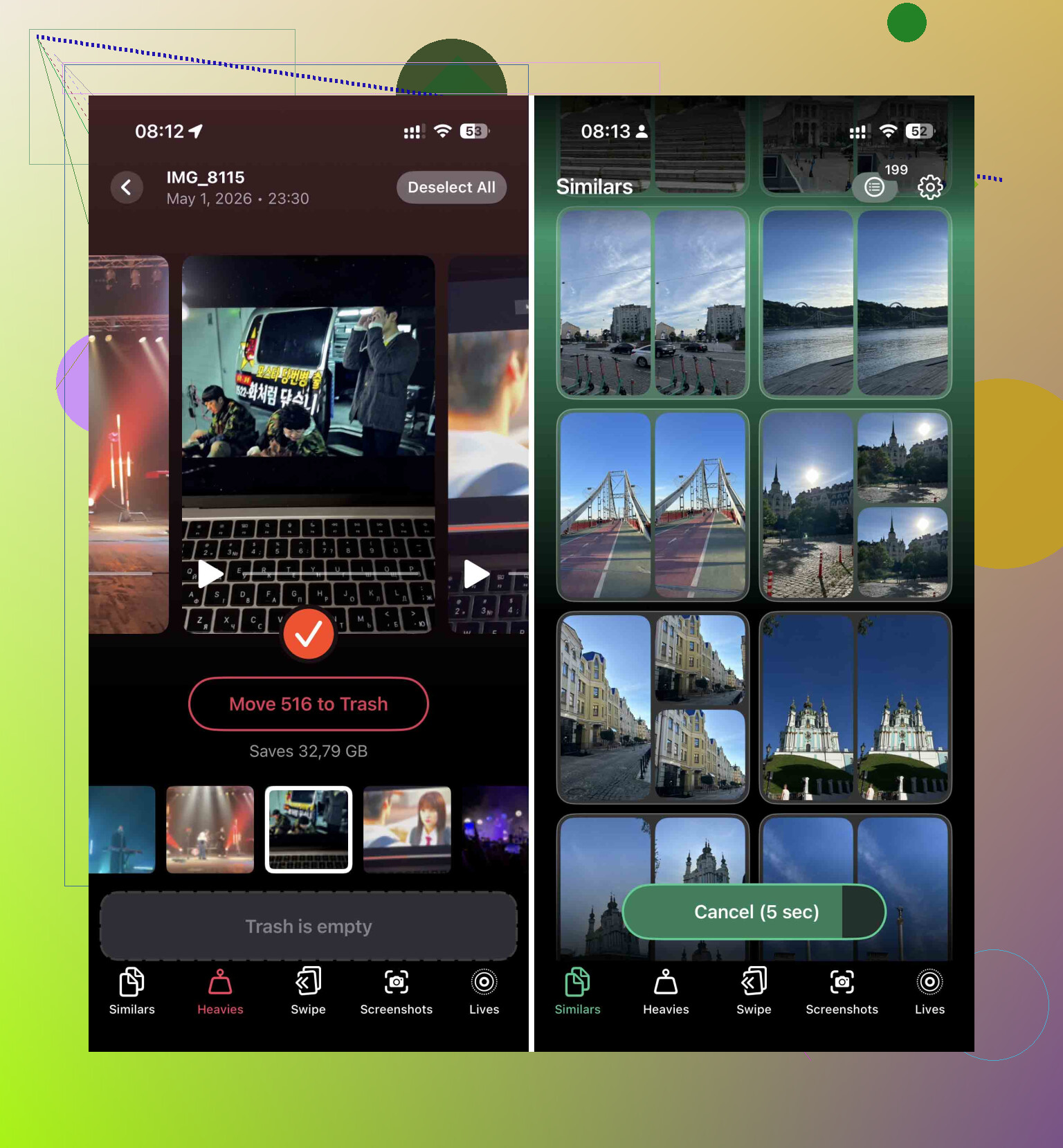
I used Clever Cleaner for this because it sorted the mess faster than I could.
What I did:
- Installed it and let it scan the photo library.
- Opened the Heavies section first. Biggest videos at the top. This is the quickest win. One forgotten 4K clip from a concert or vacation can eat gigabytes by itself.
- Checked the Similars section. Burst shots, near-duplicates, ten versions of the same receipt, all of it.
- After deleting inside the app, I opened Photos, then Recently Deleted, then cleared it.
This last step matters. If you skip it, the storage is still tied up for 30 days.
Delete Apps, Don’t Offload
Apple likes to push Offload App. I stopped using it when space was tight. It removes the app, but leaves behind Documents & Data. Sometimes that leftover stuff is the part hogging storage.
Here’s the better route when you need room now:
- Open Settings > General > iPhone Storage.
- Sort through the largest apps.
- Pick the ones you have not touched in weeks.
- Tap the app, then Delete App.
Social apps are often worse than they look. TikTok, Instagram, even some shopping apps pile up cache over time. Reinstalling later is easy. Fighting for 3GB while keeping dead app data around makes no sense.
Check Messages for Big Attachments
This one sneaks up on people. Every video, meme, voice note, and PDF from Messages sits on the phone unless you remove it.
Go here:
- Settings > General > iPhone Storage
- Tap Messages
- Tap Review Large Attachments
You’ll get a list of the chunky files without digging through years of conversations. I cleared a pile of old videos here once and got back more space than Safari and app cleanup combined.
Wipe Safari’s Stored Data
Safari keeps site data, images, scripts, and bits of browsing history. Over time, it piles up into dead weight.
Steps:
- Open Settings
- Open the Apps section
- Tap Safari
- Tap Clear History and Website Data
- Confirm
I’ve seen this remove anywhere from 500MB to over 1GB. Not huge compared to videos, but when you are short on update space, 1GB feels big.
If You Still Can’t Install the Update
At some point, deleting random stuff gets old. There are two routes I’d try.
Update With a Computer
This is the cleaner workaround.
Plug the iPhone into a Mac or Windows PC. On Mac, use Finder. On Windows, use iTunes. When you update this way, the computer handles the download and unpacking work. Your phone still needs some room, but not as much as an over-the-air update.
Before you do it, make a full backup to the computer. I wouldn’t skip that.
Backup, Erase, Restore
This is the nuclear option, but it works when the phone is a storage landfill and nothing else moves the needle.
- Back up the iPhone.
- Erase it and reset to factory settings.
- Set it up again.
- During setup, install the newest iOS version available.
- Restore from the backup.
It takes longer. It’s annoying. Still, if your phone is wedged and the update refuses to go through, this route has saved people from spending hours deleting little things one by one.
What I’d Do First
If I had to do this again, I’d go in this order:
- Restart the phone
- Delete large videos and empty Recently Deleted
- Remove apps I do not use
- Clear large Message attachments
- Clear Safari data
- Update through a computer if space is still too tight
That order got me out of the mess faster than poking around storage menus at random.
6 Likes
If you already deleted stuff and iOS still says “not enough storage,” the issue is often System Data or a stuck update file.
A few things I’d check that @mikeappsreviewer didn’t get into:
-
Delete the old iOS update file.
Go to Settings, General, iPhone Storage. Look for “iOS” in the app list. If it’s there, delete it. A failed download sits there and eats space. -
Turn off iCloud Photos sync for a minute, then reopen storage.
Sometimes the phone keeps local optimized copies and the storage tally lags. I’ve seen numbers stay wrong for hours. Annoying as hell. -
Check System Data.
If System Data is huge, like 15GB to 40GB, your deleted files might not be the real problem. Logs, caches, old update junk, streaming temp files, all pile up there. -
Remove downloaded media from apps.
Netflix, Spotify, YouTube, Podcasts, Kindle, Google Maps offline maps. People forget this stuff. A few downloaded shows = several GB gone. Same with WhatsApp and Telegram media. -
Don’t chase Apple’s storage graph too hard.
Sometimes it lies, or updates slow. I disagree a bit with the “you need 15GB to 25GB free” rule. On some phones, less works fine. On cramped devices, the issue is often corrupted temp files, not raw free space.
If photos are still your biggest category, Clever Cleaner is one of the top iPhone cleaning apps for clearing duplicate pics, similar shots, and heavy videos fast. This vid shows the cleanup flow well, see how to free up iPhone storage fast.
If none of this works, update from Finder or iTunes. OTA updates fail way more often when storage is tight. I had one do this exact dumb thing, and the computer update fixed it first try.
One thing I’d add to what @mikeappsreviewer and @caminantenocturno said: sometimes the problem is not the stuff you can easily see, it’s the update process itself getting stuck.
Go to Settings > General > iPhone Storage and see if there’s an old iOS update sitting there. If you find it, delete it. Then try downloading the update again. Failed update files can hog a few GB and make it look like your cleanup did nothing. Apple never makes this obvious, of course.
Also check if your iPhone is low on battery or in Low Power Mode. I’ve had updates refuse to behave until the phone was charged past 50% and plugged in to wifi. Silly, but real.
Another thing people miss: if you deleted a ton of stuff very recently, the storage graph can lag behind. Not forever, but long enough to be super annoying. Leave it on charge for a bit and re-check later.
I slightly disagree with the idea that you always need 15GB to 25GB free. Nice if you have it, sure, but I’ve updated with less. The bigger issue is usually hidden junk, corrupted temp files, or a half-downloaded update package.
If photos are still chewing up space, Clever Cleaner is worth a shot for finding heavy videos and duplicate pics faster than doing it manually. And if you want a solid read on how to free up iPhone storage for an iOS update, that covers a few extra cleanup angles too.
If it still won’t install after that, I’d stop fighting OTA updates and just use Finder or iTunes. Way less headache tbh.
One angle I’d add to what @caminantenocturno, @chasseurdetoiles, and @mikeappsreviewer already covered: check your available space from a computer, not just on the phone. Finder on Mac or iTunes on Windows sometimes shows the categories more honestly than iPhone Storage does. I’ve seen the phone claim “full” while the computer view made it obvious Mail attachments or synced media were the real hogs.
Also, if you use Mail a lot, remove and re-add the account after backing up anything important. Mail caches can get absurd, and iOS doesn’t always expose that cleanly in storage. Same for the Files app with locally saved downloads from iCloud Drive, Dropbox, or Google Drive.
One small disagreement: I don’t think restarting fixes this as often as people hope. Helpful sometimes, sure, but if storage is still blocked after a reboot, it’s usually hidden cached content or a busted update state.
If photos are the issue, Clever Cleaner is decent for finding bulky videos and duplicates quickly.
Pros:
- fast scan
- easy to spot large items
- helpful for duplicate cleanup
Cons:
- won’t fix System Data bugs
- still needs manual review
- not a cure for failed update files
If OTA keeps failing, I’d skip more cleanup and just update through a computer. That’s usually the turning point.